Avamar: How to Enable Debug in Bare Metal Recovery Wizard
Summary: This article explains how to enable debug mode during a Windows client Bare Metal Restore (BMR) using the Avamar Bare Metal Recovery Wizard.
This article applies to
This article does not apply to
This article is not tied to any specific product.
Not all product versions are identified in this article.
Instructions
Enable Debug via the Bare Metal Recovery Wizard
Avtar Debug
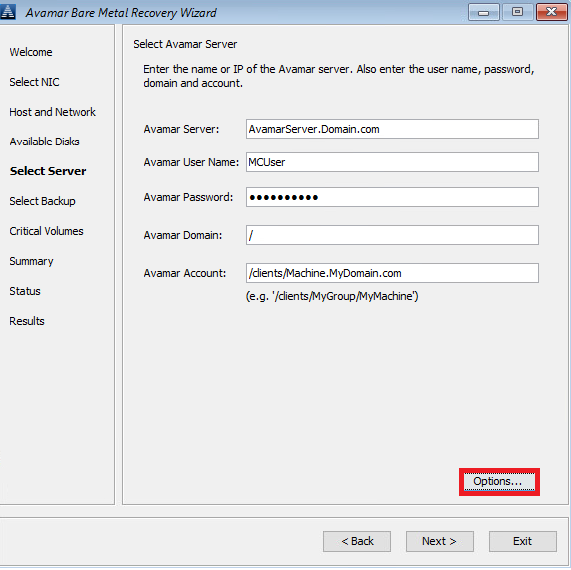
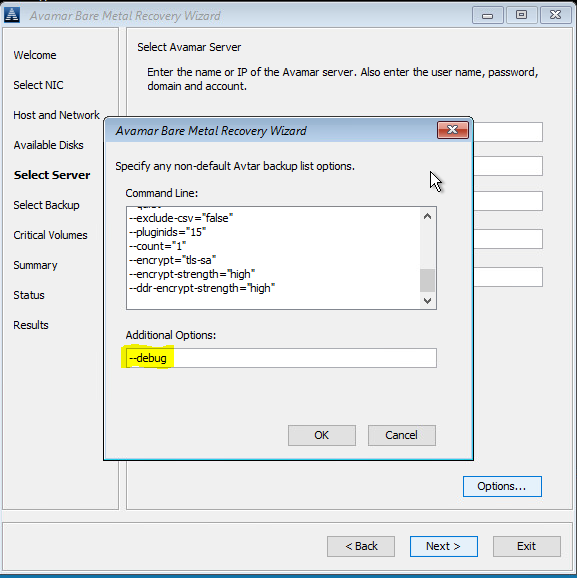
- In Select Server, click Options and type --debug (this enables debug in avtar).
Avvss Debug
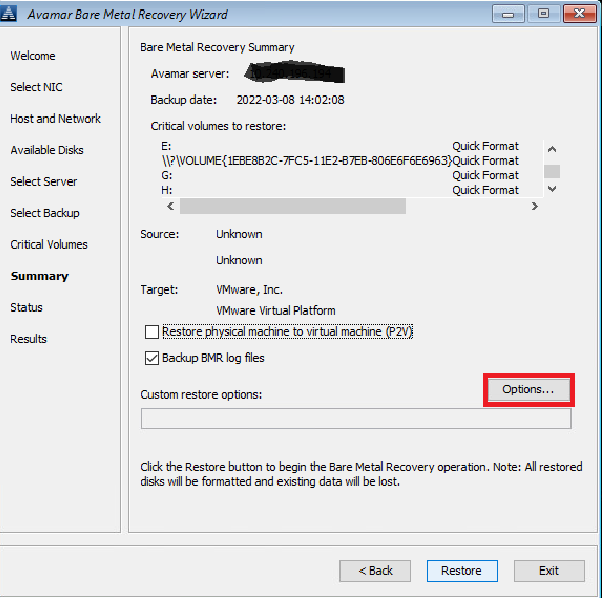
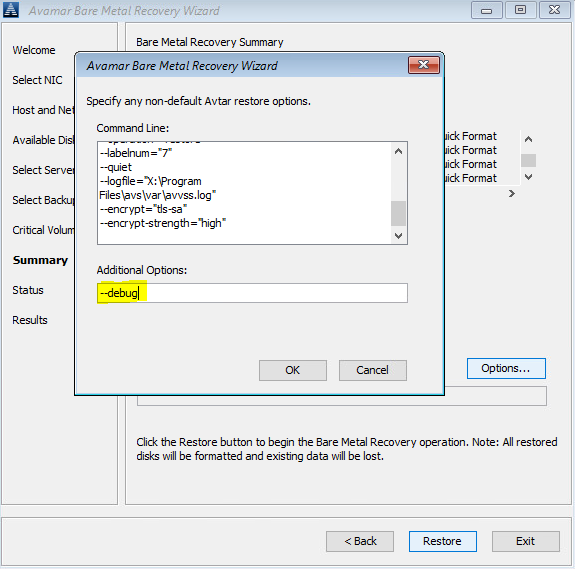
- In Summary, click 'Options' and type in --debug (this will enable 'debug' in avvss)
Enable Debug via Command Line (Alternative)
Open the hidden command‑line window behind the Avamar BMR Wizard and create avtar.cmd and avvss.cmd files in X:\Program Files\avs\var folder.
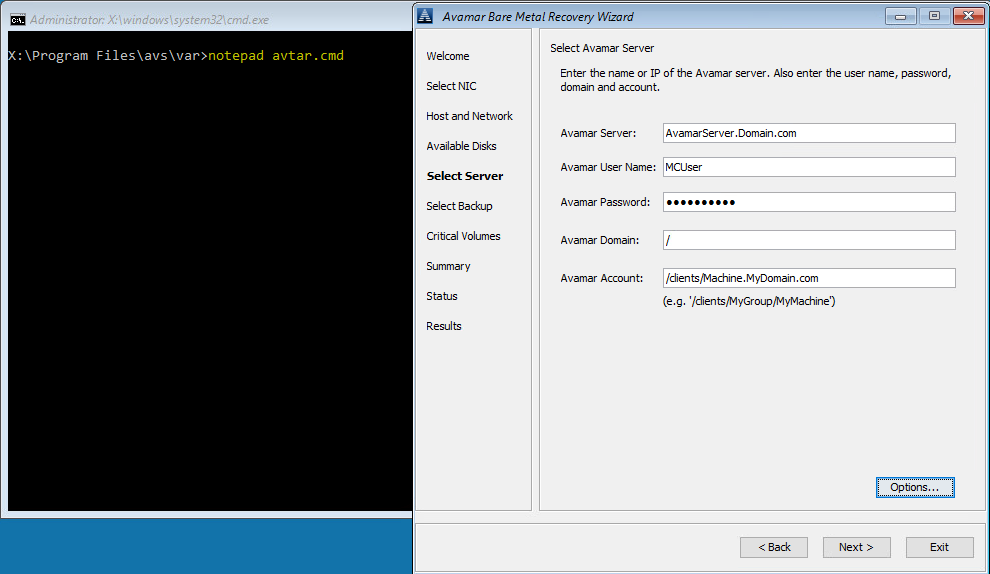
Avtar Debug
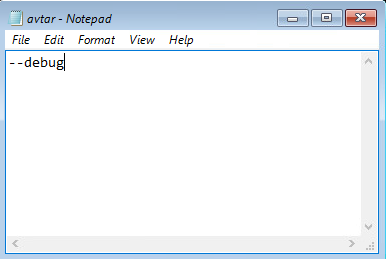
- Use Notepad to edit avtar.cmd, add the --debug flag, and save the file.
Avvss Debug
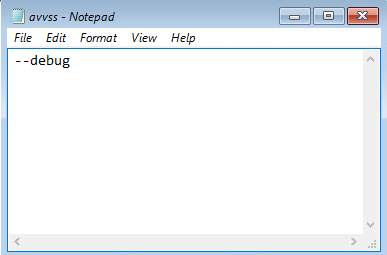
- Use Notepad to edit avvss.cmd, add the --debug flag, and save the file.
Affected Products
AvamarProducts
Avamar Client for WindowsArticle Properties
Article Number: 000197689
Article Type: How To
Last Modified: 11 Sept 2026
Version: 8
Find answers to your questions from other Dell users
Support Services
Check if your device is covered by Support Services.