How to Use SupportAssist Docking Station Diagnostics
Summary: This article explains how to run the built-in dock diagnostics tool inside Dell SupportAssist. The tool checks whether a connected Dell docking station is detected, verifies each port can recognize a connected device, and reports the dock's firmware (package) version and service tag. Use it to troubleshoot dock connectivity, power, port, or firmware issues. ...
This article applies to
This article does not apply to
This article is not tied to any specific product.
Not all product versions are identified in this article.
Instructions
Prerequisites
- SupportAssist must be installed and up to date. Download the latest version from SupportAssist for Home PCs.
- The docking station must be physically connected to the computer.
Step 1 — Run the Dell SupportAssist Update Software option
The latest USB, network, display drivers, and docking station firmware need to be installed.
- Type
SupportAssistin the Search box and open the application. - On the Home tab, select Update software (Figure 1).
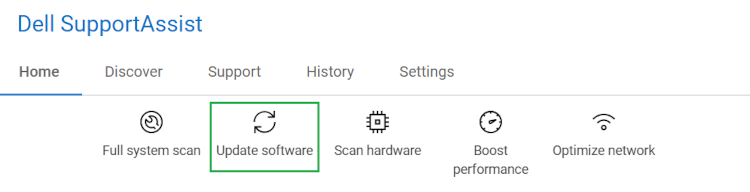
Figure 1: SupportAssist Home Screen Update Software Option - Click Start and follow the prompts to install any drivers or software listed.
Step 2 — Run a Full Dell SupportAssist Hardware Checkup
- Type
SupportAssistin the Search box and open the application. - On the Home tab, select Scan Hardware (Figure 2).
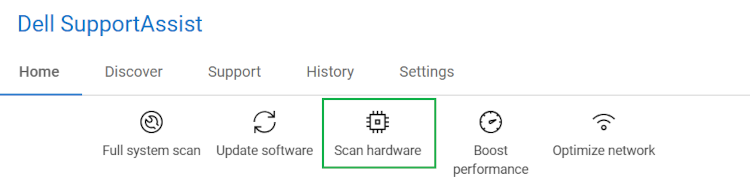
Figure 2: SupportAssist Home Screen Scan Hardware Option - Click Start.
- After the diagnostics are complete, select check the History Page, and then select Details to review the results. Make note of any failures.
Step 3 — Run diagnostics in SupportAssist specifically for Dell docking stations
- Browse to Run SupportAssist Diagnostics for Docking Stations.
- The test runs automatically.
- Follow the prompts to test the docking station.
Frequently Asked Questions
Q: Which SupportAssist version do I need to run dock diagnostics?
A: Version 3.11.4 or later.
Q: The test result says "Fail" — is my dock broken?
A: Not necessarily. This message appears whenever the Fail button was selected on any port during testing, including by mistake. Re-run the test if you believe Fail was clicked in error.
Affected Products
D/Dock Expansion-Station, Dell Dock WD15, Dell Dock with Monitor Stand DS1000, Dell Dual Charge Dock HD22Q, Dell Dual Video USB3.0 Docking Station D1000, Dell Pro Dock WD25, Dell Pro Smart Dock SD25, Dell Rugged Desk Dock
, Dell SuperSpeed USB 3.0 Docking Station, SupportAssist for Home PCs, Dell Thunderbolt Dock TB15, Dell Thunderbolt Dock TB16, Dell Precision Dual USB-C Thunderbolt Dock - TB18DC, Dell Universal Dock D6000, Dell Universal Dock - D6000S, Dell Universal Dock UD22, Dell USB3.0 dock D3100, Dell Dock WD19, Dell Performance Dock - WD19DC, Dell Performance Dock – WD19DCS, Dell Dock – WD19S, Dell Thunderbolt Dock - WD19TB, Dell Thunderbolt Dock – WD19TBS, Dell Wireless Dock, Dell Wireless Docking Station WLD15, C/Dock Expansion Station, C/Dock II Expansion Station, Dell Thunderbolt Dock – WD22TB4
...
Article Properties
Article Number: 000203763
Article Type: How To
Last Modified: 06 Jul 2026
Version: 6
Find answers to your questions from other Dell users
Support Services
Check if your device is covered by Support Services.