PowerEdge: MX7000 Editing VLANs in a Template vs. in the SmartFabric Configuration
Summary: This article discusses the differences in editing VLANs in the Templates section of OpenManage Enterprise Modular (OME-M), vs. editing them in the SmartFabric configuration directly.
This article applies to
This article does not apply to
This article is not tied to any specific product.
Not all product versions are identified in this article.
Instructions
Overview:
With the flexibility of OME-M and SmartFabric services, multiple types of configurations can be achieved in terms of VLAN deployment on MX chassis switches. For example, a template may be created for a one-to-many deployment. Or, multiple templates may be created for sleds of different operating systems and wanted configurations. The purpose of this article is to explain in greater detail the "do's and do nots" of making VLAN changes in OME-M when SmartFabric mode is configured in the environment.
Scenario:
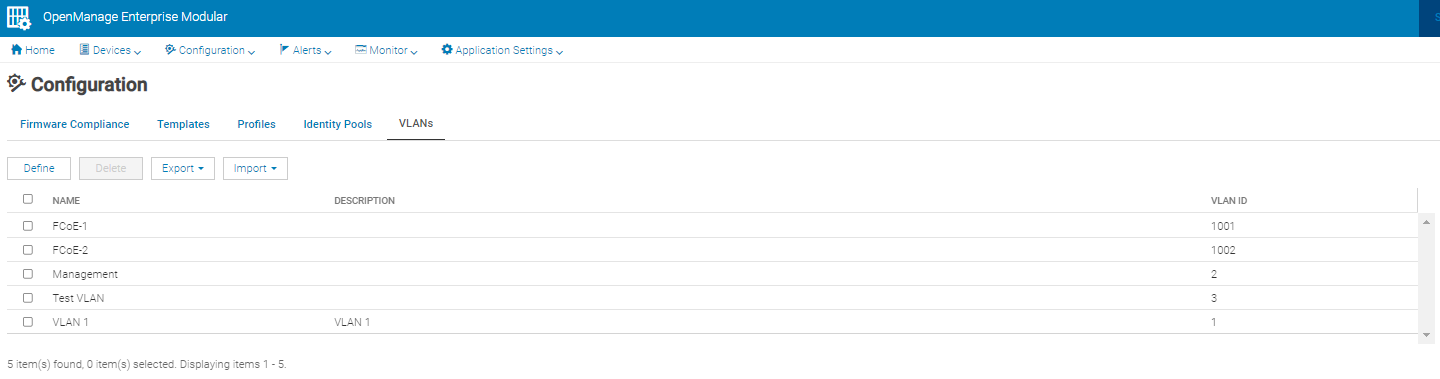
- VLANs are created from the Configuration > VLANs page in OME-M.
- A user creates a template from Configuration > Templates, and adds appropriate VLANs from the Edit Network option of the same page.
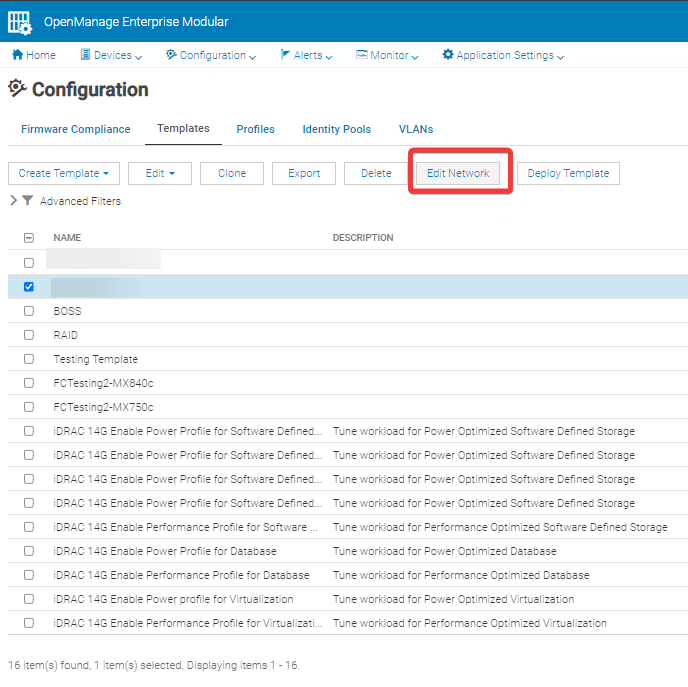
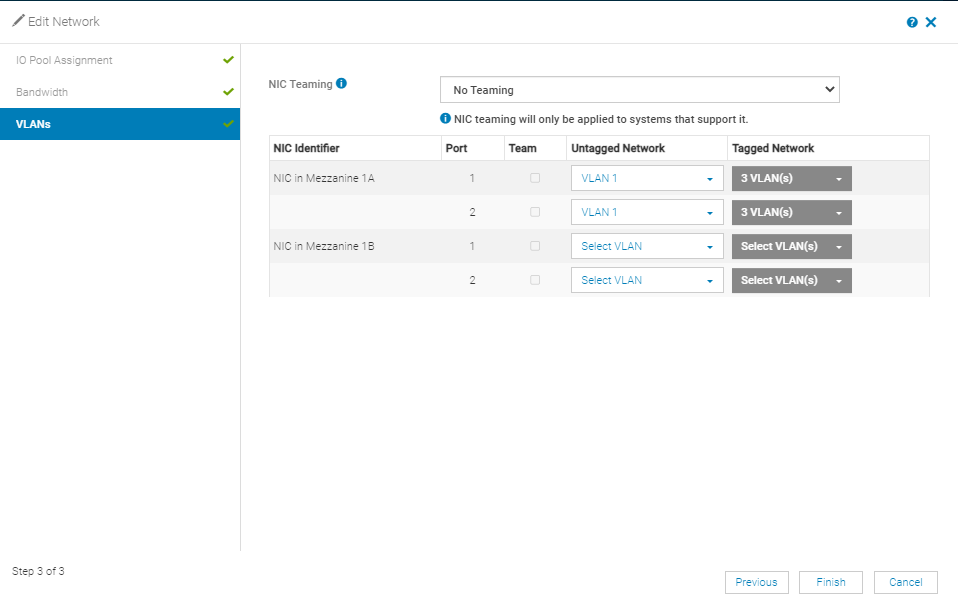
- That one template is then deployed to all sleds.
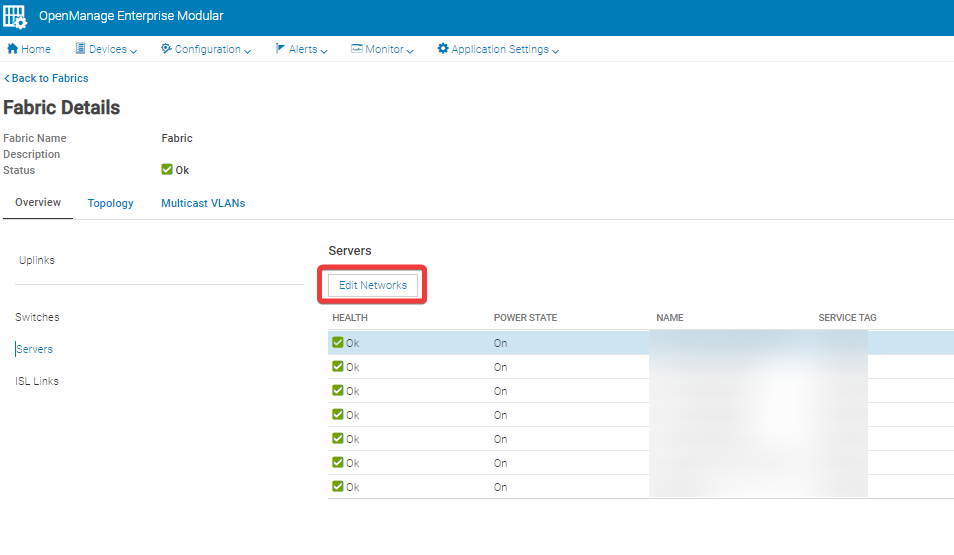
- Later, the user adds more VLANs to individual sleds in the SmartFabric directly, from Devices > Fabric > Servers > Edit Networks.
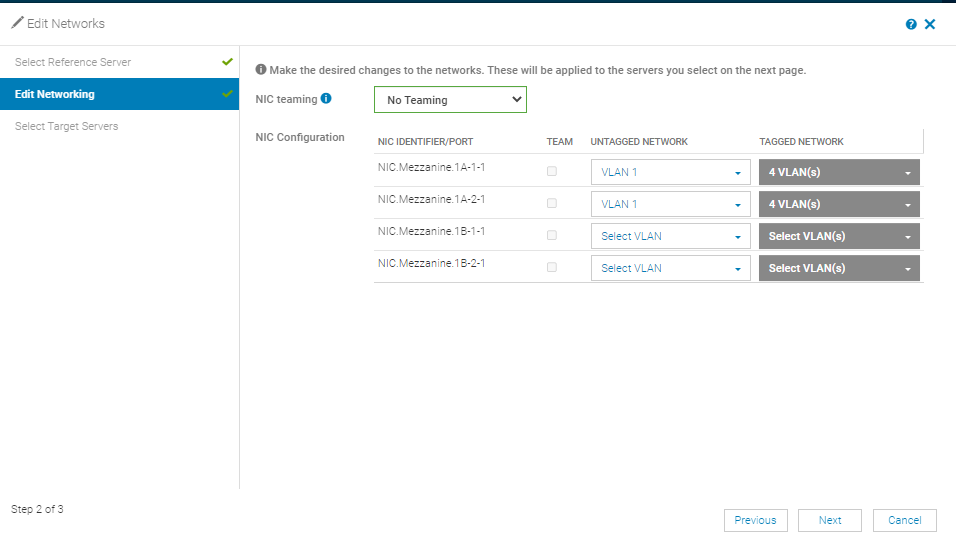
- At some point, a profile must be redeployed to only one sled. The original template had options for RAID, BOSS, or Disk checked. Before redeploying the profile, any of these options present must be cleared if we do not want to wipe the operating system.
- This is done from the Configuration > Templates > Edit > Edit Template option.
- After editing the template and before redeploying the profile, certain network connections or storage connectivity is lost in the environment.
Why did this happen?
- This is working as designed!
- When a template is edited, if Propagate VLAN settings immediately is enabled in the template, VLAN settings propagate to any sled associated with said template to match what is in the template. Below is an example of a VLAN propagation job that took place after editing a template (the job queue may be accessed by navigating to Monitor > Jobs):
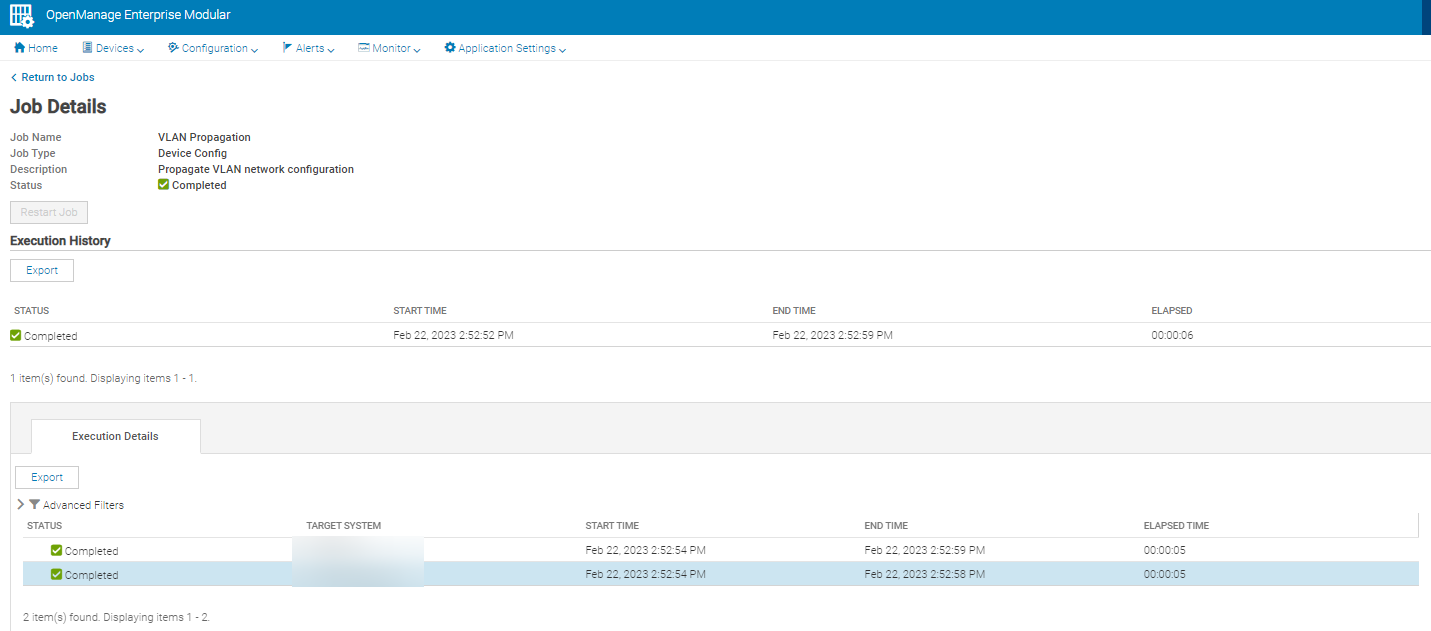
- From the example above, two sleds were associated with the edited template, and both of them had VLANs repropagated upon editing the template.
- To check if this setting is enabled, navigate to Configuration > Templates > Edit Network > VLANs and look for a checkbox for this setting.
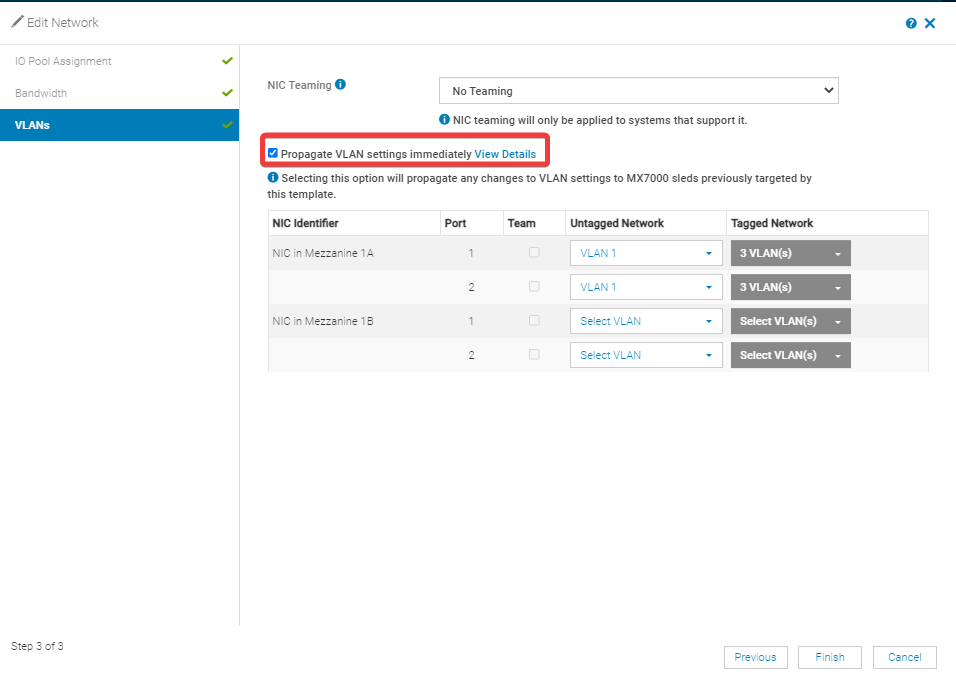
- A VLAN propagation job can both add and subtract VLANs. Any sleds associated with a template that has VLANs, where the template is edited, and has VLANs rematched from the template to the sled if the above-mentioned propagation option is enabled. This does not cause a reboot of the sled. If this option is wanted, VLANs propagate automatically anytime a template is edited, or VLANs are added, without the need to redeploy the profile or reboot the server for propagation to take place.
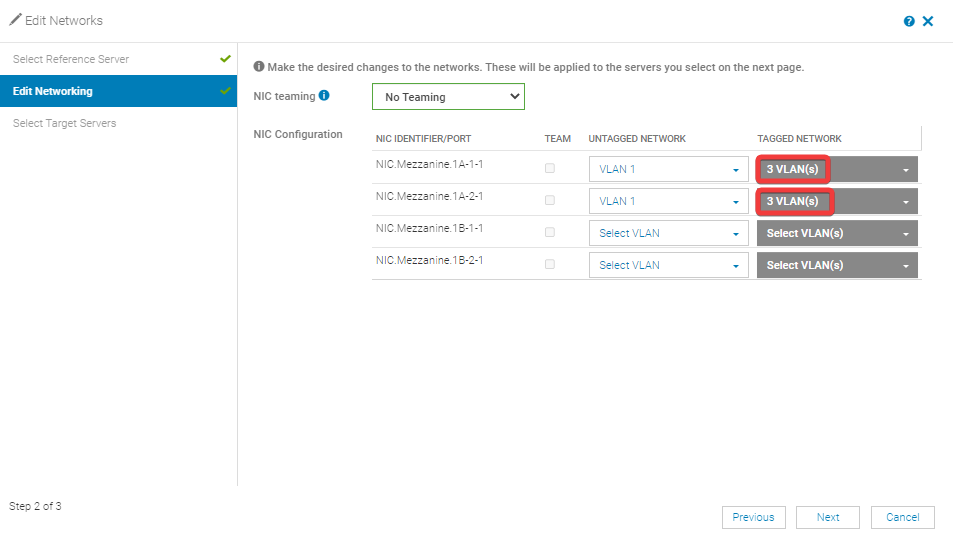
- Below is what we would end up with in the Edit Networks section of Devices > Fabric > Servers (not the Templates page, please be aware these do look alike) in the above scenario, after the VLAN propagation job took place:
Recommendations:
- If it is wanted to deploy a one-to-many template and if changes must be made to individual sleds from the SmartFabric as with the scenario above, it is recommended to clear the box for Propagate VLAN settings immediately.
- This would be recommended for if ever the template must be edited.
- Another option might be to deploy a separate template per each different configuration (Windows vs. ESXi, different VLAN access requirements, so on). In this type of configuration, there would be no need to edit individual server VLANs in the SmartFabric, and all editing would be done from the template instead.
Affected Products
Dell EMC Networking MX5108n, Dell EMC Networking MX9116n, Dell OpenManage Enterprise-Modular, PowerEdge MX7000, PowerEdge MX740C, PowerEdge MX750c, PowerEdge MX840C, SmartFabric OS10 SoftwareProducts
PowerEdge MX5016s, PowerEdge MX760c, Dell EMC vSAN MX740c Ready Node, Dell EMC vSAN MX750c Ready Node, Dell vSAN Ready Node MX760cArticle Properties
Article Number: 000209969
Article Type: How To
Last Modified: 16 May 2025
Version: 4
Find answers to your questions from other Dell users
Support Services
Check if your device is covered by Support Services.