DM5500: How to Update PowerProtect Data Manager VM Direct Engine host file
Summary: During a DM5500 software update, the PowerProtect Data Manager Virtual Machine (VM) Direct Engine (vProxy) may be redeployed. If the vProxy relies on its /etc/hosts file for hostname resolution, the VM backup may fail. This article provides a procedure to restore these host entries to the vProxy. ...
Symptoms
During a DM5500 software update, the VM vProxy may be redeployed with the latest software version. This process can clear any manually added entries in the proxy's /etc/hosts file.
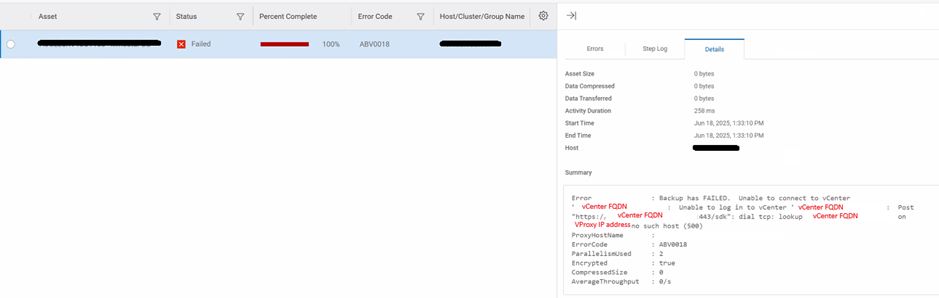
For proxies without hostname resolution, the absence of a proper host file may cause VM backups to fail due to the inability to look up the vCenter hostname. For example:
Cause
In isolated network environments where name resolution is not functioning, manual hostname and IP address mappings in the /etc/hosts file are required for the PowerProtect Data Manager vProxy to perform hostname lookups.
During a DM5500 software update, the external vProxy may be redeployed with the latest software version. Although the proxy's network configuration, such as the hostname or IP address is preserved, manually added entries in the /etc/hosts file are removed. The backup failed because of the vCenter hostname lookup failure.
Resolution
- Log in as "admin" to the DM5500 through SSH and gain access to the Data Manager BASH (see article PowerProtect Data Manager Appliance - DM5500: How to access BASH from PPOE)
- The Data Manager hosts file is in
/etc/hosts. The software update would not replace this file, but it is suggested to review and update the file if necessary.The PowerProtect Data Manager hosts file should contain the mapping for
- ESXi host
- vCenter
- vProxy
Each entry should contain the IP address, the fully qualified domain name (FQDN), and the short hostname.
- Get the vProxy login credential with the PowerProtect Data Manager command:
source /opt/emc/vmdirect/unit/vmdirect.env && /opt/emc/vmdirect/bin/vproxymgmt get -secretThe vProxy hostname, IP address, admin, and root user password can be found.
For example:VProxy ID: 5XXXXXX-XXXX-XXXX-XXXX-XXXXXXXX Type: External Hostname: vproxy.fqdn.com IpAddress: 123.45.67.89 Disabled: false Status: Ready Protection Type: VM VCenter inventory source ID: xxxxxxxxxxxxxxxxxxxxxxxxxxxxxx VCenter: vcentre.fqdn.com VM Name: vproxy.fqdn.com AdminCredentials-Username: 'admin' Password: '!1@2#3$4%5^6&7*8' RootCredentials-Username: 'root' Password: ')0(9*8&7^6%5$4#3' VM Configured Capacity Units: 80 VM Configured Control Units: 10000 VM Capacity Units in use: 0 VM Control Units in use: 0 VM Control Sessions in use: 0 VM Transport Sessions in use: 0 - SSH to the vProxy that needs an update with the admin user, and then change the user to root.
Edit the
/etc/hostsfor each external vProxy if needed.
The vProxy /etc/hosts file should contain the mapping for- DM5500
- vCenter
Each entry should contain the IP address, the FQDN, and the short hostname.
- Test the VM backup again.