PowerProtect:シングル ユーザー モードからrootパスワードをリセットする方法
Summary: リセット手順は、rootパスワードを紛失した場合、または期限切れアカウントの回復手順が機能しない場合に使用できます(Dell KB 538547)。これは、PowerProtect Data Manager(PPDM)に適用されます。
This article applies to
This article does not apply to
This article is not tied to any specific product.
Not all product versions are identified in this article.
Instructions
- vSphere Web Clientへのブラウザー セッションを開き、管理者アカウントで認証します。
- インベントリーを参照してPowerProtectアプライアンス(PPDM)を見つけ、仮想マシンのスナップショットを作成します。
- PowerProtectアプライアンスのVMware Remote Consoleウィンドウを起動します。
- PowerProtectアプライアンスの [Restart Guest OS] オプションを選択します。
- 再起動中に「ESC」 ボタンを押して、GNU GRUBブートローダ画面にアクセスします。

- 最初のオプションを選択し 、「e」 と入力して起動コマンドを編集します。(注:GNU GRUBオプション画面がロードされない場合は、Shiftキーを押したままにします)

- GNU GRUBブートローダーページで、Linux行に書き込み権限でbashシェルを起動するオプションを追加します(スクリーンショットを参照):rw init=/bin/bash
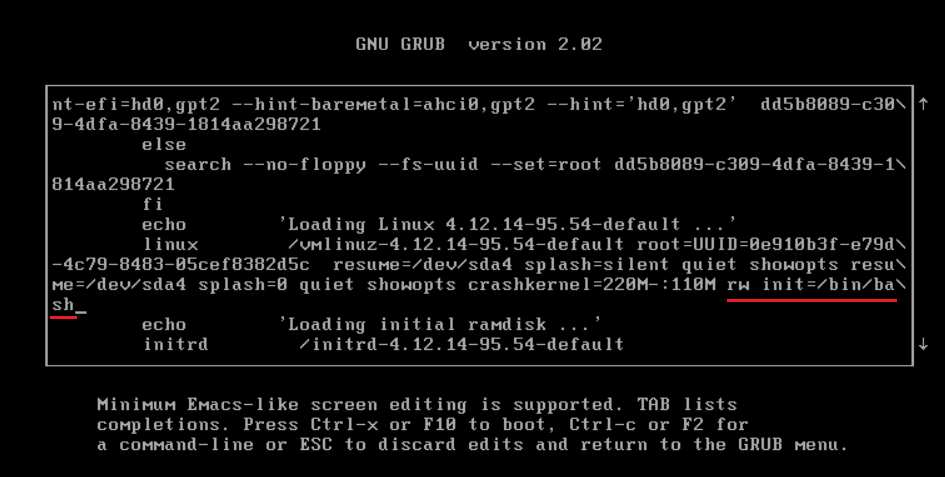
- 「CTRL+x」を押して、新しいLinuxカーネル オプションを使用してアプライアンスをシングル ユーザー モードで起動します。
- passwdコマンドを入力して、新しいrootパスワードを設定します。passwd
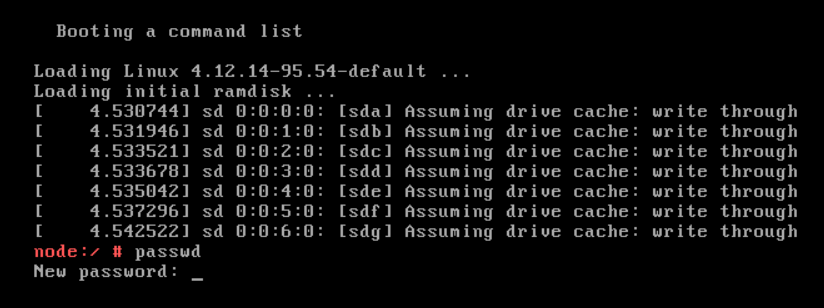
- PowerProtectアプライアンスを再起動します。 reboot
- 再起動コマンドが機能しない場合(error = "failed to talk to init daemon")、forceオプションを使用します。 sudo systemctl reboot --force--force
Additional Information
Dellナレッジベース 000020479 - PowerProtectでOSパスワード エージング ポリシーを変更する方法。
Affected Products
PowerProtect Data Manager, PowerProtect X400 Appliance, PowerProtect SoftwareArticle Properties
Article Number: 000181219
Article Type: How To
Last Modified: 07 Aug 2025
Version: 3
Find answers to your questions from other Dell users
Support Services
Check if your device is covered by Support Services.