PowerProtect: 단일 사용자 모드에서 루트 암호를 재설정하는 방법
Summary: 루트 비밀번호를 분실했거나 만료된 계정 복구 단계가 작동하지 않을 때 재설정 단계를 사용할 수 있습니다(Dell KB 538547). 이는 PPDM(PowerProtect Data Manager)에 적용됩니다.
This article applies to
This article does not apply to
This article is not tied to any specific product.
Not all product versions are identified in this article.
Instructions
- vSphere Web Client에 대한 브라우저 세션을 열고 관리자 계정으로 인증합니다.
- 인벤토리를 탐색하여 PPDM(PowerProtect Appliance)을 찾고 가상 머신 스냅샷을 생성합니다.
- PowerProtect 어플라이언스에 대한 VMware Remote Console 창을 시작합니다.
- PowerProtect 어플라이언스에 대해 "Restart Guest OS" 옵션을 선택합니다.
- 재부팅하는 동안 "ESC" 버튼을 눌러 GNU GRUB 부팅 로더 화면에 액세스합니다.

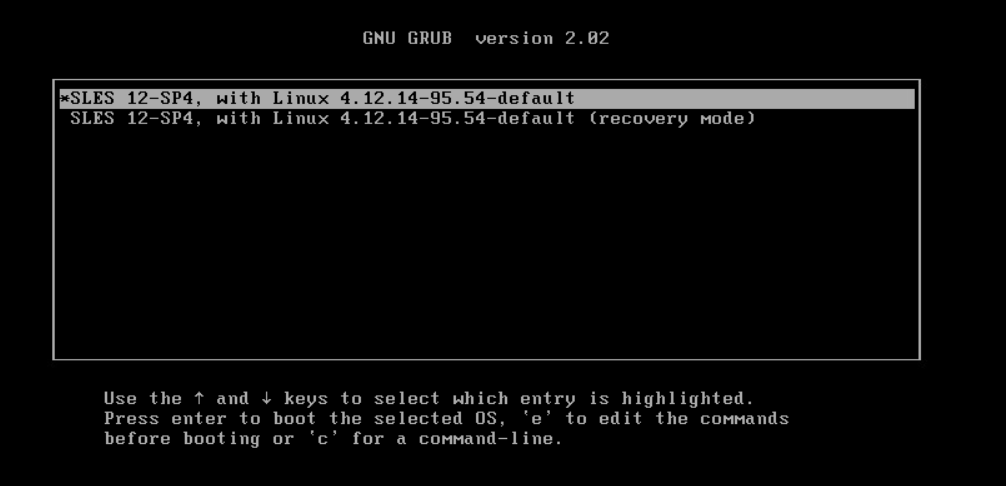
- 첫 번째 옵션을 선택하고 "e" 를 입력하여 부팅 명령을 편집합니다. 참고: GNU GRUB 옵션 화면이 로드되지 않는 경우 Shift 키를 누르고 있음)
- GNU GRUB 부트 로더 페이지에서 Linux 줄에 쓰기 권한이있는 bash 셸을 시작하는 옵션을 추가합니다 (스크린 샷 참조). rw init = / bin / bash
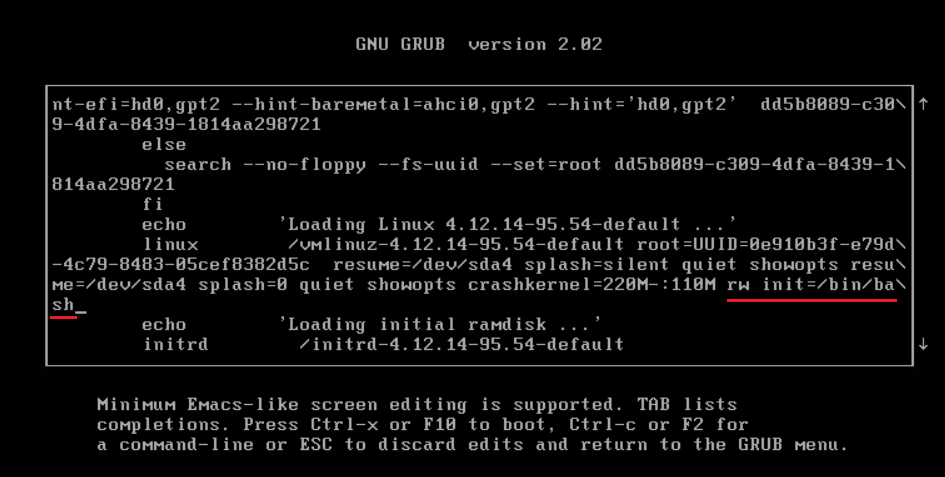
- 새 Linux 커널 옵션을 사용하여 단일 사용자 모드로 어플라이언스를 부팅하려면 "CTRL+x" 를 누릅니다.
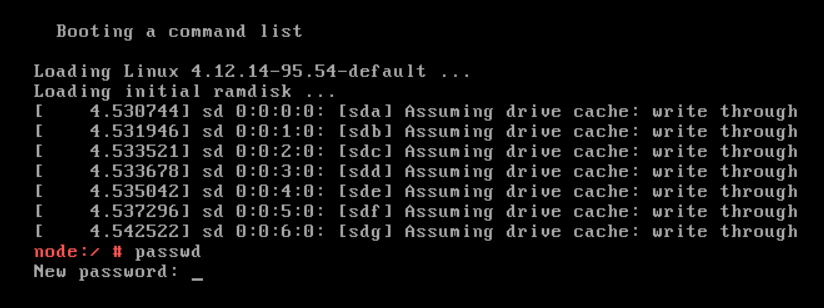
- passwd 명령을 입력하여 새 루트 암호를 설정합니다. passwd
- PowerProtect 어플라이언스 재시작: 재부팅
- 재부팅 명령이 작동하지 않는 경우(error = "failed to talk to init daemon"), force 옵션을 사용합니다. sudo systemctl 재부팅 --force --force
Additional Information
Dell 기술 자료 000020479 - PowerProtect에서 OS 암호 에이징 정책을 변경하는 방법
Affected Products
PowerProtect Data Manager, PowerProtect X400 Appliance, PowerProtect SoftwareArticle Properties
Article Number: 000181219
Article Type: How To
Last Modified: 07 Aug 2025
Version: 3
Find answers to your questions from other Dell users
Support Services
Check if your device is covered by Support Services.