PowerProtect:如何從單一使用者模式重設根密碼
Summary: 當 root 密碼遺失,或是還原過期的帳戶步驟無法運作時,可能會使用重設步驟 (Dell KB 538547)。這適用於 PowerProtect Data Manager (PPDM)。
This article applies to
This article does not apply to
This article is not tied to any specific product.
Not all product versions are identified in this article.
Instructions
- 開啟瀏覽器工作階段至 vSphere Web 用戶端,並使用系統管理員帳戶進行驗證。
- 瀏覽清查以尋找 PowerProtect 裝置 (PPDM),並拍攝虛擬機器快照。
- 啟動 PowerProtect 裝置的 VMware 遠端主控台視窗。
- 選取 PowerProtect 裝置的 「重新啟動客體作業系統」 選項。
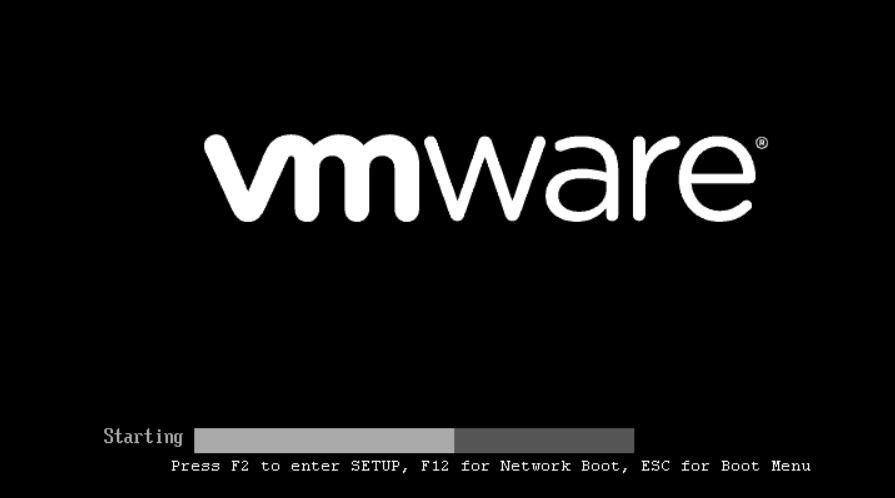
- 重新啟動時,按“ESC” 按鈕以訪問 GNU GRUB 引導載入器螢幕。
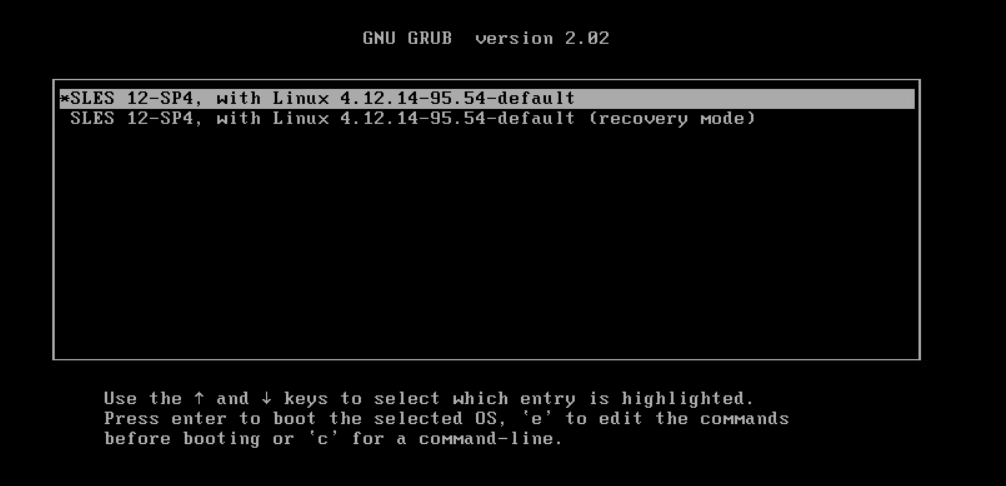
- 選取第一個選項,然後輸入 「e」 以編輯開機命令。(備註:如果 GNU GRUB 選項畫面未載入,請按住 Shift 鍵)
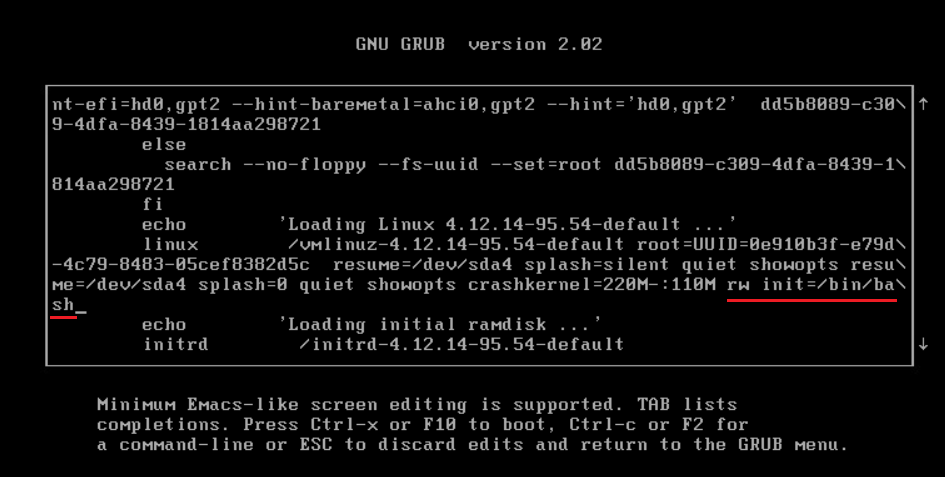
- 在 GNU GRUB 引導載入器頁面中,添加在 Linux 行中啟動具有寫入許可權的 bash shell 的選項(參見螢幕截圖):rw init=/bin/bash
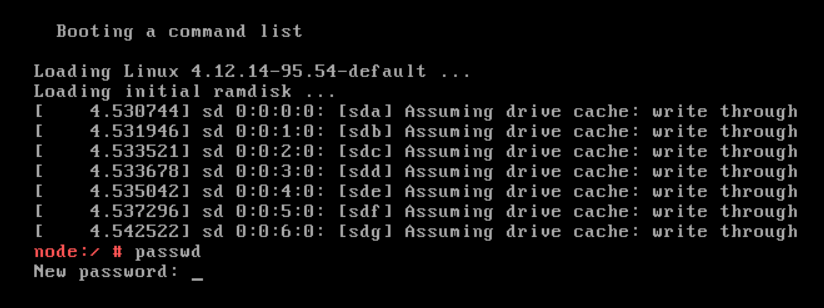
- 按下 「CTRL+x」, 使用新的 Linux 核心選項,以單一使用者模式啟動裝置。
- 輸入 passwd 命令以設定新的根密碼: passwd
- 重新啟動 PowerProtect 裝置: 重新開機
- 如果重新開機命令無法運作 (錯誤 =「無法與 init 精靈對話」),請使用 force 選項: sudo systemctl reboot --force --force
Additional Information
Dell 知識庫000020479 - 如何在 PowerProtect 中變更作業系統密碼過時政策。
Affected Products
PowerProtect Data Manager, PowerProtect X400 Appliance, PowerProtect SoftwareArticle Properties
Article Number: 000181219
Article Type: How To
Last Modified: 07 Aug 2025
Version: 3
Find answers to your questions from other Dell users
Support Services
Check if your device is covered by Support Services.