PowerFlex 4.X: How To Use Internal PowerFlex Manager HTTP Share for 4.X Uploads
Summary: This article explains how to use the internal HTTP share for 4.x PowerFlex Manager Release Certification Matrix (RCM), Intelligent Catalog (IC), ISO uploads.
Instructions
PowerFlex Manager 4.6.x and below has an internal http file share that can be used to upload ISOs, RCMs, or IC bundles via external URLs
PowerFlex Manager 4.8.x and above, as part of security hardening directory listing for http-share is no longer exposed through external URLs.
This can be useful if CIFS shares are not available or not working properly for any reason.
Steps
-
Find the PFMP node that is hosting the http share pod:
# kubectl get pod -n powerflex -o json http-share-0 | jq -r '.spec.nodeName'
pfmp1
- Copy the needed file to the /opt/platform/fileshare directory on that node, pfmp1 in this example.
- Useful tools to accomplish this are WinSCP, Filezilla, or SCP from another Linux host.
- Any utility allowing a copy of the needed files to the Linux PFMP host can be used.
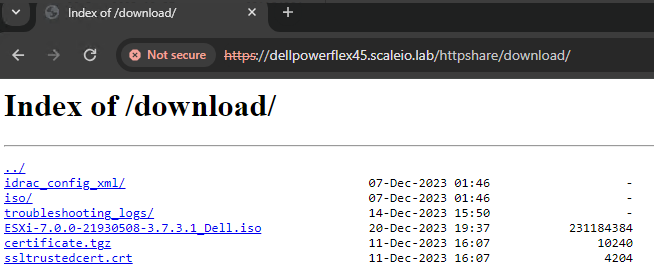
- For v4.6.x and below (/download endpoint directory is used here)
Check that the file is now seen from the http share.
- Use a web browser and connect to "https://<PFMP_FQDN>/httpshare/download/
- There should be a few files there, including the file just copied in step 2.
- In this example, note the ESXi iso file that shows in the browser
For v4.8.x and above (/download_with_listings endpoint directory is used here)
- Identify the available file names by running the command below from a MVM
(Note: The same folders and files are also visible on the MVM hosting the http-share pod under /opt/platform/fileshare)
kubectl exec -it $(kubectl get pods -A | grep "thin-deployer-" | grep -i running | awk '{print $2}') -n powerflex -- \
curl -sk https://http-share.powerflex/download_with_listings/ \
| sed -n '/<pre>/,/<\/pre>/p' \
| sed -e 's/<a href="[^"]*">//g' -e 's#</a>##g' \
| sed 's#<pre>##; s#</pre>##' \
| sed '/^<h1>/d' \
| sed '/^<hr>/d' \
| sed '/^\.\.\/$/d' \
| sed 's/^[[:space:]]*//' \
| sed '1i\Directory listing: /download_with_listings/\n----------------------------------------'
For v4.6.x and below
Collect the link to the needed file by right-clicking the file and selecting "Copy link address".
For v4.8 and above
The FilePath will be https://<PFMP_FQDN>/download_with_listings/<filename>
(replace <filename> with the filename from the Step 3)
- Go to the Settings section of PFxM dependent upon the file that must be uploaded:
- RCM, IC bundle: Settings > Compliance Versions
- ISOs: Settings > OS Images
- Click the "Add" button and fill out the file path as collected from step 4, along with any other pertinent information. No credentials are needed for this HTTP share.
- Click the "Test Connection" button to ensure the path and file are reachable.
- Finalize the RCM, IC, or ISO image repository by clicking the "Add" button on the lower right.
The RCM, IC bundle, or ISO is now added as a repository to use for deployments.