VxRail: Troubleshooting Guide for GPU (NVIDIA) Issues
Summary: Troubleshooting guide for GPU (NVIDIA) Issues
This article applies to
This article does not apply to
This article is not tied to any specific product.
Not all product versions are identified in this article.
Instructions
NVIDIA GPUs are supported on VxRail V-series appliances and enable customers to use GPUs to applications such as Virtual Desktop environments. For supported GPU models and support scope, refer to article 000021349 GPU Support on VxRail
Architecture Diagram:
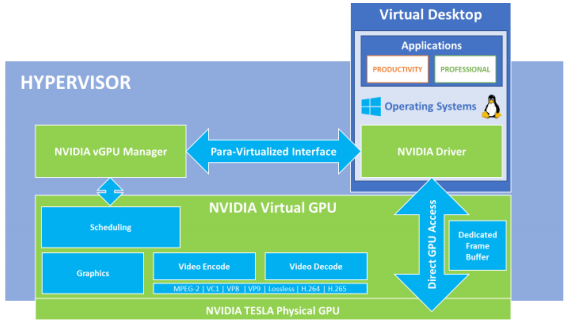
Components that should be configured to ensure proper functionality:
- BIOS MMIO settings
- NVIDIA vGPU driver installation
- PCI Pass-through settings for the host
- Configuring the correct Graphics type for the host
- VM Settings configurations, and choosing the correct GPU type
- Installing the appropriate NVIDIA OS driver
Confirming that the ESXi kernel detects GPUs:
- Checking whether the
nvidia-smicommand returns a viable output rather than an error as below:
[root@node04:~] nvidia-smi
Wed Feb 19 22:54:10 2020
+-----------------------------------------------------------------------------+
| NVIDIA-SMI 418.109 Driver Version: 418.109 CUDA Version: N/A |
|-------------------------------+----------------------+----------------------+
| GPU Name Persistence-M| Bus-Id Disp.A | Volatile Uncorr. ECC |
| Fan Temp Perf Pwr:Usage/Cap| Memory-Usage | GPU-Util Compute M. |
|===============================+======================+======================|
| 0 Tesla M10 On | 00000000:3D:00.0 Off | N/A |
| N/A 28C P8 10W / 53W | 18MiB / 8191MiB | 0% Default |
+-------------------------------+----------------------+----------------------+
| 1 Tesla M10 On | 00000000:3E:00.0 Off | N/A |
| N/A 27C P8 10W / 53W | 18MiB / 8191MiB | 0% Default |
+-------------------------------+----------------------+----------------------+
| 2 Tesla M10 On | 00000000:3F:00.0 Off | N/A |
| N/A 23C P8 10W / 53W | 18MiB / 8191MiB | 0% Default |
+-------------------------------+----------------------+----------------------+
| 3 Tesla M10 On | 00000000:40:00.0 Off | N/A |
| N/A 26C P8 10W / 53W | 18MiB / 8191MiB | 0% Default |
+-------------------------------+----------------------+----------------------+

+-----------------------------------------------------------------------------+
| Processes: GPU Memory |
| GPU PID Type Process name Usage |
|=============================================================================|
| 0 69942 G Xorg 4MiB |
| 1 69960 G Xorg 4MiB |
| 2 69977 G Xorg 4MiB |
| 3 69997 G Xorg 4MiB |
+-----------------------------------------------------------------------------+
- Confirm that
Xorgservice is running
[root@vxrail001:~] /etc/init.d/xorg status
Xorg is running
- Module should be listed as NVIDIA PCI-Passthrough
Correct Configuration:
# esxcli hardware pci list -c 0x0300 -m 0xf
... <output truncated>
ModuleName: nvidia

In-correct Configuration:
# esxcli hardware pci list -c 0x0300 -m 0xf
... <output truncated>
ModuleName: pciPassthru
Troubleshooting when the ESXi kernel does not detect GPU cards:
- The vSphere Enterprise License is required for GPU support
- Check whether the system is configured with the proper MMIO Base in the BIOS settings. To check, follow article 000039104 ESXi returns "Failed to initialize NVML" when installing NVIDIA driver on VxRail V-Series
- Check whether the correct NVIDIA vGPU VIB is installed. The latest compatible drivers can be downloaded from the NVIDIA Enterprise portal after logging in with customer credentials. Compatibility can be checked against VMware Compatibility Guide (External Link), example for Tesla M60
[root@node04:/tmp] esxcli software vib list | grep -i nvidia
NVIDIA-VMware_ESXi_6.5_Host_Driver 390.72-1OEM.650.0.0.4598673 NVIDIA VMwareAccepted 2018-07-26

To install a VIB:
# esxcli software vib install -v <full-file-path-to-vib>

To upgrade an already installed VIB:
# esxcli software vib update -v <full-file-path-to-vib>

To remove an installed VIB:
# esxcli software vib remove --vibname=<vib-name>                      // VIB name can be obtained from "vib list" command
- Confirm that not all devices are in passthrough mode, and that they are configured as Shared Direct (steps below can vary slightly due to interface and version differences)
- Select the host > Hardware > PCI Devices > click Edit
- Change the status of all the NVIDIA devices to Unavailable (or at least one of them)
- Go back to the host level > Hardware > Graphics
- Ensure that the graphics type is Shared Direct and not Shared
- A reboot is required for the node after this change, confirm with the customer prior to performing this action and ensure that the node is in maintenance mode and that the cluster has enough resources during this activity
- For licensing issues, refer to the NVIDIA Virtual GPU Software documentation Licensing section (External Link)
Troubleshooting VM GPU detection issues:
- Once you have the NVIDIA vGPU Manager operating correctly, then you can choose a vGPU Profile for the virtual machine. A vGPU profile allows you to assign a GPU solely to one virtual machine's use or to be used in a shared mode with others. When there is one physical GPU card on a host server, then all virtual machines on that server that require access to the GPU which uses the same vGPU profile.
In the vSphere Client, choose the VM, right click, and choose Edit Settings > choose the Virtual Hardware tab. In the New device list, select PCI Device or Shared PCI Device and click Add.
The PCI device field should be autopopulated with NVIDIA GRID vGPU. You can then use the GPU Profile dropdown menu to choose a particular profile from the set presented. The number in the second from last character in the profile represents the number of GB of GPU memory that the profile reserves for your VM. For more information about different GPU profiles available per GPU model, refer to NVIDIA Virtual GPU Software About vGPU Types section (External Link)
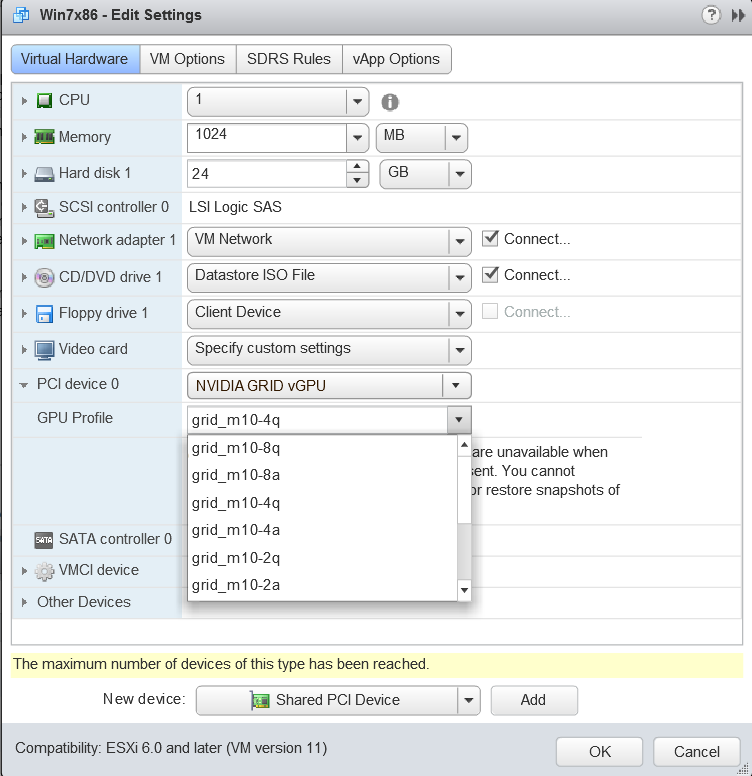
- Wrongly configuring vGPU profiles can result in VMs not being able to power on with the error
"The amount of graphics resource available in the parent resource pool is insufficient for the operation. An error was received from the ESXi host while powering on VM <vm-name>. Failed to start the virtual machine.This could also be due to an incorrect vGPU VIB installed, so check Confirming that the ESXi kernel detects GPUs section above to ensure that the GPU is being correctly detected by the ESXi. - For in-guest VM issues, ensure that the NVIDIA vGPU Manager version that was installed into the ESXi hypervisor is exactly the same as the driver version you are installing into the guest OS for your VM. For the installation guidance, consult the NVIDIA Virtual GPU Software Installation section (External Link)
- Output from the VM console in the VMware vSphere Web Client/vSphere Client is not available for VMs that are running vGPU. Ensure that you have installed an alternate means of accessing the VM (such as VMware Horizon or a VNC server) before you configure vGPU.
- vMotion support for VMs with vGPUs enabled - Support for the feature is starting vSphere version 6.7 Update 1 and later, for vGPU profiles of up to 12 GB of frame buffer (Equivalent to VxRail versions 4.7.x onwards). For more information, refer to VMware vSphere vCenter Server and Host Management (External Link)
Troubleshooting and Replacing faulty GPU cards:
- Open a support request with VxRail support.
Additional Information
Resources:
- NVIDIA Virtual GPU Software User Guide (External Link)
- VMware Blog Using GPUs with Virtual Machines on vSphere (External Link)
Affected Products
VxRail Appliance FamilyProducts
VxRail Appliance FamilyArticle Properties
Article Number: 000020725
Article Type: How To
Last Modified: 28 Jan 2026
Version: 4
Find answers to your questions from other Dell users
Support Services
Check if your device is covered by Support Services.