NetWorker Management Web UI (NWUI): Triage and Troubleshooting Guide
Summary: NetWorker Management Web UI (NWUI): Triage and Troubleshooting Guide
Instructions
How the NWUI works

There are four important components:
These components can be on the same host or on separate hosts.
- Web frontend: This is the presentation layer written in HTML5 and Angular Framework which presents NetWorker operations to the user through a web browser. The web-browser is connected to the UI backend processes.
- UI Backend: The backend application is written in Spring Framework. It uses java and Apache Tomcat. Communication between the frontend and backend and between the backend and the NetWorker server is done using internal REST API calls. The NWUI process uses either the existing Apache Tomcat instance on the NetWorker Server or installs its own Apache Tomcat instance if installed remotely from the NetWorker server.
- NetWorker Server: The NetWorker Server REST framework is responsible for receiving the REST API calls from the UI backend and connecting them to the NetWorker Server's core components. The NetWorker Server RabbitMQ message bus is also used for interaction with nsrjobd.
- AUTHC: The AUTHC component of NetWorker is used for all authentication needs. The requesting process contacts AuthC to verify credentials; upon verification, AuthC issues a time, based, signed, and encrypted token. NetWorker components use this token to verify the user and authorize or not a requested operation. This is usually on the NetWorker server, but can be installed on a separate host.
a { text-decoration: none; color: #464feb; } tr th, tr td { border: 1px solid #e6e6e6; } tr th { background-color: #f5f5f5; } Do not confuse these with the NetWorker REST API, which enables custom operations and is documented in the NetWorker REST API Developer Guide.
Troubleshooting
Defining the Issue
In order to generate a complete problem description, consider the following questions:
- What operation is being attempted which is not working?
- Does this operation work when initiated from outside NWUI (for example: From the NetWorker Management Console (NMC))?
- Is the issue consistent or intermittent?
- If intermittent, is there a known trigger?
- Did this work better before, and if so are there any known changes applied before and after the issue appeared?
- When did the issue first occur (and what changed since the issue appeared)?
- Does the issue happen only at times of heavy load on the backup environment?
- What is the scope of the issue (all recovery operations or some recovery operations, some tabs not working while others are not impacted)?
- What has been tried so far to fix and what conclusions have been drawn from this?
ENVIRONMENT DETAILS
- What is the NetWorker server version and operating system platform?
- Is NWUI installed on the NetWorker server or a separate host?
- What is the NWUI version if installed on a host separate from the NetWorker server?
- What Java package is installed on the NWUI server; is NetWorker Runtime Environment (NRE) installed or Oracle Java Runtime Environment (JRE).
nsrlogin command. For authentication issues, first test authentication on the NetWorker server to determine if the problem relates to NWUI or the server itself. If using AD or LDAP for authentication, first test with local NetWorker accounts to confirm if the issue only affects external authentication.
A typical command used to test whether the authentication process is working as expected on the NetWorker Server is:
authc_mgmt -u [user name] -p [password] -e find-all-users.
Or:
Local NetWorker account:
nsrlogin -u ACCOUNT -p PASSWORD
nsrlogout
nsrlogin -t TENANT -d DOMAIN -u USERNAME -p PASSWORD
nsrlogout
If further authentication diagnosis is required, see: NetWorker: How To Enable AUTHC DEBUG for Troubleshooting Purposes
Installation Issues
NetWorker Management Web UI (NWUI): How to Install
The important UI backend logs are:
| Linux Path | Windows Path (Default) | Function |
/nsr/authc/logs/catalina.log |
C:\Program Files\EMC NetWorker\nsr\authc-server\tomcat\logs\catalina.log |
Tomcat server logging and application deployment logging. |
/nsr/authc/logs/nwui.log |
C:\Program Files\EMC NetWorker\nsr\authc-server\tomcat\logs\nwui.log |
NWUI application server logging. |
| /nsr/logs/restapi/restapi.log | C:\Program Files\EMC NetWorker\nsr\restapi\restapi.log |
NetWorker REST API logging. NWUI communicates with the NetWorker server using NetWorker REST API. See the REST API section in this article to see how to diagnose what REST API functions are being used, along with the corresponding response. |
/nsr/logs/daemon.raw |
C:\Program Files\EMC NetWorker\nsr\logs\daemon.raw |
NetWorker server logging. |
If the NWUI server is on the NetWorker server itself, then it shares the same tomcat instance with NetWorker.
If you are providing a
.raw log file to support, it is advised to render the log file on the system from which it originates. This ensures that the timestamps are rendered in the local time of the server: NetWorker: How to use nsr_render_log
Log Files
Linux:
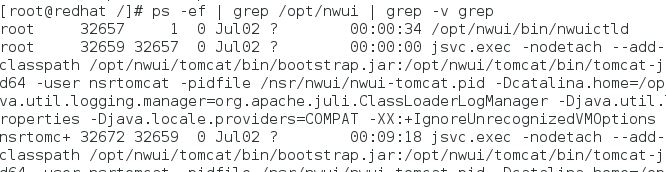
The processes which run for the UI backend are:
/opt/nwui/bin/nwuictld and jsvc.exec You can check if they are running with the ps command:
ps -ef | grep nwui
Local to NetWorker server:
/opt/nwui/logs/nsr/authc/logs//nsr/logs/restapi/restapi.log/nsr/logs/daemon.raw/nsr/nwui/monitoring/app/logs/
/opt/nwui/logs/nsr/nwui/logs
tar cvzfP /tmp/$(hostname)_$(date -I).tgz /opt/nwui/logs /nsr/nwui/logs /nsr/authc/logs /nsr/logs/daemon.raw /nsr/logs/restapi /nsr/nwui/monitoring/app/logs/ ; chmod 777 /tmp/$(hostname)_$(date -I).tgz ; ls -lth /tmp/$(hostname)_$(date -I).tgz
The windows NWUI backend process which must be running is called nwuictld.exe:

services.msc:

Local to NetWorker server
C:\Program Files\EMC NetWorker\nwui\logs\C:\Program Files\EMC NetWorker\nsr\authc-server\logsC:\Program Files\EMC NetWorker\nsr\restapi\restapi.logC:\Program Files\EMC NetWorker\nsr\logs\daemon.rawC:\Program Files\EMC NetWorker\nwui\monitoring\app\logs\
C:\Program Files\EMC NetWorker\nwui\logs%LOCALAPPDATA%\TempNetWorker_Management_Web_UI_Server_[TIMESTAMP].log%LOCALAPPDATA%\TempNetWorker_Management_Web_UI_Server_[TIMESTAMP]_0_MCUI.log
Run the nsrget tool on the NetWorker server to collect the relevant logs:
NetWorker: How to Use the NSRGet NetWorker Data Collection Tool
The most relevant logs depend on the operation being attempted from the NWUI. For more information about NetWorker logs, see:
NetWorker: Log Files and Locations
Debugging
logback.xml file on the NetWorker server:
Windows (Default):
C:\Program Files\EMC NetWorker\nsr\authc-server\tomcat\webapps\nwrestapi\WEB-INF\classes
Linux:
/nsr/authc/webapps/nwrestapi/WEB-INF/classes


See: NetWorker: How to Enable REST API Debugging
REST API
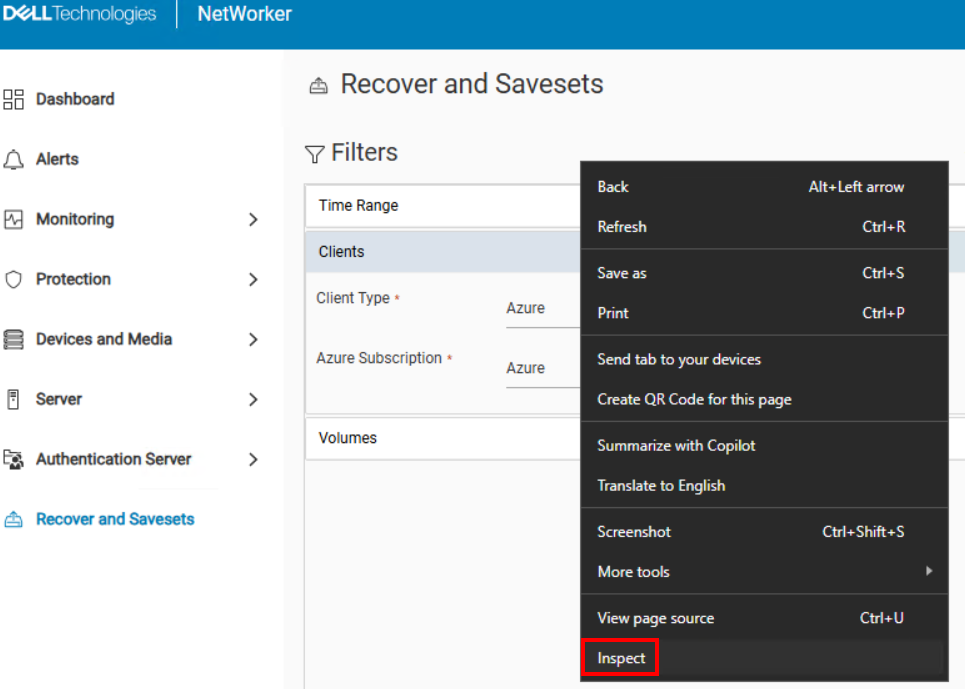
NWUI uses REST API to interface with NetWorker. NWUI and REST API logs show API functions and NetWorker responses, but this information can also be checked directly in the browser. This method is useful for finding discrepancies between UIs and NetWorker CLI or when the UI does not return expected results.
- While accessing NWUI, right-click in the browser window and select Inspect.
- In the browser's "Inspect" window, click the Network tab:
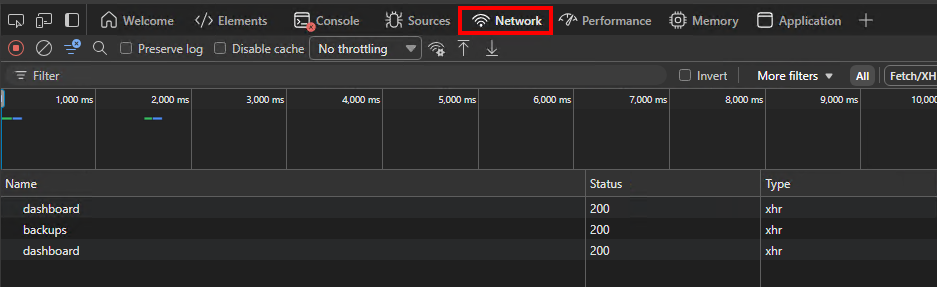
- When performing functions in NWUI, operations appear under Name. The Status column includes the REST API completion status: API Request and Response
- Click the operation that you want to investigate further. For example, by clicking the backups function shown above, the following details are shown in the Headers tab:
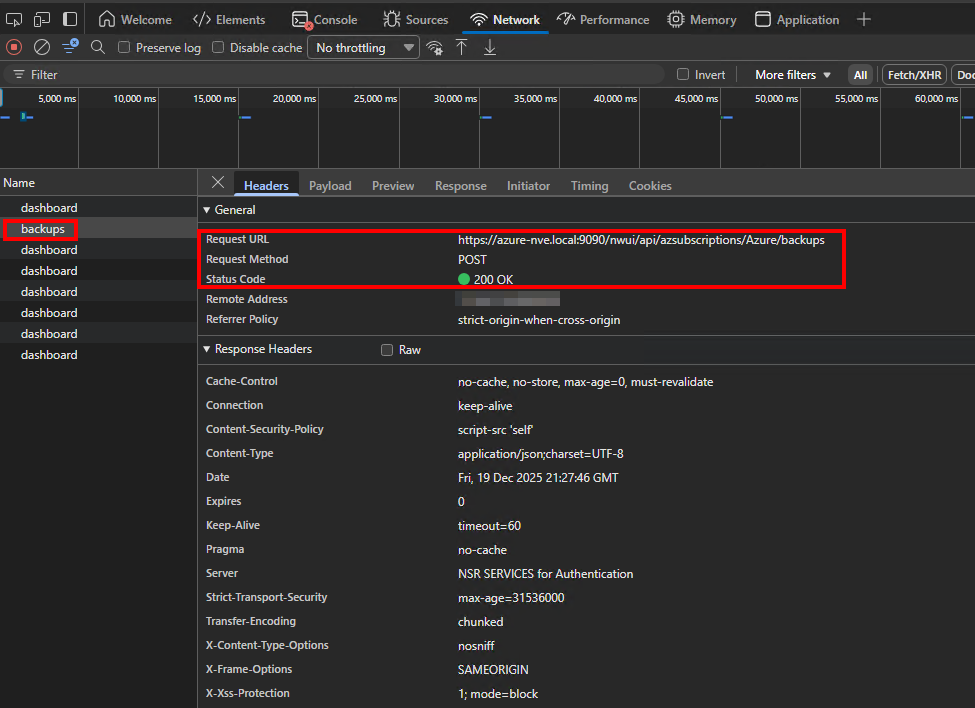
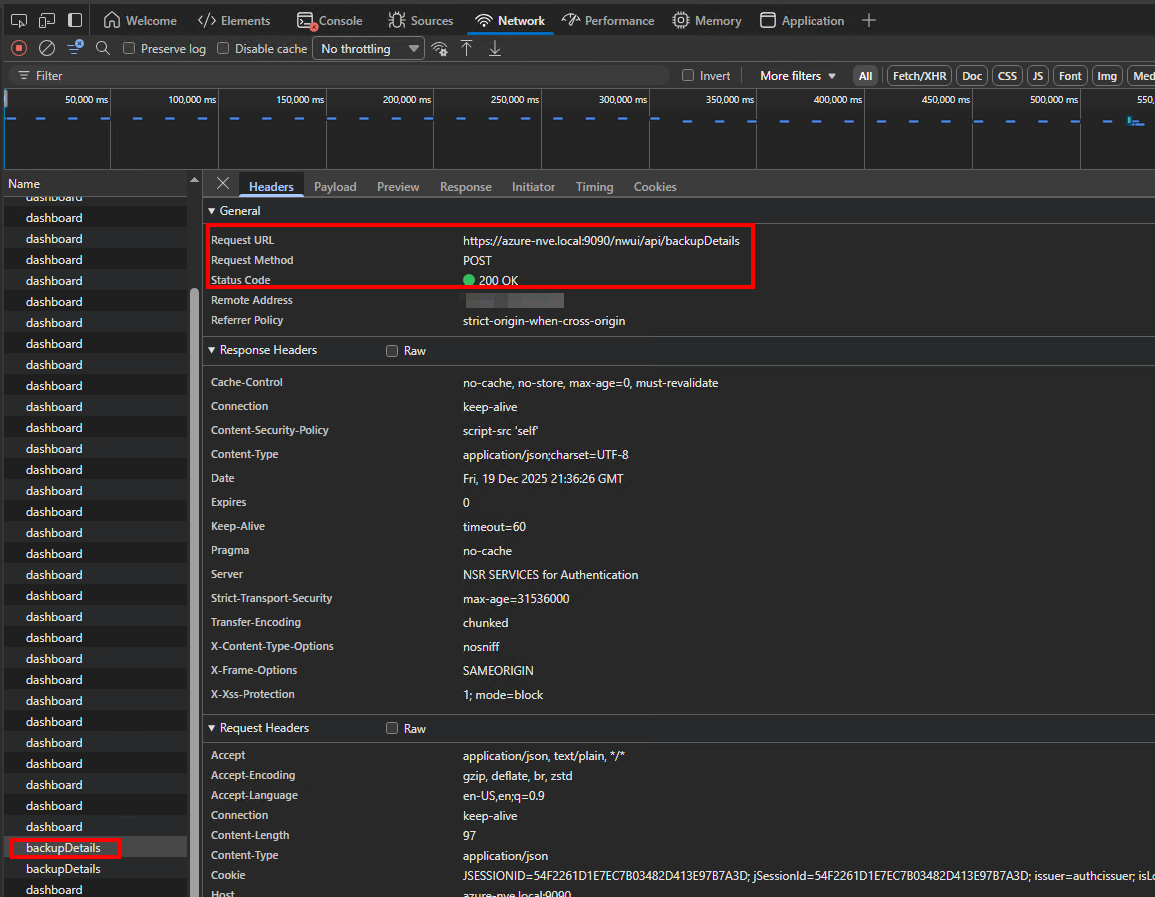
From this, the Request URL, Request Method, and status code are all identifiable.
- To see the response payload, click the Responses tab.
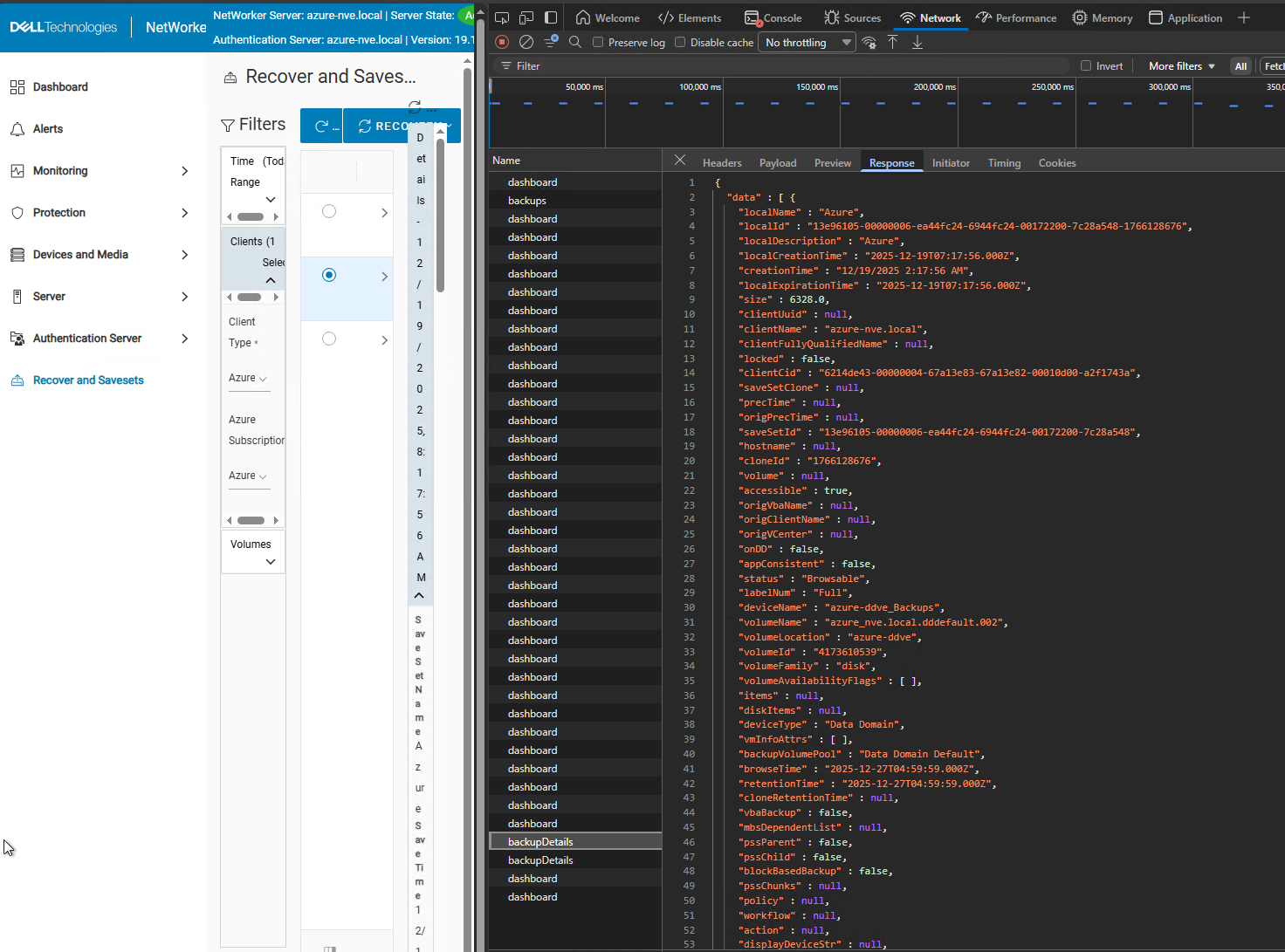
This example shows the REST API response used to populate the Recover and Savesets tab after browsing Azure backups and selecting a save set for restore.
Additional Information
NWUI Resources
NetWorker Management Web UI (NWUI): How to Use
NetWorker Management Web UI (NWUI): How to Install
NetWorker Management Web UI (NWUI): Triage and Troubleshooting Guide