Dell Data Security Server/Dell Data Protection Serverのポリシーをコミットする方法
Summary: 次の手順に従って、Dell Data SecurityおよびDell Data Protectionサーバーのポリシーをコミットする方法について説明します。
This article applies to
This article does not apply to
This article is not tied to any specific product.
Not all product versions are identified in this article.
Instructions
この記事では、Dell Security Management Server(旧Dell Data Protection | Enterprise Edition Server/Dell Data Protection | Virtual Edition)でポリシーをコミットする手順について説明します。
対象製品:
- Dell Security Management Server
- Dell Security Management Server Virtual
- Dell Data Protection Enterprise Edition Server
- Dell Data Protection Enterprise Edition Server
影響を受けるバージョン:
- v8.0以降
管理対象エンドポイントで変更を有効にするには、ポリシーをDell Security Management Serverに保存してからコミットする必要があります。
Dell Security Management Serverのポリシー設定は、製品バージョンv9.2.0以降、またはv8.0.0から9.1.Xで異なります。特定の手順については、該当するバージョンをクリックしてください。バージョン情報については、「Dell Data Security Serverのバージョンを確認する方法」を参照してください。
v9.2.0以降
- Dell Data Security管理コンソールにサイン インします。
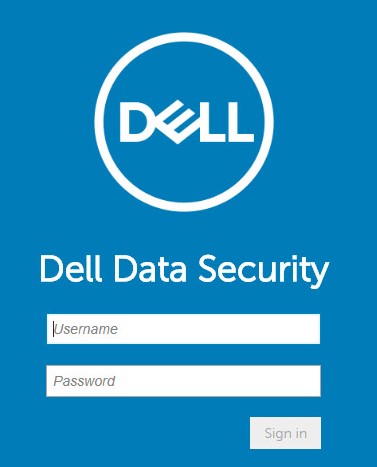 詳細については、「Dell Data Security/Dell Data Protection Server管理コンソールにアクセスする方法」を参照してください。
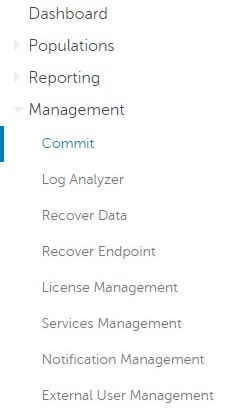
 - 左側のメニュー ペインで[Management]をクリックしてから[Commit]を選択します。
- コミットする保存済みポリシーの変更を詳述したコメントを入力します。
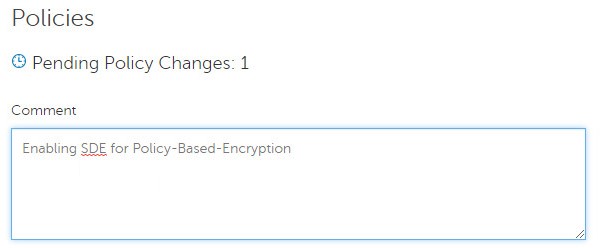
- ポリシーのコミット をクリックします。

v8.0.0~9.1.X
- 認証情報を送信して、Dell Data Protection管理コンソールにサインインします。
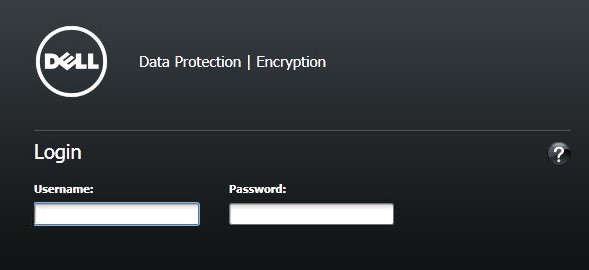 詳細については、「Dell Data Security/Dell Data Protection Server管理コンソールにアクセスする方法」を参照してください。
 - 左ペインで、[Commit Policies]をクリックします。

- 保存されたポリシー変更の詳細を示すコメントを入力してから[Apply Changes]をクリックします。
![[Comment]および[Apply Changes]](https://supportkb.dell.com/img/ka0Do0000005zeWIAQ/ka0Do0000005zeWIAQ_ja_7.jpeg) 保留中のポリシー変更番号は、影響を受けるポリシー、エンドポイント、およびドメインの数に基づいて割り当てられます。
保留中のポリシー変更番号は、影響を受けるポリシー、エンドポイント、およびドメインの数に基づいて割り当てられます。
Additional Information
Videos
Affected Products
Dell EncryptionProducts
Dell Data SecurityArticle Properties
Article Number: 000123779
Article Type: How To
Last Modified: 21 Aug 2026
Version: 16
Find answers to your questions from other Dell users
Support Services
Check if your device is covered by Support Services.