A Guide to Input Device Issues on an OptiPlex Desktop
Summary: Learn more about how to identify and resolve issue with input devices on a Dell OptiPlex Desktop.
Instructions
Table of Contents:
Resolving Input Device Issues on a Desktop
Input Devices is another name for desktop peripherals such as the Keyboard and Mouse that enable taking control and inputting information to the desktop.
Keyboards and mouses can be Wired or Wireless. The connectors can be USB or Din.
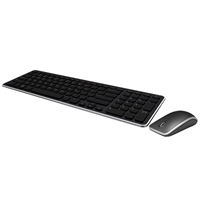
This article covers some common issues and the quickest troubleshooting steps to identify and resolve those issues.
Input Issues.
The common issues with input devices are things like:
- Device not found on startup
- Device not found when the Operating System starts.
- Intermittent connection
- Lack of control when the device in use.
The troubleshooting below helps to identify and then narrow down the issue, to quickly resolve the problem.
Hardware Troubleshooting
-
Check the peripheral for damage. Are there any signs of a liquid spill? Are there any parts broken off? Do all buttons and keys cleanly press when pushed and rebound and function?
-
If there is damage, look at replacing the peripheral. If the damage is with the desktop, there would be a charge for the desktop to be repaired.
-
If there is no damage, then go to the next step.
-
-
Swap the peripheral to another desktop. Does the same thing happen there? Does plugging another peripheral to this desktop show the same issue?
-
If the fault follows the peripheral, then replace the peripheral.
-
If the fault stays with the desktop with a known good working peripheral plugged up, then carry on with step 3.
-
If the fault is seen on both desktops, go to step 5 or contact support to take it further.
-
If the fault is not seen on either machine, then it is a connection issue and typically reseating the peripheral resolves it.
-
If it is an intermittent issue, then go to step 4.
-
If there is no similar known good peripheral, or another desktop to test the peripheral on then go to step 1 in the next section.
-
-
If the fault was that the keyboard was not detected on Boot and stayed with the desktop. Press either the F2 or F12 keys rapidly at the Dell Splash Screen. Does the desktop enter the BIOS or the boot once menu?
-
If it does, then the issue is with the operating system. Go to step 1 in the next section.
-
If it does not, then the issue is outside of the operating system. Try the peripheral in another port (Most desktops have USB ports on both the front and the rear of the desktop. Ensure to test both the front and the back Ports.) If that resolves the issue, then contact support about an issue with a particular port to take the issue further.
-
-
If the issue is intermittent does moving the peripherals wire while it is still plugged to the desktop affect how the device functions?
-
If so and the peripheral is fine on another desktop, then it is a loose port. Contact support to report the issue.
-
If so and the peripheral is the same on another desktop, then replace the peripheral.
-
-
Try a different type of peripheral such as a hard drive, USB pen drive, phone, or camera in the same ports that the original peripheral fails in. Are the new peripherals picked up correctly and do they work as expected?
-
If they do, then the issue is most likely a compatibility issue with the peripheral. Contact the supplier of the original peripheral.
-
If not then contact support to take this further.
-
Software Troubleshooting
The first software troubleshooting step is usually to rule the Operating System out of the issue. This is only necessary if the fault stays with the desktop. It is regardless of the port the peripheral is plugged to or if there are no known good parts. There are some intermediate steps to attempt and recover from any issues. However, it requires judgement to decide if it is quicker and easier to rule out the operating system or go through the intermediate steps.
-
Rule out the operating system by two way swapping the Hard drive and seeing if the fault follows the drive or stays with the unit? If there is no known good desktop or hard drive to test with, then the next step is to recover or reinstall the Operating system. Alternatively, boot from an Ubuntu Live Compact Disc (CD) media disc and see if the same issue is seen. Checking the manual for the desktop model, for instructions on removing and fitting parts. If an Ubuntu Live CD is not available, download an ISO from the link below. To boot from a CD, press on the F12 key at the Dell splash screen and select the correct option from the Boot once menu.
-
If the fault is seen when booting from the live CD or from a known good working Hard Drive, then contact support to take this further.
-
The fault is not seen on the live CD or works fine with a known good working Hard Drive installed. Proceed with the guide to restore or reinstall the operating system.
-

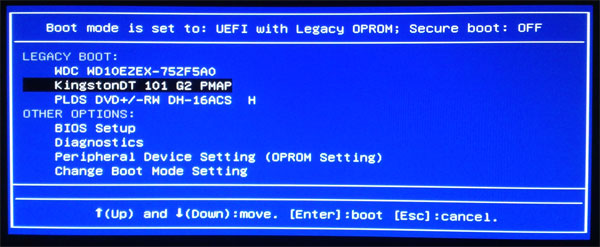
If the troubleshooting points to the operating system, and there is sufficient time to troubleshoot the Software further. Try these steps before restoring or reinstalling the operating system.
-
Input peripheral issues are being experienced. There are several steps to try before the last resort of an operating system reinstall. The first step would be to try a system restore. The following guide below is for Windows 10. Take the operating system back to a date before the input issues started. Does this resolve the issue?
-
Yes, then the issue is resolved.
-
No, then go to the step 3.
-
-
Go to the Control Panel and then open Device Manager. Uninstall the appropriate Driver from the desktop, then go to the Dell Support Site and download and install the latest driver listed for the peripheral. If it is a USB device, then delete and re-create the USB Hub instead. (Right click each USB hub and select uninstall. Reboot the desktop to re-create the Hubs.) Does this resolve the issue?
-
Yes, then the issue is resolved.
-
No, then go to step 4.
-
-
Go into the input device properties in the Control Panel. Ensure that everything is set to the default and that nothing is set to disabled. Ensure that the peripheral is correctly listed and is reported as being in a working condition. Does this resolve the issue?
-
Yes, then the issue is resolved.
-
No, then go to step 5.
-
-
If still experiencing issues, then the next step is to reinstall the operating system. This can be done either from restoring factory settings, using the online Dell recovery image, or using the installation media. Ensure that everything being kept is backed up to an external source. Ensure all the serial and Product Identifiers are handy for any software reinstallation.
Contact Technical Support online through Chat, Twitter or Email, or call us on a local support number: