PowerVault ME5: PowerVault Manager를 통해 사용자를 생성하는 동안 기본 장치 기본 설정 옵션을 사용할 수 없습니다.
Summary: ME5 시리즈 어레이에서 PowerVault Manager를 통해 사용자를 생성하는 동안 기본 장치 기본 설정을 변경할 수 있는 옵션은 없습니다. ME4 시리즈의 이전 세대 PowerVault Manager에서 이 옵션이 제공되었습니다. PowerVault 명령줄 인터페이스를 사용하여 이 값을 변경합니다.
This article applies to
This article does not apply to
This article is not tied to any specific product.
Not all product versions are identified in this article.
Symptoms
PowerVault ME5에서 PowerVault Manager에서 사용자를 생성해도 "기본 설정" 옵션이 표시되지 않습니다.
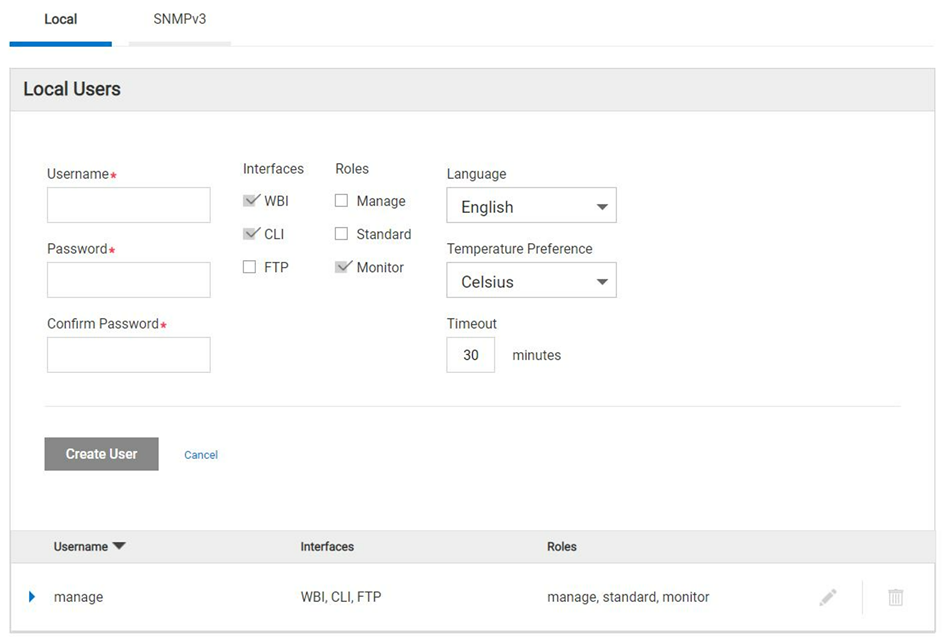
그림 1 - PowerVault Manager 사용자 생성 대화 상자
Cause
Dell 엔지니어링 팀에서는 이 기능이 ME5 제품군의 PowerVault Manager WBI(Web-Based Interface)에 포함되지 않는다는 것을 확인했으며 제어 기반 기본 설정은 CLI를 사용하여서만 설정할 수 있습니다. 이런 방식으로 동작하도록 설계되었습니다.
참고: 대부분의 호스트 운영 체제는 기본 2를 사용하여 볼륨 용량을 측정합니다.
Resolution
-
CLI(Command Line Interface)를 사용하면 새 사용자를 생성하는 동안 기본 기본 설정 값을 설정할 수 있습니다.
다음은 기본 2 기본 설정이 있는 사용자를 생성하는 방법을 보여주는 예입니다.
# create user base 2 interfaces wbi roles monitor Michael
Enter new password: ********
Re-enter new password: ********
Success: Command completed successfully. (Michael) - The new user was created. (2022-04-05 13:16:17)

# show users
Username             Roles                    User Type    User Locale            WBI   CLI   FTP   SNMP  Authentication Type Privacy Type
  Password                         Privacy Password                 Trap Host Address Trap Host Port
-------------------------------------------------------------------------------------------------------------------------------------------
John                 monitor                  Standard     English                x
  ********                         ********
Michael              monitor                  Standard     English                x
  ********                         ********
manage               manage, standard, monitor  Standard     English                x     x     x
  ********                         ********
-------------------------------------------------------------------------------------------------------------------------------------------
Success: Command completed successfully. (2022-04-05 13:16:29)
-
CLI를 통해 사용자 생성 중에 생성된 기본 기본 설정이 무엇인지 확인합니다.
다음은 CLI 참조 명령입니다.
# set CLI json
{
"status":[
  {
    "object-name":"status",
    "meta":"/meta/status",
    "response-type":"Success",
    "response-type-numeric":0,
    "response":"Command completed successfully. (2022-04-05 13:16:36)",
    "return-code":0,
    "component-id":"",
    "time-stamp":"2022-04-05 13:16:36",
    "time-stamp-numeric":1649164596
  }
]
}


# show users Michael
{
"users":[
  {
    "object-name":"user",
    "meta":"/meta/users",
    "username":"Michael",
    "roles":"monitor",
    "user-type":"Standard",
    "user-type-numeric":2,
    "user-locale":"English",
    "user-locale-numeric":0,
    "interface-access-WBI":"x",
    "interface-access-CLI":"",
    "interface-access-FTP":"",
    "interface-access-SMIS":"",
    "interface-access-SNMP":"",
    "storage-size-base":2,
    "storage-size-precision":1,
    "storage-size-units":"Auto",
    "temperature-scale":"Celsius",
    "timeout":1800,
    "authentication-type":"",
    "privacy-type":"",
    "password":"********",
    "default-password-changed":"True",
    "default-password-changed-numeric":1,
    "privacy-password":"********",
    "trap-destination":"",
    "trap-port":""
  }
],
"status":[
  {
    "object-name":"status",
    "meta":"/meta/status",
    "response-type":"Success",
    "response-type-numeric":0,
    "response":"Command completed successfully. (2022-04-05 13:16:44)",
    "return-code":0,
    "component-id":"",
    "time-stamp":"2022-04-05 13:16:44",
    "time-stamp-numeric":1649164604
  }

]
}

# set cli console
Success: Command completed successfully. (2022-04-05 13:19:50)
참고: CLI를 *Json에서 *console로 되돌려 놓습니다.
Affected Products
PowerVault ME5012, PowerVault ME5024, PowerVault ME5084Article Properties
Article Number: 000198077
Article Type: Solution
Last Modified: 31 May 2023
Version: 4
Find answers to your questions from other Dell users
Support Services
Check if your device is covered by Support Services.