Dell Unity: How to configure FTP and SFTP with all features
Summary: This article explains how to configure File Transfer Protocol (FTP) and Secure File Transfer Protocol (SFTP) for NAS servers on Dell Unity arrays.
This article applies to
This article does not apply to
This article is not tied to any specific product.
Not all product versions are identified in this article.
Instructions
To Enable and Configure FTP from Unisphere (UI):
Go to Unisphere > File > NAS Servers > Edit > Sharing Protocols > FTP: 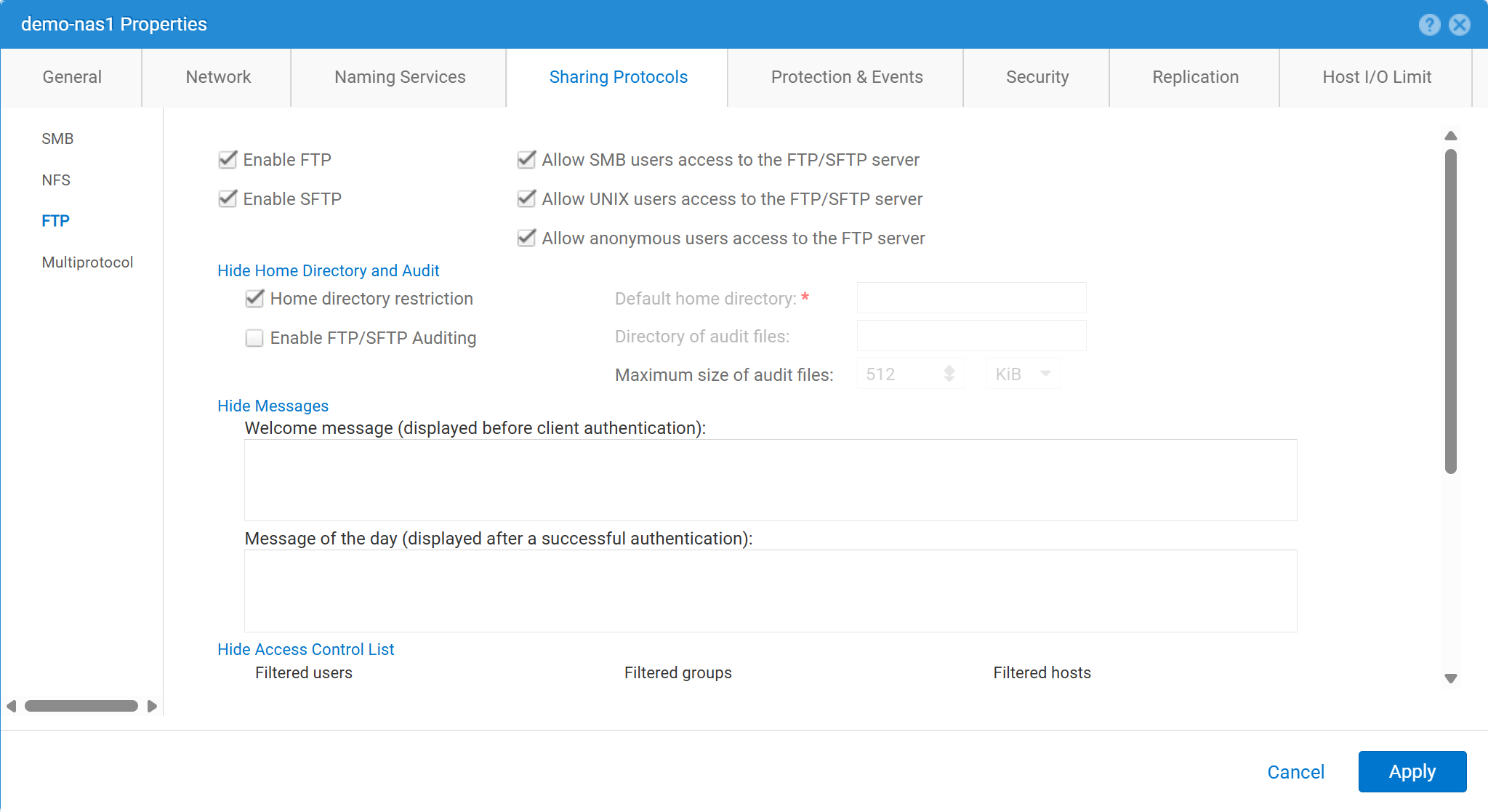

To Enable and Configure FTP from Unisphere (UI):
service@spa spa:~> uemcli -no -u admin -p mypasswd /net/nas/ftp -server nas_8 set -ftpEnabled yes -sftpEnabled yes -anonymousUserEnabled yes -cifsUserEnabled yes -unixUserEnabled yes
Operation completed successfully.


Note : Refer to "uemcli /net/nas/ftp -help" for all other available options
To Log In As A FTP User:
If the NAS Server has a domain joined Common Internet File System (CIFS) server, the domain user can log in as one of the following:
domain\user or user@domain

Example (domain name is EXAMPLE):
EXAMPLE\user100 or user100@example.com
If the NAS server is a standalone CIFS server on Unity, the following method allows the login:
servername\user or user@servername or local\user or user@local

Example (standalone nas server name is MYCIFS):

MYCIFS\user100 or user100@mycifs or local\user100 or user100@local

C:\>ftp ftp02
Connected to ftp02
220 NASFTP FTP server (EMC:upc_Unity_6_HF5_upcBuilder:9328432) ready.
User ( ftp02   :( none)): Local\administrator
331 Password required for Local\administrator.
Password:
230- No directory! Logging in with home=/nasftp_fs01.
230 NT User Local\administrator logged in.
ftp>
If the NAS Server is used for Network File System (NFS) only, Unity requires a directory service (like Lightweight Directory Access Protocol (LDAP) or Network Information Service (NIS)) for user authentication. Local Files can also be used if there is no LDAP or NIS available (which requires manual user/password configuration).
C:\>ftp ftp02
Connected to ftp02
220 FTP02 FTP server (EMC:upc_Unity_6_HF5_upcBuilder:9328432) ready.
User (ftp02 :(none)): user100
331 Password required for user100.
Password:
230 UNIX User user100 logged in.
ftp> ls
200 PORT command successful.
150 Opening ASCII mode data connection for 'file list'.
lost+found
etc
publicftp
226 Transfer complete.
ftp: 29 bytes received in 0.00Seconds 29000.00Kbytes/sec.
ftp> bye
221 Goodbye.
Anonymous login (it is also called as ftp):
C:\>ftp ftp02
Connected to ftp02
220 FTP02 FTP server (EMC:upc_Unity_6_HF5_upcBuilder:9328432) ready.
User (ftp02  :(none)): anonymous
331 Guest login ok, type your name as password.
Password:
230 Guest login ok, access restrictions apply.
ftp> _
To Configure Local Users:
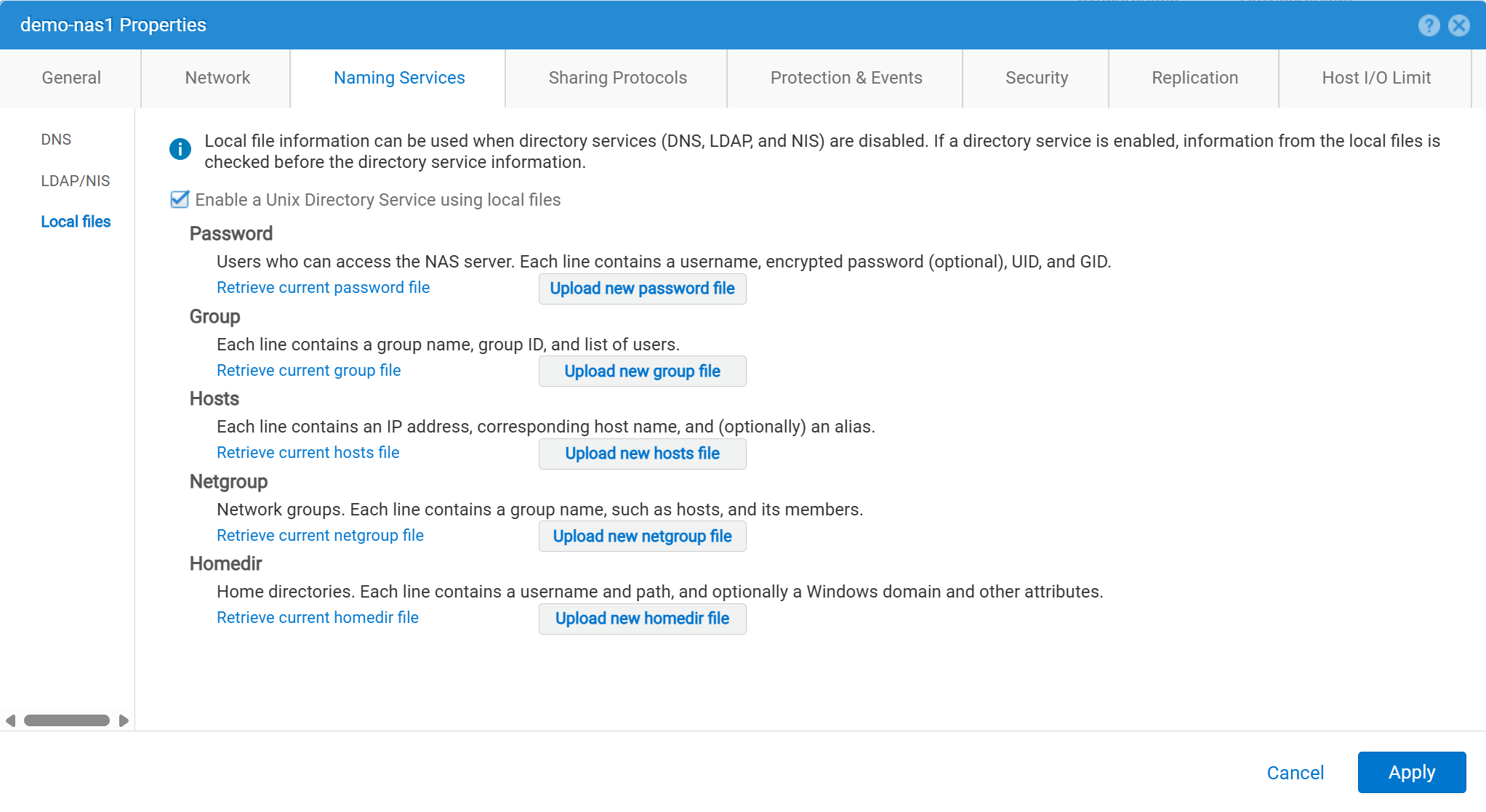
The user details must be entered like this:
01:42:18 service@spa spa:~> cat passwd
# The passwd file contains the users who can access the NAS server.
#
# Each line of the passwd file defines a user and has the format:
#   username:password:uid:gid:gcos
# where:
# - username is the user's login name.
#   When querying for Windows users, the system checks for CIFS usernames without domain extensions.
# - password is an empty field. The encrypted password for the user is in the
# corresponding entry in the shadow file.
# - uid is the user's unique numerical ID for the system.
# - gid is the unique numerical ID of the group to which the user belongs.
#
# user:password:uid:gid:gcos:homedir:
ftp:ffX6M7x34lzYI:2000:2000::/fs01:
user100:ffX6M7x34lzYI:2001:2001::/fs01:
user200:l8Yykofh8ckbU:2002:2002:
user300:ABVmdrEehFnsI:2002:2002:QLs4hM#3w2s1drrYowsXsaPMuz:/fs01/publicftp:
user400:QQueVwnnAFCjc:2003:2003:PZraGM#K321ldrWKowssLaPVgp::
usertest:eeRJFmFoGS4lw:2004:2004::/fs01/publicftp:
usertest2:8II12yC6iqFEY:2004:2004::/fs01/publicftp:
Use UEMCLI To Download:
uemcli -u admin -p password -download /net/nas/server -name server_name -type passwd


EXAMPLE:
03:37:51 service@spa spa:~> uemcli -u admin -p mypasswd -upload -f /home/service/passwd /net/nas/server -name FTP02 -type passwd

Uploaded 962 byte of 962 byte [ 100.0% ] -PROCESSING-
Operation completed successfully.
Use UEMCLI To Upload:
uemcli -u admin -p password -upload -f /cores/service/passwd /net/nas/server -name server_name -type passwd


EXAMPLE:
03:37:40 service@spa spa:~> uemcli -download -f /cores/service/passwd /net/nas/server -name FTP02 -type passwd

Downloaded 962 byte of 962 byte [ 100.0% ] -STALLED-
Operation completed successfully.
Additional Information
Notes:
- For Anonymous user to work, there must be a user called
ftpwithUIDmust be defined in the directory provider or Local Files.- Example for Local Files:
ftp:*:1000:1000::/fs01/publicftp:
- Example for Local Files:
- If the Local Files is used, password field can be generated using
openssl(directly from the Unity):- Example:
User user100, Password to be "Password123#", uid and gid as 3000, homedir as /fshomedir/data - This command uses SHA256-based password algorithm. Use command
'openssl passwd -6 Password123#'if the SHA512-based password algorithm is needed.
- Example:
$ openssl passwd Password123#
Warning: truncating password to 8 characters              <-- note, it takes only 1st 8 char
9QWNQEDjvlRog
$ openssl passwd
Password:                     <-- password can be typed here if not to be seen
Verifying - Password:
yT4C/OPx6AHXM
Entry on "passwd" file should be: user100:9QWNQEDjvlRog:3000:3000::/fshomedir/data:- SFTP requires the home directory to be owned by the logged in user.
- This may block an anonymous user.
- SFTP may fail if
LACPis used.- If Port 22 appears to be blocked, refer to Dell Unity: Unity SFTP Does Not Work When LACP Is Enabled.
Affected Products
Dell EMC Unity, Dell EMC Unity Family |Dell EMC Unity All Flash, Dell EMC Unity HybridArticle Properties
Article Number: 000021919
Article Type: How To
Last Modified: 28 Oct 2025
Version: 7
Find answers to your questions from other Dell users
Support Services
Check if your device is covered by Support Services.