CloudIQ: General procedures to onboard Converged Systems to CloudIQ using Converged Management Software
Summary: CloudIQ General procedures to onboard Converged Systems to CloudIQ.
Instructions
Dell EMC Converged Systems use CloudIQ as a no-cost Software-as-a-Service (SaaS) monitoring interface. CloudIQ accesses data in near real time to enable Converged System inventory and software and firmware assessment.
Prerequisites:
Before you add Converged Systems, ensure:
- Verify you removed any converged system that is added to CloudIQ before installing CMS. To remove a system, see the Offboard CloudIQ below in the additional info window.
- Dell Technologies Services (DTS) has been successfully registered in CMS.
- Dell Technologies Services (DTS) data has been sent to CMS.
- Cisco Discovery Protocol is enabled on Cisco MDS and Nexus Switches.
- If a CloudIQ Collector is present within the environment and is being used exclusively to collect VMware data or Connectrix data for the old VxBlock Central, that CloudIQ Collector must be removed before installing CMS.
- If a CloudIQ Collector is being used for other assets outside of VxBlock, it does not have to be removed.
Register with Dell EMC Support:
If you are an existing Dell user, support account in place, no additional registration is required. You can skip this step.
About this task:
If you are a new Dell user, you must register. If you are the first person in your company to register with support.dell.com, you may receive an exception error. During the exception process, you cannot log in to CloudIQ. Contact Dell EMC Support to reconcile the exception and complete the registration process.
Provide the following information:
Company name
Contact name, email, and phone number
User address that reflects site
Converged System Serial Number (See the following procedure to find the serial number.)
Network Switch A Serial Number (See the following procedure to find the serial number.)
Network Switch B Serial Number (See the following procedure to find the serial number.)
If you do not have this information, your user profile is generated as a "Lite" user. You cannot log in to CloudIQ until you are elevated by the eServices Team to a "Full User" by linking device information to your user profile.
Find the Converged System serial number:
This procedure explains how to find the Converged System serial number.
About this task:
This procedure assumes that you completed the process for adding Converged Systems and components.
Perform the following procedure to find the Converged System serial number:
Steps:
- Log in to CMS.
- On the Systems page, copy the serial number for the system you want to add.
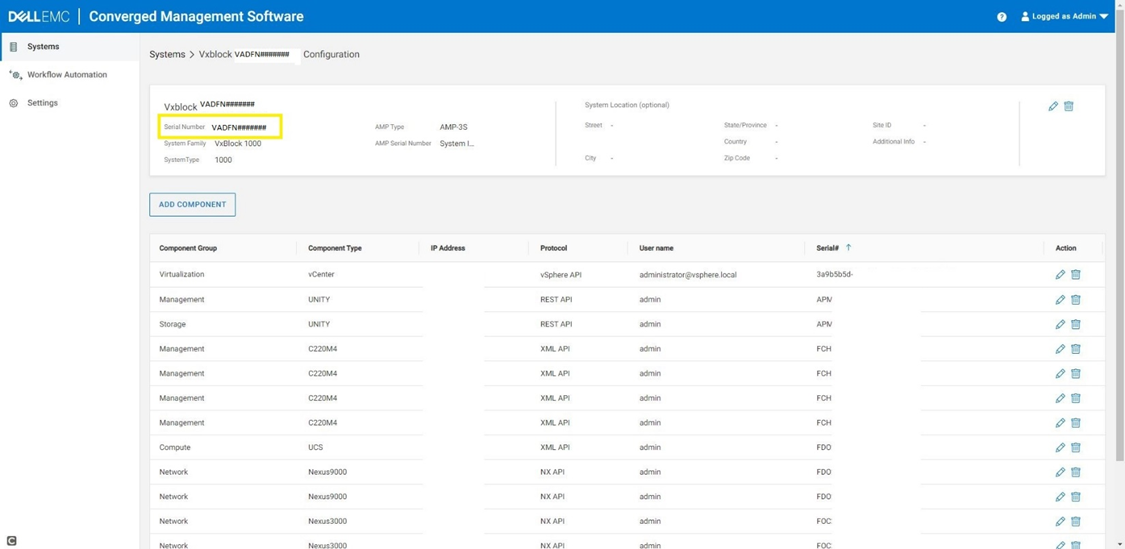
Find the serial numbers of the network switches:
Use this procedure to find the serial numbers of the network switches.
About this task:
To find the serial numbers of the network switches used as Top of Rack or aggregation switches, perform the following:
Steps:
- From CMS, click the link of the Converged System to which the ToR switches belong.
- In the Component Group column, look for Network.
- In the Serial# column, copy the serial numbers of two network switches. These switches have model numbers starting with N9K or N5K. If there is no N9K or N5K, then N3K serial numbers can be used.
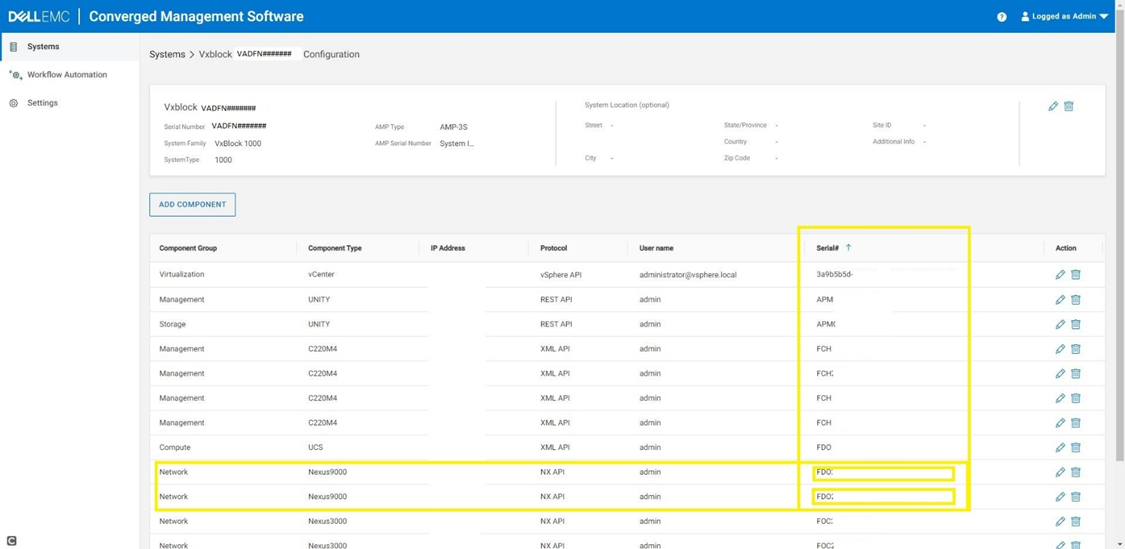
Perform the following procedure to add Converged Systems to CloudIQ:
- Access Cloud IQ (https://cloudiq.dell.com) and enter your username and password. The first time that you log in to CloudIQ, a series of introductory welcome screens display. These screens also describe how to add Converged Systems. CloudIQ discovers your site information and any existing inventory in your environment.
- From the CloudIQ menu, select Admin > Connectivity. Click Add VxBlock.
- On the SRS or DTS Configuration window, there is a reminder to enable Dell Technologies Services. Click Next.
- On the Find Attributes window, there are instructions for finding the serial numbers of the Converged System and the core network switches. Click Next.
- On the Add Systems window, enter the serial numbers of the Converged System and the core network switches. Click Add. It may take up to 30 seconds for the wizard to verify the information. If the information is verified, a success message appears. Click Next to continue or Add to add another Converged System. If the information cannot be verified, an error message appears. Check that you entered the values correctly or contact Support.
- The Summary window displays the Converged System that was added. Click Finish.
- To verify that your system and the CMS collector appears in CloudIQ, log in to CloudIQ and click Connectivity. Look for the Converged System in the list of systems. The Converged System shows as Connected with a green check mark.

- To access the Converged System for monitoring and inventory, click the serial number or identifier or select Inventory > Systems > Converged. To access life-cycle milestones, go to Lifecycle > Milestones Outlook.
- To access the CMS collector information, go the Collectors section.
Additional Information
About this task:
If you added your Converged System to CloudIQ, you must remove the system before you can onboard with Converged Management Software (CMS).
All users must offboard the system before onboarding the system to see the CMS collector.
If you never added a Converged System to CloudIQ, then start at the top of this article.
Steps:
- Log in to CloudIQ
- Under Admin, select Connectivity.
- Under Product, select the VxBlock square to filter the results.
- Under the Identifier column, locate the Converged System that you want to remove.
- In the furthest column to the right, click the trash icon.
Troubleshoot connection to Dell Technologies services:
If you receive an error message in the Add Systems dialog when attempting to onboard your system, troubleshoot the DTS connection before onboarding the system again.
Prerequisites:
Verify you performed the following steps before troubleshooting the DTS connection:
- Set-up CMS
- Registered DTS
- Sent data to CloudIQ
- Waited approximately an hour after setting up DTS and sending data to CloudIQ
Steps:
- In CMS, go to Settings > Dell Technologies services.
- Turn off the Connect to Dell Technologies services button to stop sending data to CloudIQ. The button is turned off when the circle is to the left and the bar is gray.
- Wait approximately 5 minutes.
- Turn on the Connect to Dell Technologies services button to start sending data to CloudIQ. The button is turned on when the circle is to the right and the bar is green.
- Wait approximately an hour for data to be sent and processed in CloudIQ.
- Retry onboarding the system.