PowerEdge:如何在运行 Windows Server 2022 的 AMD EPYC 处理器中启用嵌套虚拟化
Summary: 如何在搭载 AMD EPYC 处理器且运行 Windows Server 2022作系统的 Dell Technologies PowerEdge 平台上启用嵌套虚拟化的指南。
This article applies to
This article does not apply to
This article is not tied to any specific product.
Not all product versions are identified in this article.
Instructions
嵌套虚拟化是一项允许在 Hyper-V 虚拟机 (VM) 内运行 Hyper-V 的功能。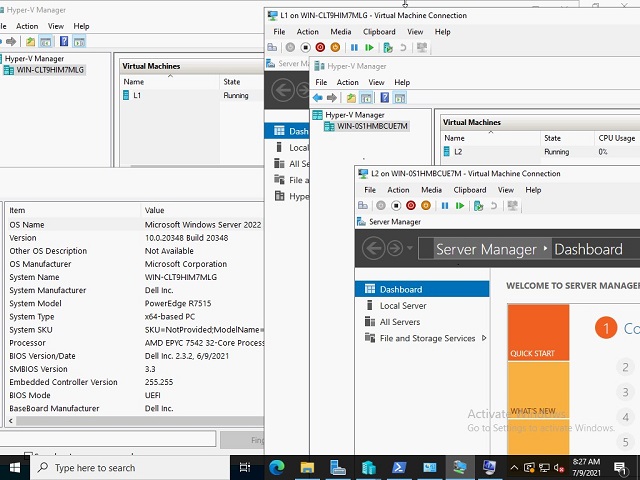
准则和限制:
- AMD 第一代 EPYC 或更新处理器
- 高于或等于主机作系统版本 (19636) 或更高版本的 Microsoft 来宾作系统版本
- 目前不提供第三方虚拟化支持
- VM 配置版本 9.3 或更高版本
要配置嵌套虚拟化,请执行以下作:
- 在主机作系统上创建虚拟机
- 在虚拟机处于关闭状态时,使用以下 PowerShell 命令为虚拟机启用嵌套虚拟化:
Set-VMProcessor -VMName <VMName> -ExposeVirtualizationExtensions $true
- 启动虚拟机
- 在虚拟机上安装 Hyper-V,请参阅 安装 Hyper-V
- 在上面创建的第一个 (L1) 级别虚拟机上创建 VM
- 为了使网络数据包通过两个虚拟交换机进行路由,必须在虚拟交换机的第一层 (L1) 上启用 MAC 地址欺骗。这通过以下 PowerShell 命令完成:
Get-VMNetworkAdapter -VMName | Set-VMNetworkAdapter -MacAddressSpoofing On

参考材料
Affected Products
Microsoft Windows Server 2022, Microsoft Windows Server 2025, PowerEdge R6415, PowerEdge R6515, PowerEdge R6525, PowerEdge R7415, PowerEdge R7425, PowerEdge R7515, PowerEdge R7525Products
PowerEdge R7615, PowerEdge R7625Article Properties
Article Number: 000191321
Article Type: How To
Last Modified: 21 Oct 2025
Version: 4
Find answers to your questions from other Dell users
Support Services
Check if your device is covered by Support Services.