Data Domain: Configuring Mtree Replication Using UI
Summary: The article describes how to configure the mtree replication using UI.
Instructions
Configuring Mtree Replication Using UI
PURPOSE
The article describes how to configure the mtree replication using UI.
APPLIES TO
- All Data Domain systems
- Mtree Replication
SOLUTION
-
Add Both Source and Destination Systems on the same UI(Enterprise manager)
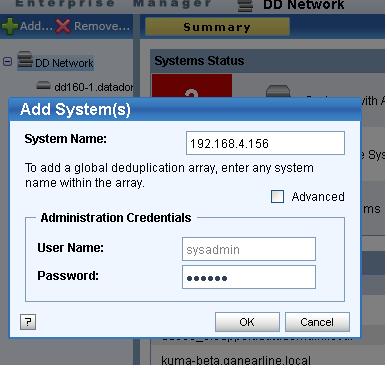
Figure 1: Add Source and Destination Systems on Same Enterprise Manager
-
Create replication pair
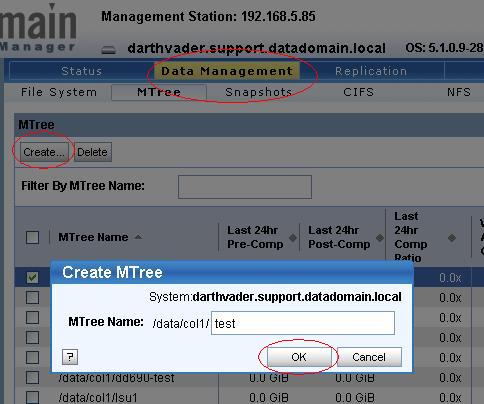
Figure 2: Create the replication Pair
-
Click Replication Tab then click Create Pair.
-
Choose the source System and Source Path. Mtree should already exist in source.
-
Choose the destination System and Destination path. Destination mtree should not be already existed. If it is already exited, the following error message is displayed:
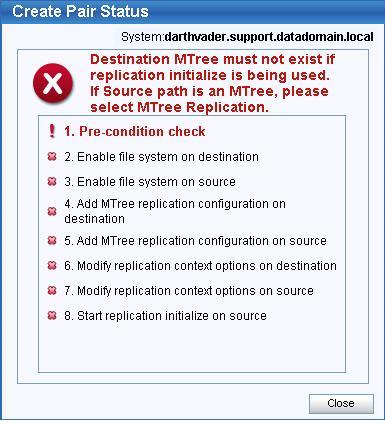
Figure 3: Create Pair Status Error Message.
In this case, create different mtree with different name in destination.
-
Replication is created successfully with the following window:
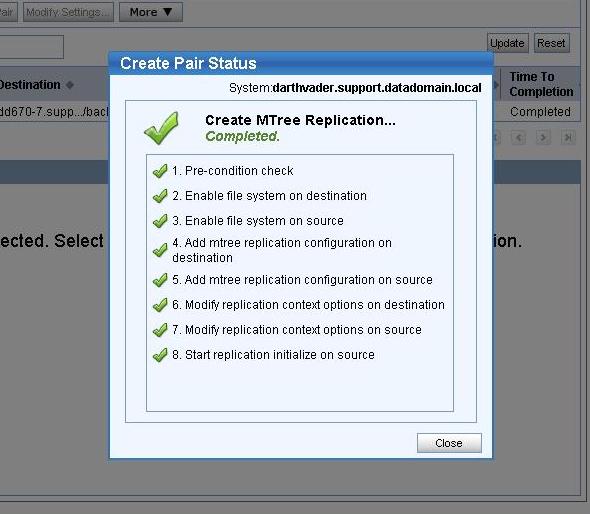
Figure 4:Mtree Replication is created successfully
-
-
Verify the replication pair
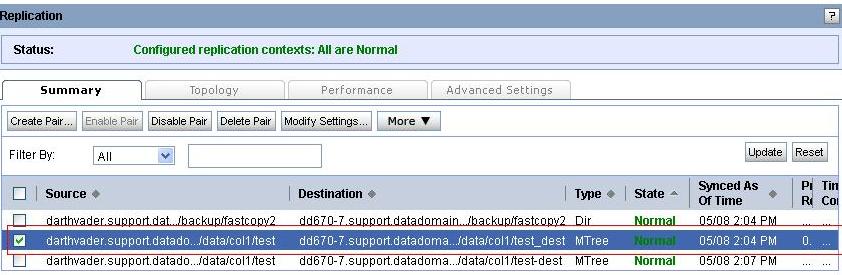
Figure 5: Verification of Replication Pair