How to Reset the Real-Time Clock to Recover Your Dell Laptop
Summary: This article provides information about how to reset the Real-Time Clock (RTC) on Dell laptops. RTC reset helps recover supported Dell laptops from a no power, no post, or no boot issue. ...
Instructions
Affected Platforms:
- Inspiron
- Latitude
- Precision
- Vostro
- Alienware
- XPS laptop
Dell Plus LaptopsDell Pro Plus LaptopsDell Pro Premium LaptopsDell Pro Rugged Laptops
The Real-Time Clock (RTC) reset function allows you or a Dell service technician to recover a Dell Latitude, Inspiron, Precision, Vostro, Alienware, or XPS laptop from a no power, no POST, or no video issue.
The RTC reset resets the BIOS to factory default settings, reset the computer date and time, and unprovision Intel vPro (The IT administrator’s vPro account and password on the computer is unprovisioned. You must complete the setup and configuration process again to connect it to the vPro server).
To learn how to reset the RTC on a Dell desktop computer, reference the Dell knowledge base article How to Reset Real-Time Clock (RTC) to Recover Your Dell Desktop.
During the reset process, the computer will restart several times, and depending on how it is configured, you may see the keyboard backlight or other LED indications when the power button is held and after it is released. Once the reset is complete, the computer should reboot, and the Dell logo screen indicates that the reset is complete successfully.
The following items are unaffected by the RTC reset:
- If TPM is on and enabled, RTC reset is not affected (Remains on and enabled)
- Service Tag
- Asset Tag
- Ownership Tag
- Admin Password
- System Password
- Hard drive Password
- Key Databases
- System Logs
The following options may or may not be reset based on the custom BIOS settings:
- The Boot List
- Enable Legacy Option ROMs
- Secure Boot Enable
- Allow BIOS Downgrade
Reset Real Time Clock
Duration: 00:00:35 (hh:mm:ss)
When available, closed caption (subtitles) language settings can be chosen using the CC icon on this video player.
How to Reset the Real-Time Clock (RTC)
- Turn off the computer.
- Connect the AC adapter to the computer.
- Press and hold the power button (around 30-35 seconds), until the power LED blinks three times.
- Release the power button.
- The RTC reset is complete after the power button is released.
- Real-Time Clock (RTC) reset is available on select Dell Alienware, Inspiron, Latitude, Precision, Vostro, and XPS laptops only. See the list of Dell laptops that support RTC reset below.
- If the AC adapter is disconnected from the laptop during the process or the power button is held less than 25 seconds or longer than 40 seconds, the RTC reset process is aborted.
If the RTC reset completes successfully, you may see a message displayed like the image below.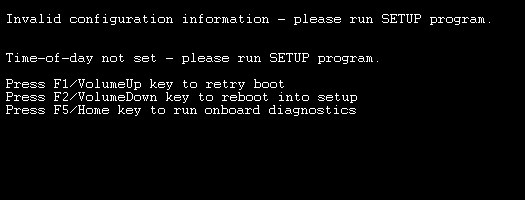
If your Dell laptop is still not able to boot into the operating system, see these Dell Knowledge Base articles:
- How to Troubleshoot Power Issues on a Dell Laptop
- How to Troubleshoot a No POST Issue on a Dell Laptop
- How to Troubleshoot Display or Video Issues on Dell Laptop LCD Panel
- Dell Computer Does Not Boot to Windows 10
- How to Reset the Real-Time Clock (RTC) to Recover Your Dell Desktop System
- Dell Computer Does Not Turn On or Boot Into Windows With Errors Such as No Bootable Device
- Alienware Computer Does Not Turn On or Go Into Windows
Dell Alienware, Inspiron, Latitude, XPS, and Precision laptops that support RTC reset
All Intel based Dell computers 9th Generation and newer (Coffee Lake) (2018) support an improved RTC Reset with power rail (which is an additional feature to RTC Reset that also restarts the internal power circuits of the motherboard).
Supported computers:
- DELL G3 3579
- DELL G7 7588
- Inspiron 14-3467
- Inspiron 14-5468
- Inspiron 15-3552
- Inspiron 15-3558
- Inspiron 15-3565
- Inspiron 15-3567
- Inspiron 15-3568
- Inspiron 15-3576
- Inspiron 15-5558
- Inspiron 15-5559
- Inspiron 15-5567
- Inspiron 3542
- Inspiron 5370
- Inspiron 5378
- Inspiron 5557
- Inspiron 5570
- Inspiron 5577
- Inspiron 7373
- Inspiron 7460
- Inspiron 7472
- Inspiron 7559
- Inspiron 7560
- Inspiron 7567
- Inspiron 7570
- Inspiron 7572
- Inspiron 7577
- Latitude 11 3180
- Latitude 11 3189
- Latitude 12 5280 Mainstream
- Latitude 12 5285 2-in-1
- Latitude 12 5289 2-in-1
- Latitude 12 7212
- Latitude 12 7280 Ultrabook
- Latitude 12 7285 2-in-1
- Latitude 13 3380
- Latitude 14 3480
- Latitude 14 5480 Mainstream
- Latitude 14 7480 Ultrabook
- Latitude 15 3580
- Latitude 15 5580 Mainstream
- Precision 15 3520
- Precision 15 5520
- Precision 15 7520
- Precision 17 7720
- Precision 5540
- Precision 5550
- Precision 5560
- Precision 5570
- Precision 5760
- Precision 5770
- XPS 13 9360
- XPS 13 9365 2-in-1
- XPS 15 9560 (Kaby Lake CPU)
- XPS 9320
- XPS 9380
- XPS 9500
- XPS 9510
- XPS 13 7390
- XPS 13 7390 2-in-1
- XPS 13 9300
- XPS 13 9305
- XPS 13 9310
- XPS 13 9310 2-in-1
- XPS 13 9315
- XPS 15 7590
- XPS 15 9520
- XPS 17 9710
- XPS 17 9720
- XPS 9315 2-in-1
- Alienware M15 R5 Ryzen Edition
- Alienware M15 R7 AMD
- Alienware M17 R5 AMD
Dell Latitude laptops that support Self-Heal
Also, all Dell Latitude E1 to E3 series laptops and E4 to E7 series laptops listed below support the Self-Heal feature.
How to Use Self-Heal on Dell Latitude:
Duration: 00:58
When available, closed caption (subtitles) language settings can be chosen using the Settings or CC icon on this video player.
Dell Latitude laptops that support Self-Heal feature
- Latitude 3150
- Latitude 3160
- Latitude 3340
- Latitude 3440
- Latitude 3450
- Latitude 3550
- Latitude 5250
- Latitude 5450
- Latitude 5550
- Latitude 6430U
- Latitude 7350
- Latitude 7370
- Latitude E5250
- Latitude E5270
- Latitude E5440
- Latitude E5540
- Latitude E5550
- Latitude E5570
- Latitude E6230
- Latitude E6330
- Latitude E6430
- Latitude E6430 ATG
- Latitude E6430S
- Latitude E6440
- Latitude E6530
- Latitude E6540
- Latitude E7240
- Latitude E7240X
- Latitude E7250
- Latitude E7270
- Latitude E7440
- Latitude E7450
- Latitude E7470
Additional Information
 Is your computer out of warranty? For Out of Warranty support, browse to the Dell.com/support website and enter your Dell Service Tag to view our offers.