How to Manage the CrowdStrike Falcon Sensor Maintenance Token
Summary: Learn how to manage the CrowdStrike Falcon Sensor maintenance token with these instructions to enable, locate, or disable the token from the Falcon console.
Symptoms
This article provides steps to enable, locate, and disable the CrowdStrike Falcon Sensor maintenance token.
Affected Products:
- CrowdStrike Falcon Sensor
Affected Versions:
- v5.10.0 and Later
Affected Operating Systems:
- Windows
- Mac
- Linux
Cause
Not applicable
Resolution
In CrowdStrike Falcon Sensor v5.10 and later, a maintenance token is used to protect the software from unauthorized removal or tampering. The maintenance token replaces the previous password protection feature. A CrowdStrike falcon administrator can Enable, Locate, or Disable maintenance tokens in their environment. Click the appropriate action for more information.
- In a Google Chrome or Microsoft Edge browser, go to your Falcon Console login URL.
- Falcon US-1: https://falcon.crowdstrike.com/login/
- Falcon US-2: https://falcon.us-2.crowdstrike.com/login/
- Falcon EU-1: https://falcon.eu-1.crowdstrike.com/login/
- Falcon US-GOV-1: https://falcon.laggar.gcw.crowdstrike.com/login/
- Falcon US-1: https://falcon.crowdstrike.com/login/
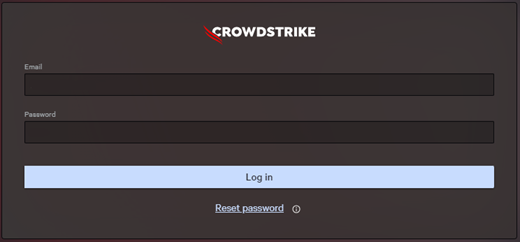
- Populate the CrowdStrike account holder’s credentials, and then click Log In.

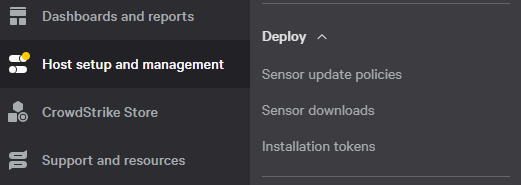
- In the left menu pane, select Host setup and management and then select Sensor update policies.
- Select the targeted Sensor Update Policy Name and then click Edit Policy.

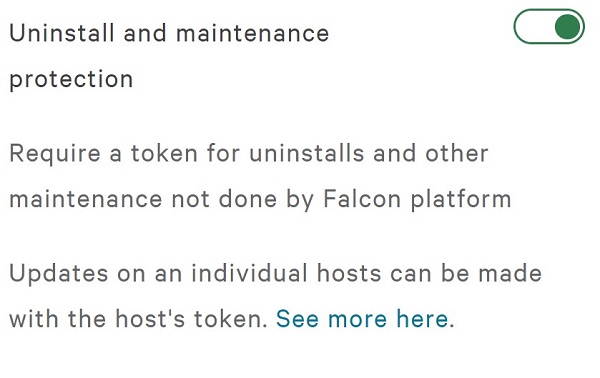
- Turn on Uninstall and maintenance protection.
- If using Bulk maintenance mode, go to Step 7. Otherwise, go to Step 9.
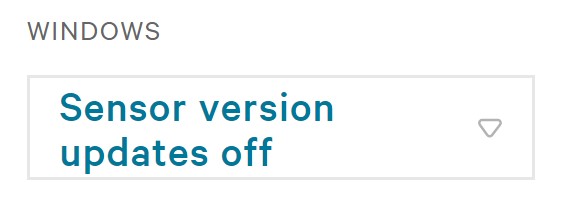
- Under Sensor version, select Sensor version updates off.
- Turn on Bulk maintenance mode.
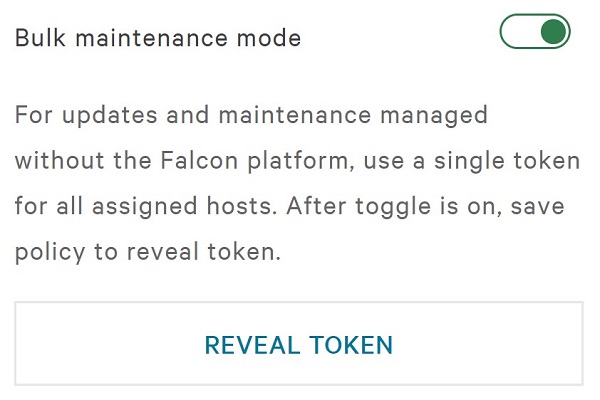
- To the right of Sensor update policy settings, click Save.
- Confirm the policy change.
A maintenance token can be configured to:
- Individual hostnames using a unique token
- Bulk groups using a static token
Click Individual or Bulk for location information.
Individual
- In a Google Chrome or Microsoft Edge browser, go to your Falcon Console login URL.
- Falcon US-1: https://falcon.crowdstrike.com/login/
- Falcon US-2: https://falcon.us-2.crowdstrike.com/login/
- Falcon EU-1: https://falcon.eu-1.crowdstrike.com/login/
- Falcon US-GOV-1: https://falcon.laggar.gcw.crowdstrike.com/login/
- Falcon US-1: https://falcon.crowdstrike.com/login/
- Populate the CrowdStrike account holder’s credentials, and then click Log In.
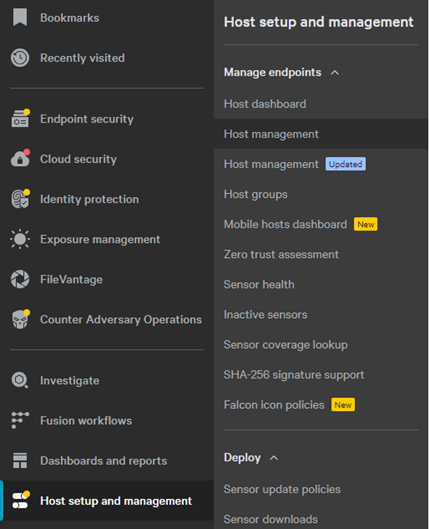
- In the left menu pane, select Host setup and management and then select Host management.
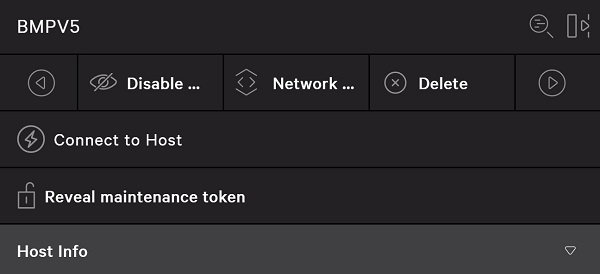
- Locate and then click the targeted Hostname.
- In the hostname display, click Reveal maintenance token.
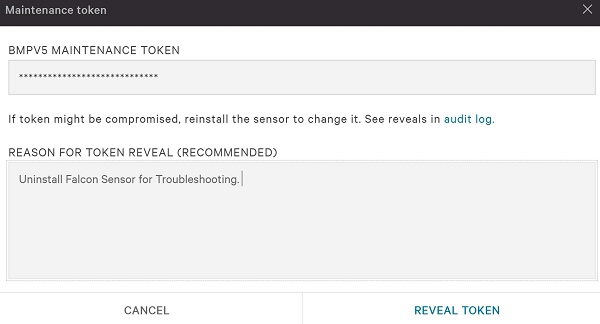
- Optionally, input a Reason for Token Reveal and then click Reveal Token.
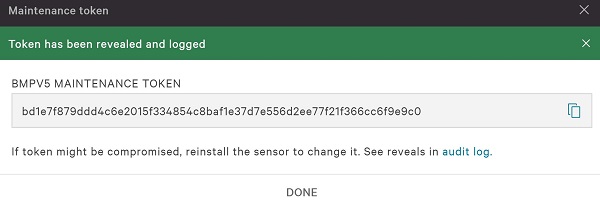
- Record the hostname Maintenance Token and then click Done.
Bulk
- In a Google Chrome or Microsoft Edge browser, go to your Falcon Console login URL.
- Falcon US-1: https://falcon.crowdstrike.com/login/
- Falcon US-2: https://falcon.us-2.crowdstrike.com/login/
- Falcon EU-1: https://falcon.eu-1.crowdstrike.com/login/
- Falcon US-GOV-1: https://falcon.laggar.gcw.crowdstrike.com/login/
- Falcon US-1: https://falcon.crowdstrike.com/login/
- Populate the CrowdStrike account holder’s credentials, and then click Log In.
- In the left menu pane, select Host setup and management and then select Sensor update policies.
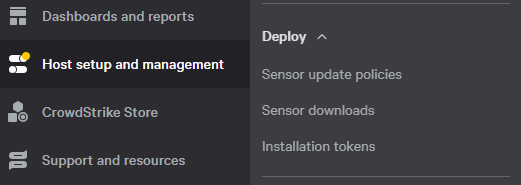
- Select the targeted Sensor Update Policy Name and then click Edit Policy.

- The Sensor Update Policy Name can also be located under the specific hostname in Host Management.
- The Sensor Update Policy Name may differ in your environment.
- Under Bulk maintenance mode, click REVEAL TOKEN.
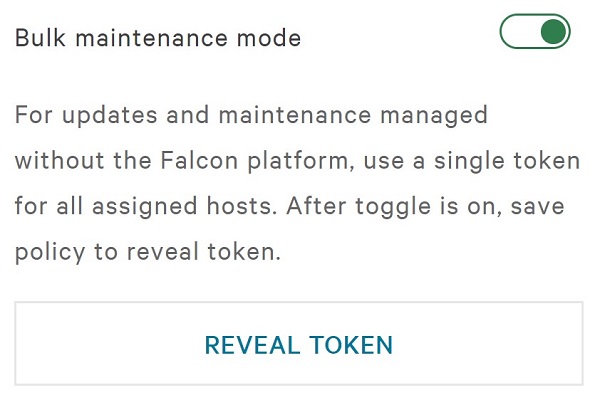
- Optionally, input a Reason for Token Reveal and then click Reveal Token.
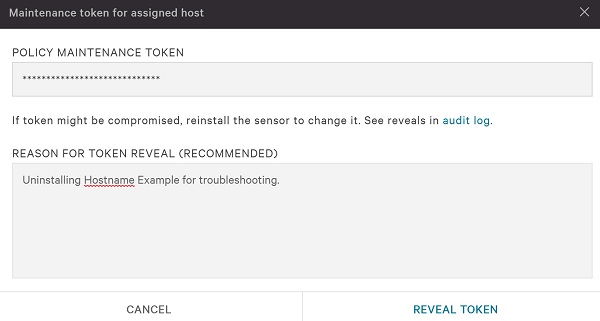
- Record the Policy Maintenance Token and then click Done.
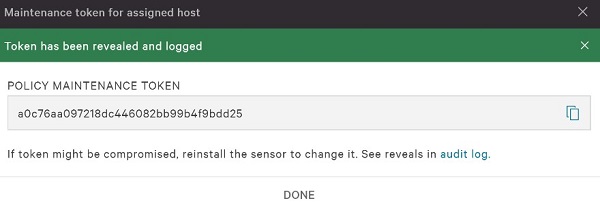
- A Policy Maintenance Token is not re-created on reinstall.
- A Policy Maintenance Token should not be provided directly to the end user.
- The Policy Maintenance Token will differ in your environment.
- In a Google Chrome or Microsoft Edge browser, go to your Falcon Console login URL.
- Falcon US-1: https://falcon.crowdstrike.com/login/
- Falcon US-2: https://falcon.us-2.crowdstrike.com/login/
- Falcon EU-1: https://falcon.eu-1.crowdstrike.com/login/
- Falcon US-GOV-1: https://falcon.laggar.gcw.crowdstrike.com/login/
- Falcon US-1: https://falcon.crowdstrike.com/login/
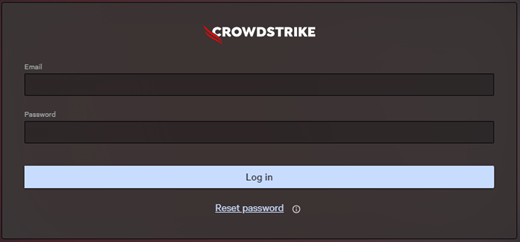
- Populate the CrowdStrike account holder’s credentials, and then click Log In.
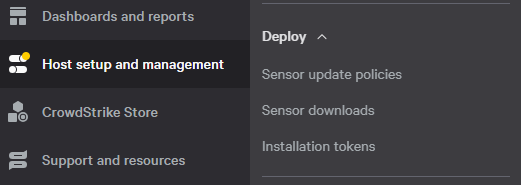
- In the left menu pane, select Host setup and management and then select Sensor update policies.
- Select the targeted Sensor Update Policy Name and then click Edit Policy.

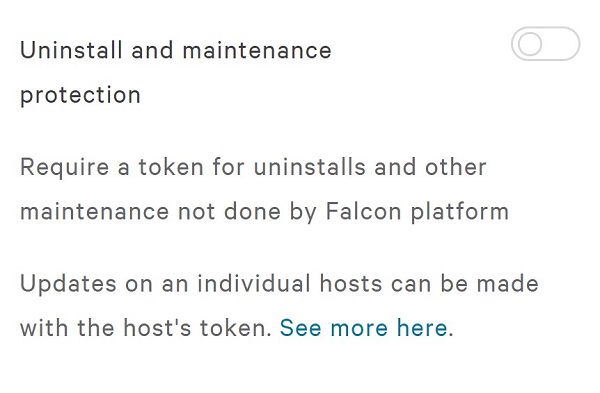
- Turn off Uninstall and maintenance protection.
- To the right of Sensor update policy settings, click Save.
- Confirm the policy change.
- If Bulk maintenance mode was enabled, it will be disabled after clicking Confirm.
- Online hosts may take up to five minutes to receive the new policy.
To contact support, reference Dell Data Security International Support Phone Numbers.
Go to TechDirect to generate a technical support request online.
For additional insights and resources, join the Dell Security Community Forum.