How to Troubleshoot Dell Inkjet Printers
Summary: This article provides general troubleshooting steps and links to articles designed for your Inkjet printer.
This article applies to
This article does not apply to
This article is not tied to any specific product.
Not all product versions are identified in this article.
Symptoms
No Symptoms Information is Available.
Cause
No Cause Information is Available.
Resolution
Table of Contents:
- Printer Troubleshooting Steps and Procedures
- Dell Inkjet Printer Driver Downloads, Set Up and Use Information, Maintenance Guides and Troubleshooting
- Operating System Compatibility with Dell Printers
- Obtaining and Installing Printer Drivers and Software
- Downloading and Viewing Printer Manuals
1. Printer Troubleshooting Steps and Procedures
NOTE: The following steps apply to all brands of printers.
- When connected by a USB cable, reseat both ends of the cable going from the computer to the printer.
- Restart the computer.
- Turn the printer off.
- Unplug the printer power cable from the AC outlet or surge protector and wait at least 30 seconds.
- Plug the printer power cable back into the AC outlet or surge protector.
- Turn the printer back on.
- Print a test page.
(For instructions on how to print a test page from Windows, click the link below that corresponds to the Operating System that is installed on the computer.) (When the page prints successfully no further actions are required.)
- Make sure the wanted printer is set as the default printer.
- Press and hold the Windows key
 and then press the r key.
 - In the Run box type, shell:PrintersFolder and then touch or click OK.
- Touch or click to highlight the wanted printer.
- Touch and hold or right-click the wanted printer.
- Touch or click Set as default printer.
NOTE: When Set as default printer in not an option, it normally means that the printer is already set as the default printer, and usually has a checkmark next to it.
- Press and hold the Windows key
- For networked printers (connected by a wireless or wired network and not a USB cable) ensure that the computer is on the network and the printer portal settings and IP address are correct. (For instructions on how to make sure the computer is on the network and the printer portal settings and IP address are correct, click the link below that corresponds to the Operating System that is installed on the computer.)
- Run the Printer troubleshooter to diagnose and automatically correct any printer spooler issues. For more information, see the Dell Knowledge Base article How to Resolve Printer Spooler Errors.
- Print a test page.
(For instructions on how to print a test page from Windows, click the link below that corresponds to the Operating System that is installed on the computer.) (When the page prints successfully no further actions are required.)
- Perform a System Restore to a time when the printer was working.
For instructions on how to perform a System Restore, see Dell Knowledge Base article:- For Windows 11 or Windows 10, Reset or reinstall Windows 10 on your Dell computer.
- For Windows 8, How To Restore or Reinstall Microsoft Windows on a Dell Computer.
NOTE: When the printer still does not work successfully go to step 13. - Uninstall the printer driver, download, and install the latest printer driver.
- For instructions on how to do so for Dell printers, see the Dell Knowledge Base article, How to Download and Install Printer Drivers and Firmware.
- For help with non-Dell printers, see the Dell Knowledge Base article Non Dell Printer Drivers, Manuals, and Support.
2. Dell Inkjet Printer Driver Downloads, Set Up Information
Maintenance Guides and Troubleshooting Steps
NOTE: If you are looking for Windows 11, Windows 10, or Windows 8(8.1) drivers for your printer, and it is not listed as having any, some, or all the printer functionality may still work with windows 11, Windows 10, or Windows 8 using an older printer driver.
For instructions on downloading and installing an older printer driver in Windows 11, Windows 10, or Windows 8(8.1) see the Dell Knowledge Base article Installing Printer Drivers From a Previous Version of Windows
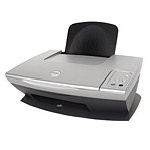 A920 |
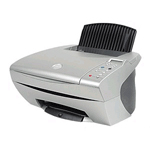 A940 |
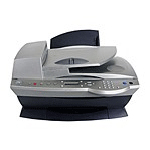 A960 |
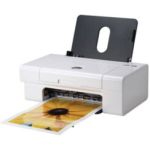 725 |
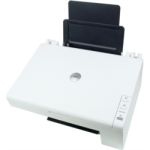 810 |
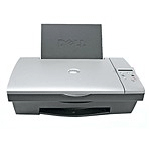 922 |
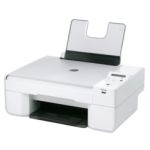 924 |
 926 |
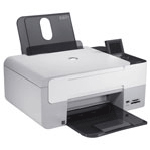 928 |
 942 |
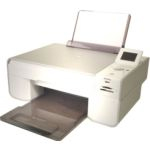 944 |
 946 |
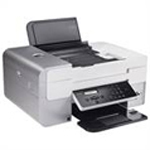 948 |
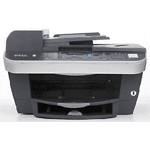 962 |
 964 |
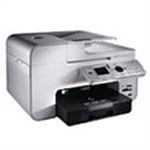 966 |
 968 |
 P513w |
 P703 |
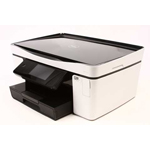 P713w |
 V105 |
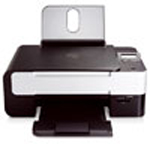 V305 |
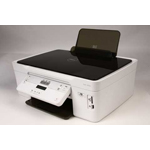 V313w |
 V505 |
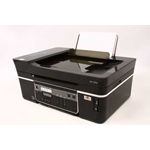 V515w |
 V715w |
 V525w |
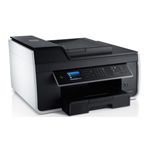 V725w |
3. Operating System Compatibility with Dell Printers
This link takes you to the Dell Knowledge Base article that provides information about what Operating Systems are compatible with your printer.
Operating System Compatibility with Dell Printers
4. Obtaining and Installing Printer Drivers and Software
This link takes you to the Dell Obtaining and Installing Printer Drivers and Software Knowledge Base article.
Obtaining and Installing Printer Drivers and Software
5. Downloading and Viewing Printer Manuals
This link takes you to the Dell Manuals.
User Guides / Manuals.
Affected Products
Dell 720 Color Printer, Dell 725 Personal Inkjet Printer, Dell 810 All In One Inkjet Printer, Dell A920 All In One Personal Printer, Dell 922 All In One Photo Printer, Dell 924 All-in-One Photo Printer, Dell 926 All In One Inkjet Printer
, Dell 928 All In One Inkjet Printer, Dell A940 All In One Personal Printer, Dell 942 All In One Inkjet Printer, Dell 944 All In One Inkjet Printer, Dell 946 All In One Printer, Dell 948 All In One Printer, Dell 948w All In One Photo Printer, Dell A960 All In One Personal Printer, Dell 962 All In One Photo Printer, Dell 964 All In One Photo Printer, Dell 966 All In One Inkjet Printer, Dell 968 All In One Photo Printer, Dell 968w All In One Wireless Photo Printer, Dell J740 Personal Inkjet Printer, Dell P513w All In One Photo Printer, Dell P703w All In One Photo Printer, Dell P713w All In One Photo Printer, Dell Ink-Free Printer PZ310, Dell V105 All In One Inkjet Printer, Dell V305 All In One Inkjet Printer, Dell V305w All In One Wireless Inkjet Printer, Dell V313 All In One Inkjet Printer, Dell V313w All In One Wireless Inkjet Printer, Dell V505 All In One Inkjet Printer, Dell V505w All In One Wireless Inkjet Printer, Dell V515w All In One Wireless Inkjet Printer, Dell V525w All In One Wireless Inkjet Printer, Dell V715w All In One Wireless Inkjet Printer, Dell V725w All In One Wireless Inkjet Printer
...
Article Properties
Article Number: 000130802
Article Type: Solution
Last Modified: 26 Aug 2025
Version: 14
Find answers to your questions from other Dell users
Support Services
Check if your device is covered by Support Services.