Ubuntu Linux Terms for your Hard Drive and Devices Explained
Summary: The following article provides a reference about what hard drives and devices are called in the Ubuntu Linux operating system. It takes you through how they are used on your Dell Computer with Ubuntu installed. ...
Instructions
Table of Contents:
- Understanding device naming in Linux
- Linux device naming convention
- GRUB device naming convention
- GRUB2 device naming convention
- Summary of device terms and usage in Ubuntu
Understanding device naming in Linux
Understanding the device naming and its usage are essential if you want to competently install and use Ubuntu Linux. Device naming has changed and evolved over the numerous versions of Linux that are constantly being put out as the technology changes.
Unfortunately this is not comparable to how Window's or Apple's name and use devices on their products. You may see some similarities with Google's Android.
Linux device naming convention
Linux started off by giving each device a name, then a position and then a partition.
Under Linux, the original naming convention was:
dev/fd0:First floppy disk drivedev/fd1:Second floppy disk drivedev/sda:First Small Computer System Interface (SCSI) disk- (SCSI ID address-wise)
dev/sdb:Second SCSI disk address-wise and so ondev/scd0or/dev/sr0:First SCSI CD-ROMdev/hda:Primary disk on the Integrated Drive Electronics (IDE) primary controllerdev/hdb:Secondary disk on IDE primary controllerdev/mmcblk0:Secure Digital High Capacity (SDHC) card on Personal Computer Memory Card International Association (PCMCIA)- (Special Device Naming)
dev/sdb:Universal Serial Bus (USB) flash Drive against SCSI emulation- (However, the kernel starts in parallel with several drivers. This does not mean that your
sdaorsdbdrive is a USB drive, but that the USB module was started simultaneously as the drive one and sends its messages simultaneously)
- (However, the kernel starts in parallel with several drivers. This does not mean that your
dev/hdcand/dev/hdd:Primary and secondary disks of the secondary controller respectively, newer IDE controllers have two channels acting like two controllers
GRUB device naming convention
GRUB changed the convention by adding a partition starting at zero.
The base name for a (E)IDE-controlled disk is dev/hd? The ? is a single letter. For GRUB this equals hd? The ? is position one through four.
Naming the devices is straightforward. Taking the first example below, then the first part is the device name hd and then the second part is the position that it holds a.
Drive Name:
dev/hdaprimary disk on first controllerdev/hdbsecondary disk on first controllerdev/hdcprimary disk on second controllerdev/hddsecondary disk on second controller
GRUB Name:
hd1primary disk on first controllerhd2secondary disk on first controllerhd3primary disk on second controllerhd4secondary disk on second controller
Naming the partitions becomes easier as you attach a number to the appropriate device. Look below for some partitions on dev/hda.
Drive Name:
dev/hda0primary disk on first controller, first primary partitiondev/hda1primary disk on first controller, second primary partitiondev/hda4primary disk on first controller, first logical partitiondev/hda5primary disk on first controller, second logical partition
GRUB Name:
hd1,0primary disk on first controller, first primary partitionhd1,1primary disk on first controller, second primary partitionhd1,4primary disk on first controller, first logical partitionhd1,5primary disk on first controller, second logical partition
GRUB2 device naming convention
GRUB2 changed the convention by taking the zero out of the naming convention, this means everything starts at one.
The base name for a (E)IDE-controlled disk is dev/hd? The ? is a single letter. For GRUB2 this equals hd? The ? is position one through four.
Naming the devices is straight forward. Taking the first example below then the first part is the device name hd then the second part is the position that it holds a.
Drive Name:
dev/hdaprimary disk on first controllerdev/hdbsecondary disk on first controllerdev/hdcprimary disk on second controllerdev/hddsecondary disk on second controller
GRUB2 Name:
hd1primary disk on first controllerhd2secondary disk on first controllerhd3primary disk on second controllerhd4secondary disk on second controller
Naming the partitions gets easier as you attach a number to the appropriate device. Look below for some partitions on dev/hda.
Drive Name:
dev/hda1primary disk on first controller, first primary partitiondev/hda2primary disk on first controller, second primary partitiondev/hda5primary disk on first controller, first logical partitiondev/hda6primary disk on first controller, second logical partition
GRUB2 Name:
hd1,1primary disk on first controller, first primary partitionhd1,2primary disk on first controller, second primary partitionhd1,5primary disk on first controller, first logical partitionhd1,6primary disk on first controller, second logical partition
Summary of device terms and usage in Ubuntu
- Serial Advanced Technology Attachment (SATA) Drives:
-
With the advent of SATA drives, the convention changed and now hard drives are mostly referenced as
sdainstead ofhda. Wheresdstands for serial drive. - Partition Tables:
-
A partition table shows the partitions of a hard drive or any other storage device. There are two standards for the layout of the partition table:
-
Master Boot Record (MBR): MBR also known as MS-DOS is what you might call the original standard. MBR is still the most widely used partition table, but it comes with two major limitations:
-
It does not allow you to create more than four main partitions. Those partitions are called
primarypartitions. -
Disk partitions may not exceed two TB.
-
-
GUID Partition Table (GPT): GPT came later. While MBR is still in use, the limitations are what led to the development of GPT. GPT overcomes the two limitations of MBR. You can have multiple primary partitions, and the drive size can exceed two TB.
- Hard Drive Naming Convention:
-
The first thing that you must know is that there is no C drive or E drive in Linux. You see something like
/dev/sda,/dev/sdb,/dev/sdc, and so on instead. Thedevis short for device. Thesdis short for SCSI mass-storage drive.
- Partitions and Partition Numbering:
-
To install an operating system on a hard drive, you have to divide it into distinct storage units. We call those storage units partitions. Under MBR: Which is the default on virtually all Linux distributions, there are three different types of partitions - Primary, Extended, and Logical. With MBR any partition that is not explicitly created as an extended or logical partition, is a primary partition. Any unallocated space is shown as Free. While it may be free, you cannot use it in that state. As far as the computer is concerned that free space does not exist until it is partitioned.
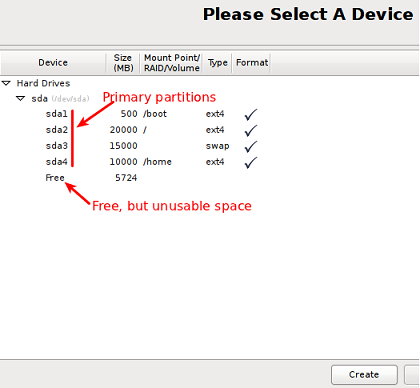
(Figure.1: Screenshot of the Partition Guide window)
If you have created the maximum number of partitions and still have Free Space, it is unusable.
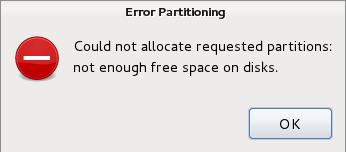
(Figure.2: Screenshot of the Partitioning error message)
- Extended Partition:
-
By tagging a partition as an extended partition, it is possible to create many more partitions under the extended partition. Those partitions are called logical partitions, and there is no limit to the number of logical partitions that you can create. This means you can have three primary partitions and one extended partition and then create numerous partitions from there.
The graphical installation program of Ubuntu is Ubiquity.
Two features have been added which have been available on other Linux distro's for some time.
The two features are:
- Full Disk Encryption:
-
Support for encrypting the users' home directory has been in Ubiquity for a long time, but as a physical security tool. With full disk encryption, the computer does not boot if the correct disk encryption passphrase is not used. At every reboot, the person sitting in front of the computer with full disk encryption configured, a prompt is shown.
- Linux Logical Volume Manager (LVM):
-
LVM makes it easier to manage disk space. Especially when it comes to resizing partitions and adding another hard Drive to the computer. LVM does not have redundancy built in. This means that in a multi-disk computer if one disk fails you have problems. LVM is only working using the automated scheme now.
Additional Information
Software support is by Canonical through the following methods: For technical support, contact: Dell Technical Support
