How to Enable Compliance Reporter for Dell Data Security Servers
Summary: Compliance Reporter may be enabled on Dell Data Security servers by following these instructions.
This article applies to
This article does not apply to
This article is not tied to any specific product.
Not all product versions are identified in this article.
Symptoms
This article provides the steps for enabling Dell Compliance Reporter on Dell Data Security server products.
Affected Products:
- Dell Security Management Server
- Dell Security Management Server Virtual
Affected Versions:
- v10.1.0 to 11.2.0
Affected Operating Systems:
- Windows
- Linux
Cause
Not applicable
Resolution
Dell Compliance Reporter was disabled due to known vulnerabilities and replaced with Managed Reports in v10.1 for Dell Data Security products:
- Dell Security Management Server
- Dell Security Management Server Virtual
In rare circumstances, Dell Compliance Reporter must be re-enabled for legacy or custom reports. Click either Dell Security Management Server or Dell Security Management Server Virtual for more information.
Note: Dell Compliance Reporter is removed in versions 11.3.0 and later.
Warning: Dell Compliance Reporter should only be enabled if instructed by Dell ProSupport.
Dell Security Management Server
- Go to
%SystemRoot%\System32. - Right-click Notepad.exe and then select Run as administrator.
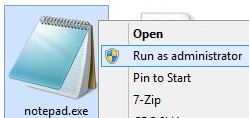
- Click File and then select Open.

- In the Open UI:
- Go to File Name
C:\Program Files\Dell\Enterprise Edition\Security Server\conf\application.properties. - Change the menu selection from Text Documents (*.txt) to All Files (*.*).
- Click Open.
- Go to File Name

Note: The directory for
application.properties may differ based on what was configured during installation.
- Modify
reporter.server.url=toreporter.server.url=https://FQDN.domain.com:8084/reporter.

Note:
FQDN.domain.com= The fully qualified domain name (FQDN) of the Dell Security Management Server- The example FQDN will differ in your environment.
- 8084 is the default port for Dell Compliance Reporter.
- Click File and then select Save.

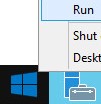
- Right-click the Windows Start Menu and then click Run.
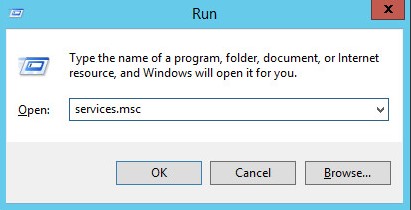
- In the Run UI, type
services.mscand then click OK.
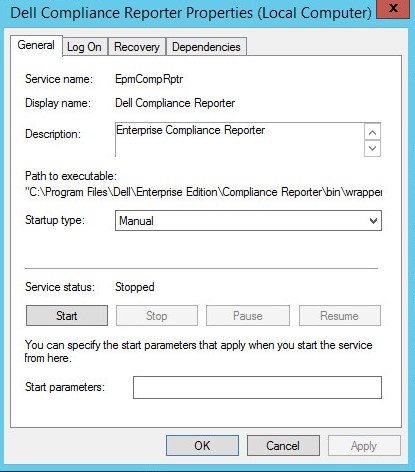
- Locate and then double-click Dell Compliance Reporter.

- From the Dell Compliance Reporter Properties:
- Change Startup type to Automatic.
- Click the Service status button to Start.
- Click OK.
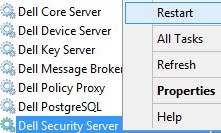
- Right-click Dell Security Server and click Restart.
Dell Security Management Server Virtual
- Log in to the Dell Enterprise Server Virtual administration console.

Note:
- The default credentials for Dell Security Management Server Virtual are:
- Username:
delluser - Password:
delluser
- Username:
- An administrator can change the default password within the product’s virtual appliance menu.
- Stop the server services.
Note: For more information about how to stop services, reference How to Stop and Start Services in Dell Security Management Server Virtual.
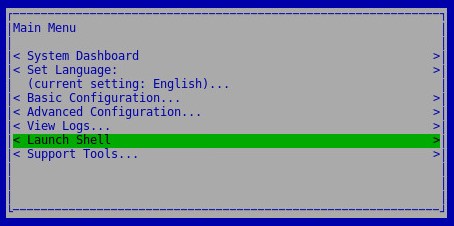
- From the Main Menu, select Launch Shell and then press Enter.
- From Shell, type
su dellsupportand then press Enter.

- Populate the password and then press Enter.

Note:
- The default credentials for Dell Security Management Server Virtual are:
- Username:
dellsupport - Password:
dellsupport
- Username:
- An administrator can change the default password within the product’s virtual appliance menu.
- Type
sudo vi /opt/dell/server/security-server/conf/application.propertiesand then press Enter.

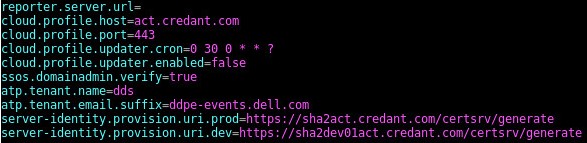
- Scroll to
reporter.server.url.
- At
reporter.server.url=, press I to insert.

- At
reporter.server.url=, typehttps://FQDN.domain.com:8084/reporter.

Note:
FQDN.domain.com= The fully qualified domain name (FQDN) of the Dell Security Management Server Virtual- The example FQDN differs in your environment.
- 8084 is the default port for Dell Compliance Reporter.
- Press ESC to exit the insert option, type
:wq!and then press Enter.

- Type
sudo ufw allow in "Dell Compliance Reporter"and then press Enter.

- Type
exitand then press Enter.

- Type
exitand then press Enter.

- Start the server services.
Note: For more information about how to start services, reference How to Stop and Start Services in Dell Security Management Server Virtual.
To contact support, reference Dell Data Security International Support Phone Numbers.
Go to TechDirect to generate a technical support request online.
For additional insights and resources, join the Dell Security Community Forum.
Additional Information
Videos
Affected Products
Dell EncryptionArticle Properties
Article Number: 000156418
Article Type: Solution
Last Modified: 02 Nov 2023
Version: 13
Find answers to your questions from other Dell users
Support Services
Check if your device is covered by Support Services.