如何升級 Dell Security Management Server Virtual
Summary: 您可以遵循這些逐步指示,升級 Dell Security Management Server Virtual 和 Dell Data Protection Virtual Edition。
This article applies to
This article does not apply to
This article is not tied to any specific product.
Not all product versions are identified in this article.
Instructions
本文涵蓋如何升級 Dell Security Management Server Virtual (先前稱為 Dell Data Protection Virtual Edition)。
受影響的產品:
- Dell Security Management Server Virtual
- Dell Data Protection Virtual Edition
受影響的作業系統:
- Linux
注意:若要進行就地升級,將需要從 Dell Security Management Server Virtual 連線至
act.credant.com。
Dell Security Management Server Virtual 的升級會因版本而異:
按一下在您環境中執行的 Dell Security Management Server Virtual 版本,以取得特定步驟。如需版本控制資訊,請參閱 如何識別 Dell Data Security 伺服器版本。
警告:
- 就地升級會使用支援的升級路徑,將 Dell Security Management Server Virtual 更新至最新版本。以下列出的版本僅用於顯示環境中執行之 Dell Security Management Server Virtual 版本的升級指示。這不代表支援的升級路徑。
- 如需支援的升級路徑,請參閱 Dell Security Management Server Virtual 系統需求的升級資訊。
- 升級前,請確定環境符合 Dell Security Management Server Virtual 系統需求。
11.6.0 版
版本 11.6.0 需要手動升級至版本 11.7.0 或更新版本。
- 在您目前的 Dell Security Management Server Virtual 上:
- 停止服務。
- 建立備份。
- 將備份卸載至外部位置。
- 關閉 Dell Security Management Server Virtual 例項。
注意:- 如需更多資訊,請參閱 如何在 Dell Security Management Server Virtual 中停止與啟動服務。
- 如需更多資訊,請參閱 如何備份與還原 Dell Security Management Server Virtual。
- 安裝 Dell Security Management Server Virtual v11.7.0 的新例項。
注意:如需版本資訊,請參閱如何安裝 Dell Security Management Server Virtual 的版本。
- 將備份 (步驟 1C) 上傳至 Dell Security Management Server Virtual 的新例項。
注意:必須啟用 SFTP 才能載入備份。如需更多資訊,請參閱 如何在 Dell Security Management Server Virtual 中建立 FTP 使用者。
- 在 Dell Security Management Server Virtual 的新例項上,還原在步驟 3 建立的備份。
- 在測試與驗證新例項後,請解除步驟 1 的舊版 Dell Security Management Server Virtual。
v10.2.13.14 至 11.5.0
注意:為獲得最佳效能,Dell Technologies 建議升級至最新的相容 Dell Security Management Server Virtual 版本。如需相容版本的詳細資訊,請參閱 Dell Security Management Server Virtual 系統需求的升級資訊。
- 登入 Dell Enterprise Server Virtual 管理主控台。
 注意:
注意:- Dell Security Management Server Virtual 的預設登入資料為:
- 使用者名稱:
delluser - 密碼:
delluser
- 使用者名稱:
- 系統管理員可以變更在產品的虛擬裝置選單中的預設密碼。
- Dell Security Management Server Virtual 的預設登入資料為:
- 從 主功能表中,選取 基本組態 ,然後按下 Enter 鍵。

- 選取升級 Dell Security Management Server Virtual,然後按下 Enter 鍵。

- 選取安裝更新,然後按下 Enter 鍵。

- 選取是,然後按下 Enter 鍵。

- 選取是,然後按下 Enter 鍵。

- 在「資料庫存取」功能表中:
- 可選擇啟用 IPv4 的遠端存取。
- 可選擇啟用 IPv6 的遠端存取。
- 輸入新的資料庫 密碼。
- 確認 新的資料庫 密碼。
- 選取為裝置重新開機,然後按下 Enter 鍵。

若要確認伺服器升級,可在管理主控台頂端查看新版本。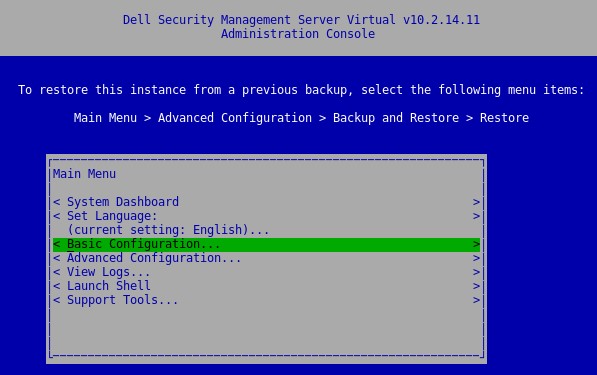
v10.2.13.13
注意:為獲得最佳效能,Dell Technologies 建議升級至最新的相容 Dell Security Management Server Virtual 版本。如需相容版本的詳細資訊,請參閱 Dell Security Management Server Virtual 系統需求的升級資訊。
版本 10.2.13.13 需要手動升級至版本 10.2.13.14 或更新版本。
- 在您目前的 Dell Security Management Server Virtual 上:
- 停止服務。
- 建立備份。
- 將備份卸載至外部位置。
- 關閉 Dell Security Management Server Virtual 例項。
注意:- 如需更多資訊,請參閱 如何在 Dell Security Management Server Virtual 中停止與啟動服務。
- 如需更多資訊,請參閱 如何備份與還原 Dell Security Management Server Virtual。
- 安裝 Dell Security Management Server Virtual v10.2.13.14 或更新版本的新例項。
注意:如需版本資訊,請參閱如何安裝 Dell Security Management Server Virtual 的版本。
- 將備份 (步驟 1C) 上傳至 Dell Security Management Server Virtual 的新例項。
注意:必須啟用 SFTP 才能載入備份。如需更多資訊,請參閱 如何在 Dell Security Management Server Virtual 中建立 FTP 使用者。
- 在 Dell Security Management Server Virtual 的新例項上,還原在步驟 3 建立的備份。
- 在測試與驗證新例項後,請解除步驟 1 的舊版 Dell Security Management Server Virtual。
v9.11.0 至 10.2.12
注意:為獲得最佳效能,Dell Technologies 建議升級至最新的相容 Dell Security Management Server Virtual 版本。如需相容版本的詳細資訊,請參閱 Dell Security Management Server Virtual 系統需求的升級資訊。
- 登入 Dell Enterprise Server Virtual 管理主控台。
 注意:
注意:- Dell Security Management Server Virtual 的預設登入資料為:
- 使用者名稱:
delluser - 密碼:
delluser
- 使用者名稱:
- 系統管理員可以變更在產品的虛擬裝置選單中的預設密碼。
- Dell Security Management Server Virtual 的預設登入資料為:
- 從 主功能表中,選取 基本組態 ,然後按下 Enter 鍵。

- 選取升級 Dell Security Management Server Virtual,然後按下 Enter 鍵。

- 選取安裝更新,然後按下 Enter 鍵。

- 選取是,然後按下 Enter 鍵。

- 選取是,然後按下 Enter 鍵。

- 如果安裝沒有回應,請按下 Enter 鍵。
 注意:如需更多資訊,請參閱升級 Dell Security Management Server Virtual 顯示為停止回應。
 - 在「資料庫存取」功能表中:
- 可選擇啟用 IPv4 的遠端存取。
- 可選擇啟用 IPv6 的遠端存取。
- 輸入新的資料庫密碼。
- 確認 新的資料庫 密碼。
- 選取為裝置重新開機,然後按下 Enter 鍵。

v9.10.1
注意:為獲得最佳效能,Dell Technologies 建議升級至最新的相容 Dell Security Management Server Virtual 版本。如需相容版本的詳細資訊,請參閱 Dell Security Management Server Virtual 系統需求的升級資訊。
版本 9.10.1 需要手動升級至版本 9.11 至 10.2.13.14。
Dell Data Security - Security Management Server Virtual 9.10.1 至 9.11 升級
持續時間:00:08:38 (小時:分鐘:秒)
當可用時,您可以使用此影像播放器上的 CC 圖示來選擇隱藏式輔助字幕 (字幕) 語言設定。
- 在您目前的 Dell Security Management Server Virtual 上:
- 停止服務。
- 建立備份。
- 將備份卸載至外部位置。
- 關閉 Dell Security Management Server Virtual 例項。
注意:- 如需更多資訊,請參閱 如何在 Dell Security Management Server Virtual 中停止與啟動服務。
- 如需更多資訊,請參閱 如何備份與還原 Dell Security Management Server Virtual。
- 安裝 Dell Security Management Server Virtual v9.11 至 10.2.13.14 的新例項。
注意:如需版本資訊,請參閱如何安裝 Dell Security Management Server Virtual 的版本。
- 將備份 (步驟 1C) 上傳至 Dell Security Management Server Virtual 的新例項。
注意:必須啟用 SFTP 才能載入備份。如需更多資訊,請參閱 如何在 Dell Security Management Server Virtual 中建立 FTP 使用者。
- 在 Dell Security Management Server Virtual 的新例項上,還原在步驟 3 建立的備份。
- 在測試與驗證新例項後,請解除步驟 1 的舊版 Dell Security Management Server Virtual。
v9.8.2 至 9.10.0
注意:為獲得最佳效能,Dell Technologies 建議升級至最新的相容 Dell Security Management Server Virtual 版本。如需相容版本的詳細資訊,請參閱 Dell Security Management Server Virtual 系統需求的升級資訊。
下載
- 登入 Dell Enterprise Server Virtual 管理主控台。
 注意:
注意:- Dell Data Protection Enterprise Server Virtual Edition 的預設登入資料為:
- 使用者名稱:
ddpuser - 密碼:
ddpuser
- 使用者名稱:
- 系統管理員可以變更在產品的虛擬裝置選單中的預設密碼。
- Dell Data Protection Enterprise Server Virtual Edition 的預設登入資料為:
- 從 主功能表中,選取 基本組態 ,然後按下 Enter 鍵。

- 選取升級 Dell Security Management Server Virtual,然後按下 Enter 鍵。

- 選取下載升級,然後按下 Enter 鍵。

- 下載完成後,按下 Enter 鍵以繼續。

安裝
- 登入 Dell Enterprise Server Virtual 管理主控台。
 注意:
注意:- Dell Data Protection Enterprise Server Virtual Edition 的預設登入資料為:
- 使用者名稱:
ddpuser - 密碼:
ddpuser
- 使用者名稱:
- 系統管理員可以變更在產品的虛擬裝置選單中的預設密碼。
- Dell Data Protection Enterprise Server Virtual Edition 的預設登入資料為:
- 從 主功能表中,選取 基本組態 ,然後按下 Enter 鍵。

- 選取升級 Dell Security Management Server Virtual,然後按下 Enter 鍵。

- 選取套用更新,然後按下 Enter 鍵。

- 選取要安裝的更新檔案 ,然後按下 Enter 鍵。
 注意:
注意:- 更新檔案可能會與上述範例不同。
- 選取更新檔案後,可能會發生「pending policy commit detected」錯誤。若要解決此問題,請參閱 如何認可 Dell Data Security Server 的原則。解決後,請重新開始 安裝更新 步驟。
- 成功安裝後,伺服器會自動重新開機。

 注意:根據您的版本,更新安裝狀態範例可能有所不同。
 - 登入伺服器。

- 登入時,便可確認伺服器更新。在確定上按下 Enter 鍵,以返回管理主控台。

- 輸入並重新輸入新的資料庫密碼。填入後,選取確定,然後按下 Enter 鍵。

v8.2.0 至 9.7.0
注意:為獲得最佳效能,Dell Technologies 建議升級至最新的相容 Dell Security Management Server Virtual 版本。如需相容版本的詳細資訊,請參閱 Dell Security Management Server Virtual 系統需求的升級資訊。
下載
- 登入 Dell Enterprise Server Virtual 管理主控台。
 注意:
注意:- Dell Data Protection Enterprise Server Virtual Edition 的預設登入資料為:
- 使用者名稱:
ddpuser - 密碼:
ddpuser
- 使用者名稱:
- 系統管理員可以變更在產品的虛擬裝置選單中的預設密碼。
- Dell Data Protection Enterprise Server Virtual Edition 的預設登入資料為:
- 從 主功能表中,選取 基本組態 ,然後按下 Enter 鍵。

- 選取更新 DDP Enterprise Server - VE,然後按下 Enter 鍵。

- 選取下載升級,然後按下 Enter 鍵。

- 下載完成後,按下 Enter 鍵以繼續。

安裝
- 登入 Dell Enterprise Server Virtual 管理主控台。
 注意:
注意:- Dell Data Protection Enterprise Server Virtual Edition 的預設登入資料為:
- 使用者名稱:
ddpuser - 密碼:
ddpuser
- 使用者名稱:
- 系統管理員可以變更在產品的虛擬裝置選單中的預設密碼。
- Dell Data Protection Enterprise Server Virtual Edition 的預設登入資料為:
- 從 主功能表中,選取 基本組態 ,然後按下 Enter 鍵。

- 選取更新 DDP Enterprise Server - VE,然後按下 Enter 鍵。

- 選取套用更新,然後按下 Enter 鍵。

- 選取要安裝的更新檔案,然後按下 Enter 鍵。
 注意:
注意:- 更新檔案可能會與上述範例不同。
- 選取更新檔案後,可能會發生「pending policy commit detected」錯誤。若要解決此問題,請參閱 如何認可 Dell Data Security Server 的原則。解決後,請重新開始 安裝更新 步驟。
- 成功安裝後,伺服器會自動重新開機。

- 登入伺服器。

- 若要確認伺服器更新,可在管理主控台頂端查看新版本。

如要聯絡支援部門,請參閱 Dell Data Security 國際支援電話號碼。
請前往 TechDirect,以線上產生技術支援要求。
如需更多深入見解與資源,請加入 Dell 安全性社群論壇。
Additional Information
Videos
Affected Products
Dell EncryptionArticle Properties
Article Number: 000178533
Article Type: How To
Last Modified: 16 Sept 2025
Version: 23
Find answers to your questions from other Dell users
Support Services
Check if your device is covered by Support Services.