How to Install Adobe Photoshop Elements and Premier Elements on Dell Computers
Summary: This article discusses how to download and install Adobe Photoshop Elements or Adobe Premier Elements that are sold on Dell platforms.
This article applies to
This article does not apply to
This article is not tied to any specific product.
Not all product versions are identified in this article.
Instructions
NOTE: For Dell devices sold in 2025 and later, Dell Digital Delivery has been replaced by Dell Optimizer for acquiring product keys or license keys. For Alienware devices, Dell Digital Delivery has been replaced by Dell Purchased Apps.
For more information about the migration, see Dell Knowledge Base Dell Optimizer Version 6.x Purchased Apps Information.
To install Dell Purchased Apps, visit the Microsoft Store page.
For more information about the migration, see Dell Knowledge Base Dell Optimizer Version 6.x Purchased Apps Information.
To install Dell Purchased Apps, visit the Microsoft Store page.
Affected Products:
- Adobe Photoshop Elements 2020 and Later
- Adobe Premier Elements 2020 and Later
Affected Operating Systems:
- Windows
Warning: These steps cover only Adobe Photoshop Elements or Adobe Premier Elements that are purchased at the time of the Dell hardware.
To install the product:
- In the Windows Start Menu, search and then click Dell Optimizer or Dell Purchased Apps.
- In Dell Optimizer (under the Purchased Apps tab, click Get your apps) or Dell Purchased Apps, locate Adobe Photoshop Elements & Premier Elements [VERSION] and Copy the provided Product Key or License Key depending on product version. Copy this Key in Notepad or Word as the Key is needed for installation.
 Note:
Note:- The 16-digit alphanumeric license key or product key has been omitted from the above screenshot.
- Adobe references the license key or product key as a redemption code.
- Your version of Adobe Photoshop Elements and Adobe Premier Elements may differ from the screenshot.
- The 16-digit alphanumeric license key or product key has been omitted from the above screenshot.
- Click Redeem to automatically go to https://www.adobe.com/go/getserial
.
- Type your Adobe ID or associated Email Address and then click Continue.
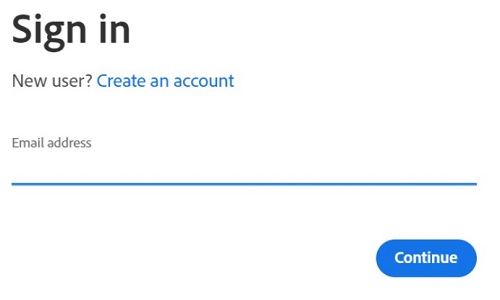 Note:
Note:- For account help, reference https://helpx.adobe.com/manage-account/kb/account-password-sign-help.htm
- If this is the first time using an Adobe product, click Create an account.
- Dell is unable to assist with third-party (Adobe) account issues. Contact the vendor for further assistance.
- For account help, reference https://helpx.adobe.com/manage-account/kb/account-password-sign-help.htm
- Paste your license key product key (step 2) and then click Redeem. Be sure to paste the key to avoid any potential mistakes. Then click Redeem.
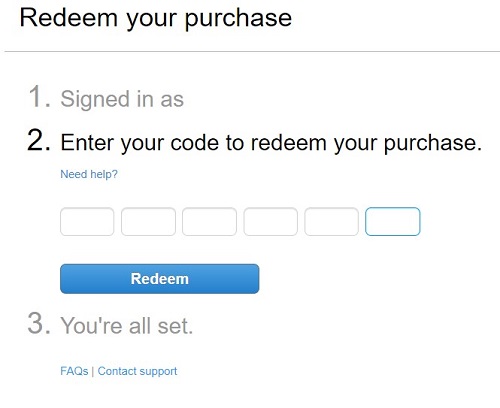 Note:
Note:- The username and redemption code were removed from the above screenshot.
- If an error This code has already been redeemed occurs, then reference Adobe Product Code Has Already Been Redeemed for steps on resolution.
Warning:- The redemption code (step 2) can only be used once.
Caution:- Once the redemption code has been used, an activated product must be deactivated before reinstalling due to reimage or changing machines.
- For more information, reference https://helpx.adobe.com/download-install/kb/activate-deactivate-products.html
- For more information, reference https://helpx.adobe.com/download-install/kb/activate-deactivate-products.html
- Failure to deactivate prohibits the reinstallation of the product.
- Record the Serial Number. This Serial Number, which is required for activating your software, is different from the license and product key previously copied from Dell Digital Delivery. After noting the Serial Number, click Download.
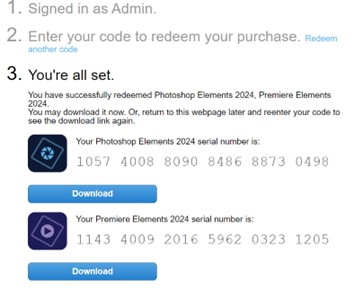 Note:
Note:- The products' serial numbers were removed from the above screenshot.
- The serial number (step 6) is different than the 16-digit alphanumeric redemption key (step 2).
Caution:- Do not exit from this webpage until you have installed all appropriate products.
- To help with troubleshooting and reinstallation, Dell highly recommends registering the serial number with Adobe at https://account.adobe.com/products
- In the pop-up, populate your Adobe ID and then click Continue.
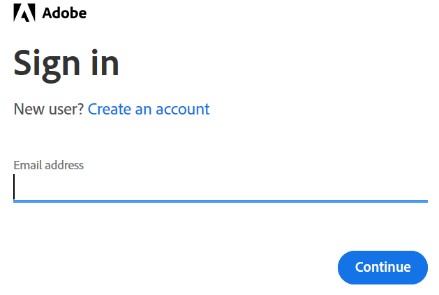
- Confirm the email address and then click Continue.
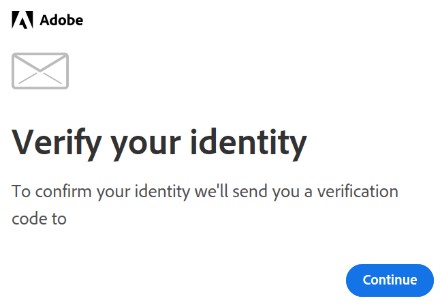 Note: The user’s email was removed from the above screenshot.
 - Populate your Adobe ID’s Password and then click Continue.
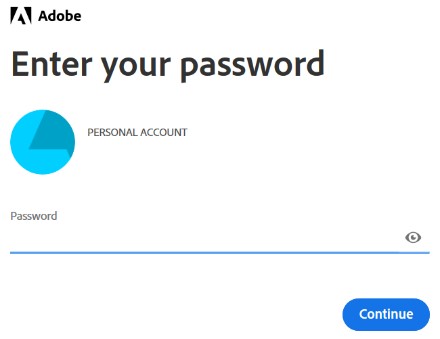
- Click Continue.

- Click Continue.
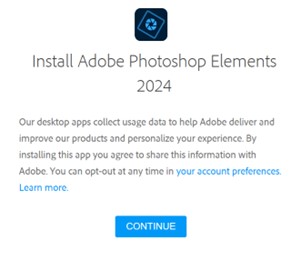
- Optionally change the Language or installation Location. Click Continue to proceed.
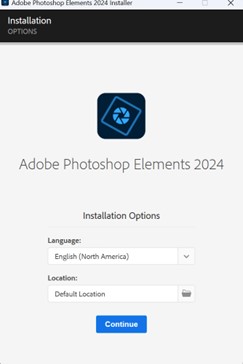 Note: Clicking Continue starts the installation process.
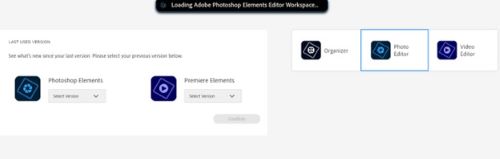
- Select the software for installation.
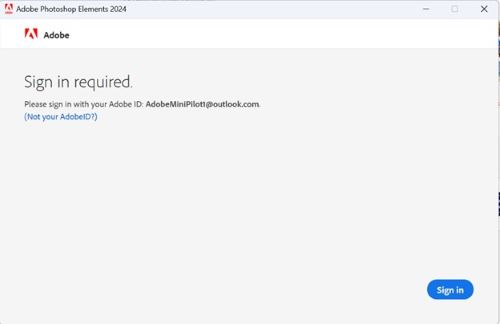
- Sign into Adobe Account.
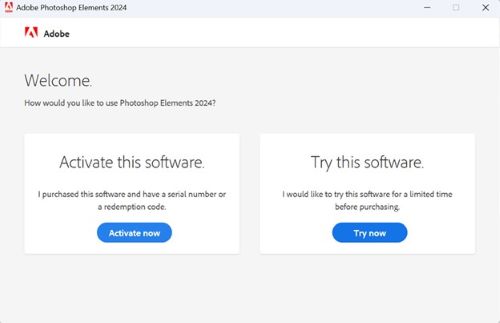
- Click Activate Now.
- Paste the Serial Number from Step 6. Click Next.
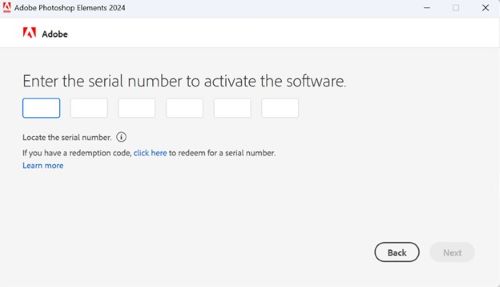
- After installation is complete, optionally go to step 6 to install the other product.
Affected Products
Alienware, Dell All-in-One, Dell Pro All-in-One, Dell Pro Max Micro, Dell Pro Max Slim, Dell Pro Max Tower, Dell Pro Micro, Dell Pro Slim, Dell Pro Tower, Dell Slim, Dell Tower, Inspiron, Legacy Desktop Models, OptiPlex, Vostro, XPS, G Series
, G Series, Alienware, Dell Plus, Dell Pro, Dell Pro Max, Dell Pro Plus, Dell Pro Premium, Inspiron, Latitude, Dell Pro Rugged, Vostro, XPS, Legacy Laptop Models, Fixed Workstations, Mobile Workstations, Dell Pro Max Micro XE FCM2250, Dell Pro Max Slim XE FCS1250, Dell Pro Max Tower T2 XE FCT2250, Dell Pro Max 16 XE MC16250, Dell Pro Micro Plus XE QBM1250, Dell Pro Slim Plus XE5 QBS1250, Dell Pro Tower Plus XE5 QBT1250
...
Article Properties
Article Number: 000182101
Article Type: How To
Last Modified: 08 May 2026
Version: 32
Find answers to your questions from other Dell users
Support Services
Check if your device is covered by Support Services.