Dell Security Management Server VirtualでのpgAdminを使用したPostgresデータベースへのアクセス
Summary: この記事では、pgAdminを使用してDell Security Management Server Virtual Postgresデータベースにアクセスする方法について説明します。
This article applies to
This article does not apply to
This article is not tied to any specific product.
Not all product versions are identified in this article.
Instructions
対象製品:
- Dell Security Management Server Virtual
- Dell Data Protection | Virtual Edition
Dell Security Management Server Virtual(旧Dell Data Protection |Virtual Edition)、Postgresにアクセスする必要があります。これはコマンドラインで実行できますが、pgAdminなどのサードパーティツールを使用すると、より優れたエクスペリエンスを提供できます。
データベースにアクセスするには、次の手順を実行します。
- パスワードを設定します 。
- リモート アクセスを許可します。
注:これらのオプションは、Dell Security Management Server Virtualコンソールの詳細 設定 メニュー内にあります。
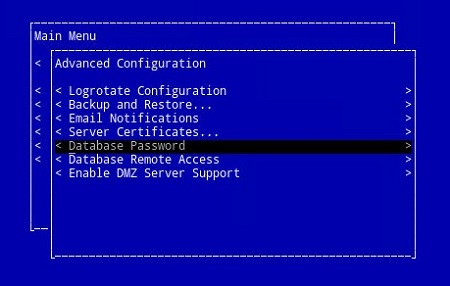

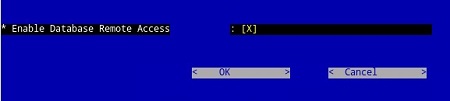
pgAdminの3
- アクセスが設定されたので、 pgAdminを起動します。ドロップダウン メニューから、ファイル>サーバーの追加...を選択します。
![[Add Server]をクリックします](https://supportkb.dell.com/img/ka0Do000000dkHLIAY/ka0Do000000dkHLIAY_ja_4.jpeg)
- [New Server Registration]画面に必要なフィールドに入力します。
- [Name]:使用するサーバーのフレンドリ名がpgAdminコンソールに表示されます。
- ホスト: Dell Data Protection |Virtual Editionサーバー
- ポート: データベースにアクセスするためのポート番号(デフォルトでは5432で、事前に入力されている必要があります)。
- ユーザー名:
ddp_admin - パスワード: Dell Data Protection |Virtual Editionサーバー コンソール。
![[New server Registration]画面のフィールドに入力します](https://supportkb.dell.com/img/ka0Do000000dkHLIAY/ka0Do000000dkHLIAY_ja_5.jpeg)
- その情報を入力したら、[ OK ]を押して、pgAdminコンソールへのサーバーの追加を完了します。
![[サーバー]を展開して、お使いのサーバーがリストされていることを確認します](https://supportkb.dell.com/img/ka0Do000000dkHLIAY/ka0Do000000dkHLIAY_ja_6.jpeg)
- ddp_8_2_0を選択すると、赤いXが消え、SQLアイコンが使用可能になります。
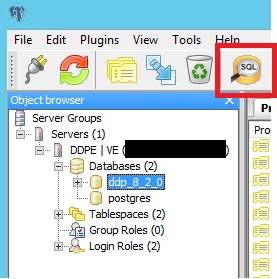
- そのアイコンをクリックすると、 クエリウィンドウが表示されます。
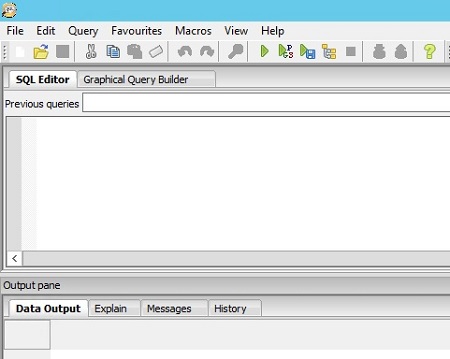
pgAdminの4
- アクセスが設定されたので、pgAdminを開きます。ドロップダウン メニューから、Object>Create>Serverを選択します。
![[Server]をクリックします。](https://supportkb.dell.com/img/ka0Do000000dkHLIAY/ka0Do000000dkHLIAY_ja_9.jpeg)
- サーバーに 名前 を付けます (pgAdmin ブラウザでは次のように表示されます)。

- 接続タブをクリックします。次のフィールドに入力します。
- ホスト: Dell Data Protection |Virtual Editionサーバー
- ポート: データベースにアクセスするためのポート番号(デフォルトでは5432で、事前に入力されている必要があります)。
- ユーザー名:
ddp_admin - パスワード: Dell Data Protection |Virtual Editionサーバー コンソール。

- サーバーを開き、 ddp データベースに移動します。

- データベースを右クリックし、[Query Tool...]を選択します。
![[Query Tool...] をクリックします。](https://supportkb.dell.com/img/ka0Do000000dkHLIAY/ka0Do000000dkHLIAY_ja_13.jpeg)
これにより、クエリウィンドウが表示されます。

サポートに問い合わせるには、「Dell Data Securityのインターナショナル サポート電話番号」を参照してください。
TechDirectにアクセスして、テクニカル サポート リクエストをオンラインで生成します。
さらに詳しい情報やリソースについては、「デル セキュリティ コミュニティー フォーラム」に参加してください。
Affected Products
Dell EncryptionArticle Properties
Article Number: 000131368
Article Type: How To
Last Modified: 19 Jun 2026
Version: 13
Find answers to your questions from other Dell users
Support Services
Check if your device is covered by Support Services.