NetWorker: How to Determine the NetWorker Server and Client Software Version by Using NMC
Summary: Using the NetWorker Management Console (NMC) to determine the NetWorker server and client software version.
This article applies to
This article does not apply to
This article is not tied to any specific product.
Not all product versions are identified in this article.
Instructions
Finding NetWorker server software version:
Determining the NetWorker server software version by using the NetWorker Management Console (NMC)
- Log in to the NetWorker Management Console (NMC):
- Select the NetWorker server from the NMC Enterprise tab.
- The NetWorker server version is listed in the right-window:
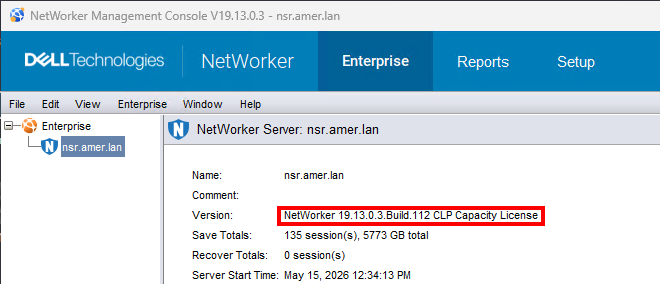
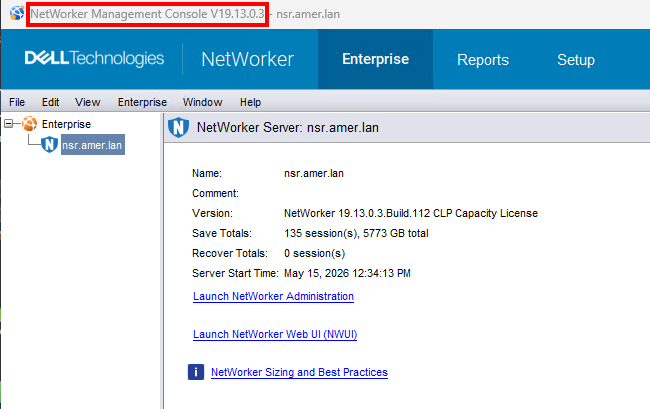
- In some environments, multiple NetWorker servers are managed by a single NMC server. It is best practice to use the same NMC version as the NetWorker server; however, the versions may differ. The NMC server version is listed in the title bar of the NMC:
Finding NetWorker Client software version:
Determining the NetWorker Client software version by using NMC
NOTE: This method is only possible if the client host is online and accessible to NetWorker. NetWorker client services must be running.
Use NMC to connect to the NetWorker server with a user that is a member of the Application Administrators user group on the NetWorker server.
- From the NMC, click View -> Diagnostic Mode (This must be enabled).
- Click Protection tab (1) and then click clients (2).
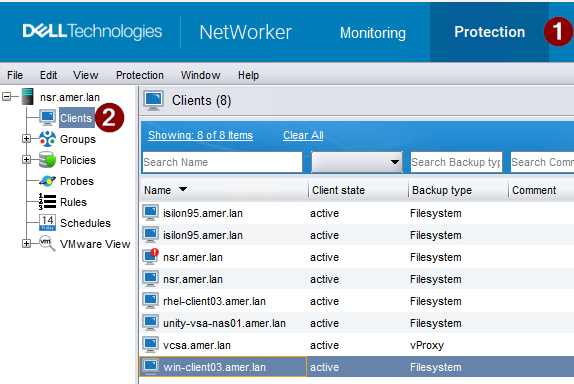
- Right click the client that is having the issue and click modify client wizard.
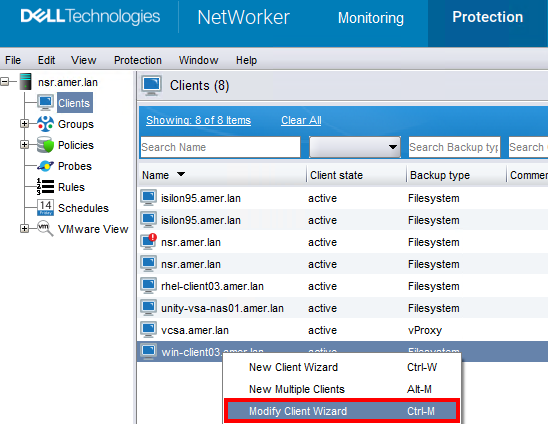
3.The NetWorker Version is listed in the client details window.
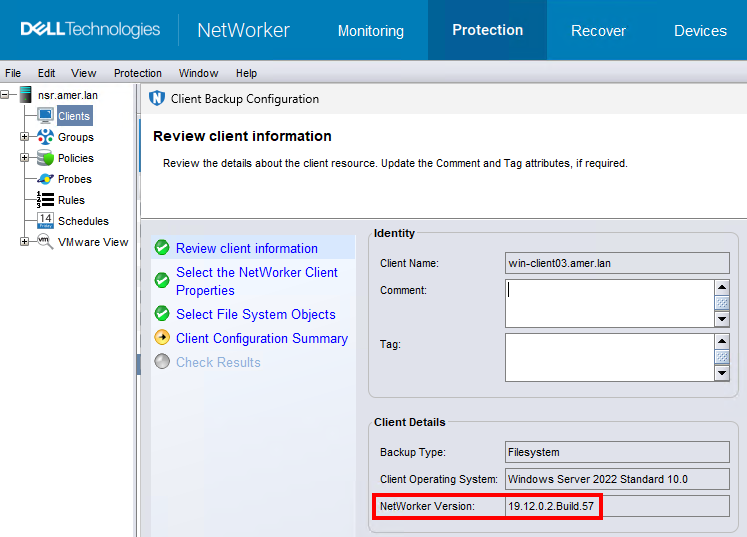
Determining the NetWorker server software version by using nsradmin:
NetWorker services are online:
For NetWorker servers, run nsrwatch from an elevated prompt:

For any host with the NetWorker client software installed, run the following command to access the nsradmin command-line interface for the client process (nsrexecd)
- At the command prompt, type:
nsradmin -p nsrexecd - From the
nsradminprompt, run:print type: nsrla
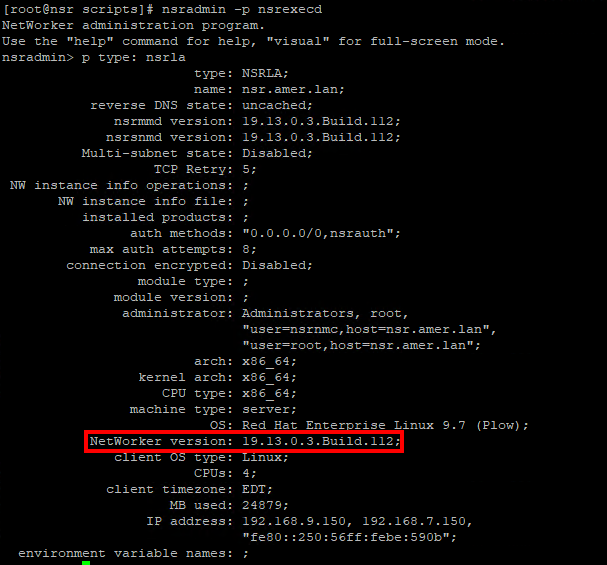
NetWorker services are offline:
- For any host with the NetWorker client software installed, run the following command to access the
nsradmincommand-line interface against thensrladb.
- Linux:
nsradmin -d /nsr/res/nsrladb - Windows (Default install path):
nsradmin -d "C:\Program Files\EMC NetWorker\nsr\res\nsrladb"
- From the
nsradminprompt, run:print type: nsrla
Additional Information
Affected Products
NetWorker, NetWorker Series, NetWorker Management Console, NetWorker Module, NetWorker Module for Databases and Applications, NetWorker Module for Microsoft, NetWorker Module for SAPProducts
NetWorker Module for MEDITECHArticle Properties
Article Number: 000198932
Article Type: How To
Last Modified: 25 May 2026
Version: 3
Find answers to your questions from other Dell users
Support Services
Check if your device is covered by Support Services.