NetWorker: Azure Subscription Missing From NWUI "Unable to Retrieve Client Secret"
Summary: A Microsoft Azure Subscription was previously added to NetWorker. The Azure subscription is not shown in the NetWorker Web User Interface (NWUI). While attempting to readd the Azure subscription, an error appears stating that the Azure subscription already exists in NetWorker. The subscription is visible from a nsradmin prompt on the NetWorker server. ...
Symptoms
An Azure subscription was previously added to the NetWorker server. The NetWorker Web Use Interface (NWUI) does not show any Azure Subscriptions:

Attempting to add the Azure subscription back to NetWorker reports that it already exists:

The NetWorker server's daemon.log may report:
- Linux: /nsr/logs/daemon.raw
- Windows (Default): C:\Program Files\EMC NetWorker\nsr\logs\daemon.raw
- NetWorker: How to use nsr_render_log to render .raw log files
66113 MM/DD/YYYY HH:mm:SS nsrd NSR critical Failed to retrieve item _azure_AZURE_SUBSCRIPTION_NAME_client secret from lockbox /nsr/lockbox/NETWORKER_SERVER_FQDN/clb.lb
The Azure subscription can be seen from an nsradmin prompt on the NetWorker server:
- Open an elevated prompt on the NetWorker server.
- Run:
nsradmin - From the nsradmin prompt, list the Azure subscriptions:
print type: NSR Azure Subscription
azure-nve:~ # nsradmin
NetWorker administration program.
Use the "help" command for help, "visual" for full-screen mode.
nsradmin> p type: NSR Azure Subscription
                        type: NSR Azure Subscription;
                        name: SUBSCRIPTION-RESOURCE-NAME;
                     comment: ;
                   tenant id: AZURE-TENANT-ID;
             subscription id: AZURE-SUBSCRIPTION-ID;
                   client id: AZURE-CLIENT-IDb;
               client secret: *******;
                    endpoint: management.azure.com;
                     command: nsrazure_discovery;
               administrator: "user=root,host=azure-nve.local",
                              "user=administrator,host=azure-nve.local",
                              "user=system,host=azure-nve.local",
                              "user=nsrnmc,host=azure-nve.local",
nsradmin> quit
Cause
There are multiple issues that may cause these symptoms.
- The NetWorker server's lockbox is corrupted.
- NetWorker is not able to decrypt the Azure subscription's client secret from the lockbox.
- The Azure client secret has an expiration period defined when it is created. The expiration date has passed and the client secret used in the NetWorker Azure Subscription resource in no longer valid.
Resolution
- On the NetWorker server, create a file called
clear_client_secret.txtin a location of your choosing. - Add the following contents to the file and save it:
. type: nsr azure subscription
update client secret: ;
y
- From a root shell (Linux) or Administrator command prompt (Windows), stop NetWorker server services:
- Linux: nsr_shutdown
- Windows:
net stop nsrd
- Create a copy of the NetWorker server resource database (NSRDB):
- Linux:
cp -R /nsr/res/nsrdb /nsr/res/nsrdb.beforeclientsecretreset_$(date -I) - Windows: Use Windows File Explorer to create a copy of the resource database folder, default path: C:\Program Files\EMC NetWorker\nsr\res\nsrdb
- Use
nsradminto import theclear_client_secret.txtinto the nsrdb.
- Linux:
nsradmin -i clear_client_secret.txt -d /nsr/res/nsrdb - Windows:
nsradmin -i clear_client_secret.txt -d "C:\Program Files\EMC NetWorker\nsr\res\nsrdb"
Example:
azure-nve:~ # nsradmin -i clear_client_secret.txt -d /nsr/res/nsrdb
Current query set
updated resource id 53.0.36.27.0.0.0.0.220.76.162.103.10.164.158.89(186)
You see an "updated resource" line for each Azure subscription configured on the NetWorker server.
- Open an
nsradminprompt to the nsrdb and update the client subscription for each Azure subscription.
- Linux:
nsradmin -d /nsr/res/nsrdb - Windows:
nsradmin -d "C:\Program Files\EMC NetWorker\nsr\res\nsrdb"
If all Azure subscriptions share the same Azure client secret, perform the following:
nsradmin> . type: nsr azure subscription
Current query set
nsradmin> show name; client secret
nsradmin> print
               client secret: ;
                        name: Azure;
nsradmin> update cleint secret: REPLACE_WITH_CLIENT_SECRET
               cleint secret: CLIENT_SECRET;
Update? y
updated resource id 53.0.36.27.0.0.0.0.220.76.162.103.10.164.158.89(187)
*Repeat confirmation for each subscription*
nsradmin> q
nsradmin> show name
nsradmin> print type: nsr azure subscription
                        name: AZURE_SUBSCRIPTION_NAME;
nsradmin> . type: nsr azure subscription; name: AZURE_SUBSCRIPTION_NAME
Current query set
nsradmin> update client secret: REPLACE_WITH_CLIENT_SECRET
               client secret: CLIENT_SECRET;
Update? y
updated resource id 53.0.36.27.0.0.0.0.220.76.162.103.10.164.158.89(188)
q or quit to exit nsradmin.
- Start NetWorker server services:
- Linux:
systemctl start networkeror/etc/init.d/networker start - Windows:
net start nsrd
- Monitor the server's daemon.raw for any new lockbox errors:
- Linux: /nsr/logs/daemon.raw
- Windows (Default): C:\Program Files\EMC NetWorker\nsr\logs\daemon.raw
- NetWorker: How to use nsr_render_log to render .raw log files
- If no lockbox errors are reported regarding the Azure subscriptions, validate that you can refresh the subscriptions from NWUI after service startup.
Additional Information
If the above procedure does not work. The Azure Subscriptions must be deleted and re-created.
- Create a copy of the nsrdb (if not done already). If you are performing these steps after attempting the above procedure a copy was created in Resolution step 4. Additionally, ensure that the Server Protection job has been completed. Collect bootstrap save set details:
mminfo -B - Collect the Azure subscription details from nsradmin prompt. This lists everything except the client Secret. This must be collected before proceeding to the next steps. The Azure Administrator must perform these actions; however, see the Azure Client Secret below for general steps required.
nsradmin
print type: nsr azure subscription
- Delete the existing Azure subscription resources
. type: nsr azure subscription
delete
y
- Log in to the NetWorker Web User Interface (NWUI) and go to Protection->Azure Subscriptions.
- Re-create each Azure subscription using the name, comment, tenant id, subscription id, and client id collected in step 2. The client secret must be provided by the customer or their Azure admin
Azure Client Secret
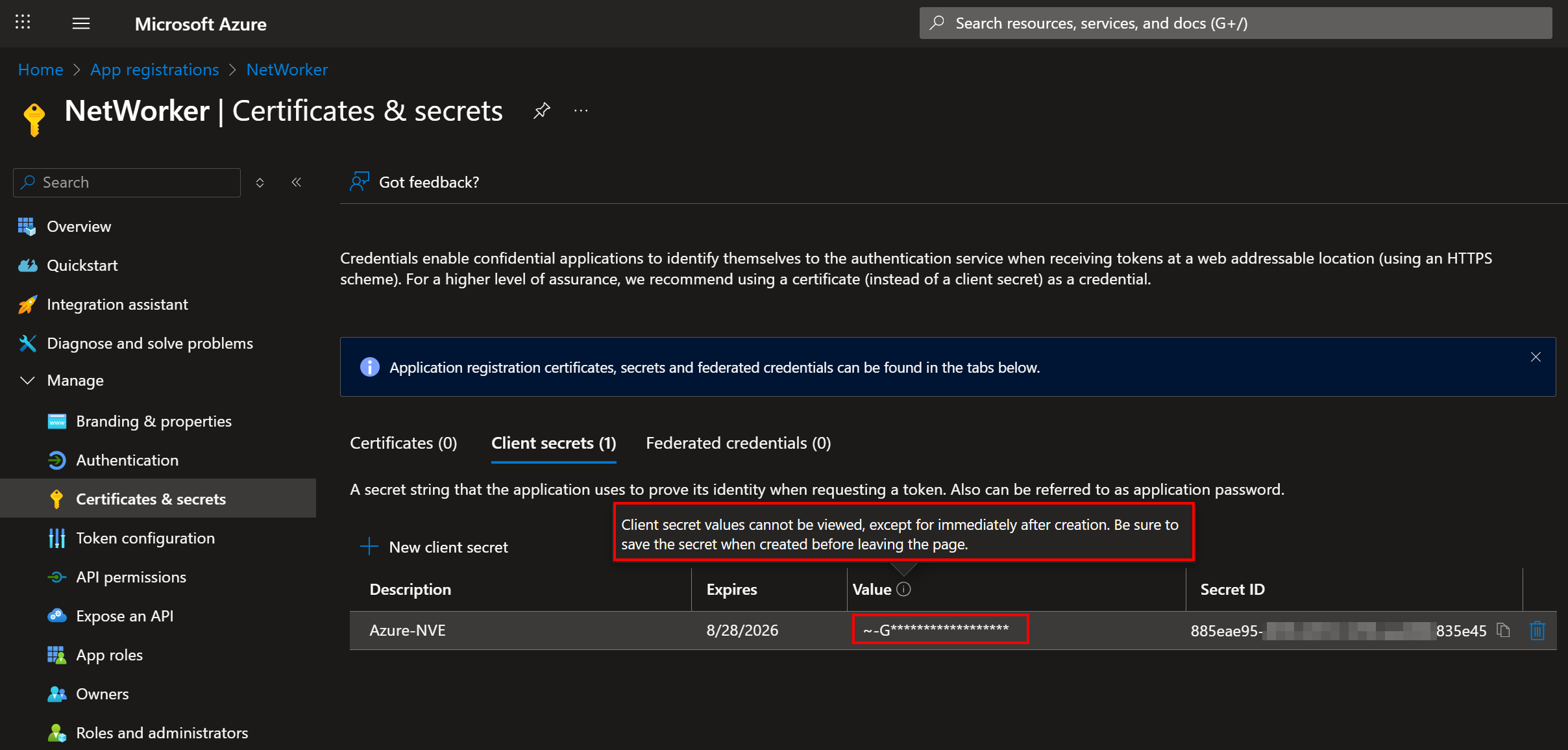
If the current Azure client secret is not known, a new one can be created from Azure. Only Azure user accounts with appropriate permissions can view these settings and resources. This requires the environment's Azure Administrator.
- From Azure portal, go to (or Search) App Registrations.
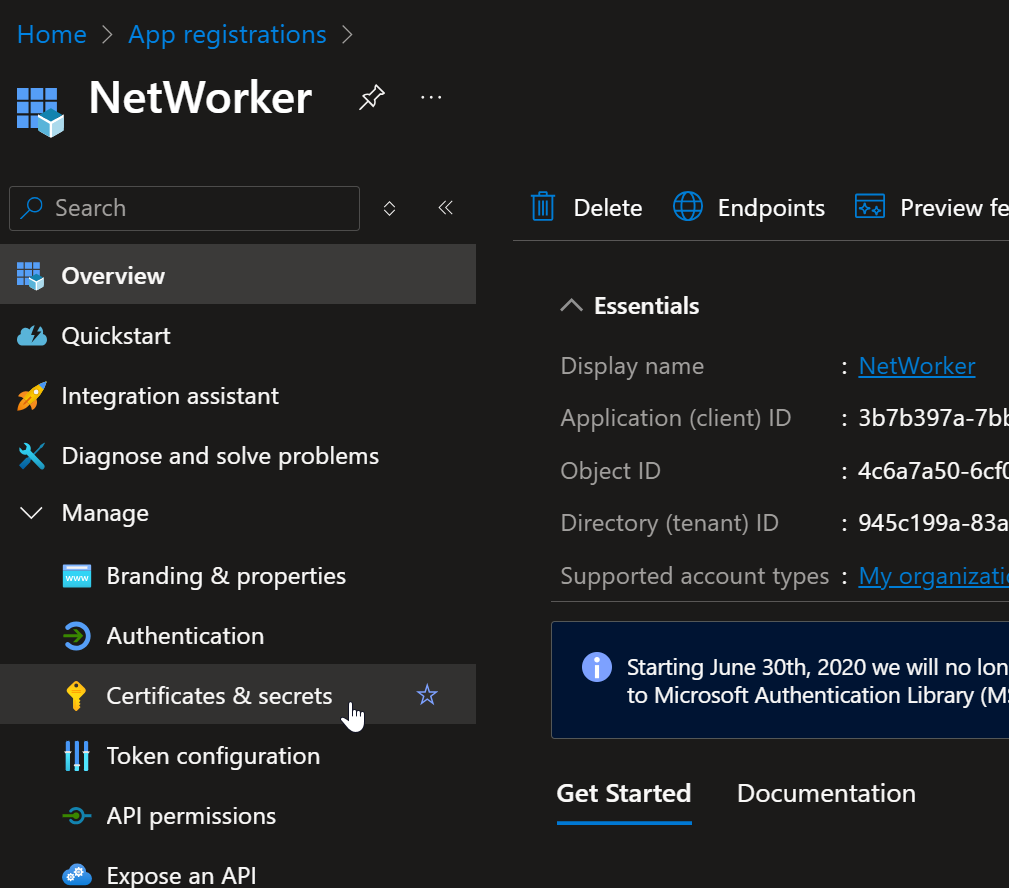
- From App Registrations, entries should exist for each client id. The name value may differ, but the "client id" should match the ones used in NetWorker:

- Open the App Registration Portal by clicking its Display Name.
- From the App Registration resource screen, expand the Manage drop down, then click Certificates & Secrets
- From the Certificates & Secrets window you see the secrets previously created for the App Registration resource: