NVP-vProxy: FLR recovery fails to mount the backup image with error: Management credentials for setting up export path were not configured
Summary: NetWorker VMware Protection (NVP) Virtual Machine (VM) FLR fails during the mount operation. The error returned states that the management credentials are not set on the Data Domain.
This article applies to
This article does not apply to
This article is not tied to any specific product.
Not all product versions are identified in this article.
Symptoms
When performing an FLR recovery of a vProxy backup through the NMC Recover Tab the proxy is unable to mount the selected backup image.

Check the vproxy_flr recovery log located in the following folder on the NetWorker server:
- Linux: /nsr/logs/adhoc/nsrvproxy_flr/jobid.log
- Windows (default): C:\Program Files\EMC NetWorker\nsr\logs\adhoc\nsrvproxy_flr\jobid.log
155854:nsrvproxy_flr: Starting Saveset Mount...
155858:nsrvproxy_flr: Mounting Saveset Id '9803ba11-00000006-ad388579-59388579-00545000-92010156' on vCenter 'vCenter_Server' at VM 'vm-name(vm-##)' using NetWorker server 'NetWorker_Server' for user 'root'.
162830:nsrvproxy_flr: Mount Job Id '320082'.
167477:nsrvproxy_flr: Unable to retrieve device information for mount of clone 1496876409 of saveset 2906162553: Management credentials for setting up export path were not configured on NSR Data Domain 'Data_Domain'.
164881:nsrvproxy_flr: Operation completed with errors.
Cause
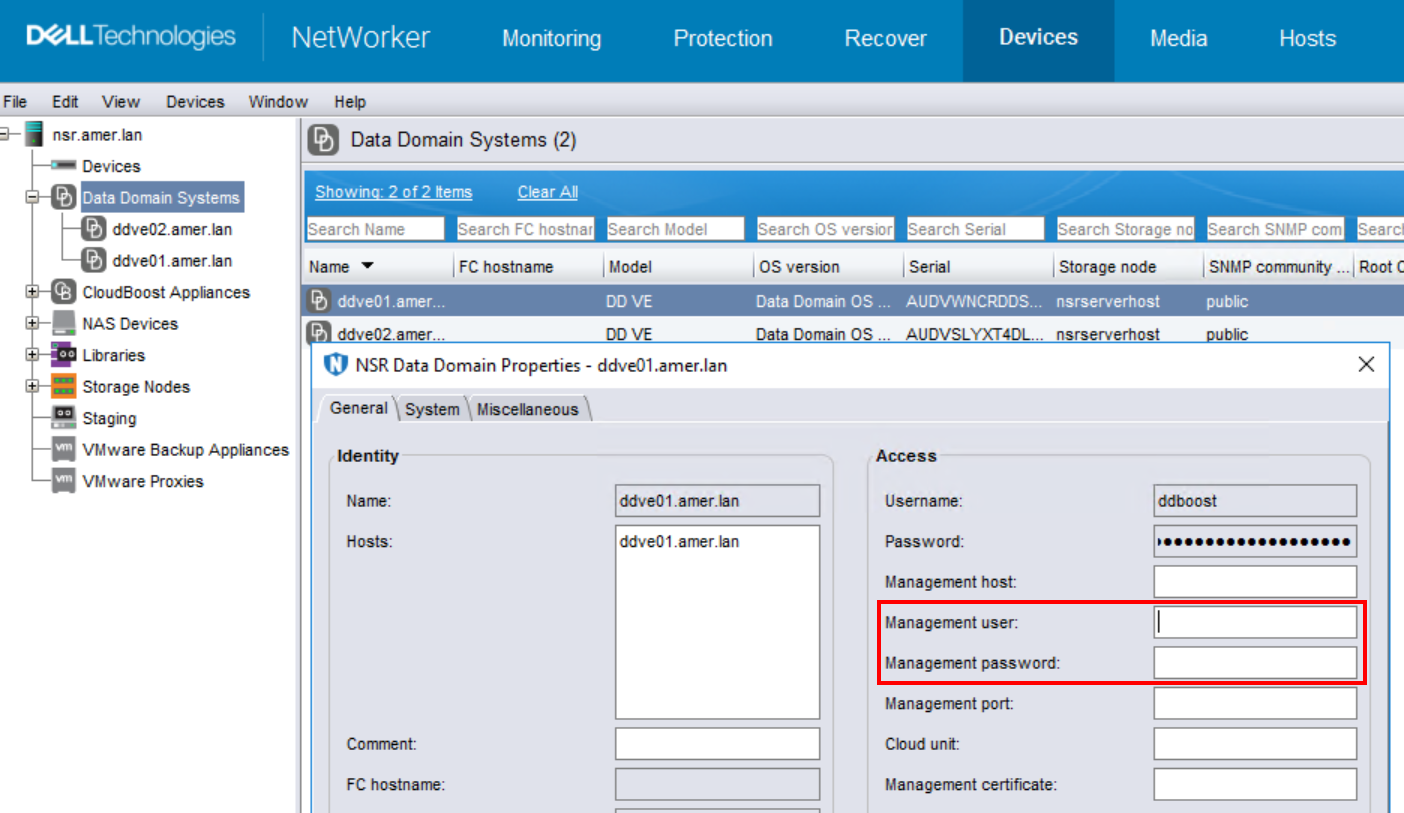
During a File Level Restore (FLR), or Instant Access Restore, the vProxy appliance creates an NFS datastore on the Data Domain and the NFS datastore/disks are exported to VMware for fulfilling the data recovery. This requires management access on the Data Domain to create and export the required data. The Data Domain's management credentials are empty (or incorrect) on NetWorker:
Resolution
- Log in to the Data Domain web interface using the sysadmin credentials:
https://DD_ADDRESS/ddem/login
NOTE: The purpose of this is to confirm that the correct sysadmin credentials are known and the credentials are not locked. If you can log in, proceed with the next steps. If you cannot log in, consult with the Data Domain manager to get the correct credentials or consult with Data Domain support for resetting access.
- Log in to the NetWorker Management Console (NMC) or NetWorker Web User Interface (NWUI) using an Administrative account. For example, the default Administrator account.
NetWorker Management Console (NMC):
-
- Go to Devices -> Data Domain Systems.
- Right click the Data Domain and select Properties.
- Enter the Management User (sysadmin) and Management Password:

NetWorker Web User Interface (NWUI):
-
- Go to Devices and Media -> Data Domain Systems.
- Select the Data Domain, then click Edit.
- Enter the Management User (sysadmin) and Management Password:
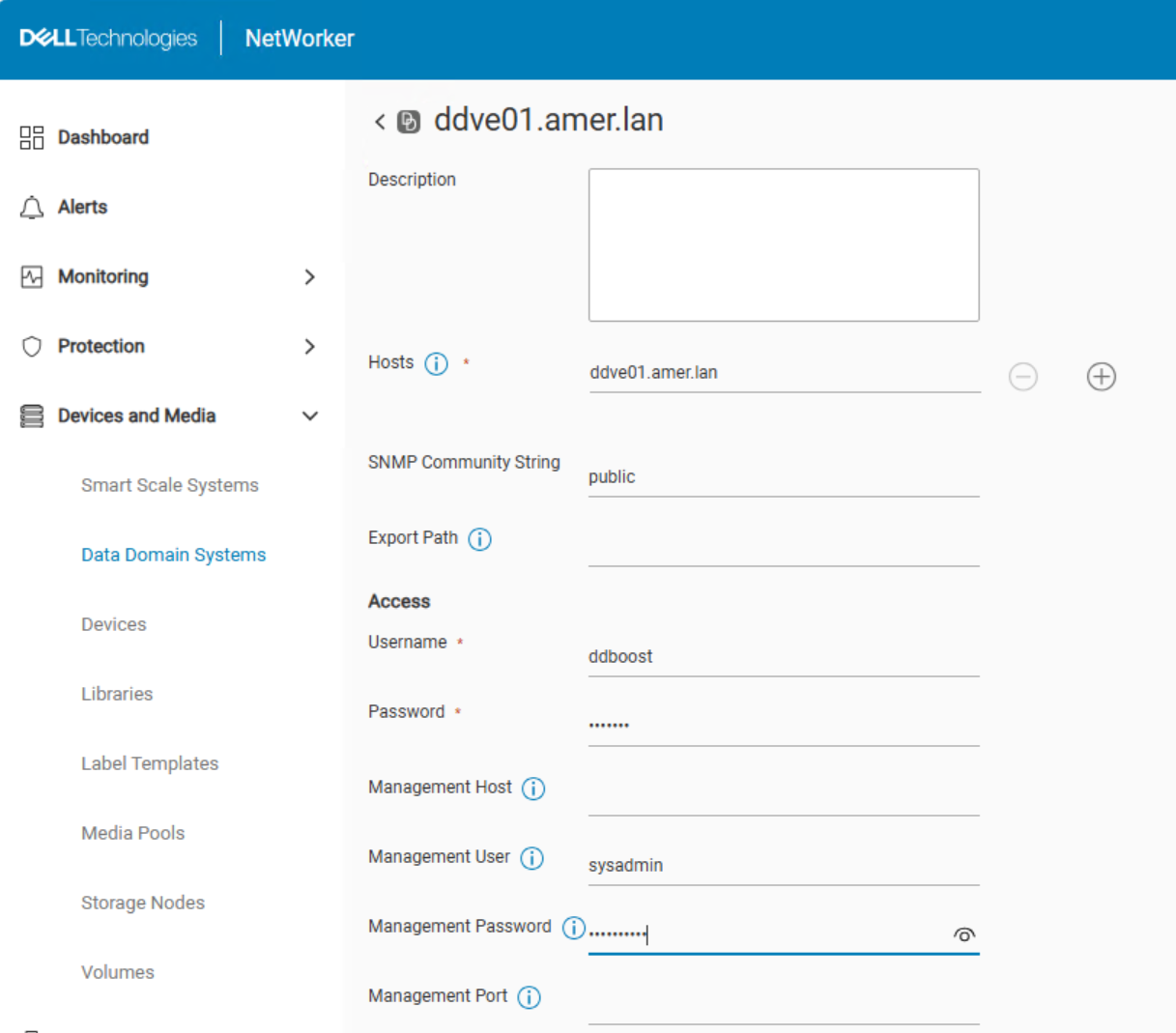
NOTE: The Management Host and Management Port options are optional, if nothing is specified, the default values are used. The Data Domain uses itself as the Management Host. The Default Management port (3009) is used.
- Perform the FLR mount operation again.
Additional Information
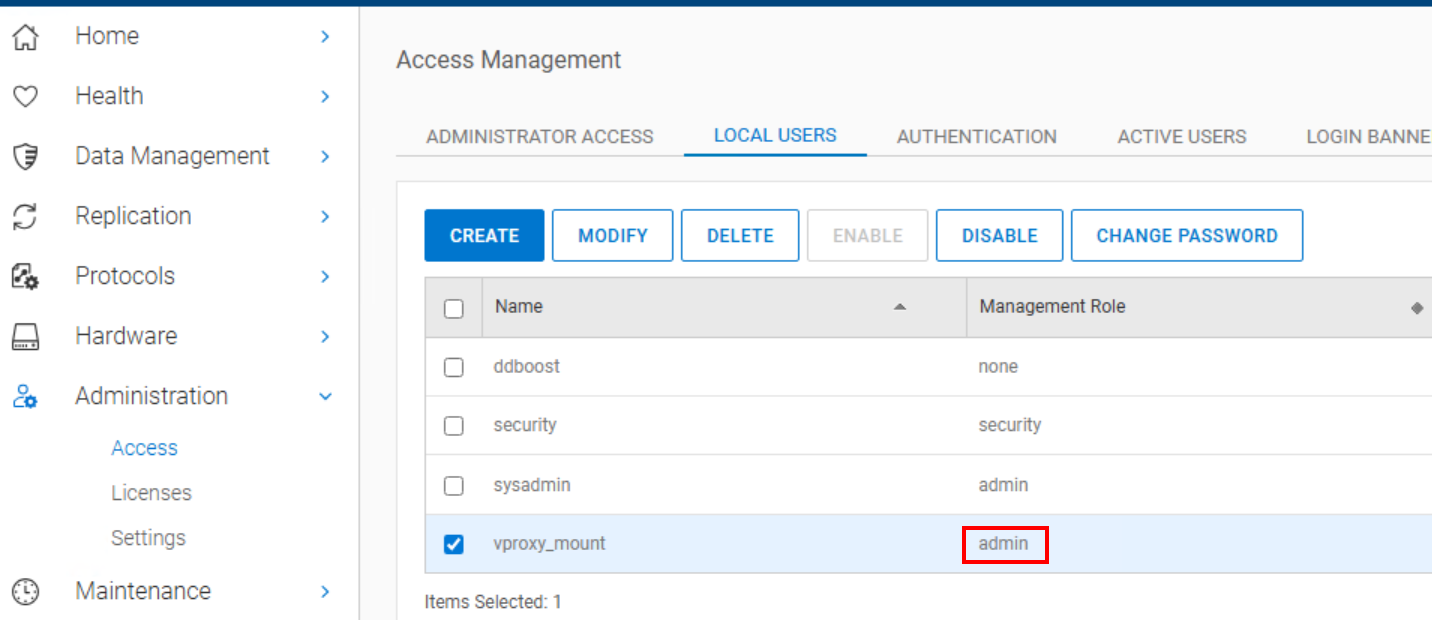
If another account other than sysadmin is used, it must be an account with "admin" rights on the Data Domain: https://DD_ADDRESS/ddem/#/access
Affected Products
Data Backup & Protection Storage, NetWorkerArticle Properties
Article Number: 000026710
Article Type: Solution
Last Modified: 23 Sept 2025
Version: 5
Find answers to your questions from other Dell users
Support Services
Check if your device is covered by Support Services.