NVP vProxy: vSphere Web Client Plugin Reports Successful Installation, But Does Not Appear

Summary: vSphere Web Client Plugin Reports Successful Installation, But Does Not Appear.

This article applies to This article does not apply to This article is not tied to any specific product. Not all product versions are identified in this article.

Symptoms

The NetWorker VMware Protection integration is configured with the vProxy Appliance. The vCenter Plugin install results show it installed successfully when performed from either the NetWorker Management Console (NMC) or NetWorker Web User Interface (NWUI). The vSphere web client does not show the Dell EMC NetWorker plug-in.

Cause

The vSphere web client plug-in may have been installed in an inconsistent state or previous plug-in installation files are interfering with new plug-in install.

Resolution

Remove the existing Dell NetWorker plug-in registrations from the vCenter server Managed Object Browser (MOB) and attempt to install the plug-in again.

1. Log in to the vCenter MOB Extension Manager with the administrator@vsphere.local account. The MOB can be accessed from a web browser that can reach the vCenter's hostname/IP address: https://vCENTER_ADDRESS/mob/?moid=ExtensionManager
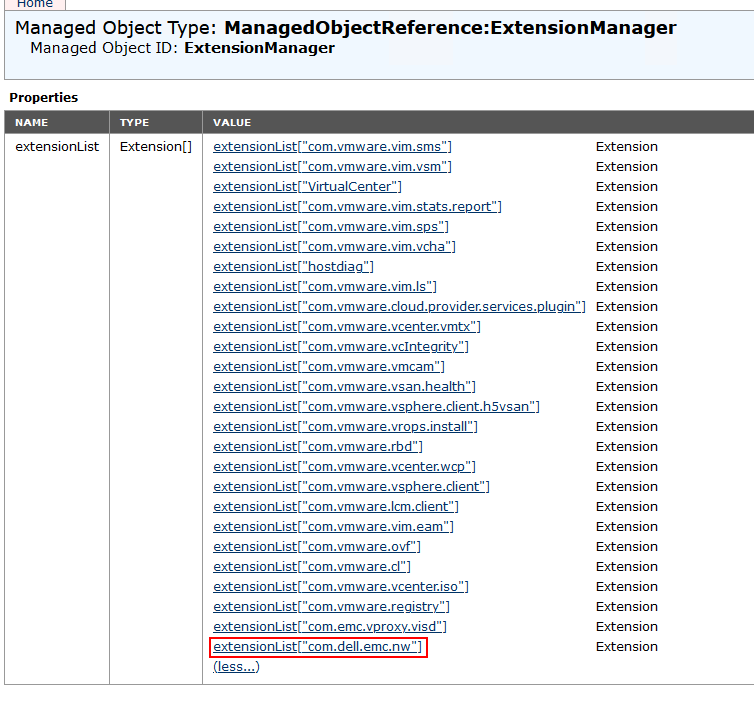
VMware Extension Manager
A. Under Methods, select UnregisterExtension.
B. In the UnregisterExtension window, enter the extension name com.dell.emc.nw and select Invoke Method:
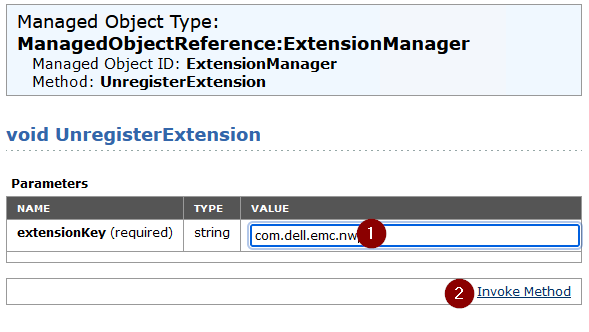
Removing the NetWorker plugin from vSphere
C. Refresh the MOB ExtensionManager window, the com.dell.emc.nw plugins should be gone from the extensionList.

2. Log in to the vCenter server over SSH.
A. The com.dell.emc.nw dir must be removed from the vCenter server's extension folder.
Linux: /etc/vmware-vpx/extensions/com.dell.emc.nw
NOTE: This location can vary depending on vCenter version, see VMware documentation if the plug-in cannot be found in the above indicate path.
Example:
root@vcsa [ ~ ]# ls -l /etc/vmware-vpx/extensions/com.dell.emc.nw
total 4
drwxr-xr-x 3 root root 4096 Apr 17 13:27 locale
root@vcsa [ ~ ]# rm -rf /etc/vmware-vpx/extensions/com.dell.emc.nw
root@vcsa [ ~ ]#
3. Restart the vSphere web client service on the vCenter server:
service-control --restart vsphere-ui
 
4. Wait until the vSphere web client services have started, you can log in to the vSphere web client.
5. Reinstall the vSphere plug-in:
NOTE: The vSphere plugin and vCenter User Interface (VCUI) only support vCenters registered in NetWorker using Fully Qualified Domain Names (FQDN). If the vCenter is registered with a short name alias or IP address, it is not possible to use the vSphere plugin or VCUI. There is no supported method for removing the vCenter and re-adding it with a different alias. The vSphere plugin is not required to perform NetWorker VMware Protection. See: NetWorker: vCenter plug-in and VCUI login fail with "vCenter not registered with NetWorker server"
A. Log in to the NetWorker Web User Interface (NWUI) and go to Protection -> VMware vCenters.
B. Select the vCenter server and under the options [...] select Install vCenter Plugin.
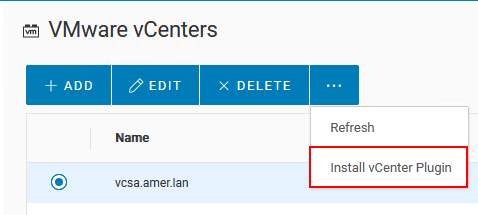
Selecting the vCenter from NWUI
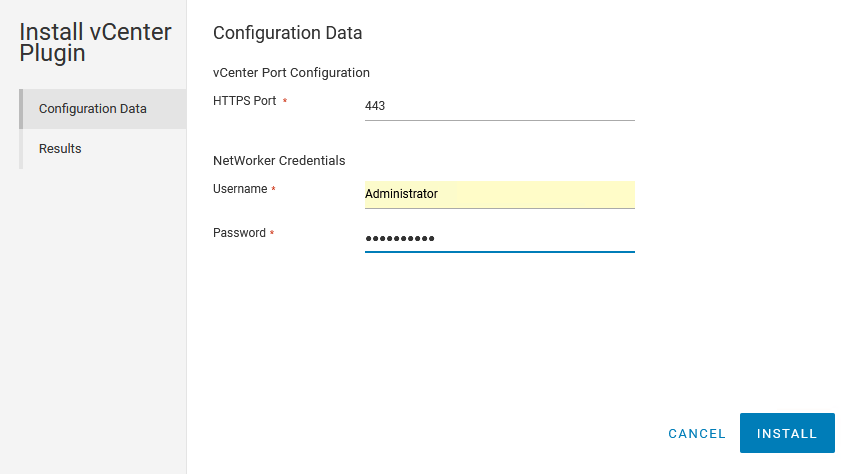
C. Enter the NetWorker Administrator credentials and click Install.
vSphere plugin configuration parameters
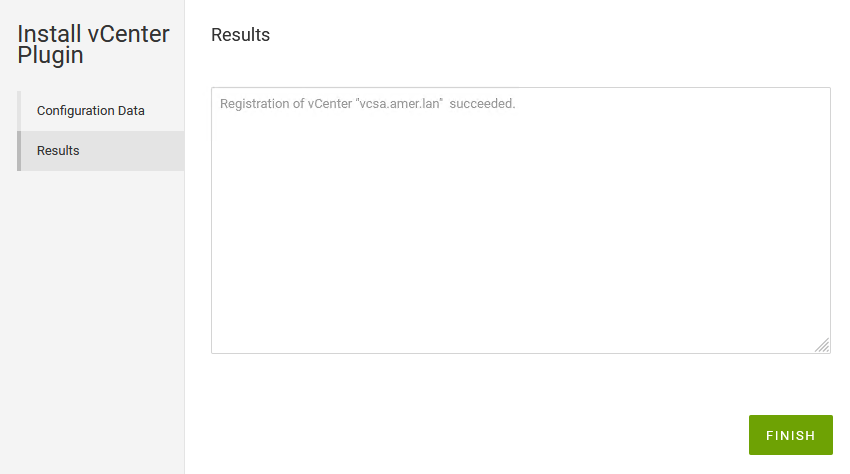
D. The completion status is returned. Click Finish:
vSphere plugin install status
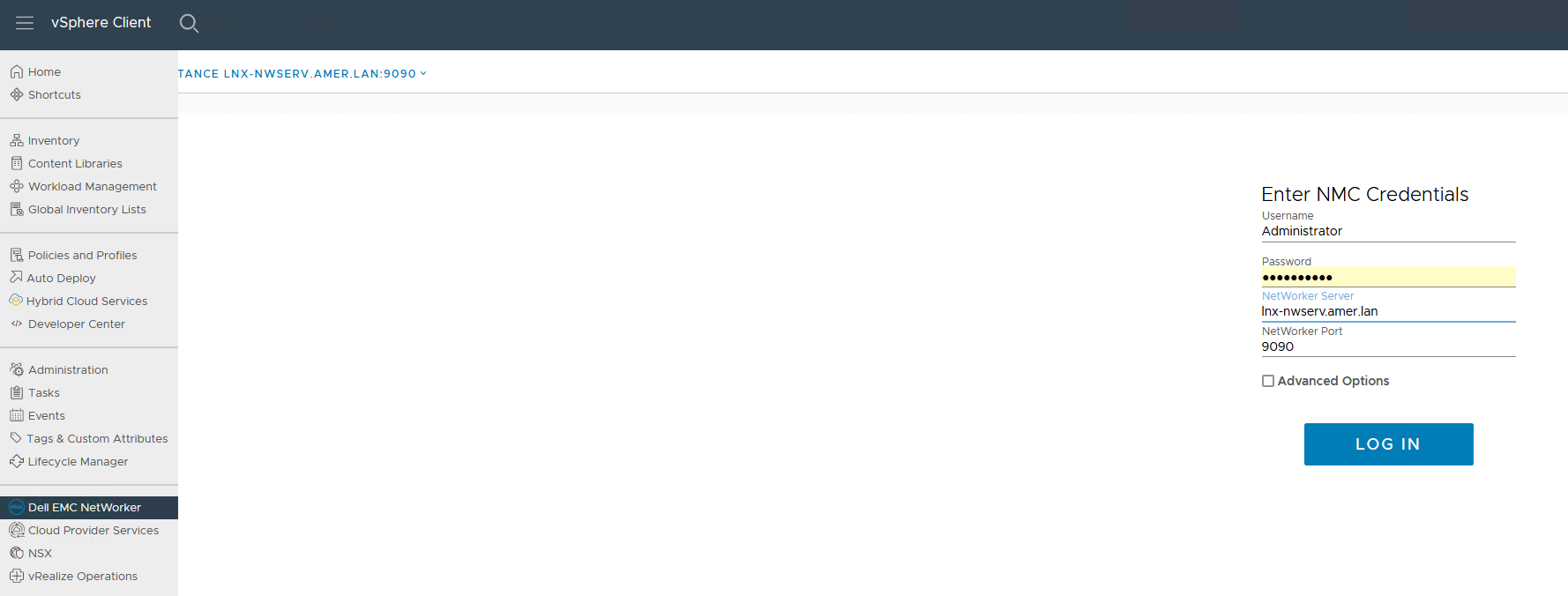
6. Log out of the vSphere web client and log back in.
accessing vSphere NetWorker plugin

Additional Information

The vSphere plug-in is essentially the same as the vCenter User Interface (VCUI). Which is accessible directly from a web browser: https://NetWorker_Address:9090/vcui
Installing the plug-in in vSphere provides access to the VCUI directly in vSphere as an extension.

The NetWorker server's vcui.log details installation attempts of the vSphere plug-in:
Linux: /nsr/authc/logs/vcui.log
Windows: C:\Program Files\EMC NetWorker\nsr\authc-server\tomcat\logs\vcui.log

Affected Products

NetWorker

Products

NetWorker
Article Properties
Article Number: 000166557
Article Type: Solution
Last Modified: 30 Apr 2025
Version:  5
Find answers to your questions from other Dell users
Support Services
Check if your device is covered by Support Services.