如何使用 NMC 來判斷 NetWorker 伺服器和用戶端軟體版本
Summary: 使用 NetWorker Management Console (NMC) 判斷 NetWorker 伺服器和用戶端軟體版本
This article applies to
This article does not apply to
This article is not tied to any specific product.
Not all product versions are identified in this article.
Instructions
尋找 NetWorker 伺服器軟體版本:
使用 NMC
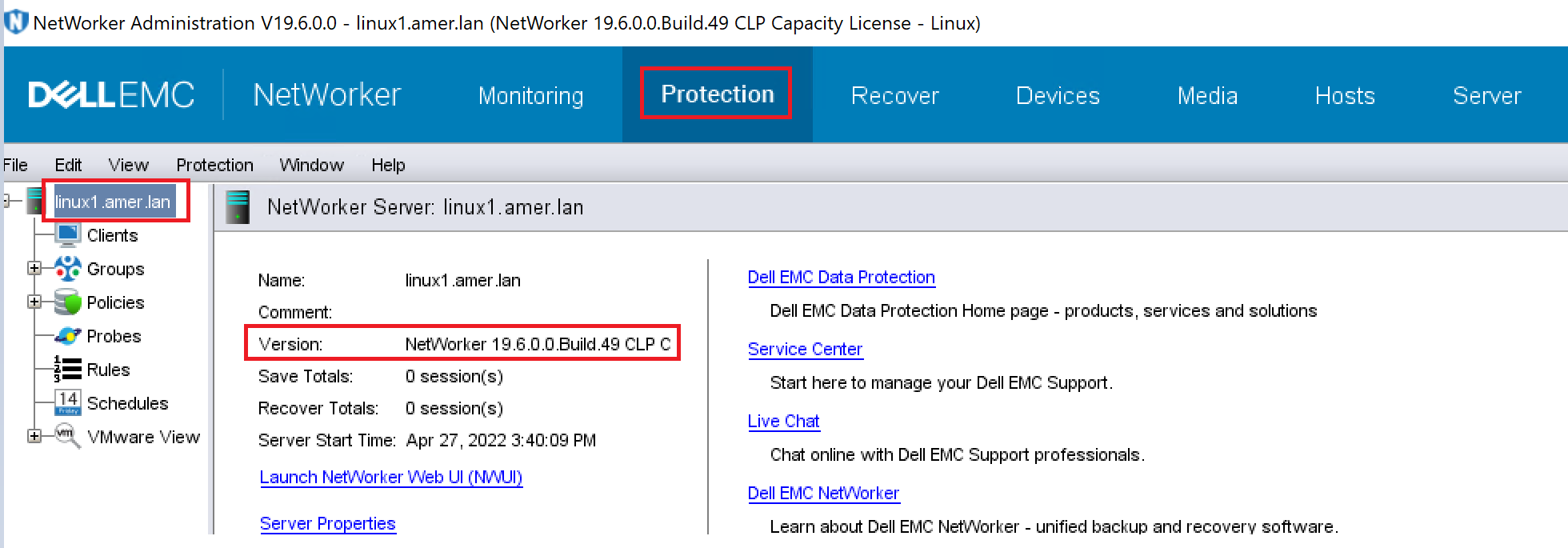
來判斷 NetWorker 伺服器軟體版本使用 NMC 連線至 NetWorker 伺服器,其使用者是 NetWorker 伺服器上應用程式管理員使用者群組的成員。
- 按一下 保護 標籤,然後在左窗格中按一下 NetWorker 伺服器名稱 。版本會顯示在右窗格中。
使用 nsradmin
判斷 NetWorker 伺服器軟體版本使用 NetWorker 伺服器上的 nsradmin 程式,從命令提示字元判斷安裝在主機上的 NetWorker 軟體版本。
- 在命令提示字元中,輸入:
nsradmin -p nsrexecd
在 nsradmin 提示字元中,輸入 "p nsrla"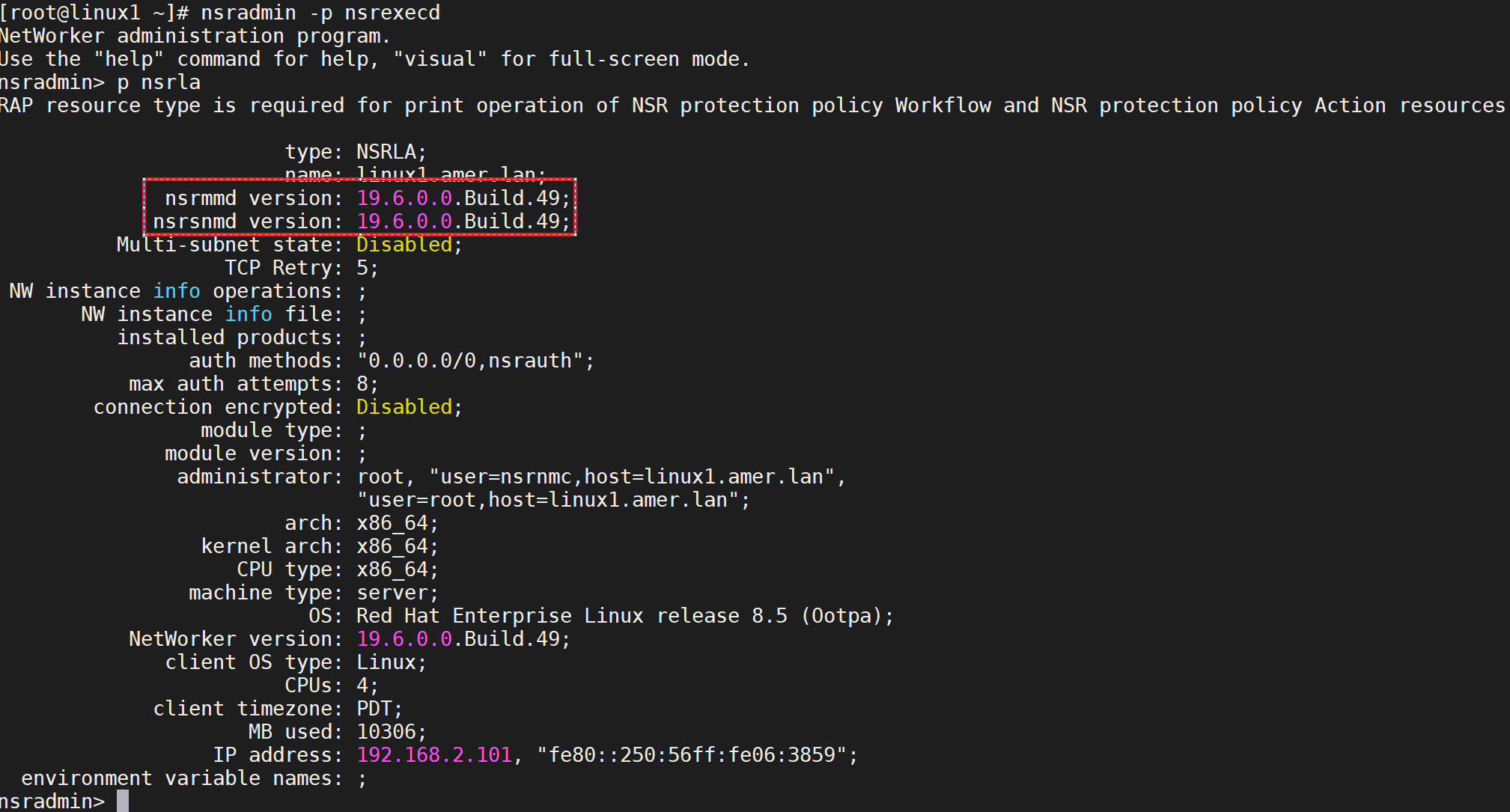
尋找 NetWorker 用戶端軟體版本:
使用 NMC
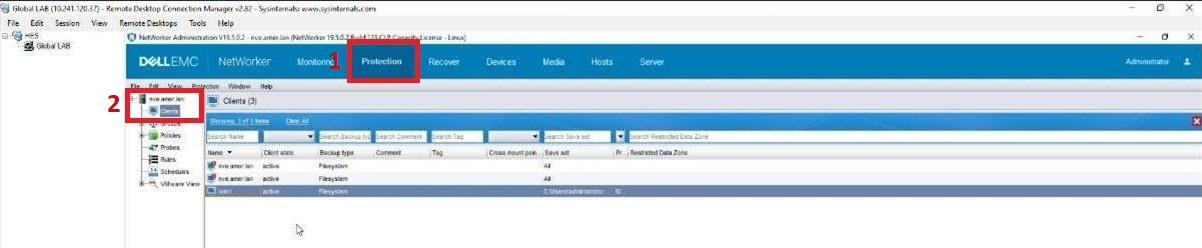
來判斷 NetWorker 用戶端軟體版本使用 NMC 連線至 NetWorker 伺服器,其使用者是 NetWorker 伺服器上應用程式管理員使用者群組的成員。
- 按一下保護標籤 (1),然後按一下用戶端 (2)。
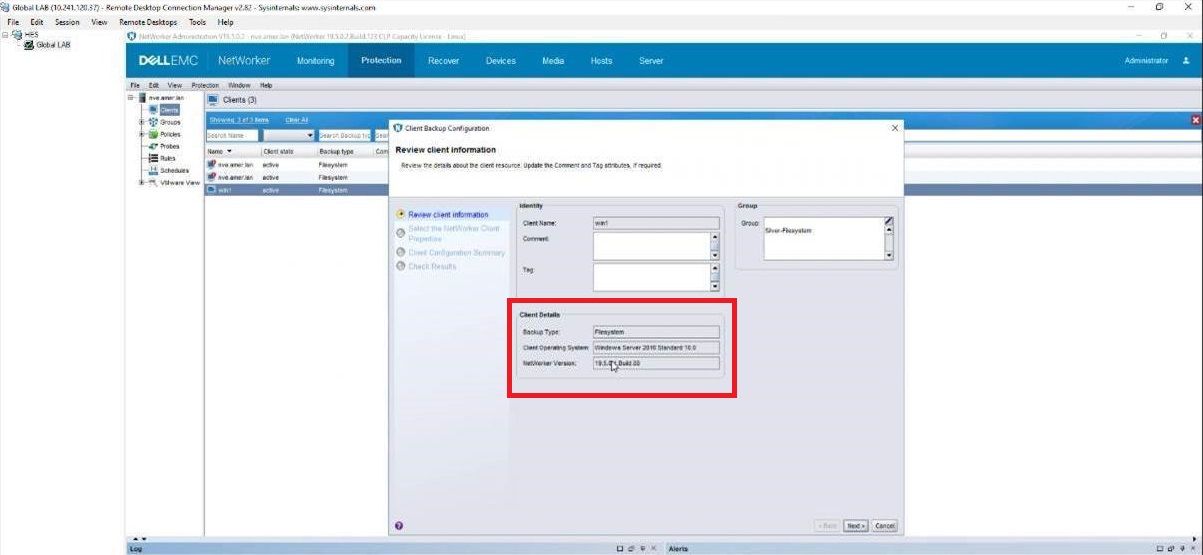
- 在發生此問題的用戶端上按一下滑鼠右鍵,然後按一下修改 用戶端精靈。

3. 客戶會在「用戶端詳細資料」索引標籤中看到用戶端版本。
Affected Products
NetWorker, NetWorker Series, NetWorker for OpenVMS, NetWorker Management Console, NetWorker Module, NetWorker Module for Databases and Applications, NetWorker Module for Microsoft, NetWorker Module for SAPProducts
NetWorker Module for MEDITECHArticle Properties
Article Number: 000198932
Article Type: How To
Last Modified: 20 Jun 2025
Version: 2
Find answers to your questions from other Dell users
Support Services
Check if your device is covered by Support Services.