Avamar: A Target VM Host cannot reach the Proxy due to the Jetty Service not running
Summary: This article explains why a Virtual Machine (VM) file level restore (FLR) fails when target VM cannot reach the proxy, eventually timing out after prolonged execution.
This article applies to
This article does not apply to
This article is not tied to any specific product.
Not all product versions are identified in this article.
Symptoms
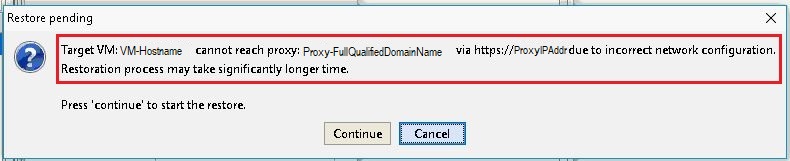
During a Virtual Machine FLR, the following window message appears in the Avamar Administration console:
Error message:
Target VM: <VM-hostname> cannot reach proxy: <avamar-proxy-FQDN_or_IP_Address> via https://<proxy-hostname-IP-Address> due to incorrect network configuration.
Restoration may take significantly longer time Press "Continue" to start the restore
Cause
The service responsible for listening on port 443 on the proxy is not running:
root@avamar-proxy:~/>: netstat -plnt |egrep "Proto|443"
Proto Recv-Q Send-Q Local Address Foreign Address State PID/Program name
root@avamar-proxy:~/>: service jetty status
Jetty Info: Jetty Service is not running.
Resolution
Perform the following actions:
- Start the service before retry the FLR:
root@avamar-proxy:~/>: service jetty start
Shutting down vami-lighttpd:done.
Jetty Info: Jetty daemon started.
root@avamar-proxy:~/>: service jetty status
Jetty Info: Jetty Service is running.[13234]
root@avamar-proxy:~/>: netstat -plnt |egrep "Proto|443"
Proto Recv-Q Send-Q Local Address           Foreign Address         State       PID/Program name
tcp        0      0 :::443                  :::*                    LISTEN      13234/java
- Ensure that the service is configured to start automatically in multiuser run levels:
root@avamar-proxy:~/>: chkconfig --list |grep jetty
jetty 0:off 1:off 2:on 3:on 4:on 5:on 6:off
- To ensure that the service starts automatically at the specified run levels, update the service configuration using the command below:
root@avamar-proxy:~/>: chkconfig --level 2345 jetty on
If the steps above do not resolve the issue, perform this additional step:
-
Edit the
/usr/local/avamarclient/bin/config.xmlfile on the proxy being used for the FLR, and change the value of the wget parameter from 0 to 1:<enablewgetrestore>1</enablewgetrestore>
Affected Products
AvamarArticle Properties
Article Number: 000050308
Article Type: Solution
Last Modified: 25 Mar 2026
Version: 7
Find answers to your questions from other Dell users
Support Services
Check if your device is covered by Support Services.