Dell Encryption Enterprise Policy Based Encryption Displays a Blank or White Local Management Console in VMware Workstation
Summary: When Dell Encryption (formerly Dell Data Protection | Encryption) is installed on a Windows 10 virtual machine within VMware Workstation with Accelerated 3D graphics, you may have an issue with running .net applications, such as the Local Management Console (LMC). ...
This article applies to
This article does not apply to
This article is not tied to any specific product.
Not all product versions are identified in this article.
Symptoms
Affected Products:
- Dell Encryption
- Dell Data Protection | Encryption
When this issue occurs, the LMC loads up as pure white, with no commands or any other data showing. Dell Encryption is still functioning properly.

Cause
Not Applicable
Resolution
To Resolve this issue:
- Power off the virtual machine using either Shut Down or Turn off
- Right-click the Virtual Machine
- Left click Edit virtual machine settings

- Left click Video card
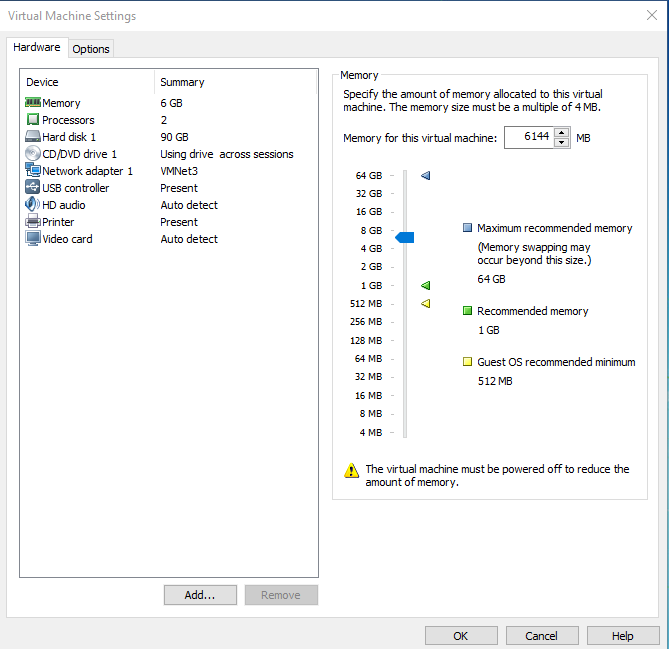
- Clear Accelerate 3D graphics
- Ensure that Use host setting for monitors is checked
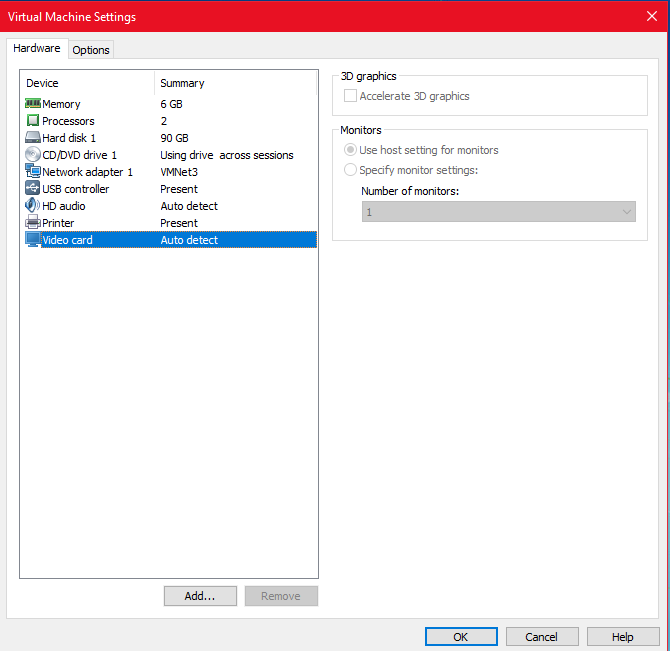
Note: The above steps may differ depending on the version of VMware you are running. - Ensure that Use host setting for monitors is checked
To contact support, reference Dell Data Security International Support Phone Numbers.
Go to TechDirect to generate a technical support request online.
For additional insights and resources, join the Dell Security Community Forum.
Affected Products
Dell EncryptionArticle Properties
Article Number: 000125069
Article Type: Solution
Last Modified: 03 Feb 2025
Version: 11
Find answers to your questions from other Dell users
Support Services
Check if your device is covered by Support Services.