如何啟用 Dell Endpoint Security Suite Enterprise Web Control 和用戶端防火牆的偵錯記錄
Summary: 瞭解如何使用這些指示啟用 Dell Endpoint Security Suite Enterprise Web Control 和用戶端防火牆的偵錯記錄。
This article applies to
This article does not apply to
This article is not tied to any specific product.
Not all product versions are identified in this article.
Instructions
註:
- 截至 2022 年 5 月,Dell Endpoint Security Suite Enterprise 已達到維護結束的期限。Dell 已不再更新此產品及其文章。
- 截至 2019 年 1 月,Dell Endpoint Security Suite Pro 已達到維護結束的期限。Dell 已不再更新此產品及其文章。
- 如需更多資訊,請參閱 Dell Data Security 的產品生命週期 (支援結束及壽命結束) 政策。如果您對其他文章有任何疑問,請聯繫您的銷售團隊或聯繫 endpointsecurity@dell.com。
- 請參考端點安全性,以取得有關目前產品的其他資訊。
本文探討如何啟用偵錯記錄,以故障診斷 Dell Endpoint Security Enterprise Web Control 和用戶端防火牆功能。
受影響的產品:
- Dell Endpoint Security Suite Enterprise
- Dell Endpoint Security Suite Pro
為了協助 Dell 更快速識別問題,Dell Technologies 建議您啟用詳細資料 (除錯記錄),然後在收集記錄前重現問題。
警告: 僅應在故障診斷問題時才啟用詳細資料。Dell Technologies 建議在問題解決後停用詳細資料。啟用詳細資料時,端點可能會發生效能下降的情況。
- 從網頁瀏覽器,前往 Dell Data Security 管理主控台,網址:https://< servername.company.com>:8443/webui。
註:
- 範例 <servername.company.com> 可能與環境中的伺服器 DNS 不同。
- 連接埠 8443 可能與環境中的遠端管理主控台連接埠不同。
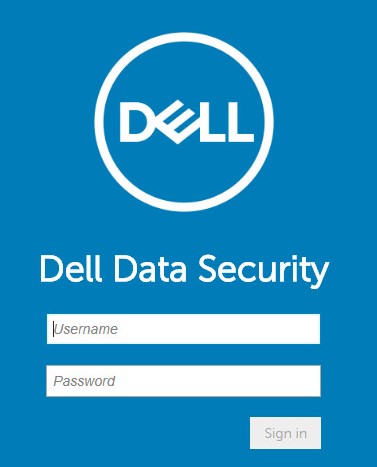
- 登入 Dell Data Security 管理主控台。
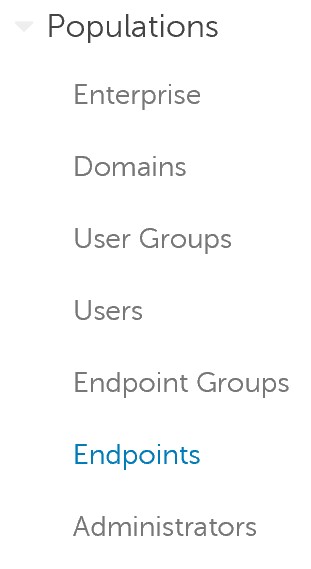
- 在左側功能表中,展開填入,然後按一下端點。
- 按一下受影響的主機名稱。
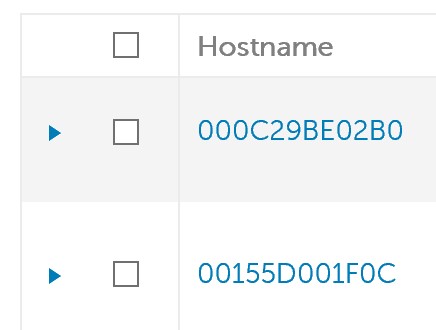 注意:主機名稱範例會與您環境中的不同。
 - 在 「威脅預防」底下,按一下 保護設定。
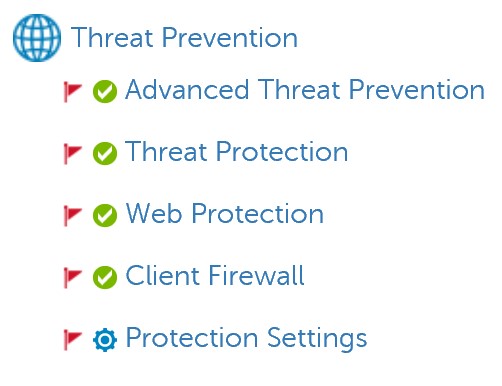
- 檢查網路保護的偵錯記錄以及用戶端防火牆的偵錯記錄。

- 在右上角,按一下 儲存。

- 認可原則變更。
註:
- 如需更多資訊,請參閱 如何認可 Dell Data Security Server 的原則。
- 主機名稱會在下次簽入時收到更新的原則。
- 重現受影響的主機名稱上的問題 (步驟 4)。
Additional Information
Videos
Affected Products
Dell Endpoint Security Suite Pro, Dell Endpoint Security Suite EnterpriseArticle Properties
Article Number: 000130129
Article Type: How To
Last Modified: 20 Jul 2026
Version: 11
Find answers to your questions from other Dell users
Support Services
Check if your device is covered by Support Services.