Dell Unity: Secure Remote Services showing Not Connected status
Summary: Dell Unity: Secure Remote Services (ESRS) showing Not Connected status
This article applies to
This article does not apply to
This article is not tied to any specific product.
Not all product versions are identified in this article.
Instructions
EMC Secure Remote Services showing "Not Connected" status after changing the Management interface IP address

Additional Information
Follow the following steps to disable and re-enable Secure Remote Services service.

2. Click "Support Configuration"

3. Click "Secure Remote Services"


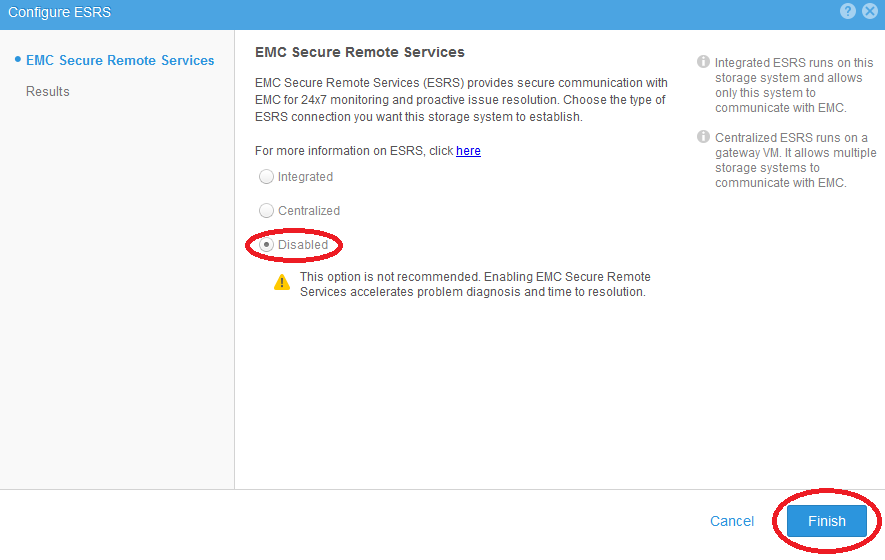
5. Click "Disabled" followed by "Finish" button.

7. Click "Integrated" followed by "Next" button and follow "Secure Remote Services Configuration Wizard" guide to finish.


1. Click the "Update system settings" icon located at the top right-hand corner.
2. Click "Support Configuration"
3. Click "Secure Remote Services"
4. Click "Change" button.
5. Click "Disabled" followed by "Finish" button.
6. Re-enable Secure Remote Services by clicking "Change" button.
7. Click "Integrated" followed by "Next" button and follow "Secure Remote Services Configuration Wizard" guide to finish.
8. It may take some time before Secure Remote Services showing "Connected" status. After Secure Remote Services shows "Connected" status, click "Test" button to check that a dial-home is created.
Note
For further assistance, Contact Dell Support and quote this article.
For further assistance, Contact Dell Support and quote this article.
Affected Products
Dell EMC Unity FamilyProducts
Dell EMC Unity FamilyArticle Properties
Article Number: 000022670
Article Type: How To
Last Modified: 22 Oct 2025
Version: 7
Find answers to your questions from other Dell users
Support Services
Check if your device is covered by Support Services.