NVP-vProxy Plugin Install from NMC Fails with "failed to install vCenter plug-in"
Summary: The NVP-vProxy plug-in installation from NMC fails with the message "Failed to install vCenter plug-in." This article provides troubleshooting steps to identify the root cause.
Symptoms
The NVP-vProxy plug-in installation from NMC fails with the following message:
Failed to install vCenter plug-in
Cause
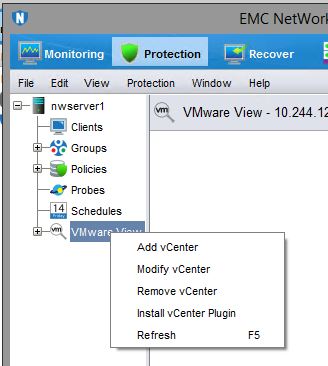
The NetWorker NVP-vProxy vCenter plug-in is installed from the NMC in the Protection screen by right-clicking "VMware View" and selecting "Install vCenter Plugin"
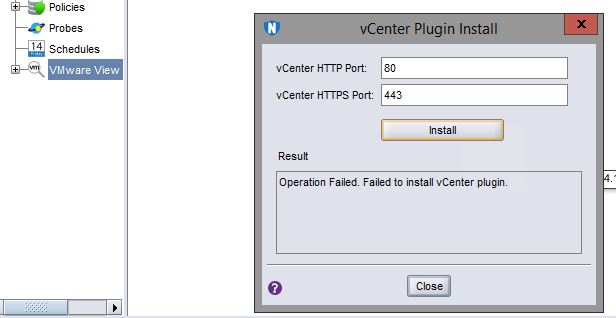
This operation fails with the following message:
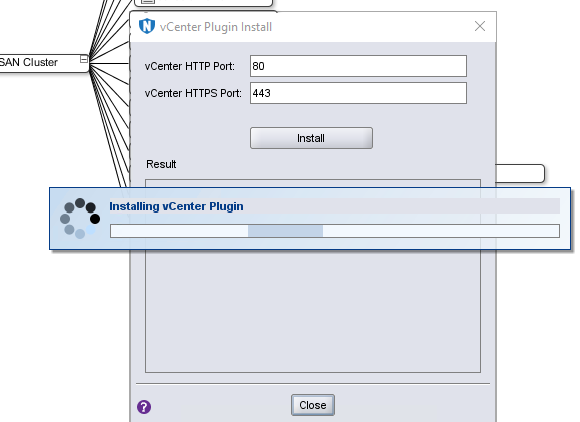
Or it may remain stuck on the installing message indefinitely:
Reference: NetWorker-vProxy: How-To Remove vProxy plug-in from vCenter Server.
Resolution
To find out why this fails, a debug log file of the operation must be generated using the following steps:
-
On the NetWorker Management Console (NMC) client, enable the Java console.
When NetWorker Runtime Environment (NRE) is installed, the Java Control Panel can be accessed in the NRE install location:
C:\Program Files\NRE\java\jre<version>\bin\javacpl.exe

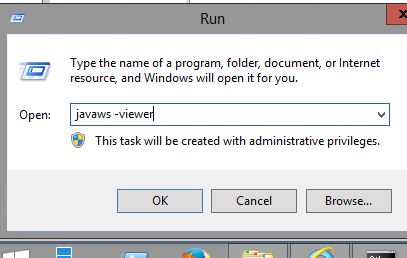
If Oracle Java Runtime environment is installed, open "Run" [CTRL+R] and enter:
javaws -viewer
From the Java Control Panel, go to the Advanced tab, and click Show Console:

-
Launch the NMC and log in.
-
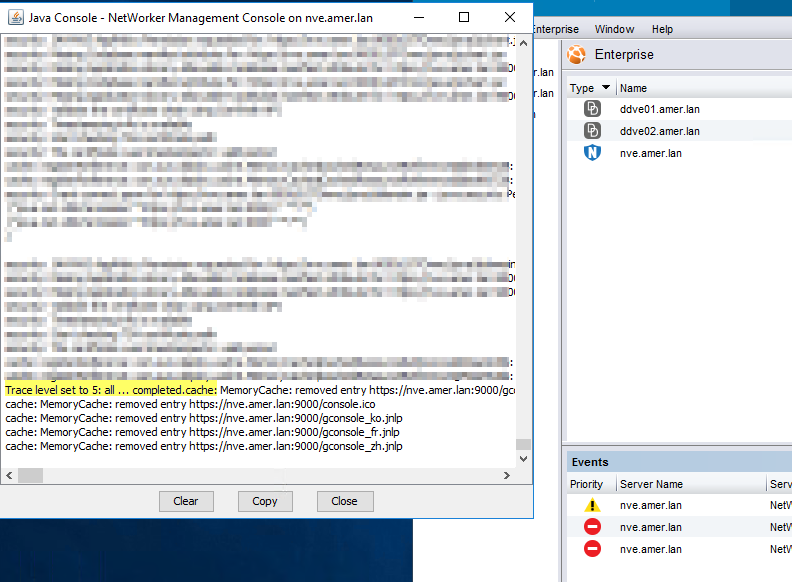
In the Java Console, enter 5.
-
Go to the Protection tab and attempt the vSphere plug-in installation again.
-
Copy the java debug output to a Notepad file using the "copy" button in the console and examine it for errors.
On the NetWorker server, review the "vcui.log" for failures during the plug-in installation:
Linux:/nsr/authc/logs/vcui.log
Windows:C:\Program Files\EMC NetWorker\nsr\authc-server\tomcat\logs\vcui.logScenario
The following was found in the logs:network: Connecting https://nwserver1:9090/ebr-server/networker/session/connect" https://nwserver1:9090/ebr-server/networker/session/connect with proxy=DIRECT network: Connecting socket://nwserver1:9090 with proxy=DIRECT java.netUnknownHostException: nwserver1 at java.net.AbstractPlainSocketImpl.connect(Unknown Source)
The "UnknownHostException" is generated because the NetWorker server host (in this case called nwserver1) was not known to the NMC client. Adding the IP address and hostname of the NetWorker server to the NMC client's hosts file resolved the issue. The NMC client is the host whose browser you are using to access the NMC server.
NVP-vProxy Plugin Install from NMC on NetWorker fails with message failed to install vCenter plug-in.
You can also view this video on YouTube