How to launch Microsoft Copilot in Windows
Summary: This is how to launch Microsoft Copilot in Windows, using the keyboard, short-cut keys, or button within Windows and Microsoft Edge.
This article applies to
This article does not apply to
This article is not tied to any specific product.
Not all product versions are identified in this article.
Instructions
Affected Operating Systems:
- Windows 11
- Windows 10
- Microsoft Copilot in Windows is not available in the People's Republic of China (PRC)
- Recall is an NPU Driven feature only available on Microsoft Copilot+ PCs
- Where available, Microsoft Copilot in Windows and Recall can also be disabled by users, which result in different behaviors of the Microsoft Copilot key
- The hierarchy applies to all computers with Windows 11
- Enablement of the Microsoft Copilot key on Non-Copilot+ PCs with Windows 10 using Windows Update - To be Announced (TBA)
Microsoft Copilot in Windows can be launched in multiple ways.
| To Launch Microsoft Copilot | Keyboard Shortcut, Icon, or Key |
|---|---|
| Windows Key + C |  |
| Windows taskbar |  |
| Microsoft Edge |  |
| The Microsoft Copilot Key |  |
Note: Beginning in spring 2024, new Windows 11 devices ship with a new keyboard layout and a dedicated key to launch Microsoft Copilot in Windows. The key replaces the menu key next to the right Alt key. The key position can vary on some regional layouts.
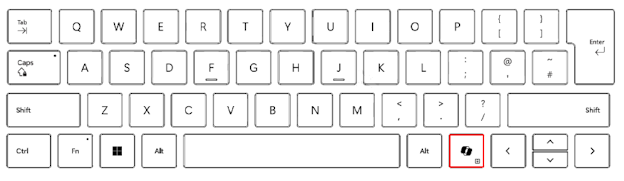
Known Behavior
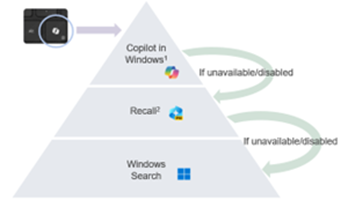
On Microsoft Copilot+ PCs pressing the Microsoft Copilot key will:
- Launch Microsoft Copilot in Windows.
- If Microsoft Copilot is not available or disabled, the key launches Recall.
- If Recall is not available or disabled, the key launches Windows Search
Press and hold the Microsoft Copilot key launches a voice dictation:
This allows the user to ask questions or iterate voice commands to Microsoft Copilot in Windows. This feature will be enabled at some point in the future.
Additional Information
Related Article:

Article Properties
Article Number: 000221081
Article Type: How To
Last Modified: 21 Jul 2025
Version: 8
Find answers to your questions from other Dell users
Support Services
Check if your device is covered by Support Services.