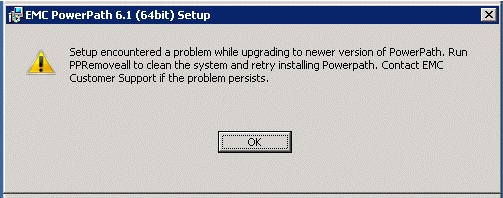
Install, Upgrade PowerPath 6.0 and later for Windows fails, error "Setup encountered problem while upgrading to newer version of PowerPath"
Summary: Install or Upgrade of PowerPath 6.0 and later for Windows fails with error "Setup encountered a problem while upgrading to a newer version of PowerPath"
This article applies to
This article does not apply to
This article is not tied to any specific product.
Not all product versions are identified in this article.
Symptoms
Install or Upgrade of PowerPath 6.0 and above for Windows fails with error.
From the msi log for the current installation attempt:
WdxInstallDrivers:  >> "Reinstall Command" is specified
WdxInstallDrivers:
WdxInstallDrivers:  Processing Reinstall Command...
WdxInstallDrivers:  Reinstalling device: MPIO\DISK&VEN_EMC&PROD_INVISTA&REV_5100\1&7F6AC24&0&6D70696F2630303031263030303126365F315F455F30.
WdxInstallDrivers:  EmcpWinInstallReinstallDevice failed (0xd).
WdxInstallDrivers:  EmcpWinInstallEnumerateDevices failed (0xd).
WdxInstallDrivers:  Command failed: error 2 (Generic failure).
WdxInstallDrivers:  Error 0x80070002: Command line returned an error.
WdxInstallDrivers:  Success mask wasn't matched. Treat as error.
In the above example, the devices listed were of VPLEX 5100 REV_5100 and hence PowerPath 6.0 does not reinstall these devices automatically.
Cause
Old phantom devices that were configured on the host may not be supported by the current versions of PowerPath. When windows tries to reinstall the disk drives for these devices during the installation, PowerPath fails. Only the phantom devices that are unsupported by the to-be-upgraded-PowerPath version are responsible for the install failure. The other phantom devices are not responsible for the failure.
Resolution
Remove all the phantom devices using the Devcon tool provided by Microsoft before upgrading PowerPath. The devcon tool is by default not installed in a host.
See https://docs.microsoft.com/en-us/windows-hardware/drivers/devtest/devcon for its related documentation and support statement.
1. List all the devices in system using devcon for identifying complete path
2. List all the active devices in system using devcon
3. Identify phantom devices: Devices which are listed in below and not listed in devcon.exe find @scsi\disk* are the phantom devices that have to be removed
4. Remove all the phantom devices using devcon.exe remove command.
Example:
See the following Microsoft document for examples:
https://docs.microsoft.com/en-us/windows-hardware/drivers/devtest/devcon-examples
Notes:
The install failure is not a PowerPath issue, since the installation fails only when there are phantom devices that are unsupported in the PowerPath version to be upgraded.
This procedure removes all Phantom devices of the Disk drives class. These devices were connected earlier but are currently not present in the host.
This article applies only when installation or Upgrade of PowerPath fails due to Phantom devices.
To obtain the latest versions of DevCon, download and install the official Windows Driver Kit for the matching version of Windows from https://developer.microsoft.com/en-us/windows/hardware/.
See https://docs.microsoft.com/en-us/windows-hardware/drivers/devtest/devcon
for its related documentation and support statement.1. List all the devices in system using devcon for identifying complete path
devcon.exe findall @scsi\disk*
2. List all the active devices in system using devcon
devcon.exe find @scsi\disk*
3. Identify phantom devices: Devices which are listed in below and not listed in devcon.exe find @scsi\disk* are the phantom devices that have to be removed
devcon.exe findall @scsi\disk*
4. Remove all the phantom devices using devcon.exe remove command.
Example:
devcon.exe remove "@SCSI\ DISK&VEN_EMC&PROD_INVISTA&REV_5100\1&7F6AC24&0&6D70696F2630303031263030303126365F315F395F30"
See the following Microsoft document for examples:
https://docs.microsoft.com/en-us/windows-hardware/drivers/devtest/devcon-examples
Notes:
The install failure is not a PowerPath issue, since the installation fails only when there are phantom devices that are unsupported in the PowerPath version to be upgraded.
This procedure removes all Phantom devices of the Disk drives class. These devices were connected earlier but are currently not present in the host.
This article applies only when installation or Upgrade of PowerPath fails due to Phantom devices.
To obtain the latest versions of DevCon, download and install the official Windows Driver Kit for the matching version of Windows from https://developer.microsoft.com/en-us/windows/hardware/
.
Article Properties
Article Number: 000167399
Article Type: Solution
Last Modified: 17 Oct 2025
Version: 4
Find answers to your questions from other Dell users
Support Services
Check if your device is covered by Support Services.