Data Domain: WinSCP Does Not Work with Data Domain or DDMC
Summary: Data Domain and Data Domain Management Center devices allow for remote access through SSH. Also, if enabled, allow bi-directional file transfers using SSH-based SCP protocol. However, WinSCP does not work even if SCP support is enabled in the Data Domain or Data Domain Management Center. ...
Symptoms
Data Domain (DD) and Data Domain Management Center (DDMC) devices support both SSH (for remotely logging in) and SCP (for transferring files) protocols. SCP is preferable when transferring support files to or from DD or DDMC and other means (such as the UI) are not available or inconvenient.
For being able to use SCP with a DD or DDMC, support must be enabled in the configuration. To check if that is the case, from the DD or DDMC command line, run:
# adminaccess show
Service       Enabled   Allowed Hosts
-----------   -------   -----------------------
ssh           yes       -
scp           yes       (same as ssh)
ftp           no        *
ftps          yes       10.184.3.200
http          no        *
https         yes       *
web-service   yes       N/A
-----------   -------   -----------------------
Information above indicates both SSH and SCP are enabled in the DD and work from any client host. Should "SCP" appear as "Enabled no," use the following command to enable:
# adminaccess enable scp
SCP Access:     enabled
WinSCP is a known implementation of SSH and SCP protocols with an appealing UI used from Windows to transfer files back and forth across SCP-enabled hosts. However, the way the program is implemented, it expects the SCP (SSH) server to provide a "login UNIX-type shell" with a given standard behavior, to do things such as, for example, listing files and directories in the remote server, to be able to show them in the UI.
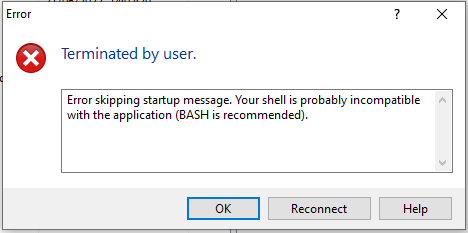
Unfortunately, the way DDOS or DDMC are built, SSH connections are not given a standing UNIX-type shell, but a restricted shell (called "ddsh"), which is the shell users see when using the DD CLI (the text-based shell only allows running specific commands). Hence, SCP connections from WinSCP to DDs or DDMCs eventually fail with the message below:
Error skipping startup message. Your shell is probably incompatible with the application (BASH is recommended.
Cause
Resolution
You must use other SCP implementations to connect to the DD or DDMC and move files around. A few examples that are known to work include:
- PuTTY: open-source command-line implementation, includes both the "SSH" and "PSCP" commands.
- SecureCRT: UI front end to the SSH and SCP protocols with an easy-to-use interface.
- Windows PowerShell: It comes by default on any Windows 10 or Windows Server 2019 or later version, gives you a command-line interface which can have the OpenSSH client tools (SSH, and SCP) that is installed. For more details about it, follow the link below:

For both PuTTY and PowerShell OpenSSH "SCP" clients, the syntax is similar. There are examples that are known to work, to pull a particular file from a DD with SCP enabled into the current directory of the Windows host running the commands. Note the trailing dot, which indicates the file being pulled is to be written to the current directory:
- PuTTY (example command to pull a given SUB):
# pscp -P 22 -4 -scp sysadmin@dd_hostname:/ddr/var/support/dd_hostname-support-bundle-0629141921.tar.gz .
-
PuTTY (example command to pull a given core file):
# pscp -P 22 -4 -scp sysadmin@dd_hostname:/ddr/var/core/ddfs.core.26463.1633895635.gz .
-
Same commands when using OpenSSH "SCP" client from Windows PowerShell:
# scp sysadmin@dd_hostname:/ddr/var/support/dd_hostname-support-bundle-0629141921.tar.gz .
# scp sysadmin@dd_hostname:/ddr/var/core/ddfs.core.26463.1633895635.gz .