如何确定 Dell Encryption 托管设备的加密状态
Summary: 本文概述了确定由 Dell Encryption 管理的 Dell Data Security(以前称为 Dell Data Protection)产品的加密状态的方法。
Symptoms
受影响的产品:
- Dell Encryption
- Dell Data Protection | Encryption
Cause
不适用
Resolution
以下信息概述了注册表位置和命令,可帮助管理员确定 Dell Encryption 通过端点本身管理的设备的保护状态。此信息可用于验证设备的状态,并帮助确定端点上受保护状态的问题。
戴尔基于策略的加密的受保护状态的计算基于设备和计算机上任何用户的“扫描状态”。有关如何计算受保护状态的更多信息,请参阅:对 Shield 受保护状态进行故障处理。
设备的加密状态数据主要存储在端点本地的注册表中。用于基于策略的加密数据的主要位置是 HKLM\Software\Microsoft\Windows NT\CurrentVersion\Winlogon\CMGShield。以下是用于标识状态的主键:
- DCID (这也是恢复 ID):密钥显示设备已激活。
- GKPort (默认值为 8000):用于策略更新的控制端口的密钥。
- GK型:用于控制签入服务器的密钥。
- 服务器:原始激活服务器的密钥。
若要验证设备的激活状态,我们可以查询设备以检查 HKEY_LOCAL_MACHINE\SOFTWARE\Microsoft\Windows NT\CurrentVersion\Winlogon\CMGShield\RSST 的内容。在此注册表项中,有几个项详细说明了设备的状态:
- _DEVICE_ - 这是设备的激活状态。任何正整数都是已激活的设备。
- _INVALID_ - 如果存在,则未激活登录的用户。
- <RandomCharacters> — 用户可信标识符 (UCID) 位于此位置。如果此值存在并设置为 1,则该特定用户已激活且在 设备租用期内。设备租用期是定义 Dell Security Management Server 的策略,默认值为 30 天。
与设备的当前加密扫描状态相关的信息位于注册表项 HKLM\Software\Microsoft\Windows NT\CurrentVersion\Winlogon\CMGshield\SweepTimes 中。此注册表项中的值可能会有所不同,并且基于用户的唯一标识符用于确定每个用户的扫描状态。下面是一个设备的示例:
[HKEY_LOCAL_MACHINE\SOFTWARE\Microsoft\Windows NT\CurrentVersion\Winlogon\CMGShield\SweepTimes]
"_SDENCR_SweepStop"=dword:00000001
"9P18NZD1SweepStop"=dword:00000001
"AllSweepsCompleted"=dword:00000001
"AllSweepsCompletedInXDays"=dword:00000001
"LastUpdate"="20180409 162157"
这些密钥及其含义和用法的细分:
- _SDENCR_SweepStop
- 值为 0 表示影响系统数据加密密钥的加密扫描正在进行中。
- 值为 1 表示所有系统数据加密扫描均已完成。
- 9P18NZD1SweepStop
- 随机生成的八个字符是特定用户的标识符。
- 当此注册表项设置为 0 时,正在对标识符关联的用户进行扫描。
- 设置为 1 时,将在此端点上完成与通用密钥或用户加密密钥关联的扫描。
- AllSweepsCompleted
- 设置为 0 时,这表示存在影响通用密钥或用户加密密钥的活动加密扫描。
- 设置为 1 时,将在此端点上完成与通用密钥或用户加密密钥关联的扫描。
- AllSweepsCompletedinXDays
- 设置为 0 时,尚未完成对在 Dell Security Management Server (DSMS) 定义的设备租赁期内登录的所有用户的加密扫描。
- 设置为 1 时,将对在定义的设备租用期内登录的所有用户完成加密扫描。
- LastUpdate - 这是上次轮询内部数据库以了解此注册表项中设备扫描状态的更新。
Dell Encryption Self-Encrypting Drive Manager 和 Dell Full Disk Encryption 管理功能根据磁盘的加密百分比和磁盘上存在的预启动身份验证 (PBA) 环境的验证结果收集信息。这些值存储在注册表中,可以在 HKLM\SYSTEM\CurrentControlSet\Services\DellMgmtAgent\Parameters“和”HKLM\Software\Dell\Dell Data Protection\“中找到。
设备的受保护状态取决于磁盘的加密百分比。此处理全部在本地完成,并通过定期轮询间隔传送到服务器。
要确定代理的激活状态,请检查代理 ID 注册表项。如果填充了密钥,则设备已成功注册:
HKLM\Software\Dell\Dell Data Protection\
REG_SZ: AgentID
Value: <populated>
要确定是否在端点上启用了预启动身份验证环境 (PBA),请检查 IsPBAActive 注册表项:
HKLM\SYSTEM\CurrentControlSet\Services\DellMgmtAgent\Parameters
DWORD: IsPBAActive
Value: 1 (1 is enabled, 0 or not present means no PBA)
要确定已安装的产品版本,请检查注册表项:
HKLM\Software\Dell\Dell Data Protection\Branding
REG_SZ: EE
Value: <version #>
还可以通过以下方式收集代理版本信息 wmic 使用以下命令进行调用:
Wmic path win32_product where (caption like '%%Dell Encryption%%') get version
结果应显示为:

图 1:(仅限英文)类型 Wmic path win32_product where (caption like '%%Dell Encryption%%') get version
无法通过注册表查询 Dell Full Disk Encryption 的加密百分比信息。此信息填充在DellAgent.log中(如果启用了调试日志记录,则存储在 C:\ProgramData\Dell\Dell Data Protection\ 中)。要为 Dell Full Disk Encryption 启用调试日志记录,请参阅 增加 Dell Encryption Enterprise 和 Dell Encryption Personal 中的日志记录。
日志行示例:
YYYY.MM.DD HH:MM:SS.MMM [ProcessID] (ThreadID) T FDE : SetEncryptionInfo - Set EncryptionPercentage to <Percentage>
Dell BitLocker Manager 收集的信息基于磁盘的加密百分比和每个托管卷存在的密钥保护程序的验证。命令行使用 manage-bde 命令或 PowerShell 命令 get-bitlockervolume。
设备的受保护状态取决于磁盘的加密百分比。此处理在端点本地进行,并通过定期轮询间隔传送到服务器。
命令 manage-bde -status 显示磁盘上所有卷的 BitLocker 加密状态。
输出包含多个值:
- Size— 卷上的空间量。
- BitLocker 版本 - 使用的 BitLocker 版本
- BitLocker 的“兼容性模式”的版本为 1.0。
- BitLocker 的“新加密模式”(在 Windows 10 版本 1511 中引入,又称 Threshold 2)的版本为 2.0。
- Conversion Status— 加密卷的状态
- Percentage Encrypted— 已完成加密的卷的百分比。
- 加密方法 — 用于加密卷的算法。
- Protection Status— 详细说明 BitLocker 是 已启用、已禁用还是 已挂起。
- Lock Status— 指明卷是已锁定还是已解锁。
- 标识字段 - 输出组织的任何自定义标识信息。
- Key Protectors— 用于保护卷的机制,可以是 TPM、密码、PIN、USB 或这些项目的组合。
有关 manage-bde 命令可在此处找到: https://docs.microsoft.com/en-us/windows-server/administration/windows-commands/manage-bde

下面是运行 manage-bde -status 在加密期间的特定时间间隔执行以下命令:
Disk volumes that can be protected with
BitLocker Drive Encryption:
Volume C: []
[OS Volume]

Size: 59.40 GB
BitLocker Version: None
Conversion Status: Fully Decrypted
Percentage Encrypted: 0.0%
Encryption Method: None
Protection Status: Protection Off
Lock Status: Unlocked
Identification Field: None
Key Protectors: None Found
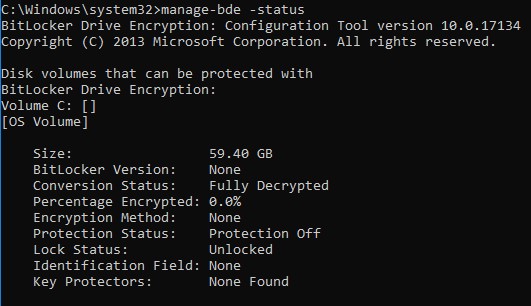
图 2:(仅限英文)类型 manage-bde -status
Disk volumes that can be protected with
BitLocker Drive Encryption:
Volume C: []
[OS Volume]

Size: 59.40 GB
BitLocker Version: 2.0
Conversion Status: Used Space Only Encrypted
Percentage Encrypted: 100.0%
Encryption Method: XTS-AES 256
Protection Status: Protection On
Lock Status: Unlocked
Identification Field: Unknown
Key Protectors: TPM, Numerical Password
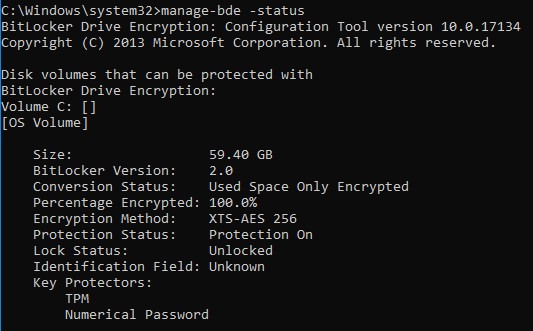
图 3:(仅限英文)类型 manage-bde -status
命令 get-bitlockervolume | FL 可用于收集有关设备上 BitLocker 状态的数据。
输出包含多个值:
- ComputerName— 受保护的设备的名称。
- MountPoint — 受管理卷磁盘上的驱动器号或位置。
- EncryptionMethod — 用于保护卷上的数据的算法。
- AutoUnlockEnabled — 是否启用自动解锁选项。
- AutoUnlockKeyStored - 如果 AutoUnlockKey 已缓存在本地计算机上,或者它是否位于单独的位置,则提供详细信息。
- MetadataVersion— 详细说明此卷上使用的 BitLocker 版本。
- BitLocker 的“兼容性模式”的版本为 1。
- BitLocker 的“新加密模式”(在 Windows 10 版本 1511 中引入,又称 Threshold2)的版本为 2。
- VolumeStatus — 卷的状态(Decrypted、Encrypting、FullyEncrypted)
- ProtectionStatus — 详细说明 BitLocker 是 已启用、 已禁用还是 已挂起。
- LockStatus — 指明卷是已锁定还是已解锁。
- EncryptionPercentage — 状态(以卷加密百分比表示)。
- WipePercentage — 状态,以已覆盖的驱动器上空白空间的百分比表示。
- VolumeType— 卷的类型,通常 为 OperatingSystemDrive 或FixedVolume
- CapacityGB— 托管卷的大小
- KeyProtector— 用于保护卷的机制,可以是 TPM、 密码、 PIN、 USB 或这些项的组合。
有关 get-bitlockervolume 命令可在此处找到: https://docs.microsoft.com/en-us/powershell/module/bitlocker/?view=win10-ps
下面是运行 get-bitlockervolume | FL 在加密期间的特定时间间隔执行以下命令:
ComputerName: DESKTOP-T46E07P
MountPoint: C:
EncryptionMethod: None
AutoUnlockEnabled:
AutoUnlockKeyStored:
MetadataVersion: 0
VolumeStatus: FullyDecrypted
ProtectionStatus: Off
LockStatus: Unlocked
EncryptionPercentage: 0
WipePercentage: 0
VolumeType: OperatingSystem
CapacityGB: 59.39843
KeyProtector: {}
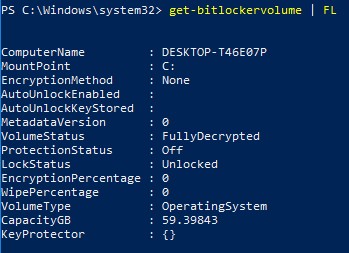
图 4:(仅限英文)类型 get-bitlockervolume | FL
ComputerName: DESKTOP-T46E07P
MountPoint: C:
EncryptionMethod: XtsAes256
AutoUnlockEnabled:
AutoUnlockKeyStored: False
MetadataVersion: 2
VolumeStatus: FullyEncrypted
ProtectionStatus: On
LockStatus: Unlocked
EncryptionPercentage: 100
WipePercentage: 0
VolumeType: OperatingSystem
CapacityGB: 59.39843
KeyProtector: {Tpm, RecoveryPassword}
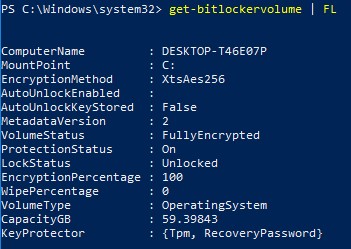
图 5:(仅限英文)类型 get-bitlockervolume | FL
要联系支持部门,请参阅 Dell Data Security 国际支持电话号码。
转至 TechDirect,在线生成技术支持请求。
要获得更多见解和资源,请加入戴尔安全社区论坛。