Bypass BitLocker When Recovery Key Loop Fails in Windows
Summary: BitLocker recovery key not working or failed to unlock with this recovery key? Learn how to bypass BitLocker and unlock it from Command Prompt when stuck on the recovery blue screen.
Instructions
Your Windows computer keeps asking for your BitLocker recovery key in a repeating loop. Even when you enter the correct key, the system accepts it but then asks for it again instead of starting Windows.
This article shows you how to fix this issue and start your computer normally.
What You Need Before You Start
- Your 48-digit BitLocker recovery key
- Access to your computer (even though it won't fully start)
Where to find your recovery key:
- In your Microsoft account at account.microsoft.com/devices/recoverykey
- In your organization's Active Directory (if this is a work computer)
- On a USB drive where you saved it
- In a printout you made when you first set up BitLocker
How to Fix the BitLocker Recovery Key Loop
Follow these steps to stop the loop and start Windows normally:
Step 1: Open the Command Prompt
- On the screen asking for your recovery key, select Skip this drive at the bottom.
- Select Advanced options.
- Select Troubleshoot.
- Select Advanced options again.
- Select Command Prompt.
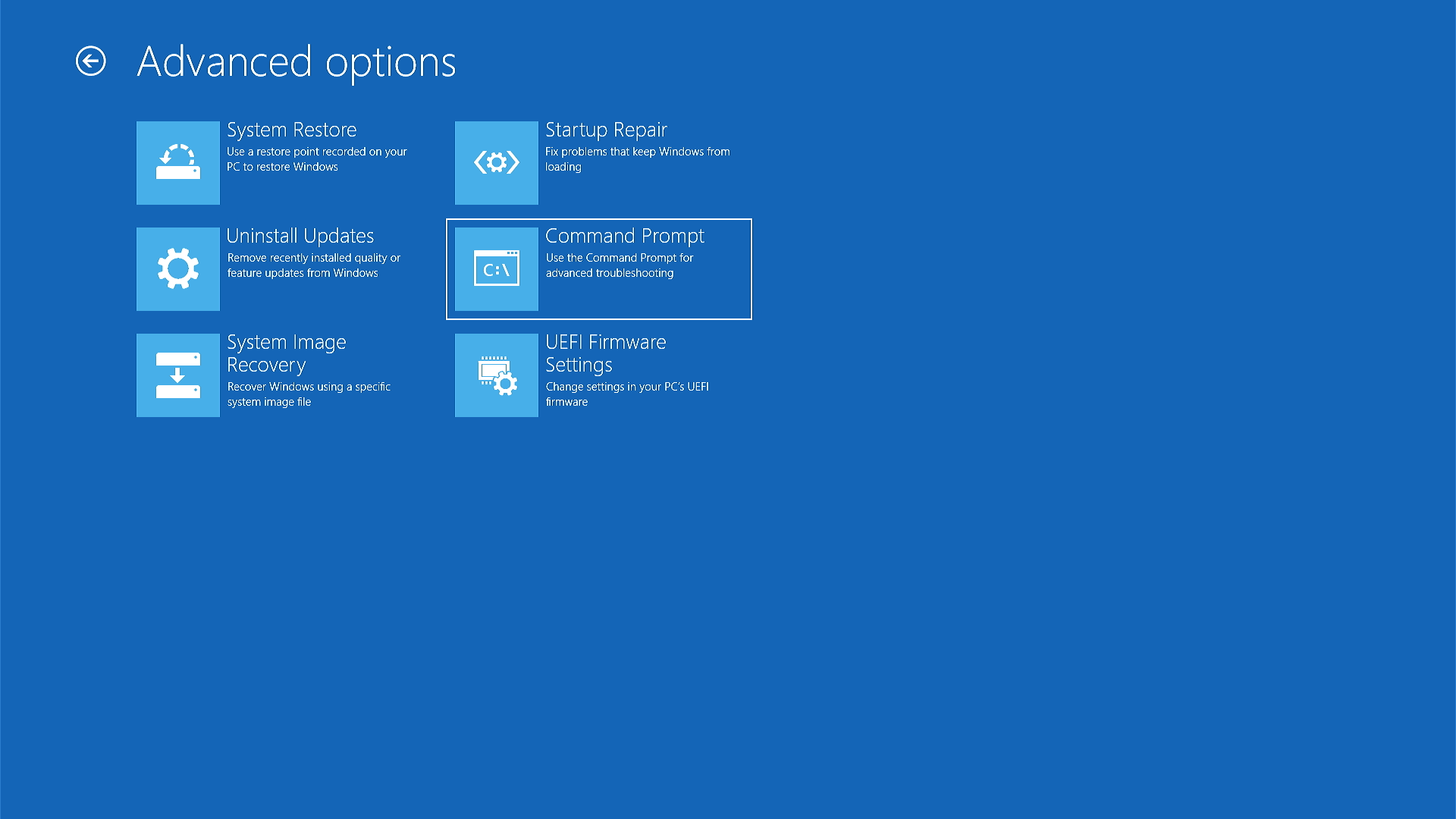
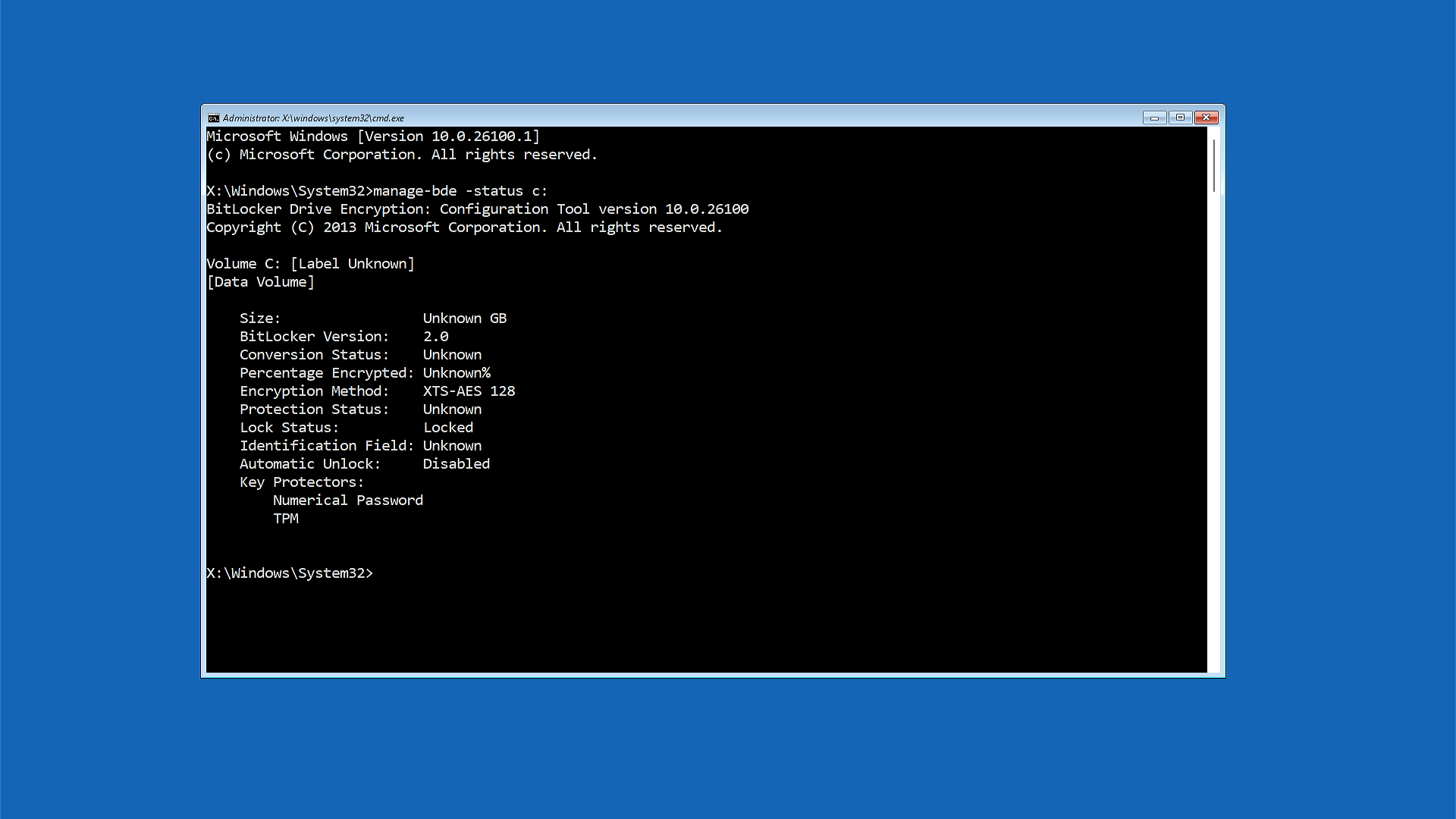
Step 2: Check Your Drive Status
- In the Command Prompt window, type the following command and press Enter:
manage-bde -status c: - Look at the information that appears. Find the line that says Lock Status. It will show either:
- Locked (you need to continue to Step 3)
- Unlocked (skip to Step 4)
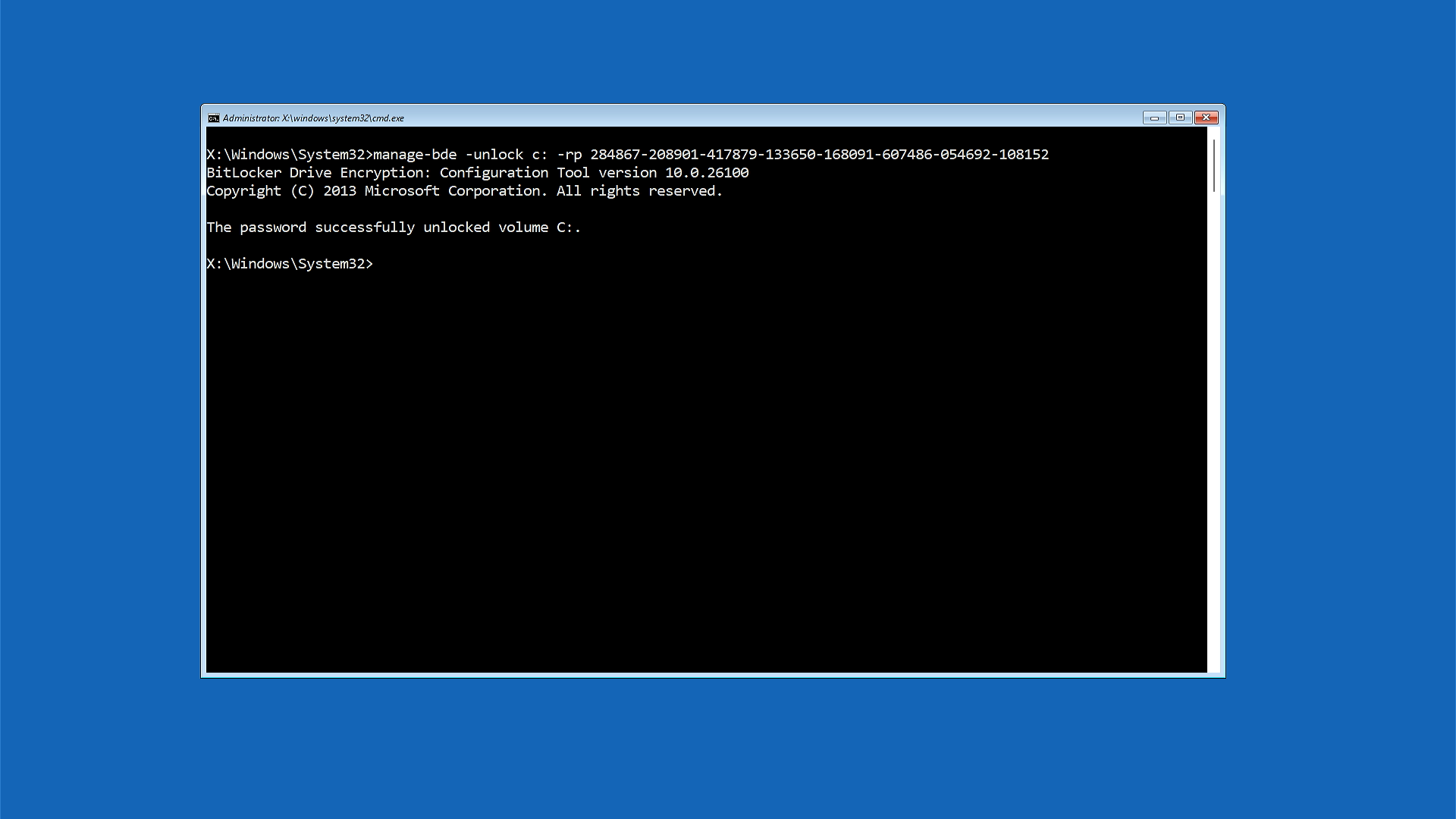
Step 3: Unlock Your Drive
Only do this step if your drive shows as "Locked" in Step 2.
- Type the following command, replacing the example numbers with your actual 48-digit recovery key:
manage-bde -unlock c: -rp XXXXXX-XXXXXX-XXXXXX-XXXXXX-XXXXXX-XXXXXX-XXXXXX-XXXXXXNote: Your recovery key is 48 digits separated by dashes. Make sure you use the recovery key specific to your device. - Press Enter.
- Wait for the message that says Successfully unlocked volume C:.
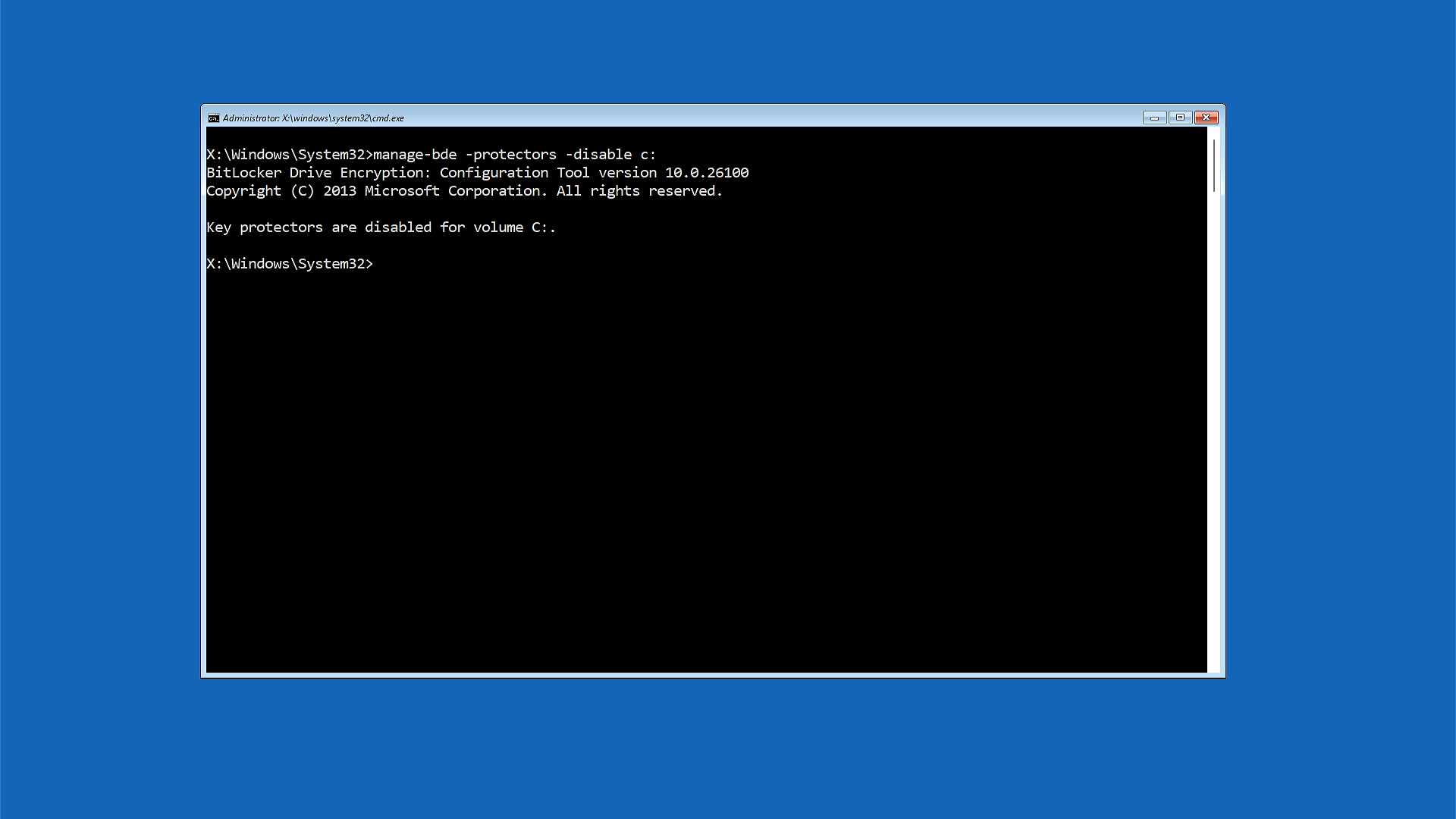
Step 4: Temporarily Turn Off BitLocker Protection
- Type the following command and press Enter:
manage-bde -protectors -disable c: - Wait for the message that says Protection is suspended or Key protectors are disabled for volume C:.
Note: This doesn't remove BitLocker from your computer, it just pauses it temporarily so Windows can start normally.
Step 5: Restart Your Computer
- Type the following command and press Enter:
exit - Select Continue or Exit and continue to Windows.
Your computer should now start Windows normally without asking for the recovery key.
Step 6: Turn BitLocker Protection Back On
Once Windows starts, you need to turn BitLocker protection back on:
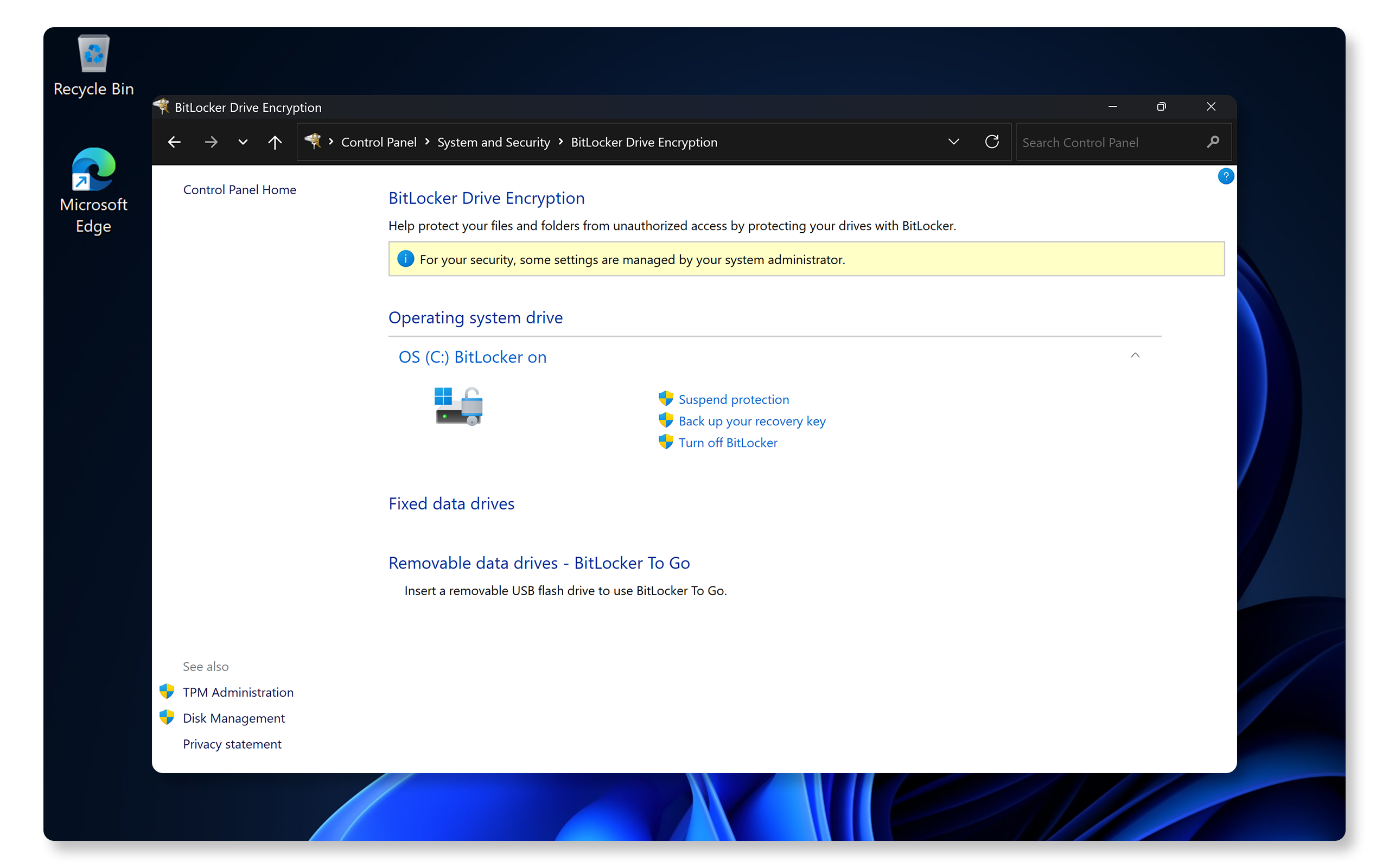
- Select Start and type bitlocker in the search box.
- Select Manage BitLocker from the results.
- Find your drive (usually C:) in the BitLocker window.
- Select Resume protection next to your drive.
- Wait for the message that says protection is active again.
Your computer is now fully protected and should work normally.
If These Steps Don't Work
If you're still having trouble after following these steps:
- Make sure you're using the correct recovery key. If you have multiple recovery keys saved, try each one.
Why This Problem Happens
This BitLocker loop can occur when:
- Windows updates change security settings
- Your computer's hardware configuration changes
- There's a temporary communication issue between BitLocker and Windows
The steps above fix the issue by temporarily pausing BitLocker protection, allowing Windows to start normally, and then reactivating protection once Windows is running.