Secureconnectgatewayalertservice is stopped.
Summary: The SecureConnectGatewayAlertService is responsible for managing alerts received from SNMP Telegraph. If this service is not running, it indicates an issue with the SNMP configuration on the SCG gateway. ...
Instructions
The issue reported is that the SecureConnectGatewayAlertService in the Secure Connect Gateway (SCG) system has stopped. Here’s the detailed process that needs to be followed to resolve the issue.

1. Root Cause Analysis:
- Log Review:
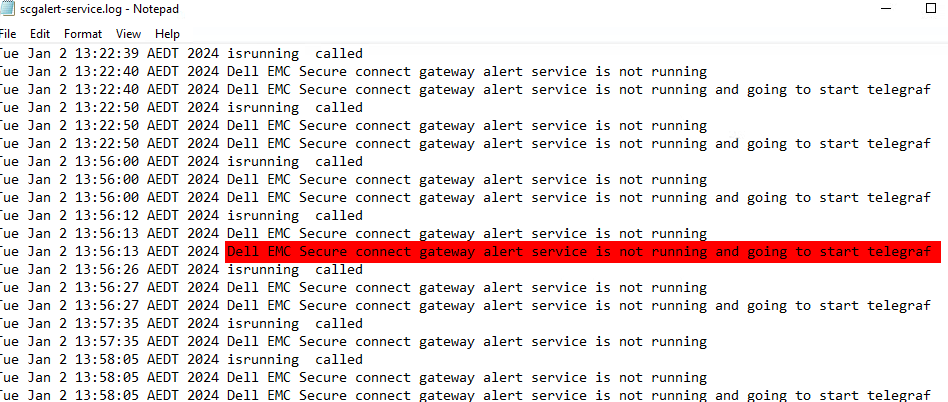
An analysis of SCG logs, including the Alert Service log and Application log, revealed that the SNMP Telegraph had not started.

2. Protocol Identification:
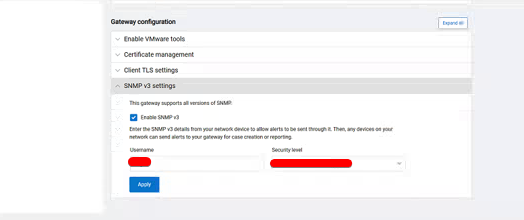
- Identifying SNMPv3 Usage:
As per the logs, we can identify and confirm whether the gateway is using SNMPv3 in the SCG UI, which could be impacting the alert service's functionality.
3. Actions to be performed:
Based on the analysis, it clearly indicates that SNMP usage caused incompatibilities or misconfigurations in the SCG system, resulting in the Alert Service stopping unexpectedly. Temporarily disabling SNMPv3 and restarting the Alert Service afterward allows the service to reinitialize with updated settings.
Note: Before proceeding with the action plan below, ensure a healthy SCG VM snapshot is available as a backup.
Step 1:
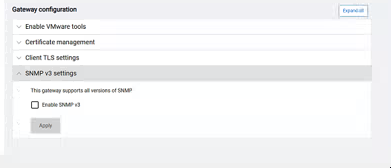
- Disabling SNMPv3:
To resolve the issue, the SNMPv3 protocol must be disabled within the UI.
Step 2:
- Restarting the Alert Service:
After disabling SNMPv3, ideally, the alert service should stop and restart automatically.
Step 3:
- Verifying Alert Service Status:
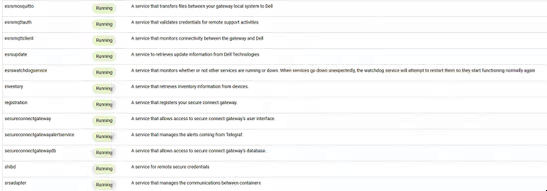
To confirm, the status of the alert service we can use the following commands in the SCG CLI Session.
docker exec -it saede-app bashwd status secureconnectgatewayalertserviceexit

Step 4:
- Manually Starting the Alert Service (If needed)
If the service status is still shown as "Stopped," we can manually start by using the watchdog command as below.
docker exec -it saede-app bashwd start secureconnectgatewayalertserviceexit

Step 5:
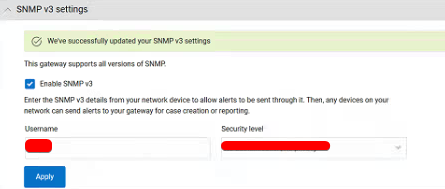
- Reconfiguring SNMPv3:
Once the Alert Service is back up, SNMPv3 must be re-enabled and reconfigured in the SCG UI.
Step 6:
- Verification:
After reconfiguring, the Alert Service status can be checked again to ensure it is running.
Additional Information
Note: Restarting the SAE container / docker restart are NOT required.