PowerEdge: How to deploy an OS using the Lifecycle Controller (LCC)
Summary: This article provides information about how to use the LCC to deploy a supported OS.
This article applies to
This article does not apply to
This article is not tied to any specific product.
Not all product versions are identified in this article.
Instructions
Deploying an Operating System using the PowerEdge Lifecycle Controller
To deploy an operating system using the PowerEdge Lifecycle Controller, follow these steps:
- Press F10 during boot to enter the Lifecycle Controller (LCC).
- Select OS Deployment in the left side menu.
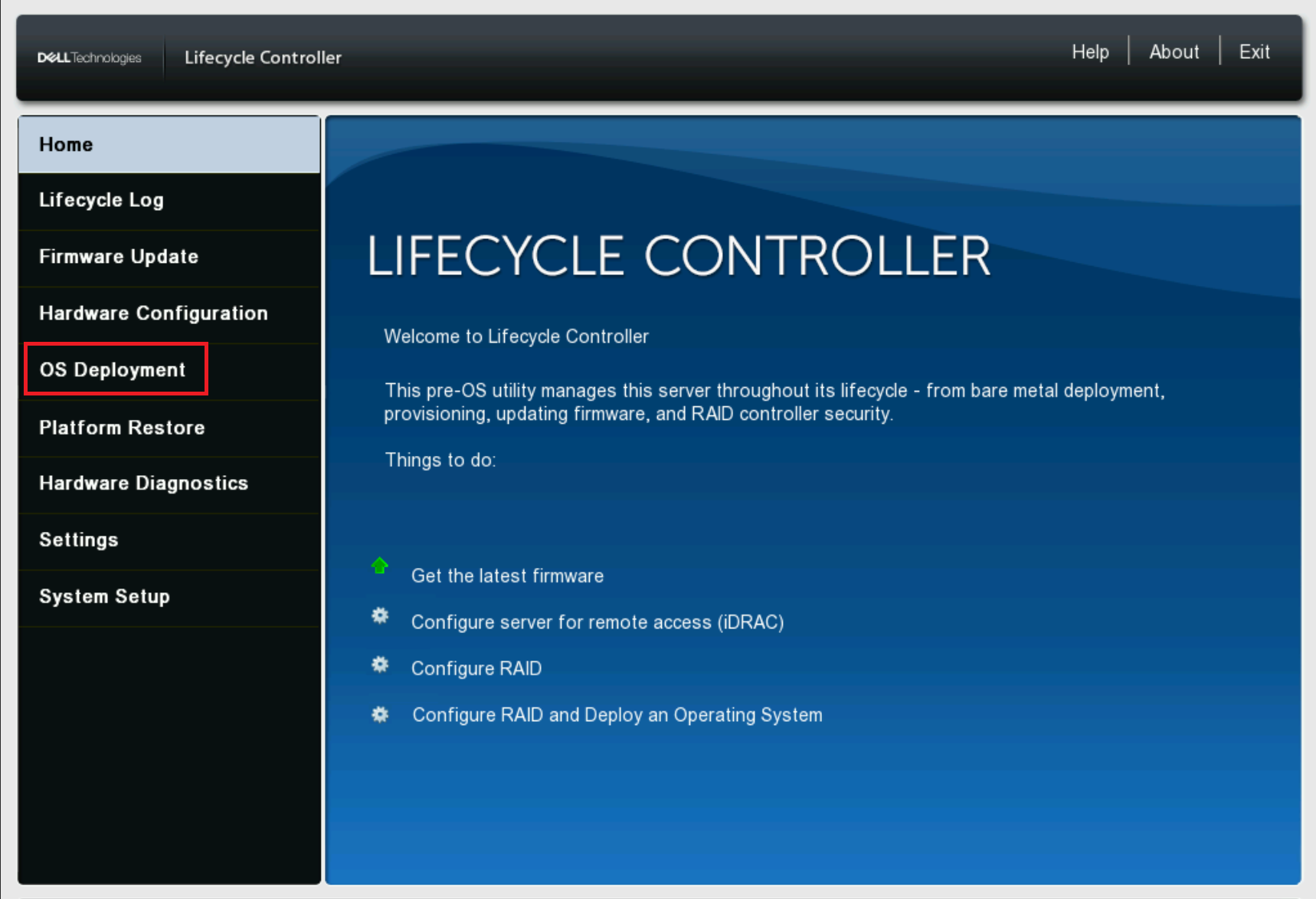
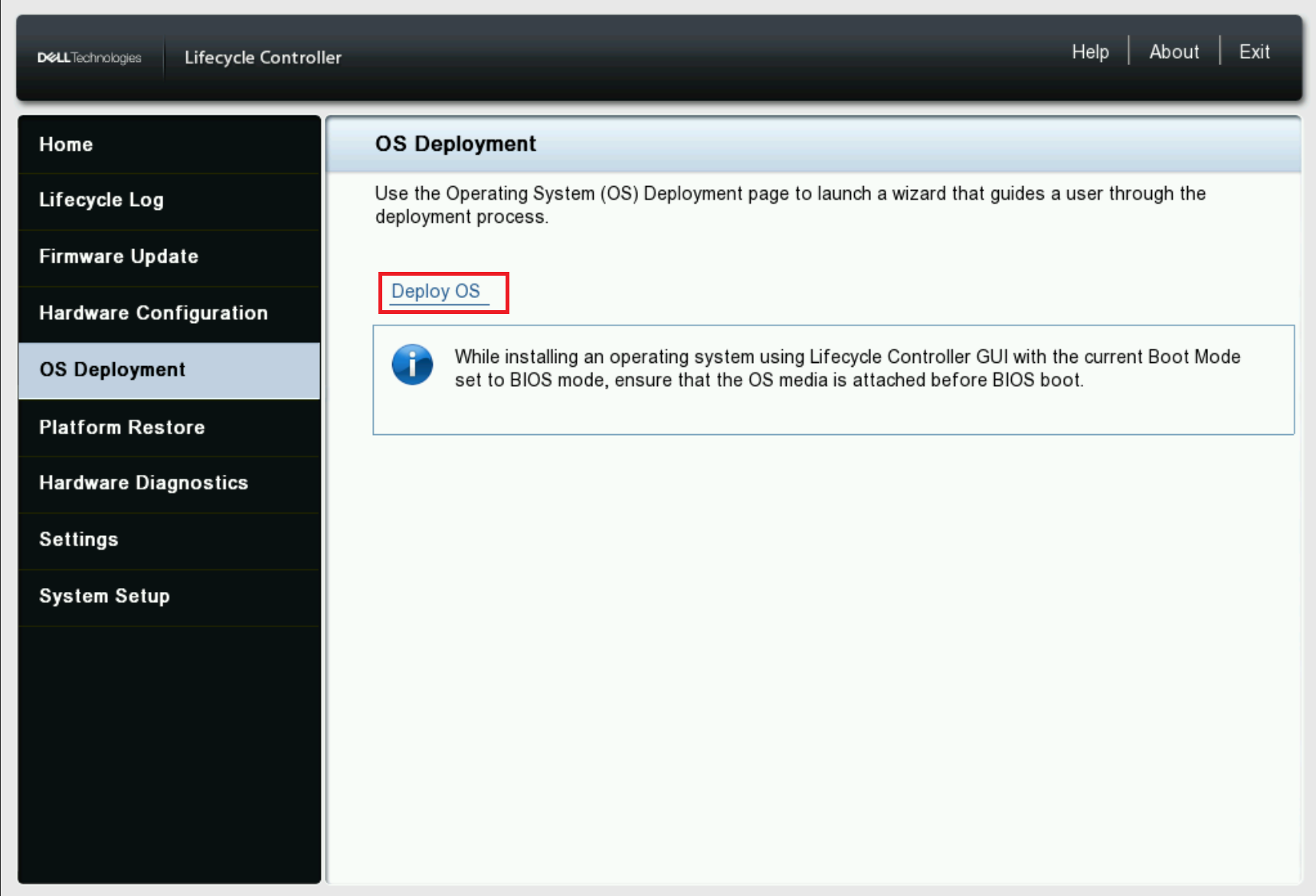
- Click Deploy OS.
- Select Configure RAID First or Go directly to OS Deployment depending on if a RAID is configured or not.
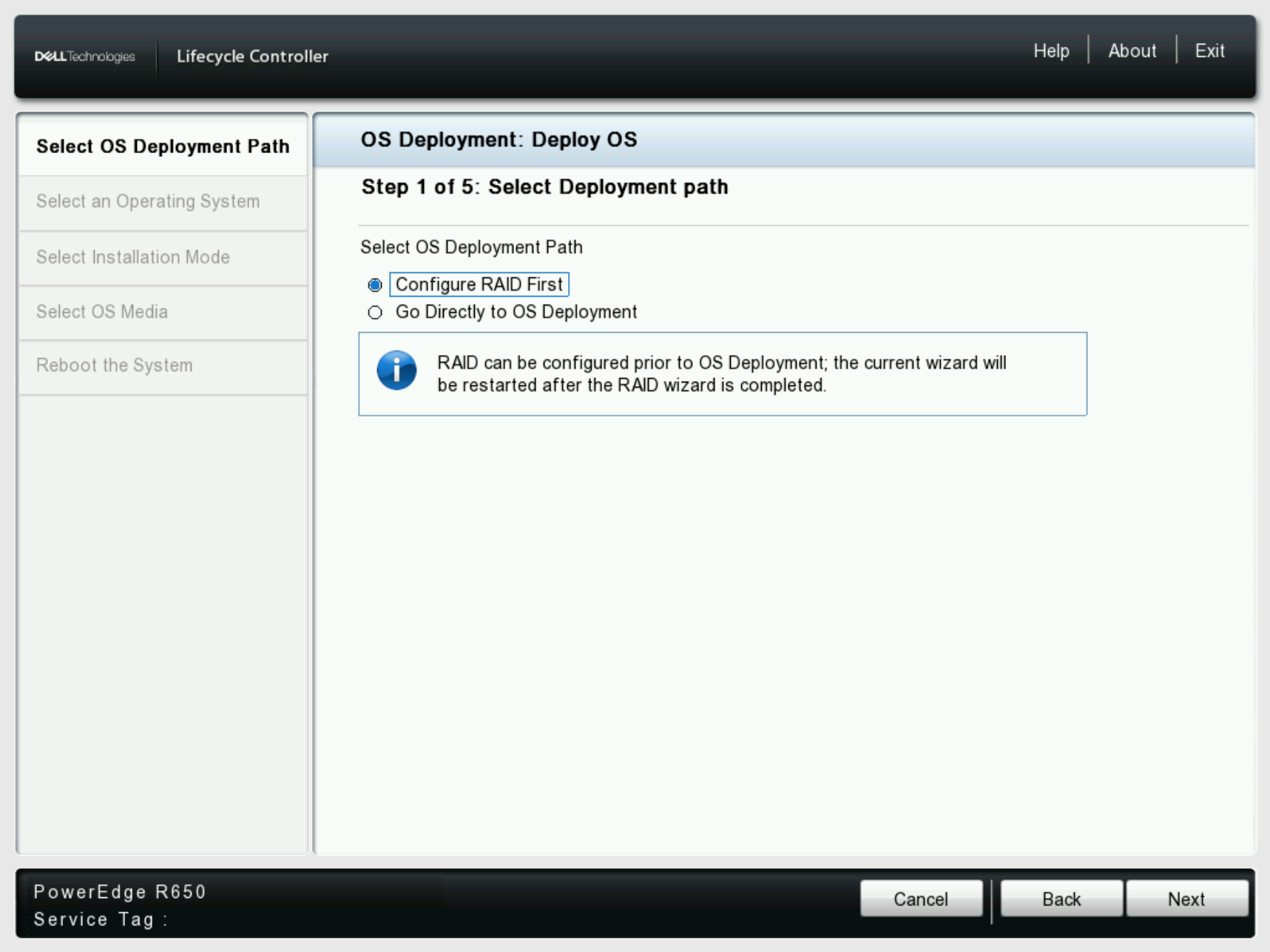
- If applicable, choose Configure RAID First, if the storage is already configured choose Go Directly to OS Deployment and click Next.
Caution: Do not choose to Configure RAID if any existing storage must be kept, as this wipes all storage configurations that exist. Only use this for new fresh storage configurations.
- On the first RAID Configuration page, select the RAID Controller to use to configure the OS RAID on and click Next.
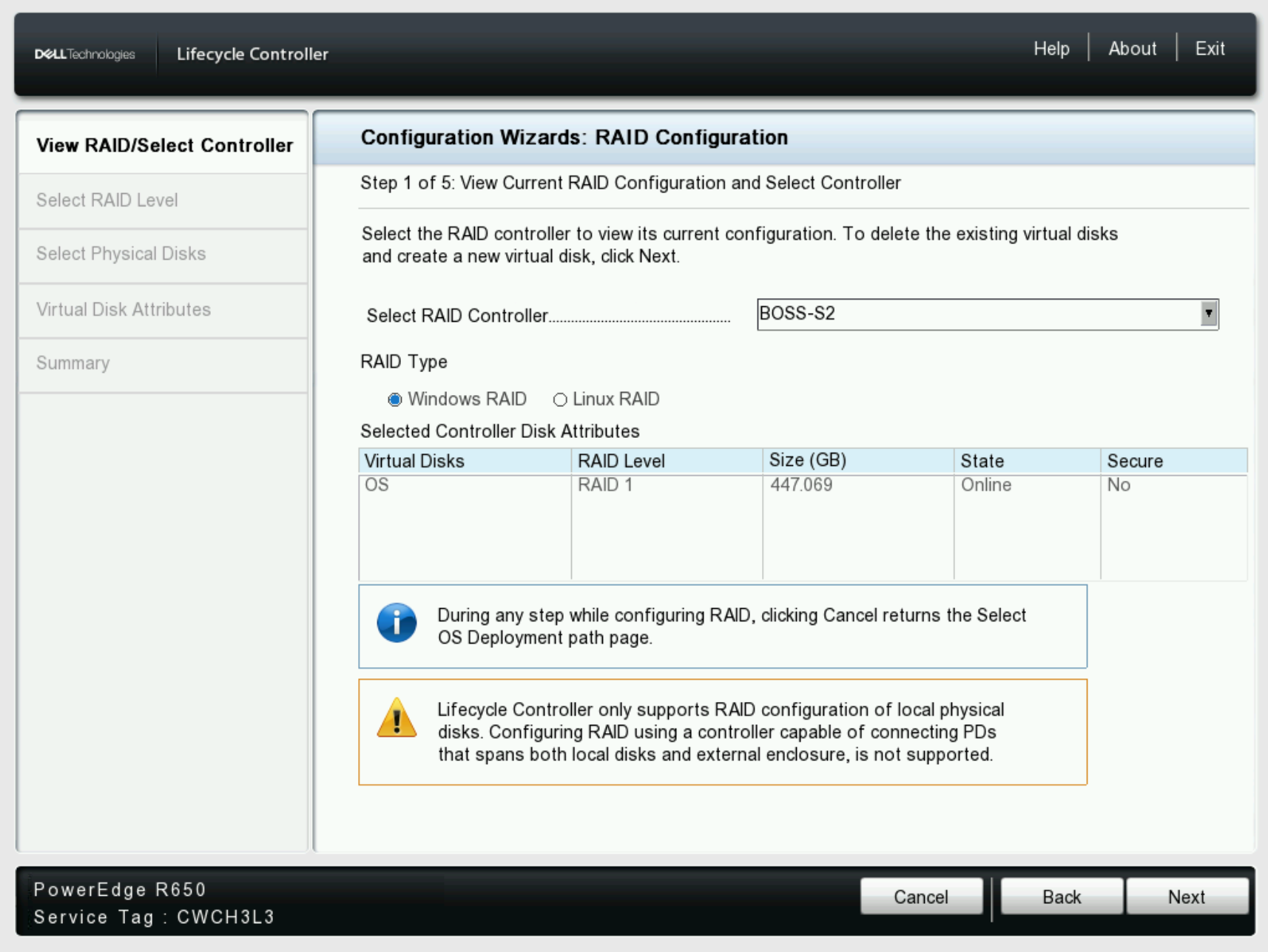
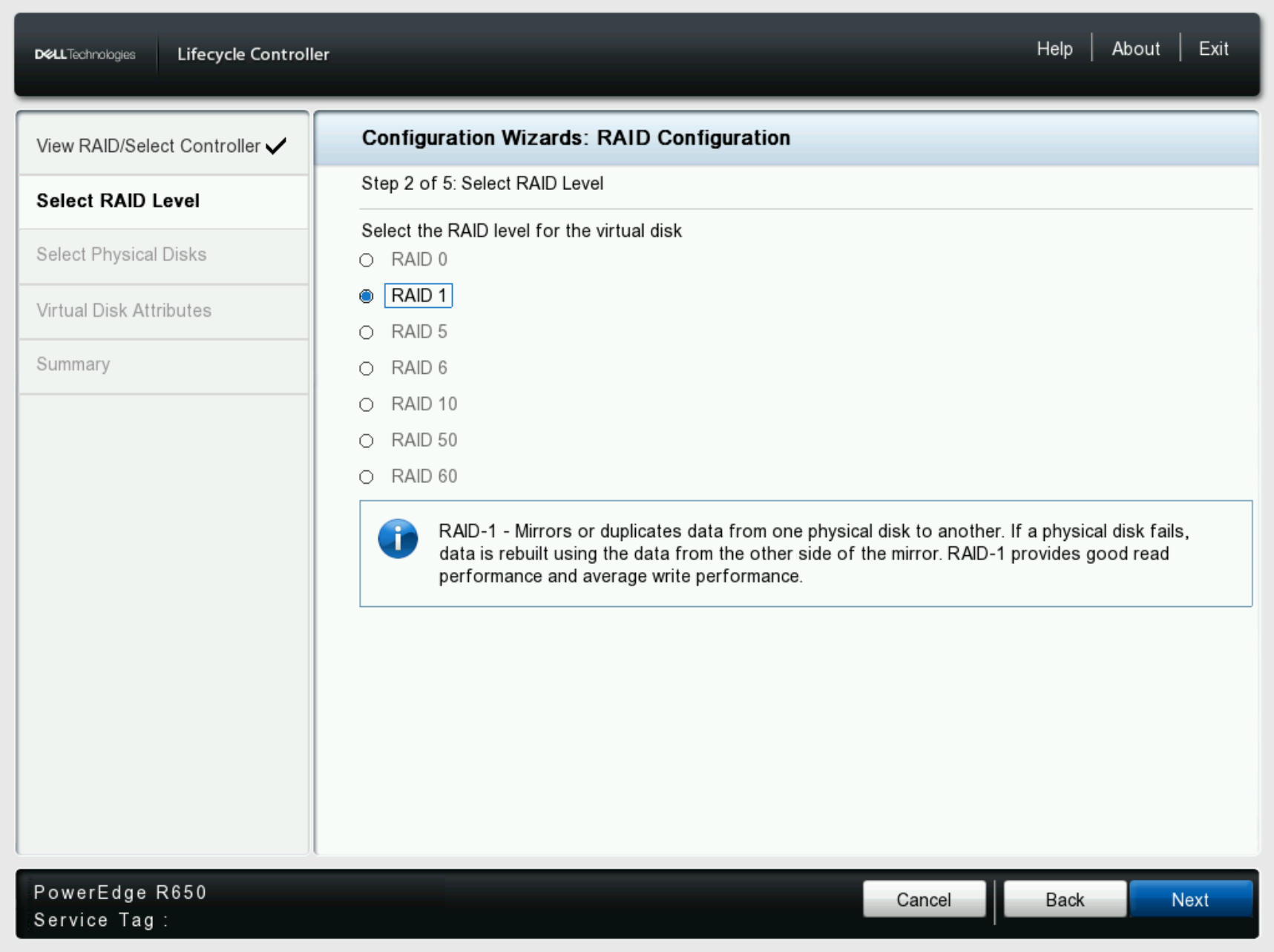
- Choose the required RAID level, the chosen controller determines the available RAID options and available disks.
- In this example, the BOSS controller only supports RAID 1 with two drives so the only option here is RAID 1.
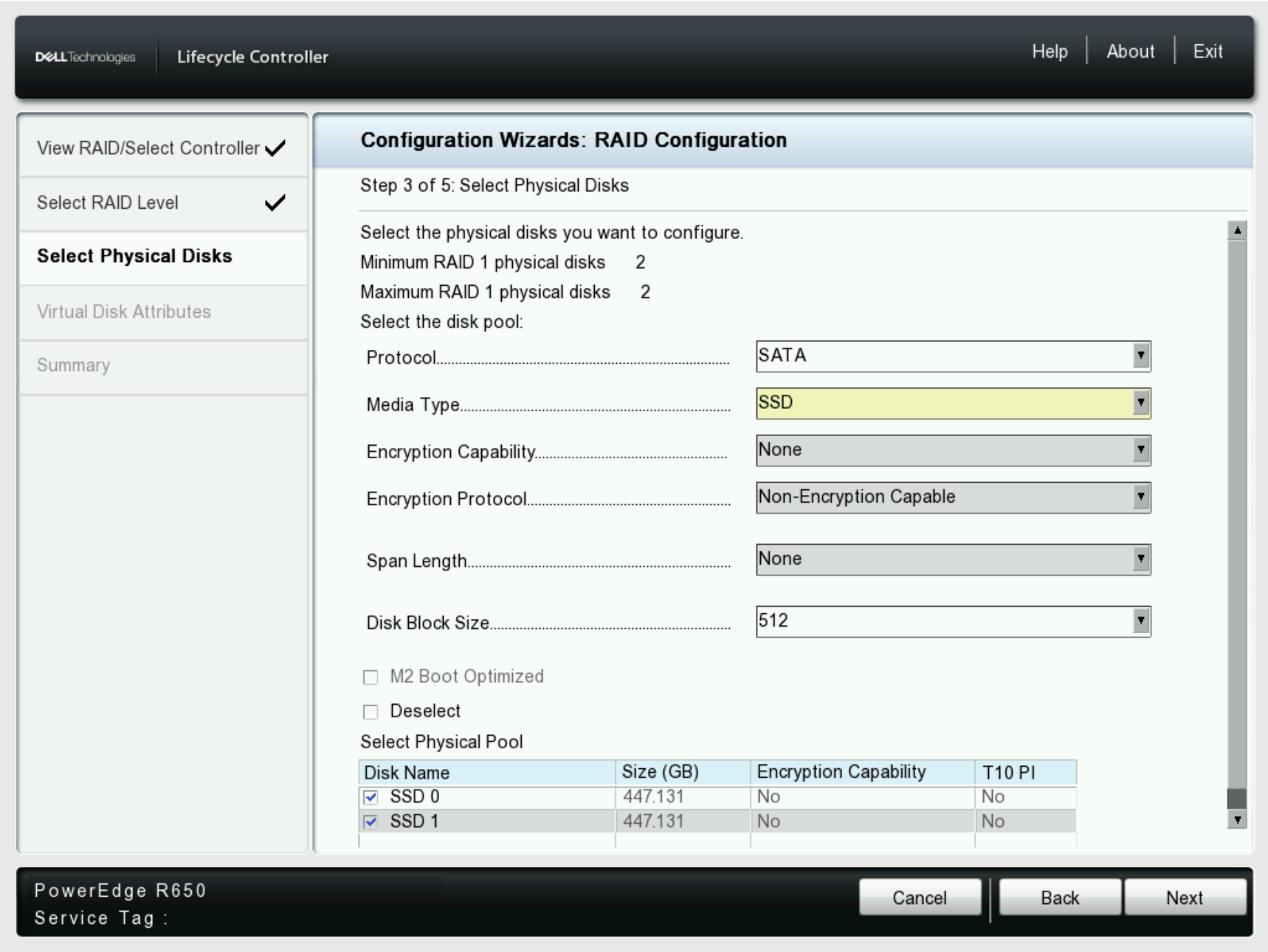
- On this page, change the Protocol type if the detected type is incorrect. If the controller supports multiple types this limits the disks seen by that type, such as SATA, SAS, or NVMe.
- Select the disks to be used for the chosen RAID configuration and click Next.
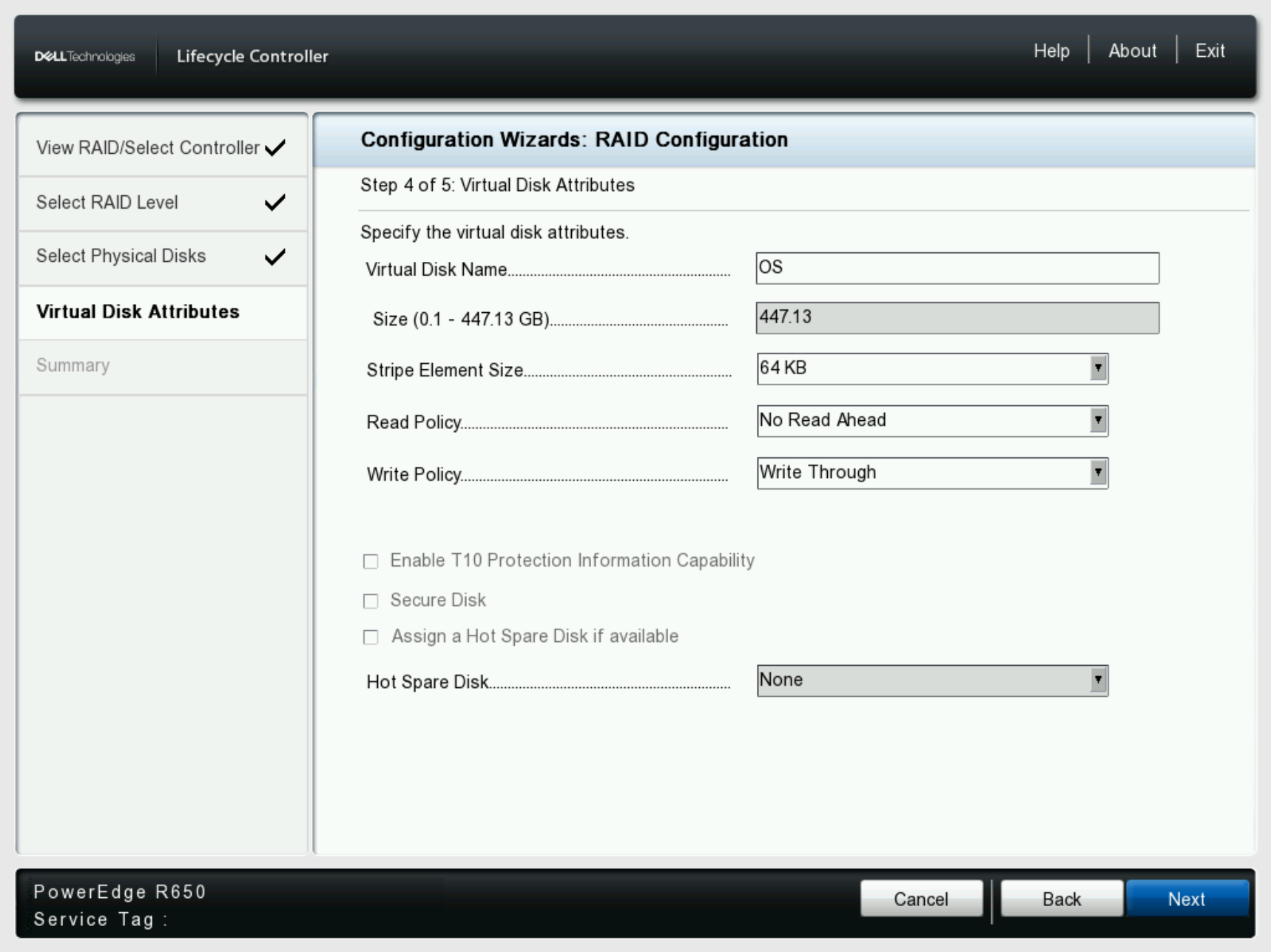
- Provide the required virtual disks attributes and provide a virtual disk name if wanted or leave it blank for a default VD name.
- After making the required virtual disk configuration, click Next.
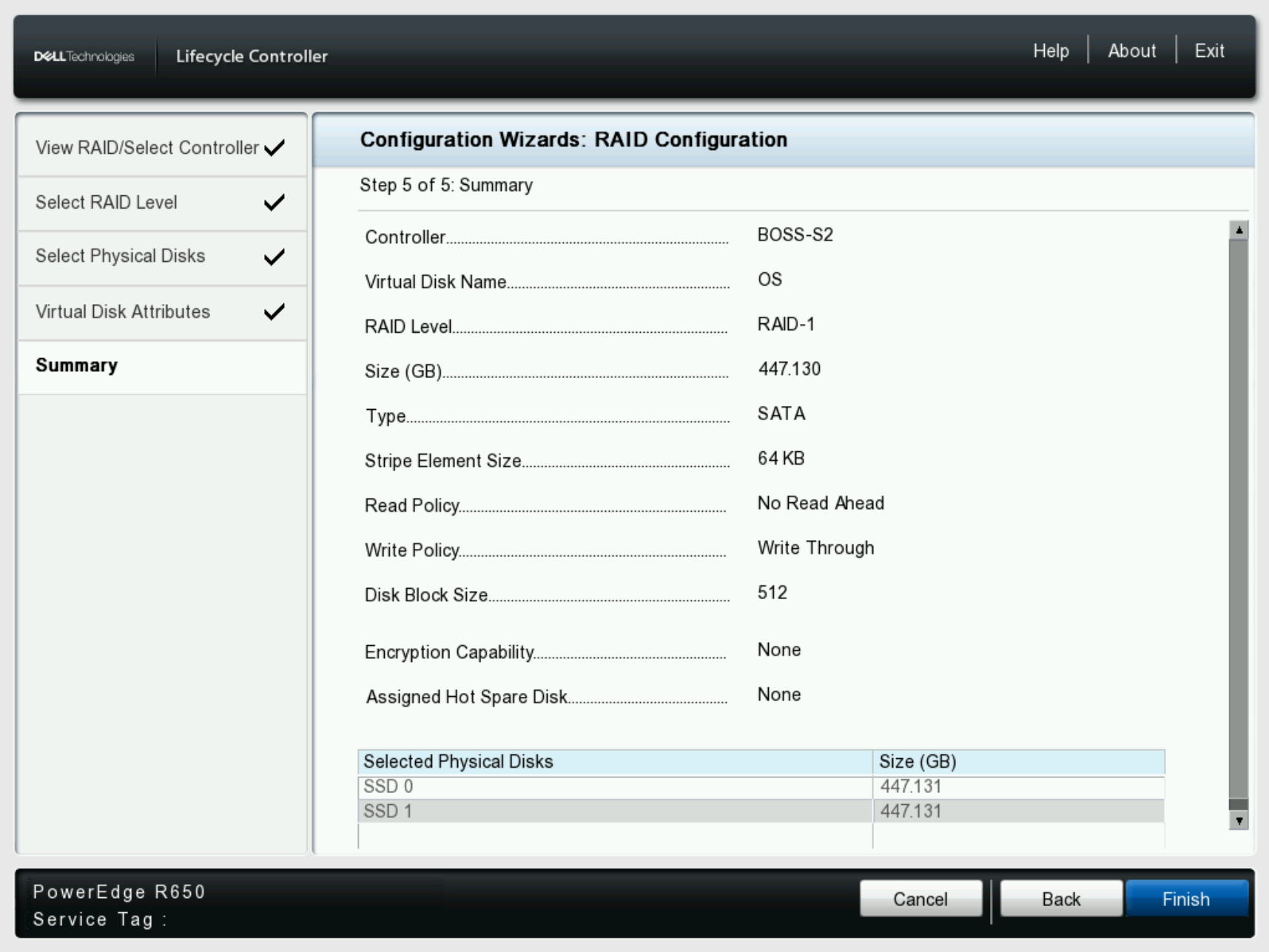
- Review the Storage Summary to verify everything looks correct and then proceed by clicking Finish.
- Before continuing, verify the storage changes requested before data is lost on the chosen storage. Click Yes to proceed with the storage changes.
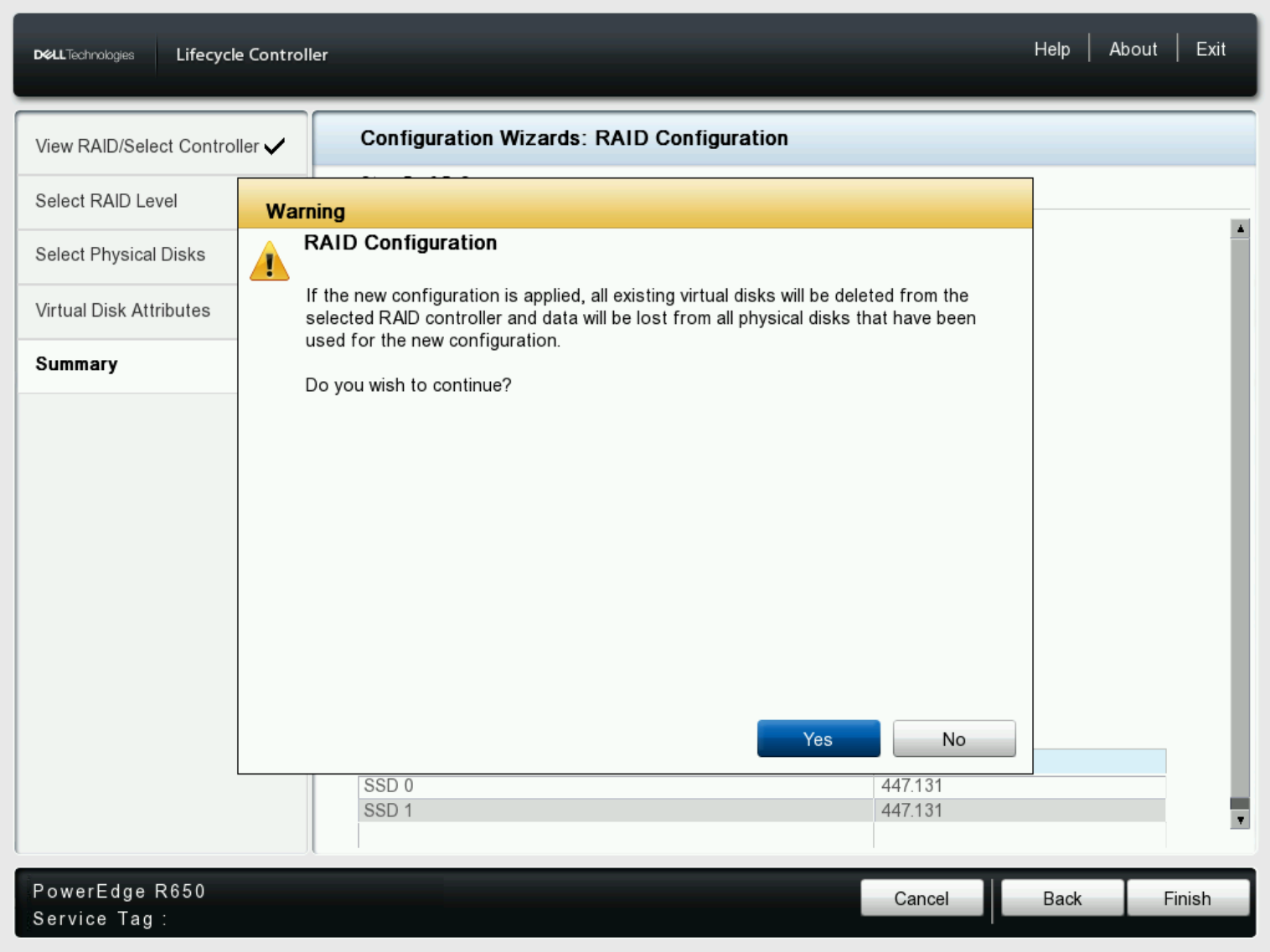
- After completing the storage configuration, the OS Deployment stage begins.
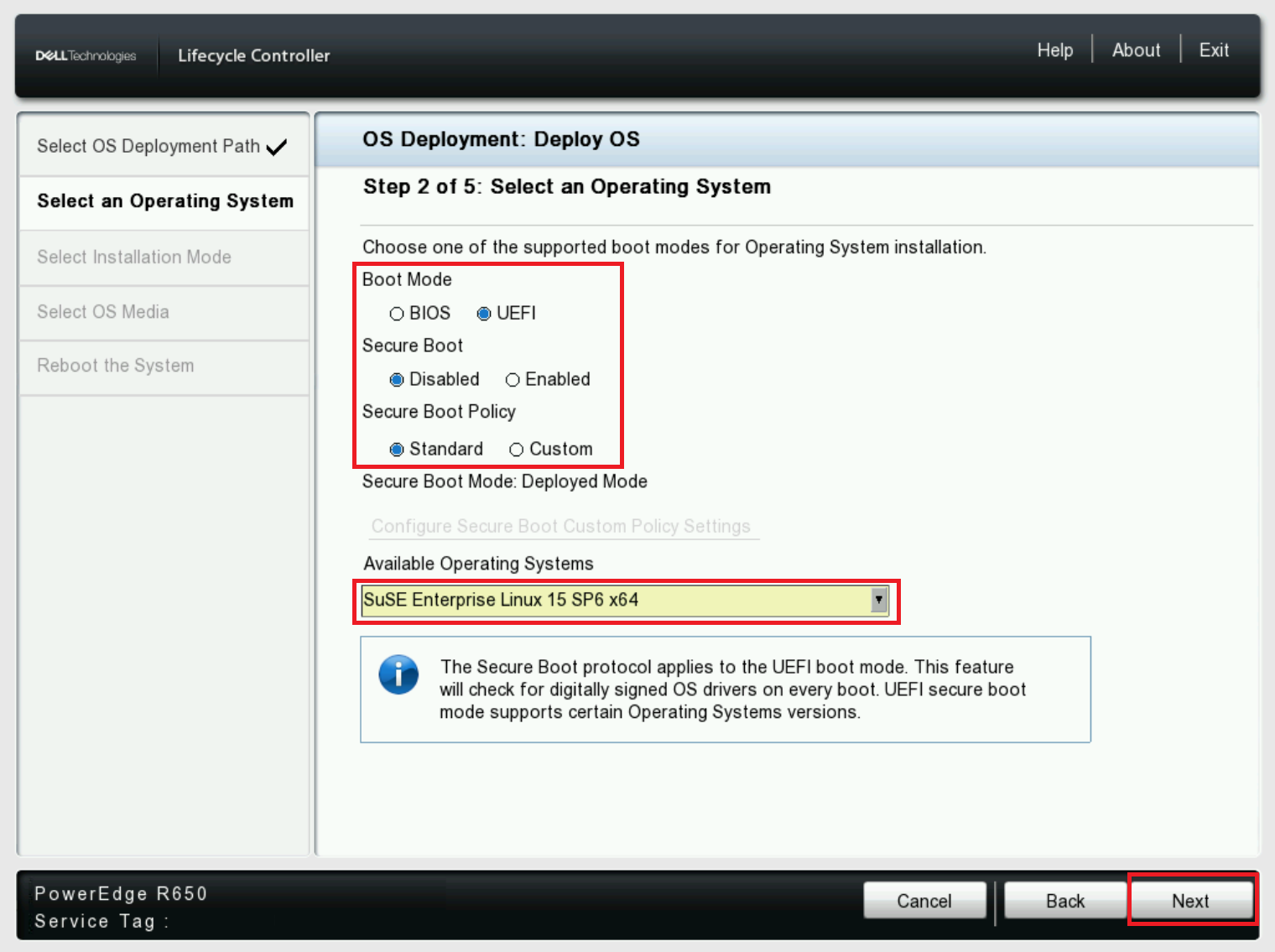
- Choose the required boot mode settings and select the Operating System from the dropdown menu.
Caution: If installing Windows Server 2022 or newer, additional BIOS configurations must be made. For more information, reference Trusted Platform Module (TPM) Support for Windows Server Operating System.
Note: Ensure the OS media connected matches the version of the OS from the dropdown, otherwise a warning is shown when choosing the OS media.
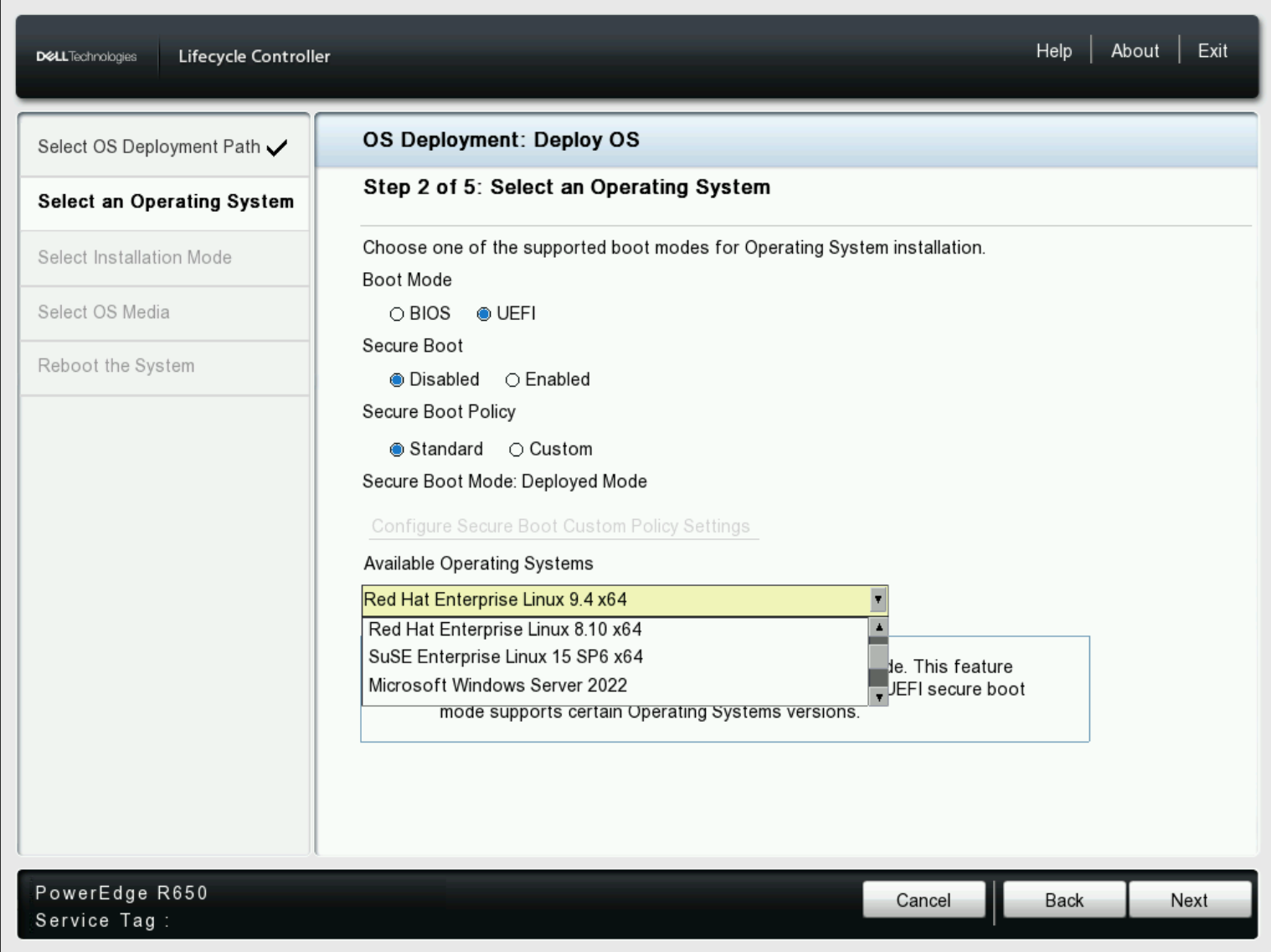
- After setting the BIOS mode and choosing the Operating System, click Next.
-
The LCC begins loading the OS driver pack for the selected OS.
Note: The provided list of Dell-supported operating systems changes based on the driver packs updated on the server.Note: To update drivers, download the latest OS Driver pack that is associated with your server.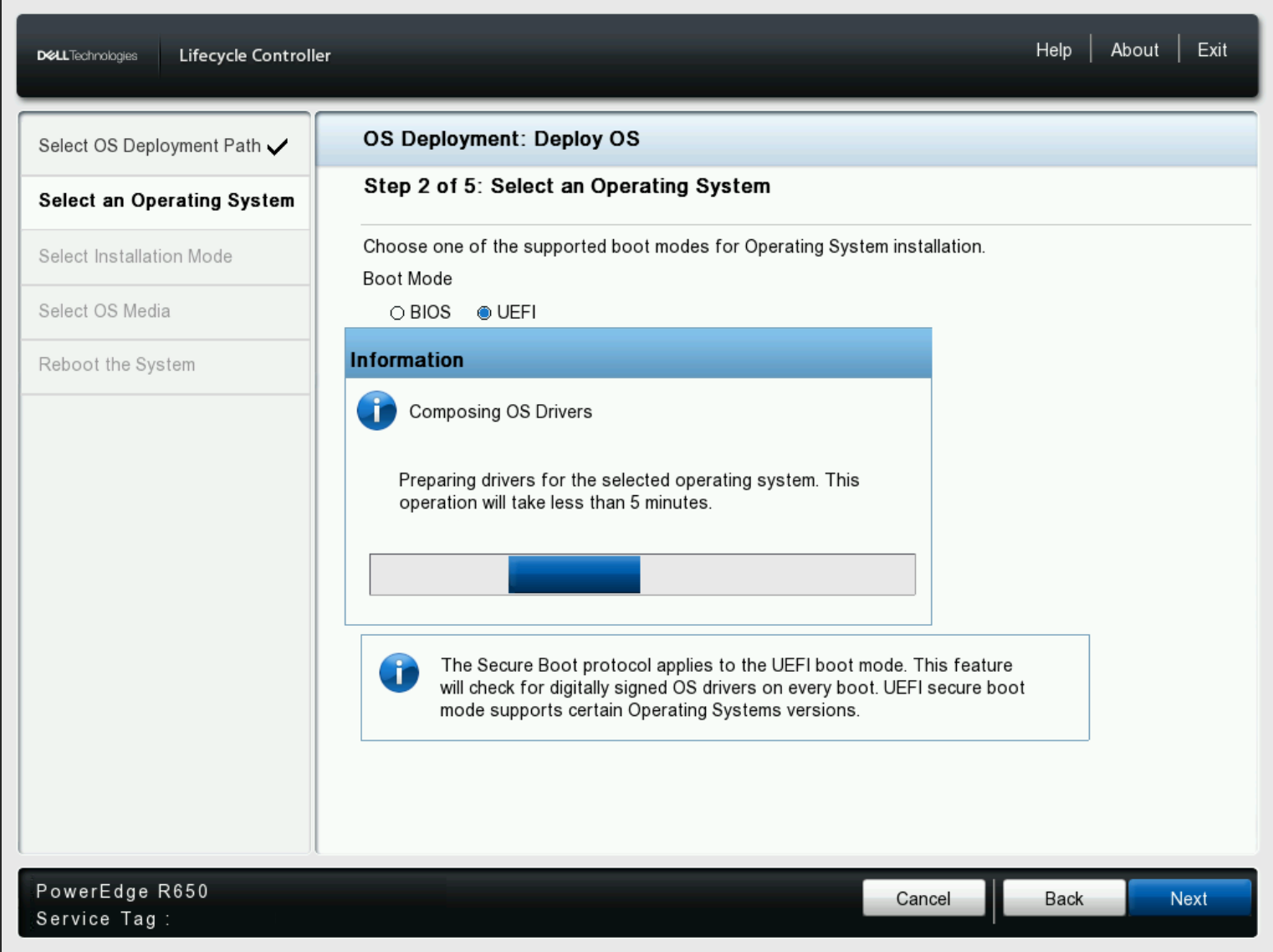
-
Select either Manual or Unattended install as needed.
Note: The unattended installation feature is supported only for Microsoft Windows and Red Hat Enterprise Linux. When selecting any other operating systems, the Unattended Install option is unavailable.Note: The unattended installation requires an unattended configuration file to be provided.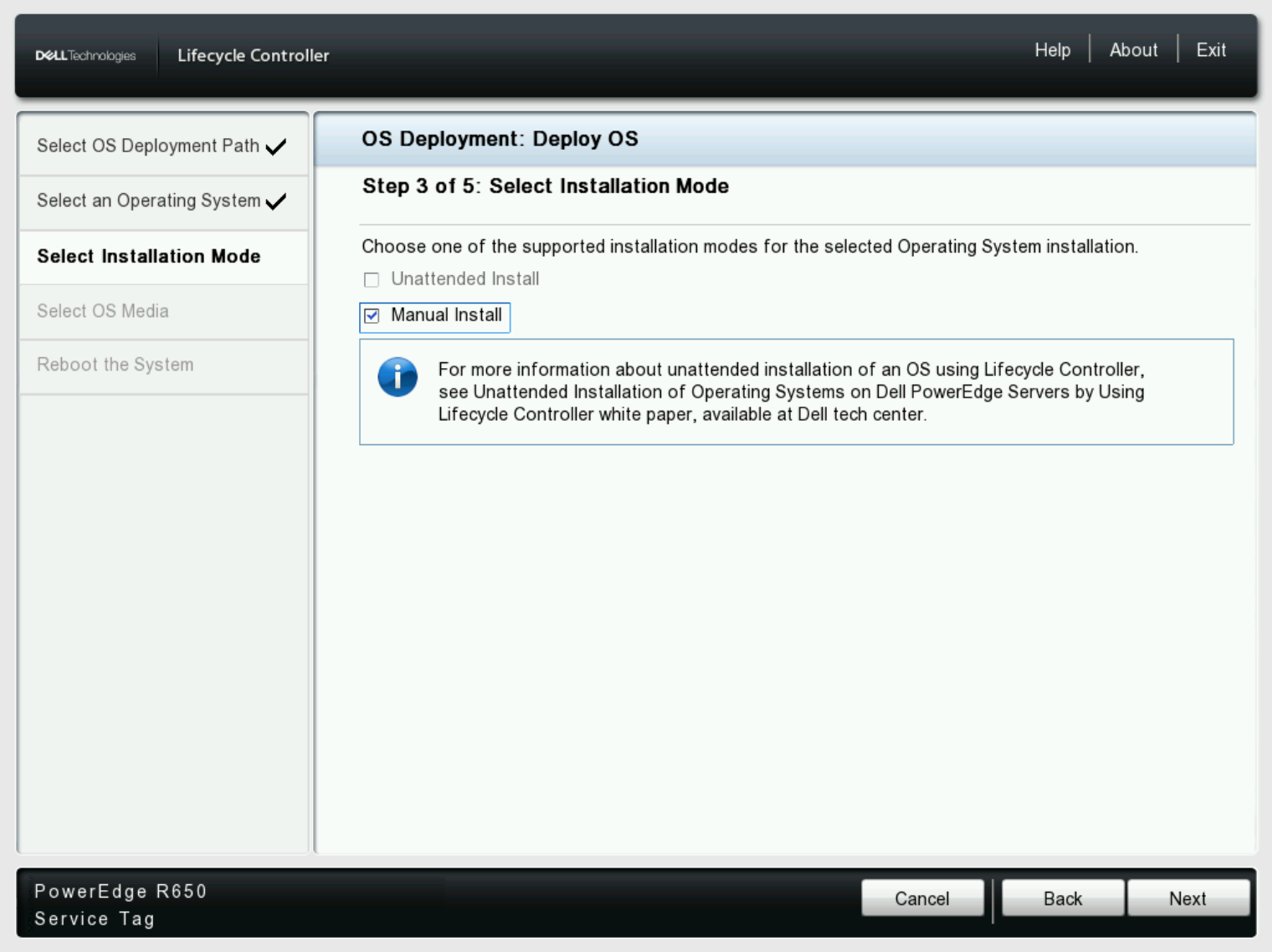
- Insert the OS installation media using either DVD, USB, or Virtual Media of iDRAC.
- Select the OS media source from Select Media the drop-down menu and click Next. If using a mapped ISO from the IDRAC, it shows as Virtual CD.
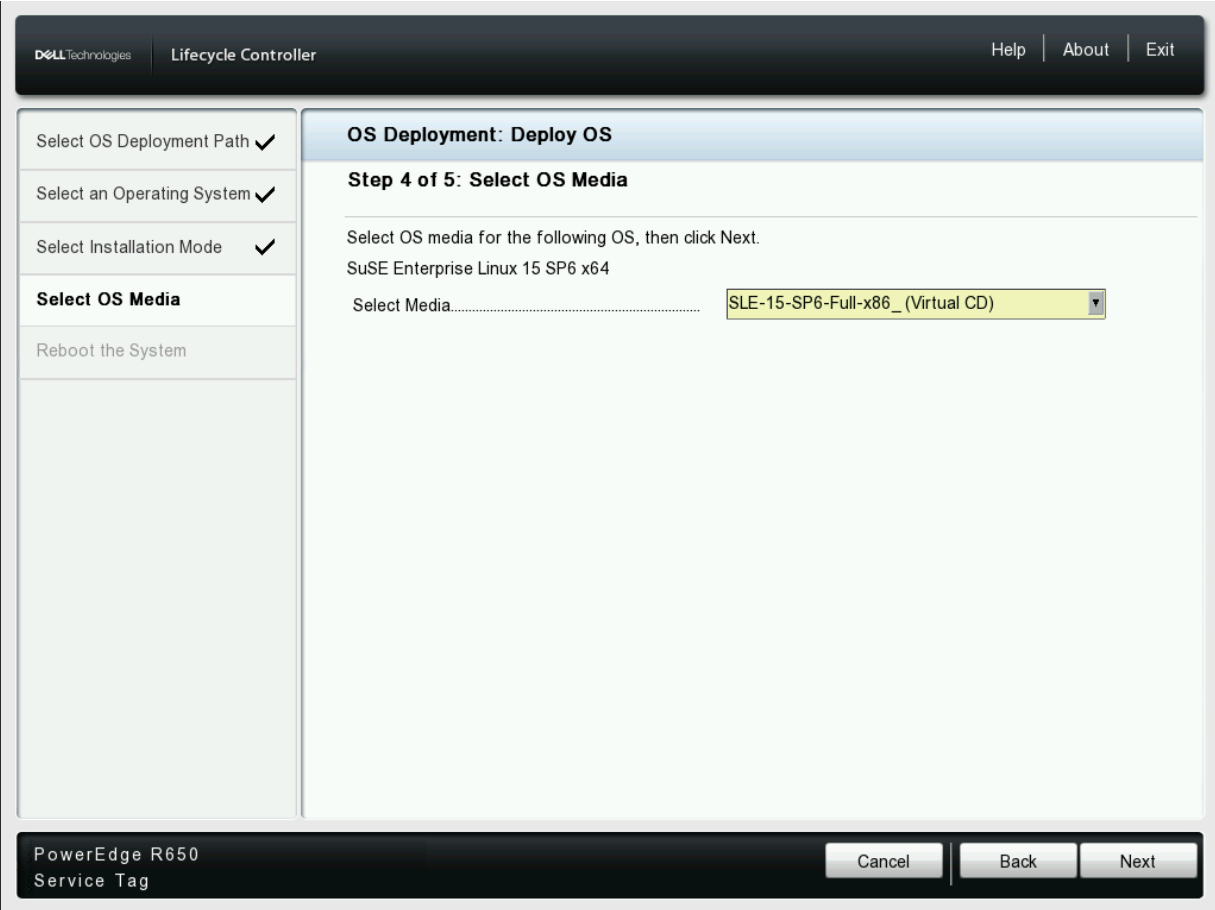
- Review the chosen settings and OS deployment options and if everything is correct proceed by clicking Finish.
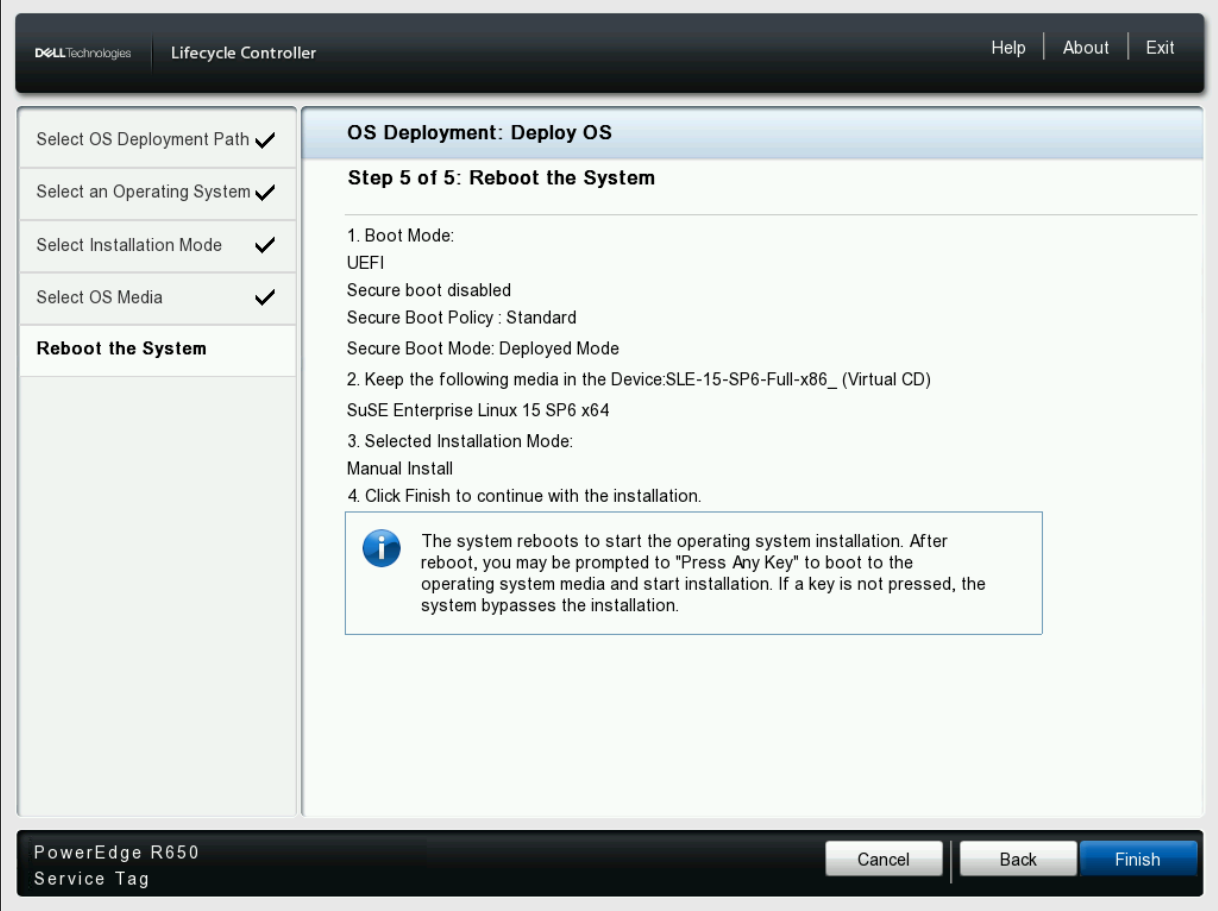
- The server reboots and is set to automatically boot the chosen OS media.
- Once the OS media boots follow the OS installation steps required for the chosen OS.
Additional Information
OS Deployment Videos:
OS Deployment using PowerEdge Lifecycle Controller
Duration: 00:04:28 (hh:mm:ss)
When available, closed caption (subtitles) language settings can be chosen using the CC icon on this video player.
Install Windows Server 2022 Operating System In UEFI Mode Using Dell Lifecycle Controller.
Duration: 00:06:55 (hh:mm:ss)
When available, closed caption (subtitles) language settings can be chosen using the CC icon on this video player.
How To: Installing A Linux Operating System In Unattended UEFI Mode
Duration: 00:02:20 (hh:mm:ss)
When available, closed caption (subtitles) language settings can be chosen using the CC icon on this video player.
Affected Products
C Series, HS Series, Modular Infrastructure, Rack Servers, Tower Servers, XE Servers, XR Servers, OEM Server Solutions, Microsoft Windows Server 2022, Microsoft Windows Server 2025, Red Hat Enterprise Linux Version 7
, Red Hat Enterprise Linux Version 9, SUSE Linux Enterprise Server 15
...
Products
iDRAC9, Dell Lifecycle Controller OS Driver Pack - Current VersionsArticle Properties
Article Number: 000334676
Article Type: How To
Last Modified: 13 Jun 2026
Version: 4
Find answers to your questions from other Dell users
Support Services
Check if your device is covered by Support Services.