Steps for ThinOS 8.x and ThinLinux 2.x Certificate Update 2025
Summary: Information about updating the Entrust server certificate in ThinOS 8.6 and ThinLinux 2.x for 2025.
Instructions
Ensuring Secure Connectivity with Wyse Management Suite (WMS)
Why This Update Is Essential?
The Entrust server certificate that ThinOS 8.6 and ThinLinux 2.x devices used to securely connect with Wyse Management Suite (WMS Pro Cloud) is set to expire on September 30, 2025. To avoid disruption of device communication with WMS, customers in each region must ensure that their devices receive the DigiCert root certificate update before the deadlines listed below. Failure to act before September 26, 2025 may result in lost connectivity.
- EU1 Instance Deadline: September 26, 2025
- US1 Instance Deadline: September 27, 2025
Step-by-Step Guide: Importing DigiCert Root Certificate
- Go to the DigiCert site: DigiCert Trusted Root Authority Certificates

- Click "Download DER/CRT - DigiCert Global Root G2."
- Import the certificate into the device.

How to Import the Certificate Using an FTP Server
You may temporarily set up an FTP server in your environment for the import process. Afterwards, you may remove the ftp server if any security concerns.
- Go to Control Panel → Programs and Features → Add/Remove Features → Turn Windows Features On/Off.
- Install Internet Information Services and select FTP Service.
- After installation, create an FTP site and provide read/write permissions. The site has anonymous user access by default.
- Go to
C:\Inetpub\ftprootand create the following folders: \wyse\wnos\cacerts- This is needed for ThinOS devices\wyse\wlx\cacerts- This is needed for ThinLinux devices
Create text files named wnos.ini and wlx.ini in their respective directories.
- In
wnos.ini, add line“AddCertificate= (<certificate name,e.g. Digicert.crt)” - Copy the DigiCert certificate to the cacerts folder.
For ThinLinux devices, Go to \wyse\wlx\wlx.ini, add line " InstallCertificate=<certificate name.crt>"
Final Steps
Once the certificate is successfully imported:
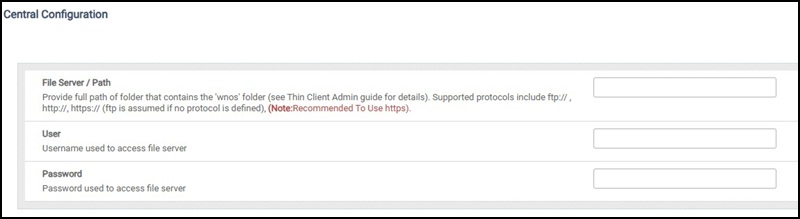
- Configure WMS Server details on your client devices.
- Check-in each device to confirm communication with the WMS Server.
Test Connectivity
After completing the installation, restart your devices and confirm that each can establish a secure connection to the WMS Server.