檔案系統的 SourceOne - 使用「新增至還原清單」還原檔案時,Isilon SMB 共用失敗
Summary: SourceOne-for-檔案系統-還原-檔案-使用-新增-至-還原-清單-失敗-的-Isilon-SMB-共用
Symptoms
對於位於 Isilon SMB 共用上的檔案,使用「新增到還原清單」還原檔案會失敗,而適用於位於 Windows 共用資料夾上的檔案。
在 ExJBRestore 上,會顯示下列錯誤:CExFileSystem::iWriteFileProperties|
VERBOSE|
iWriteFileProperties calling ::CreateDirectory with perm for \\?\UNC\SMBPath\sourceone_test\|
CExFileSystem::iWriteFileProperties|
VERBOSE|
Checking that user 'SourceOneServiceAccount' has write permissions to the directory '\\\?\UNC\SMBPath\sourceone_test\'|
CExFileSystem::iWriteFileProperties|
ERROR|
Error encountered checking permissions (0x80072147)|
CoExFileProvider::StoreDoc|
ERROR|
Failed to restore file to original location (MessageID). (0x86044701) The specified property 20 does not exist (0x86044002)|
CExRestoreThread::ProcessRun|
WARNING|
Failed restore item: Unable to verify that the user has required file system permissions to restore the file. Try restoring to an alternate location. (0x86044710)|
CExRestoreThread::ProcessRun|
ERROR|
CExRestoreThread failed msgid: MessageID result hr=86044710|
Cause
這是由於 Isilon 端缺乏 SourceOne 服務帳戶的權限所造成。Isilon 需要驗證的參考點,可以是 LDAP、NIS 或本機使用者。它需要在 UID 上有一個來源才能識別。
Resolution
連線至 OneFS。如果 SourceOne 服務帳戶沒有使用者,您必須使用下列程序
來建立:建立 SourceOne 使用者的步驟:
1- 從您的 OneFS,前往「存取」,然後按一下「 成員與角色」
2- 選取目前存取區域:系統
3- 按一下「使用者」標籤,然後選取您的提供者:「LOCAL:系統“
4- 單擊右側 的創建使用者 。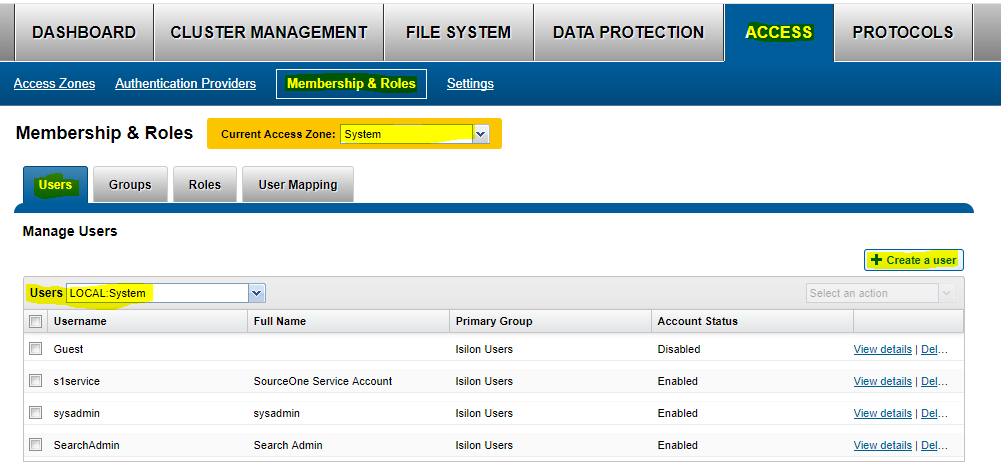
5- 填入下列資訊:
使用者名稱:「service Account name」
密碼:「服務帳戶密碼」
全名:SourceOne 服務帳戶
主要群組:--->按一下 選取群組, 然後選取提供者 「LOCAL:system」 並開始搜尋。在這裡,選取 「Isilon 使用者」
按一下 建立使用者。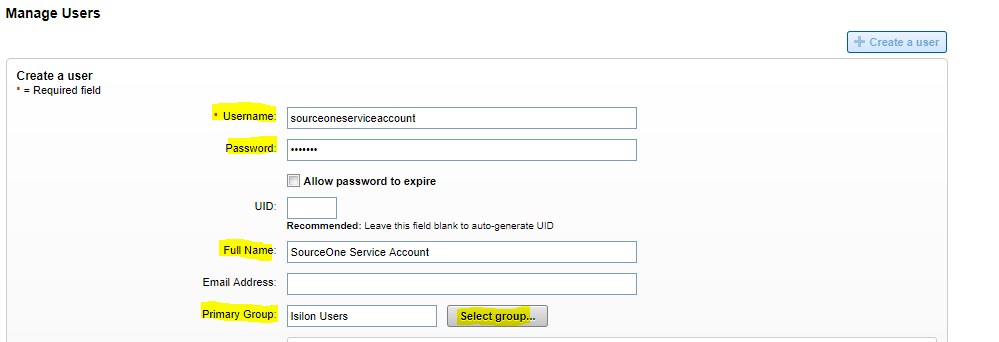
6- 啟用使用者
現在您需要將該使用者新增至 SMB 共用:
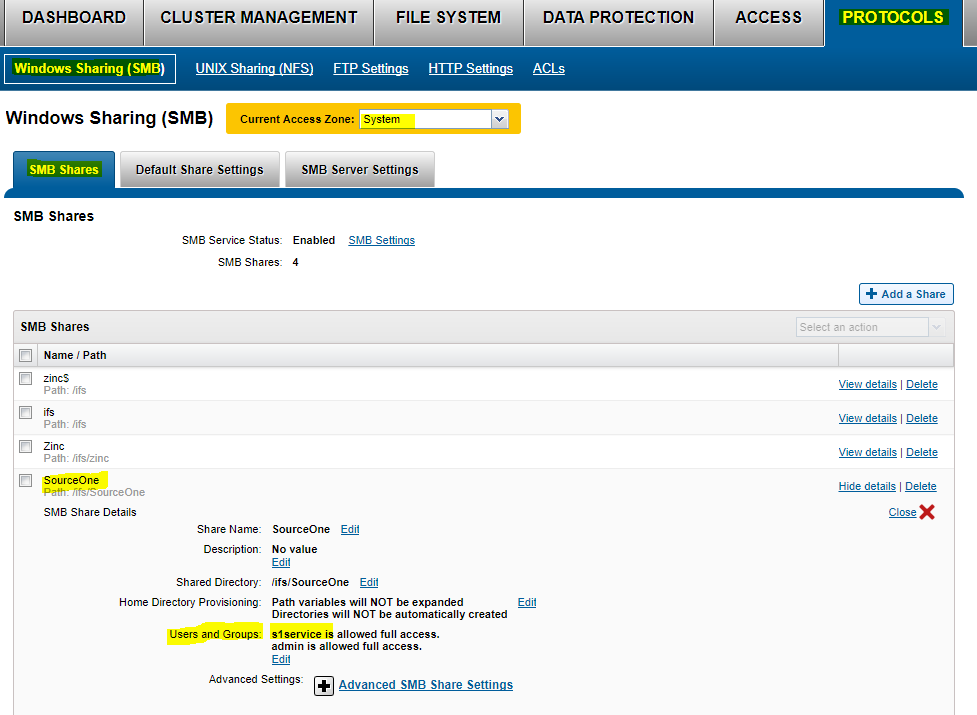
1- 前往 通訊協定,然後前往 SMB 共用。
2- 選取目前存取區域:系統
3- 在 SourceOne SMB 共用上,選取 編輯
4- 編輯使用者和群組,然後選取「新增使用者或群組」。選取「本機:」系統供應商,您會找到先前建立的 SourceOne 服務帳戶。提供完全許可權並添加使用者。首先輸入服務帳戶並保存。
5- 現在 OneFS 端的權限良好