NWUI: AD/LDAP user who is not defined in NetWorker can review the dashboard.
Summary: External authentication (AD/LDAP) has been integrated with NetWorker. AD/LDAP users or groups have been integrated NetWorker roles; however an external user who has not been given any permissions in NetWorker can log in to NWUI and review the dashboard. ...
Symptoms
AD/LDAP has been integrated with NetWorker. The NetWorker external authority integration does not have a user search path or group search path specified (global read-access):

AD/LDAP users, or groups have been added to the external roles fields of Server->User Groups. An AD/LDAP user does not belong to any of the groups defined in NetWorker, and the user is not defined in any of the NSR usergroups.
The AD/LDAP user can log in to the NetWorker Web User Interface (NWUI) and can see the Dashboard and Monitoring tabs:

The user is not able to review or change the NetWorker configuration; however, they can access information about completed or running jobs on the NetWorker server:

Cause
This issue has been raised to NetWorker engineering. NetWorker is working as designed. If no user search path or group search path is specified NetWorker authc has global read-access to the entire AD/LDAP structure.
This may also be observed if a user search path and/or group search path has been set, but it is set to low within the AD/LDAP structure, allowing subtree search to pickup users/groups below the path set.
Resolution
Restrict NetWorker's visibility of the AD/LDAP organization to only users/groups which should have access to NetWorker. This can be done using the user search path and group search path fields in the NetWorker external authority resource.
- In the AD/LDAP environment, identify the Distinguished Name (DN) of the parent Container (CN) or Organization Unit (OU) that require NetWorker access.
For example, The following PowerShell command can be used to identify the location of a group within Microsoft AD:
Get-ADGroup -Identity "GROUP_NAME" | Select-Object -Property Name,ObjectClass,DistinguishedName
PS C:\Users\Administrator> Get-ADGroup -Identity "NetWorker_Admins" | Select-Object -Property Name,ObjectClass,DistinguishedName

Name             ObjectClass DistinguishedName
----             ----------- -----------------
NetWorker_Admins group       CN=NetWorker_Admins,OU=DELL,DC=networker,DC=lan
In this example, we can see that the group belongs under the Organization Unit (OU) OU=DELL,DC=networker,DC=lan. The group's OU/CN can be used as the group search path.
The following PowerShell command can be used to get the location of Microsoft AD users within an AD group:
Get-ADGroupMember -Identity "GROUP_NAME" | Select-Object Name, SamAccountName, ObjectClass, DistinguishedName
Example:
PS C:\Users\Administrator> Get-ADGroupMember -Identity "NetWorker_Admins" | Select-Object Name, SamAccountName, ObjectClass, DistinguishedName

Name                         SamAccountName ObjectClass DistinguishedName
----                         -------------- ----------- -----------------
NetWorker Engineering        nwree          user        CN=NetWorker Engineering,OU=DELL,DC=networker,DC=lan
Backup Administrator         bkupadmin      user        CN=Backup Administrator,OU=Support_Services,OU=DELL,DC=networker,DC=lan
NOTE: You must consider subtree resources. For example if there are other OU/CN under the path selected, they will also be visible to NetWorker. This can be used to grant permissions to users/groups under a specific path; conversely, it also opens access up to groups/resources beneath a specified path. For assistance in getting the appropriate user and group search paths, consult with your domain administrator.
- Log in to the NetWorker Web User Interface (NWUI) using the default NetWorker Administrator account.
- Go to Authentication Server->External Authority.
- Select the external authority resource and click EDIT.
- From the external resource properties, go to the ADVANCED CONFIGURATION tab.
- Update the Group Search Path and User Search Path fields to include the OU/CN path (excluding DC values) to the parent OU/CN resource you want NetWorker authc to have read-access to.

- Go to the BASIC CONFIGURATION tab.
- In the User DN Password field, enter the password of the User DN account.
- Click SAVE. The resource reports if it is updated successfully:

Users/groups who reside under the group search path and user search path specified will still be able to log in to NWUI; however, users who reside outside these paths will not be permitted NWUI access.

Additional Information
On the NetWorker server, verify what external users/groups are defined in NetWorker user groups:
nsradmin
show name; external roles
print type: nsr usergroup
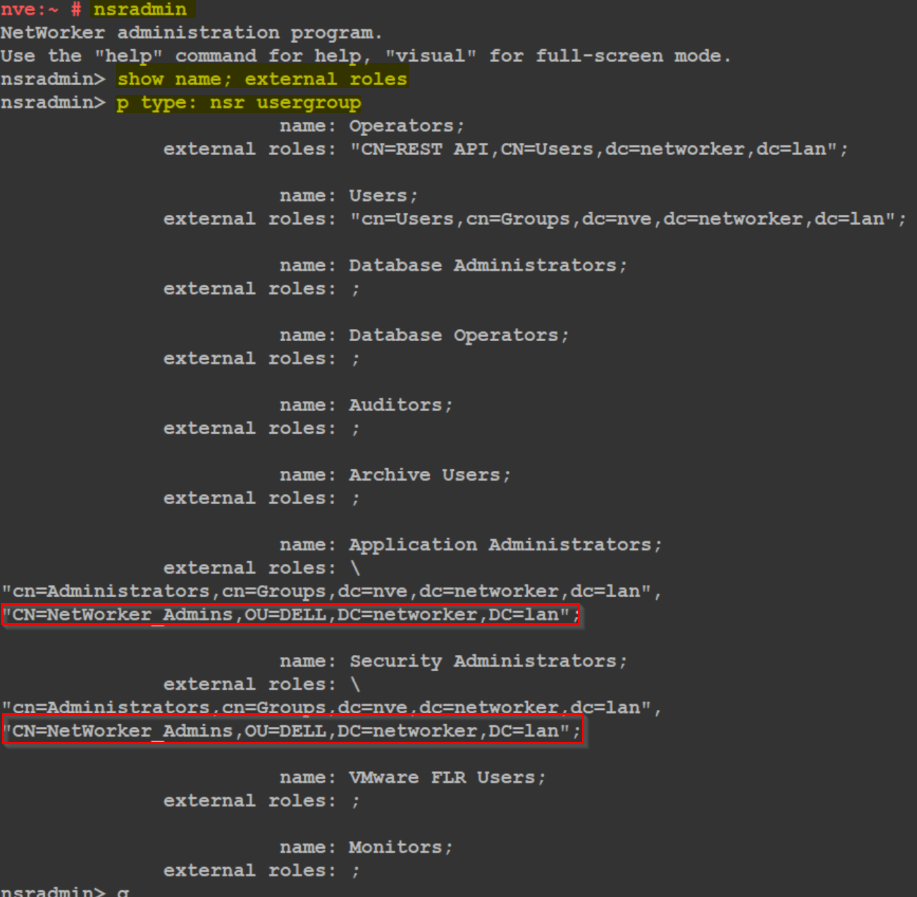
An external user can be found by authc; however, is not a member of any of the groups defined in the NSR usergroup external roles fields; nor is the user-defined in any of these fields:
On the NetWorker authentication server, verify the AD/LDAP groups that a user belongs to.
authc_mgmt -u Administrator -p 'NETWORKER_ADMINISTRATOR_PASSWORD' -e query-ldap-groups-for-user -D query-tenant=TENANT_NAME -D query-domain=DOMAIN_NAME -D user-name=USER_NAME

In this instance the user testuser2 is not a part of the NetWorker_Admins AD group set in the NSR usergroup external roles fields, nor is the user DN defined in the external roles fields.