PowerEdge: Using the Dell SUU to Update Firmware and Drivers

Summary: The Dell Server Update Utility (SUU) allows updating firmware and Operating System drivers on Dell PowerEdge servers. This article summarizes the steps to download the tool and to use it to update components on a Windows Server target server. ...

This article applies to This article does not apply to This article is not tied to any specific product. Not all product versions are identified in this article.

Instructions

Table of Contents

  1. Overview of the Dell Server Update utility
  2. Download the Dell Server Update utility
  3. Use the Dell Server update utility to update a Dell PowerEdge server


Overview of the Dell Server Update utility


You can download the Dell Server Update Utility (SUU) from support.dell.com and use it to update firmware for BIOS, iDRAC, and other components and operating system drivers. 

The SUU is a local, one-to-one tool. This means that you can use it to update only the local server to which you have download it. 
The SUU allows the user to compare the current versions of components with the versions available on the media. 

The user can then opt for upgrading or even downgrading the components. The SUU can be launched and used directly from within Windows Server or within the Lifecycle Controller platform.
You can find further details about the SUU and specific usage instructions on the User Guide located in the link below:

Dell Server Update Utility - Current Versions


Download the Dell Server Update utility

  1. Navigate to https://www.dell.com/support/home  
  2. Under "Identify your product or search support," enter the appropriate model or the service tag
  3. Under the "Drivers & Downloads" tab, choose the operating system and select the "Systems Management" category
  4. Click to expand the Dell Server Update Utility and then click the "Download" to start downloading the ISO file
Download page
Figure 1: Download page


Use the Dell Server update utility to update a Dell PowerEdge server

Note: The ISO file downloaded in the previous section is not bootable. It must be mounted in Windows or made accessible to the Lifecycle controller user interface.

If the ISO has been mounted in Windows Server:

  1. Using Windows Explorer, browse to the drive letter to which the ISO has been mounted and double-click suulauncher.exe
  2. Review the Compliance Report, click to check the applicable updates and then click "Apply"
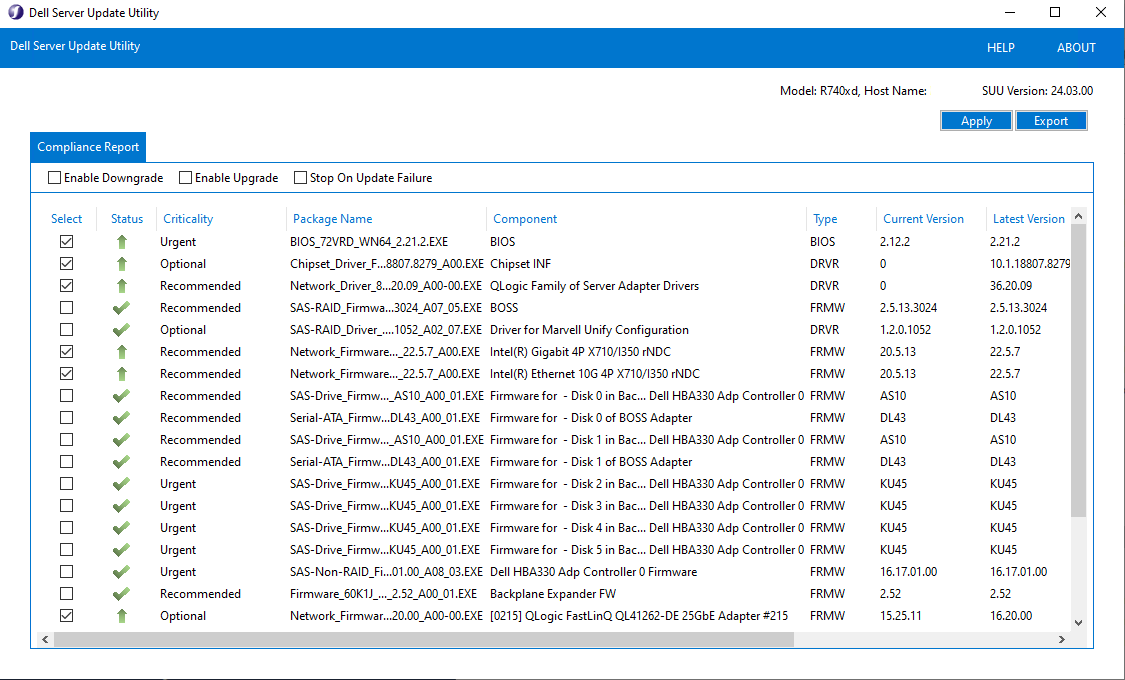
Dell Server Update utility UI in Windows
Figure 2: Dell Server Update utility UI in Windows


If the ISO has been made available to the Lifecycle Controller's user interface by mounting it in the iDRAC's virtual console:

  1. Start the server up and press F10 during POST to enter the Lifecycle Controller's menu
  2. Click the "Firmware Update" option and then choose "Launch Firmware Update"
  3. Select the "Local Drive (CD/DVD/USB)" in the repository location section
  4. Review the click to check the applicable updates and click "Apply"
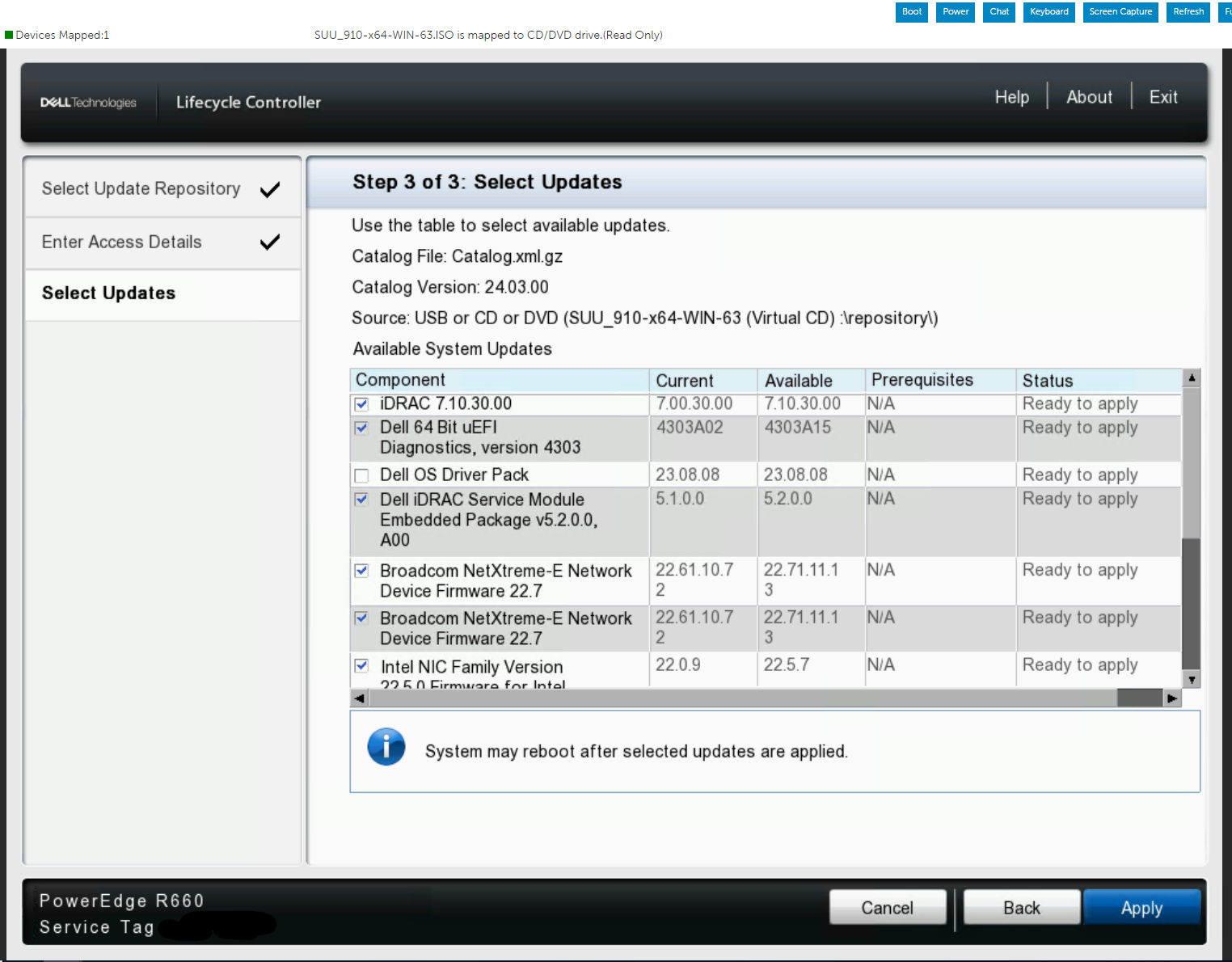
Dell Server Update utility UI in the Lifecycle Controller 
Figure 3: Dell Server Update utility UI in the Lifecycle Controller


Check out the below demonstration video for an overview of the tool and its usage.

Affected Products

PowerEdge XR2, Poweredge C4140, PowerEdge C6420, PowerEdge C6520 Server Node (Intel), PowerEdge C6525 Server Node (AMD), PowerEdge C6615 Server Node (AMD), PowerEdge C6620 Server Node (Intel), PowerEdge FC640, PowerEdge HS5610 Cloud Scale Server , PowerEdge HS5620 Cloud Scale Server, PowerEdge M640, PowerEdge M640 (for PE VRTX), PowerEdge R240, PowerEdge R250 Rack Server, PowerEdge R260 Rack Server, PowerEdge R340, PowerEdge R350 Rack Server, PowerEdge R360 Rack Server, PowerEdge R440, PowerEdge R450 Rack Server, PowerEdge R540, PowerEdge R550 Rack Server, PowerEdge R640, PowerEdge R6415, PowerEdge R650 Rack Server, PowerEdge R650xs Rack Server, PowerEdge R6515 Rack Server, PowerEdge R6525 Rack Server, PowerEdge R660 Rack Server, PowerEdge R660xs Rack Server, PowerEdge R6615 Rack Server, PowerEdge R6625 Rack Server, PowerEdge R740, PowerEdge R740XD, PowerEdge R740XD2, PowerEdge R7415, PowerEdge R7425, PowerEdge R750 Rack Server, PowerEdge R750xa Rack Server, PowerEdge R750xs Rack Server, PowerEdge R7515 Rack Server, PowerEdge R7525 Rack Server, PowerEdge R760 Rack Server, PowerEdge R760XA Rack Server, PowerEdge R760xd2 Rack Server, PowerEdge R760xs Rack Server, PowerEdge R7615 Rack Server, PowerEdge R7625 Rack Server, PowerEdge R840 Rack Server, PowerEdge R860 Rack Server, PowerEdge R940 Rack Server, PowerEdge R940xa, PowerEdge R960 Rack Server, PowerEdge T140, PowerEdge T150 Tower Server, PowerEdge T160 Tower Server, PowerEdge T340, PowerEdge T350 Tower Server, PowerEdge T360 Tower Server, PowerEdge T440, PowerEdge T550 Tower Server, PowerEdge T560 Tower Server, PowerEdge T640, PowerEdge XE2420, PowerEdge XE7100, PowerEdge XE7420, PowerEdge XE7440, PowerEdge XE8545, PowerEdge XE8640, PowerEdge XE9640, PowerEdge XE9680, PowerEdge XR11, PowerEdge XR12, PowerEdge XR4000r, PowerEdge XR4000w, PowerEdge XR4510c, PowerEdge XR4520c, PowerEdge XR5610, PowerEdge XR7620, PowerEdge XR8610t, PowerEdge XR8620t ...
Article Properties
Article Number: 000226185
Article Type: How To
Last Modified: 28 May 2025
Version:  3
Find answers to your questions from other Dell users
Support Services
Check if your device is covered by Support Services.