What Is RAM Memory and How Does It Work in a Computer
Summary: Learn what RAM memory is, how system memory works, and the differences between common RAM types including DDR, DIMM, SIMM, ECC, and non-ECC memory.
Instructions
Random access memory (RAM) is the computer memory that stores information a program needs while it runs. Random-access memory refers to data storage that allows the stored data to be accessed in any order that is at random, not just in sequence. In contrast, other types of memory devices (such as magnetic tapes, disks, and drums) can access data on the storage medium only in a predetermined order due to constraints in their mechanical design.
Adding memory is a simple, cost-effective way to improve your computer's performance since most come with minimal memory.
What are the different types of RAM?
- DDR-SDRAM (Double Data Rate-Synchronous DRAM)
An advanced type of SDRAM that allows twice the memory to be transferred per clock cycle. DDR-SDRAM can also be referred to as SDRAM II or DDRAM.
- SDRAM (Synchronous Dynamic RAM)
This type is available in SIMM and DIMM packages and is available in two configurations:- Non-Parity RAM (also known as Non-ECC RAM)
This is generally less expensive than Parity RAM. - Parity RAM (also known as ECC RAM)
Generally used in applications that require intensive data processing, such as large spreadsheets and databases, Parity RAM contains extra circuitry that can help minimize RAM-specific errors. - Parity RAM and Non-Parity RAM are usually not compatible with each other.
- Non-Parity RAM (also known as Non-ECC RAM)
- RDRAM (Rambus Direct RAM)
Developed by Rambus, Inc. as a high-performance successor to SDRAM, RDRAM is available only in RIMM packages.
Information About SIMMS Memory (RAM)
SIMMs (Single Inline Memory Modules) are an older packaging style for RAM. SIMMS are the first memory sticks that were mass produced (Figure 1).
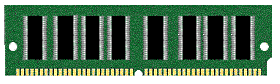
Figure 1: SIMM
Before SIMMs, most memory was installed directly on the motherboard with hardly any room for upgrade. Different types of SIMMs include: non-parity, parity, fast page, and EDO.
- Non-parity is raw memory for temporary storage and retrieval.
- Parity memory offers error-checking of the stored data to ensure that it does not change or become corrupted before it is used.
- Fast page increased memory performance by optimizing the paging function of memory.
- EDO further improved the performance of memory by allowing memory to be written to and read from simultaneously.
Speed
The speed for SIMMs is measured in nanoseconds (abbreviated 'ns' or 'nsec'), usually 15ns or less. Check your system documentation to determine RAM specifications for your system.
Information About DIMM Memory (SDRAM)
DIMMs (Dual Inline Memory Module) were the next major improvement in memory technology after SIMM. DIMMs feature 168 pins and offer 64-bit of bandwidth, eliminating the need for installing SIMM memory in pairs for Pentium systems. (Figure 1) DIMMs are 5.375" long and 1.5" high with 8 - 16 of the smaller TSOP (thin, small outline package) chips.
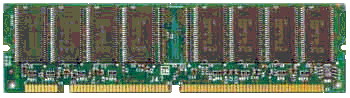
Figure 1: DIMM - 168 pin SDRAM.
SDRAM
DIMM later evolved to become SDRAM (Synchronous DRAM), which was a derivative of Synchronous Graphics RAM (SGRAM), a faster but expensive type of video card memory. SDRAM comes in ECC and non-ECC format. ECC memory is similar to parity in that it checks for and traps memory errors. ECC has the added capability of fixing small errors, allowing the system to continue, whereas parity memory stops the system when an error is discovered.
Speed
SDRAM was synchronized to the bus speed of the system's FSB (front-side bus), causing a 25% leap in performance. The speed is measured in frequency in megahertz (MHz). SDRAM is generally manufactured as PC100 or PC133 (100MHz and 133MHz, respectively). It is not a good idea to mix PC100 and PC133 SDRAM. Check your system documentation to determine the specifications for your system.
Information About RIMM Memory (RDRAM and CRIMM)
RIMMs (Rambus Inline Memory Module) briefly became the memory of choice on high-end systems in early 2000 (Figure 1).
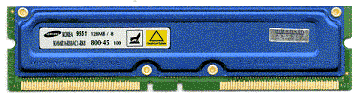
Figure 1: RIMM (Rambus Inline Memory Module) Developed by Rambus, Inc., this memory architecture (a.k.a. RDRAM) has the potential to exceed the performance of DRAM by up to 1000% but not until front side bus speeds reach 200+ MHz. In addition, RDRAM only works in systems designed for RDRAM.
There are two types of Rambus systems. Initially, systems shipped with a single-channel setup. Subsequent systems use a dual-channel configuration which is better optimized for faster performance. On dual-channel systems, two identical RIMMs per channel bank are required for best performance, but the system works with single or mixed configurations at reduced performance. RDRAM also comes in ECC and non-ECC format.
Unlike SDRAM, RDRAM operates on a serial circuit, so all memory slots must be filled for the memory to be accessible. If only one RIMM is used, then one or more other slots have to be populated with a CRIMM (Continuity Rambus Inline Memory Module), which is a module with no memory (Figure 2).

Figure 2: CRIMM
Speed
RDRAM speed is measured in megahertz, and Rambus is named according to the speed. Thus, the PC800 RDRAM runs at 800MHz. As with SDRAM, it is not a good idea to mix speeds of RDRAM.
Information About DDR SDRAM Memory
DDR SDRAM (Double Data Rate SDRAM) is an advanced memory technology (Figure 1). Like SDRAM, DDR was born out of the rapid advancements in graphics architecture, introduced with NVIDIA's first GeForce256 video card.
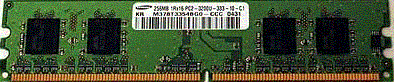
Figure 1: DIMM - 184-pin DDR-SDRAM
Unlike SDRAM, which performed its read/write functions on the rise of each system clock, DDR memory performs its read/write functions on both the rising and falling edge of each system clock, doubling the memory performance for another huge leap in overall performance.
Speed
The speed is measured in megahertz (MHz). DDR-DSRAM is available in a growing number of speeds ranging from 100 MHz or PC1600 up to 566 MHz, or PC4500 with possibly faster speeds eventually added over time.
DDR2 Memory Overview
What is DDR2 Memory?
- DDR2 SDRAM is a double data rate synchronous dynamic random-access memory interface. It supersedes the original DDR SDRAM specification and has itself been superseded by DDR3 SDRAM. DDR2 is not forward or backward compatible with either DDR or DDR3. (The modules are Keyed differently to prevent incorrect modules installed)
- DDR2 internal clock runs at half the DDR external clock rate, DDR2 memory operating at the same external data bus clock rate as DDR results in DDR2 being able to provide the same bandwidth but with higher latency. Alternatively, DDR2 memory operating at twice the external data bus clock rate as DDR may provide twice the bandwidth with the same latency. The best-rated DDR2 memory modules are at least twice as fast as the best-rated DDR memory modules.
DDR3 Memory Overview
What is DDR3 Memory?
- DDR3 continues the evolution in memory technology and provides several improvements to the existing DDR2 architecture. The primary benefit is an increase in I/O bus speed, operating at four times the speed of the memory modules it contains. DDR3 also allows for chip capacities from 512 MB to 8 GB. This allows for memory module sizes up to 16 GB.
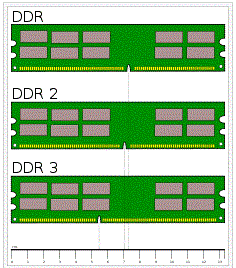
Figure 3: Comparison of memory modules for desktop PCs (DIMM).
Supported bus speed data:
- DDR2-400/533/667/800/1066
- DDR3-800/1066/1333/1600/1866/2133
Frequently asked Questions
Is RAM the Same as Computer Storage?
No. RAM and storage are different types of memory.
- RAM temporarily stores data that is actively being used by the system.
- Storage permanently retains data even when the computer is powered off.
- RAM is significantly faster than most storage devices but typically has a smaller capacity.
- Storage is designed to hold large amounts of data for long-term use
Does Adding More RAM Improve Computer Performance?
In many cases, adding more RAM can improve overall system performance. RAM allows your computer to keep more applications, files, and browser tabs readily available for the processor. When a system does not have enough memory, it may use storage as temporary memory, which is much slower and can reduce performance.
You may benefit from a RAM upgrade if you:
- Run multiple applications at the same time.
- Use content creation software such as photo or video editing applications.
- Work with large spreadsheets or databases.
- Experience slowdowns when switching between applications.
- Frequently use many browser tabs simultaneously.
While adding RAM can improve responsiveness and multitasking performance, it may not increase performance if your system already has sufficient memory for your workload. Other components, such as the processor and storage device, can also affect overall system performance.
Can I Install Any Type of RAM in My Dell Computer?
No. Dell computers are designed to support specific memory technologies, speeds, capacities, and module configurations. The type of memory supported by your system is determined by the motherboard and processor and is generally not interchangeable with other memory types.
For example, a system designed for DDR4 memory cannot use DDR3 or DDR5 memory modules because the modules are physically and electrically different. Memory modules are keyed to help prevent incorrect installation.
To determine the correct memory specifications for your Dell computer:
- Identify your Dell model.
- Review the system documentation or support specifications.
- Verify the supported memory type, speed, and maximum capacity before purchasing upgrades.
See these Dell Knowledge Base articles for related information:
- How to upgrade RAM (Memory) on your Dell computer?
- How RAM affect the performance of your Dell computer?