Dell Networking X 系列交換器 如何停用 telnet 和 HTTP
Summary: 如何在 Dell Networking X 系列交換器上停用 telnet 和 HTTP。
This article applies to
This article does not apply to
This article is not tied to any specific product.
Not all product versions are identified in this article.
Instructions
文章摘要:本文說明如何在 Dell Networking X 系列交換器上停用 telnet 和 HTTP。
停用 Telnet 和 HTTP 的步驟
1.登入 Dell Networking X 系列交換器的 Web UI。
2.按一下交換器管理管理>安全性>存取設定檔和規則>編輯 >新增

3.我們在此建立設定檔,以停用 Dell Networking X 系列交換器上的 Telnet 和 HTTP 存取。
4.在 新增存取設定檔和規則 視窗下,選擇一個設定檔名稱 (測試)。

5.選擇頁面底部的下拉式清單:適用於:執行中和啟動組態。然後按一下確定以儲存組態變更。
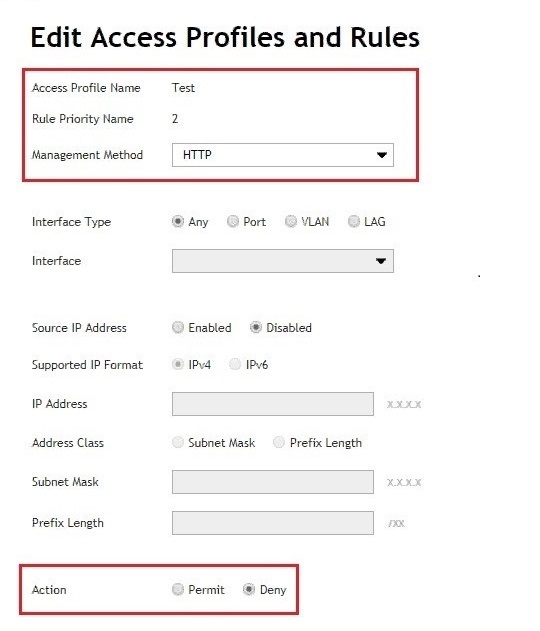
6.選擇頁面底部的下拉式清單:適用於:執行中和啟動組態。然後 按一下 確定以儲存組態變更。
7.在此,我們允許所有其他管理存取權。
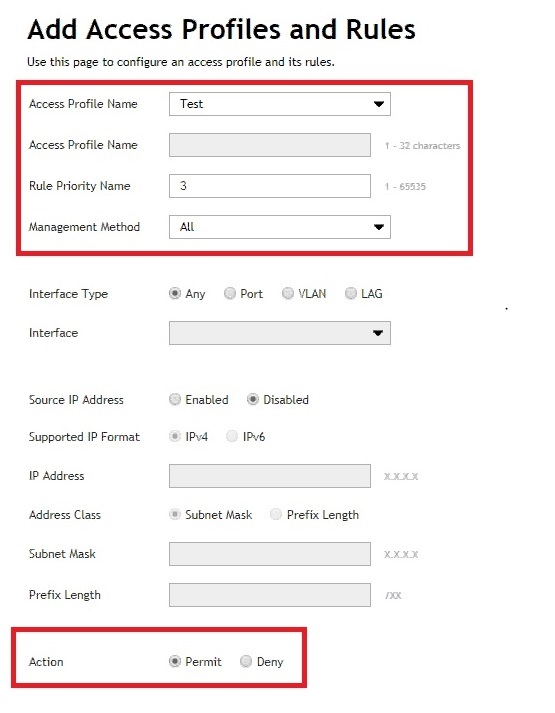
8.選擇頁面底部的下拉式清單:適用於:執行中和啟動組態。然後 按一下 確定以儲存組態變更。
9.按一下編輯存取設定檔與規則下方最右側的齒輪圖示。
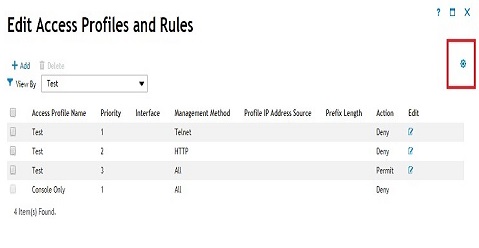
10.在存取設定檔設定視窗下,選擇建立的存取設定檔 (測試)。

11.選擇頁面底部的下拉式清單:適用於:執行中和啟動組態。然後 按一下 確定以儲存組態變更。
如何從 Web 管理 UI 頁面儲存
1.按一下畫面右上角的齒輪圖示。
2.按一下儲存至啟動組態。
Affected Products
Dell Networking X1000 Series, Dell Networking X4000 SeriesArticle Properties
Article Number: 000120103
Article Type: How To
Last Modified: 03 Mar 2025
Version: 4
Find answers to your questions from other Dell users
Support Services
Check if your device is covered by Support Services.