E2E接続 - デバイス データをA1に手動でエクスポートする方法
Summary: 概要: 再導入の場合、SCG UIにアクセスできず、[Device Management]ページからデバイス データをエクスポートできない場合があります。ただし、デバイス データは、CLIから以下に説明するプロセスを使用して手動でエクスポートできます
This article applies to
This article does not apply to
This article is not tied to any specific product.
Not all product versions are identified in this article.
Instructions
手順:
- SSHクライアント(PuTTYなど)を使用して、root認証情報でSCGにログインします。
- 次のコマンドを実行して、デバイス リストにアクセスします。
-
docker exec -it esrsde-app bash
psql -d vapp -U postgres
 select * from device_management;
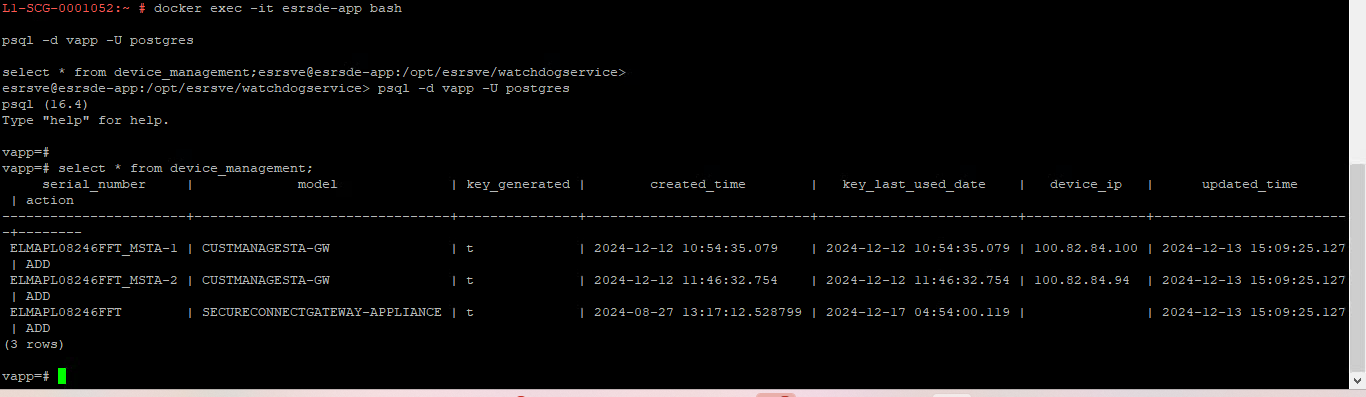
- 次のコマンドを実行して、デバイス リストをにエクスポートします。CSVファイル:
-
COPY device_management TO '/tmp/devices.csv' DELIMITER ',' CSV HEADER;
exit
exit
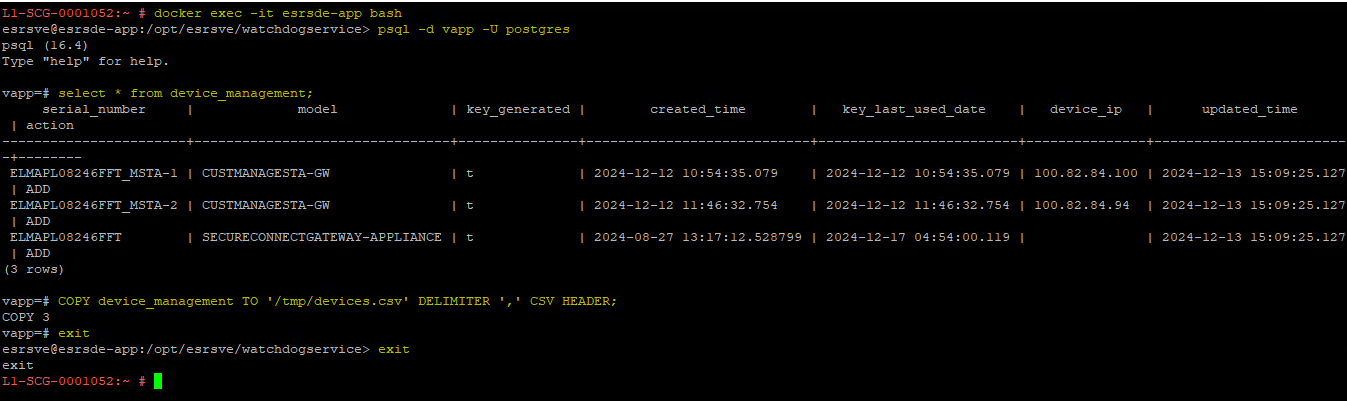
- これで、デバイス データが .devices.csvという名前のCSVファイル。Dockerコンテナー内でこのファイルを見つけるには、次のコマンドを実行します。
-
find /var -type f -iname devices.csv

- 前のコマンドから返されたファイル パスをコピーします。次に、ファイル転送クライアント(WinSCPやFileZillaなど)を使用してSCGに接続します。アドレス バーにファイル パスを貼り付けるか、WinSCPの[Open Directory]オプションを使用します。
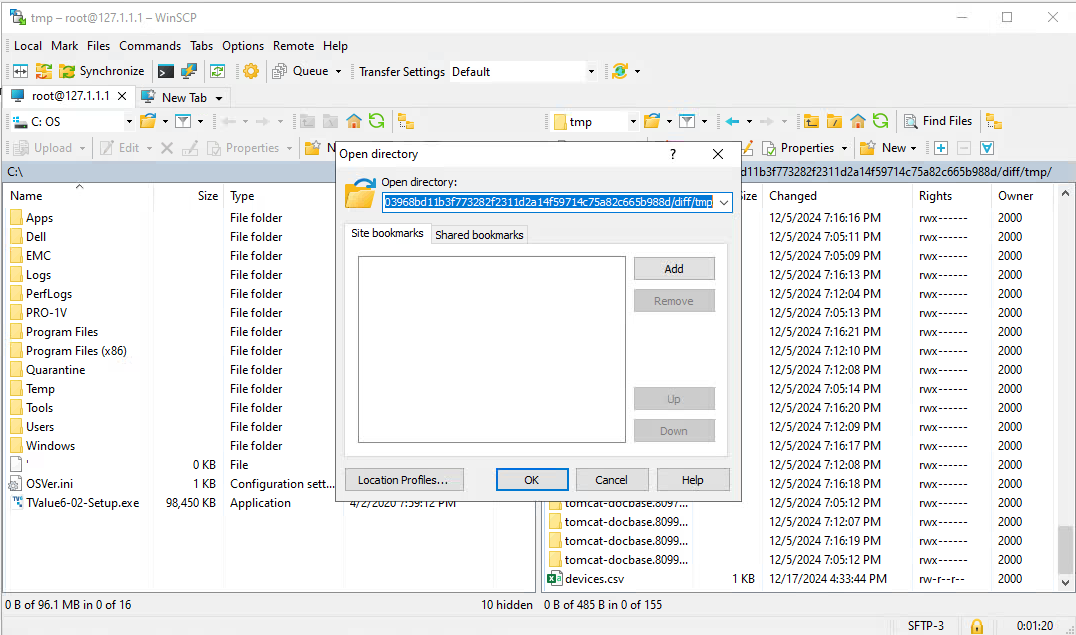
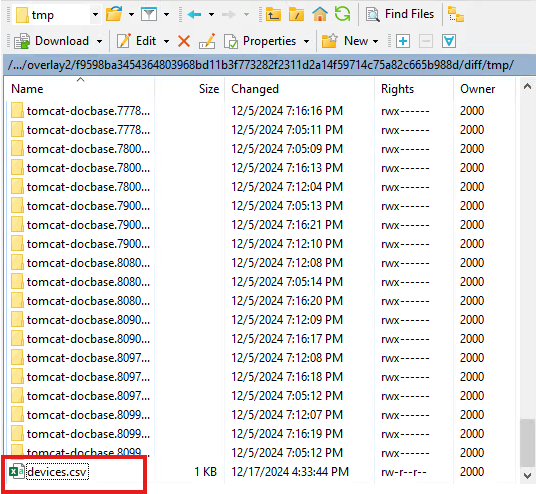
- devices.csvファイルを見つけて、ローカルマシンにコピーします。
Affected Products
Secure Connect Gateway - Virtual EditionArticle Properties
Article Number: 000273682
Article Type: How To
Last Modified: 29 Mar 2025
Version: 2
Find answers to your questions from other Dell users
Support Services
Check if your device is covered by Support Services.