NVP-vProxy: How to Configure Concurrent Virtual Machine Disk (VMDK) Backups
Summary: This article provides information about configuring concurrent disk backups for NetWorker VMware Protection (NVP).
Instructions
By default, the NetWorker VMware Protection (NVP) vProxy appliance performs sequential Virtual Machine Disk (VMDK) backups. If a Virtual Machine (VM) contains multiple disks, the disks are backed up one at a time until the VM's backup session completes. The backup action can be configured to perform "concurrent VMDK" backups. This means that if there are available Hot Add or Network Block Device (NBD) sessions, a VM containing multiple disks can backup multiple VMDKs simultaneously.
Considerations:
Parallelism capabilities are determined through the configured vProxy HotAdd and NBD sessions:
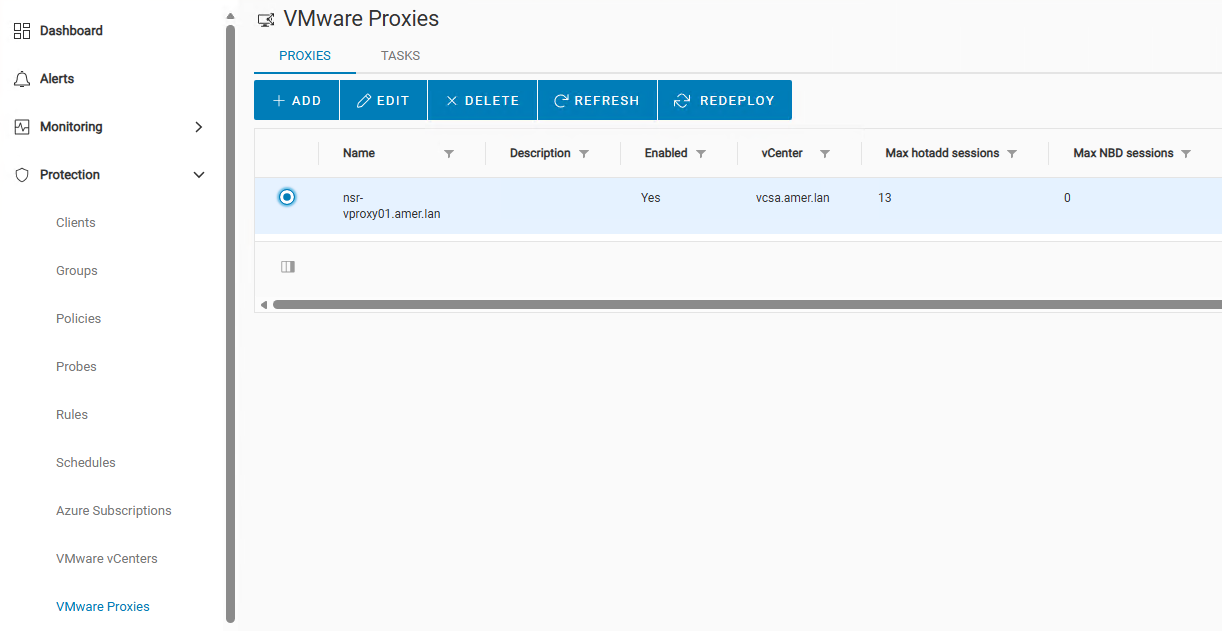
Figure 1: Parallelism Capabilities Screen
- When the Concurrent VMDKs Backup setting is enabled, the vProxy appliance must be configured with a minimum of two sessions, this is considered as the Threshold Parallelism.
- If the wanted number of sessions is not available, the parallelism count is recursively decreased by one, until the HotAdd NBD sessions become available.
- Max Parallelism default is 12, because the recommended (default) value of HotAdd sessions for vProxy is 13.
Process:
- Connect to the NetWorker server through the NetWorker Web User Interface (NWUI):
https://NWUI_SERVER_ADDRESS:9090/nwui
- Create a Protection Policy from Protection > Policies.
- Under the newly created Policy, create Workflow.
- Under the newly created workflow, create a new VMware Protection Group, or assign a previously configured (but unassigned) group.
- Create the backup action.
- Check the Concurrent VMDKs Backup checkbox:
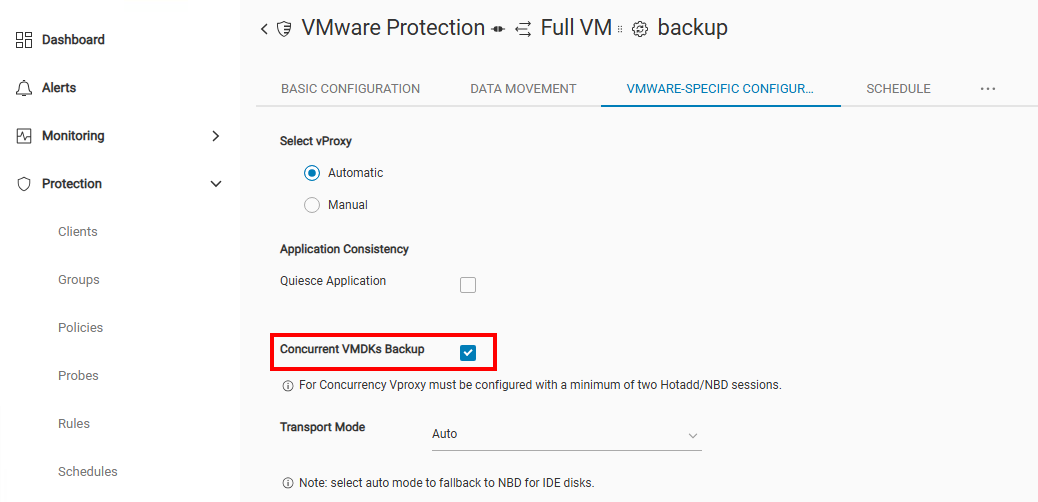
Figure 2: Check the Concurrent VMDKs Backup checkbox:
- Optionally, define the Transport Mode.
- Auto (Default): HotAdd is requested, but the falls back to Network Block Device (NBD) if the VM files are not accessible through HotAdd or the VM does not support HotAdd. In order for this to function, the vProxies must also have NBD sessions enabled; otherwise, fallback to NBD is impossible.
- HotAdd: Only request HotAdd, do not fall back to NBD. If a VM is not HotAdd accessible or does not support HotAdd, the backup fails. There must be vProxies with HotAdd sessions enabled.
- NBD or NBDSSL: Only request NBD sessions. NBDSSL uses Secure Socket Layer (SSL). There must be vProxies with NBD sessions enabled (and Encrypt NBD when using NBDSSL option).
NOTE: For more information, see the NetWorker VMware Integration Guide, available through: Support for NetWorker | Manuals & Documents (You must sign in with your Dell support account).
- Complete the backup action configuration.
- Perform VM backups.
Command Line:
The command nsrvproxy_save backup session-related changes with an additional -k attribute are added in the CLI which triggers the parallelism.
The best vProxy for a backup is selected based on the number of VM disks and available HotAdd NBD sessions on the vProxies at selection time.
Syntax:
nsrvproxy_save -p PolicyName -w WorkflowName -A ActionName [ -s NetworkerServerName ] [ -V vProxy ] [ -j Jobid ] [ -l LogDirectory ] [ -L Level ] -k

Example:
nsrvproxy_save -p Gold -w VMware -A backup -L Incr -k
-l argument is specified.
- Linux:
/nsr/logs/policy/PolicyName/WorkflowName/ActionName - Windows:
C:\Program Files\EMC NetWorker\nsr\logs\policy\PolicyName\WorkflowName\ActionName
Additional Information
Related information: